I accidentally moved my Outlook PST file while cleaning up folders on my PC, and now Outlook can’t find it. I’ve searched common locations but still can’t locate the file or restore my emails. I need help figuring out how to recover a lost PST file and reconnect it in Outlook without losing important messages.
I hit this once after cleaning out old folders, and Outlook threw the lovely “file cannot be found” message. In my case, the missing piece was a deleted PST. It tends to happen when you remove stuff from Downloads, Documents, or the Outlook Files folder without noticing one file was still tied to Outlook.
First thing, stop poking around the PC more than you need to. When Windows deletes a file, it often only marks the space as free. If you keep using the drive, you raise the odds of overwriting the old PST. I learned this the annoyng way.
Work Through It in This Order
1. Check the obvious stuff first
Open the Recycle Bin. If the PST was deleted the normal way, it might still be there. If you used Shift+Delete, then no luck there.
After that, look at any sync or backup service tied to your user folders. If Documents was linked to OneDrive, Dropbox, or something similar, sign in through the browser and inspect deleted items or version history. I’ve seen OneDrive save people here when the local copy was gone.
2. Look for older Windows folder snapshots
Sometimes Windows kept a prior copy of the folder through File History, restore points, or shadow copies.
Go to the folder where the PST used to live. Common spot:
C:\Users\YourName\Documents\Outlook Files
Right-click the folder, pick “Restore previous versions.” If you see a version from before the file vanished, open it and copy the PST somewhere safe before doing anything else.
3. Run recovery software if the file is gone gone
If it is not in Recycle Bin and Windows has no previous version listed, file recovery is the next move.
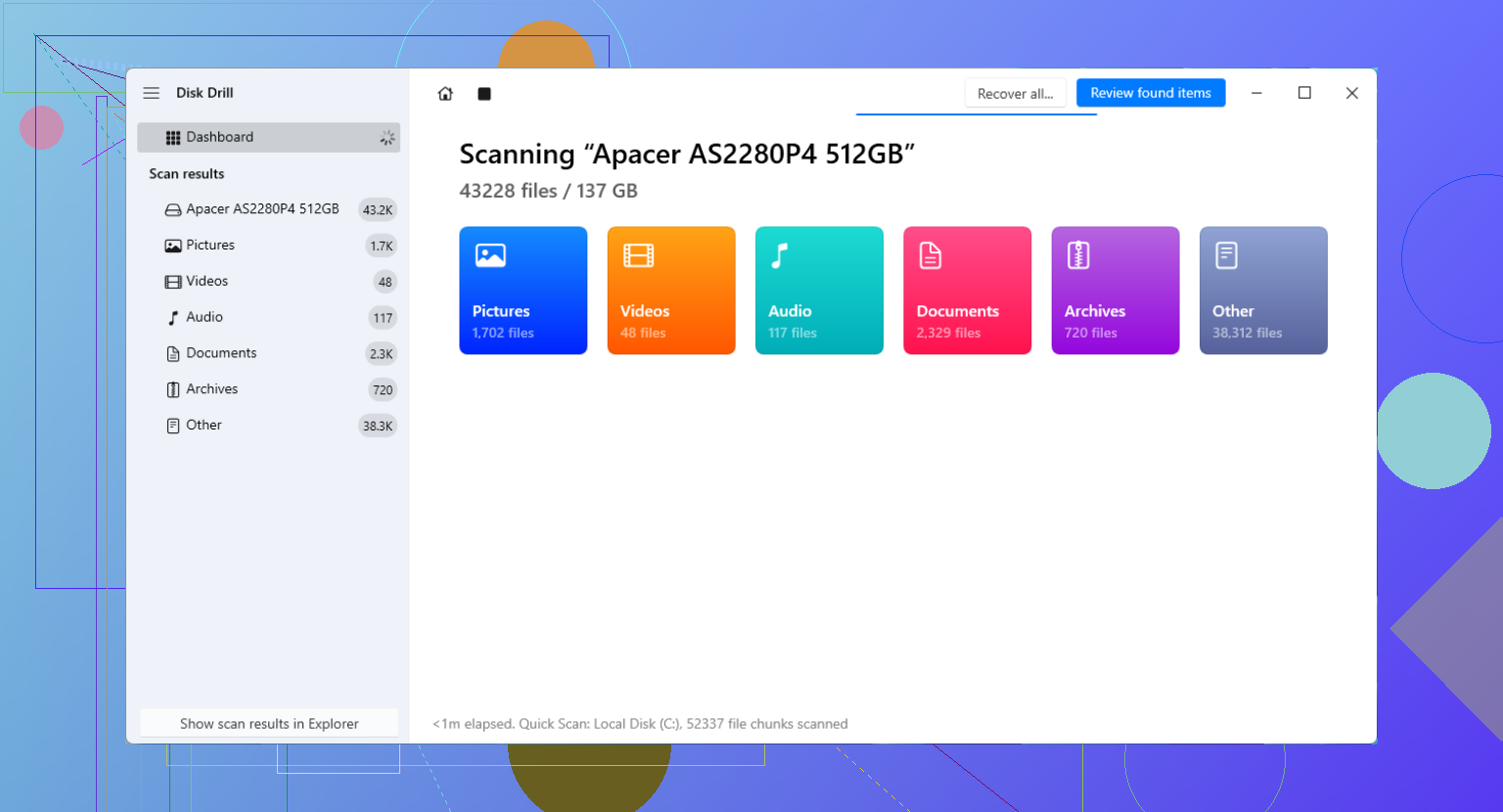
I’ve seen people use Disk Drill for this because it scans for files Windows no longer shows. One thing matters a lot here. Try not to install the recovery app onto the same drive where the PST was deleted.
What I’d do:
Install the recovery tool on another drive, a USB stick, or an external disk if you have one.
Scan your Windows drive, usually C:.
Filter or search for PST files.
Check file sizes. A fresh empty PST is often tiny, a few hundred KB or so. The real one is often hundreds of MB, sometimes multiple GB.
Recover the larger PST to a different location, like an external drive or the Desktop.
4. Watch out for Outlook making a blank replacement file
Outlook often reacts to a missing PST by building a new empty data file. Then it opens, looks normal at first glance, and all your old folders are missing. That part fools people.
After you recover the old PST, load it by hand:
File > Open & Export > Open Outlook Data File
Pick the recovered PST. If the old messages and folders show up in the left pane, you found the right one. Once you confirm the contents are there, go into Account Settings and switch it back as the default data file if needed.
5. If the account used IMAP, your mail might still be online
This part changes the stakes a bit. If the account was IMAP, your inbox and synced folders were often still on the mail server. Adding the account back to Outlook creates a new OST and pulls mail down again.
The part worth worrying about is local-only data. Old archives, imported mail, personal folders, and anything you kept outside server sync often lived only inside the deleted PST. That’s where the recovery scan matters most.
After You Recover It
Back up the PST somewhere outside the PC. External drive, cloud backup, scheduled copy, whatever you trust enough to remember next month. PST files get ignored until one disappears, then you find out how much history was sitting in one file.
If your recovery scan shows a big PST among the results, start with that one first. Small ones are often the blank replacements Outlook made later.
Start with Outlook itself. People skip this.
Go to Control Panel, then Mail, then Data Files. If Outlook still shows the old Outlook email archive file path, copy the full path. Then use Windows Search with part of the file name, not only .pst. Search hidden items too. A moved file often sits in a random folder you forgot you touched.
I differ a bit from @mikeappsreviewer on one point. Don’t assume deletion first. If you moved it by accident, the fastest fix is often relinking Outlook, not recovery.
Also check Recent Files in File Explorer. Type kind:=document pst in search if indexing is on. It sounds dumb, but it works more often than pepole admit.
If search fails, use command prompt:
dir C:*.pst /s /a
That scans the drive for every Outlook data file. Slow, but effective.
If you find it, open Outlook, File, Account Settings, Data Files, Add, then point Outlook to it.
If you do not find it, then move to recovery software. Disk Drill is a solid pick for Outlook PST recovery because it filters by file type and shows file size, which helps spot your real mail archive instead of a blank replacement.
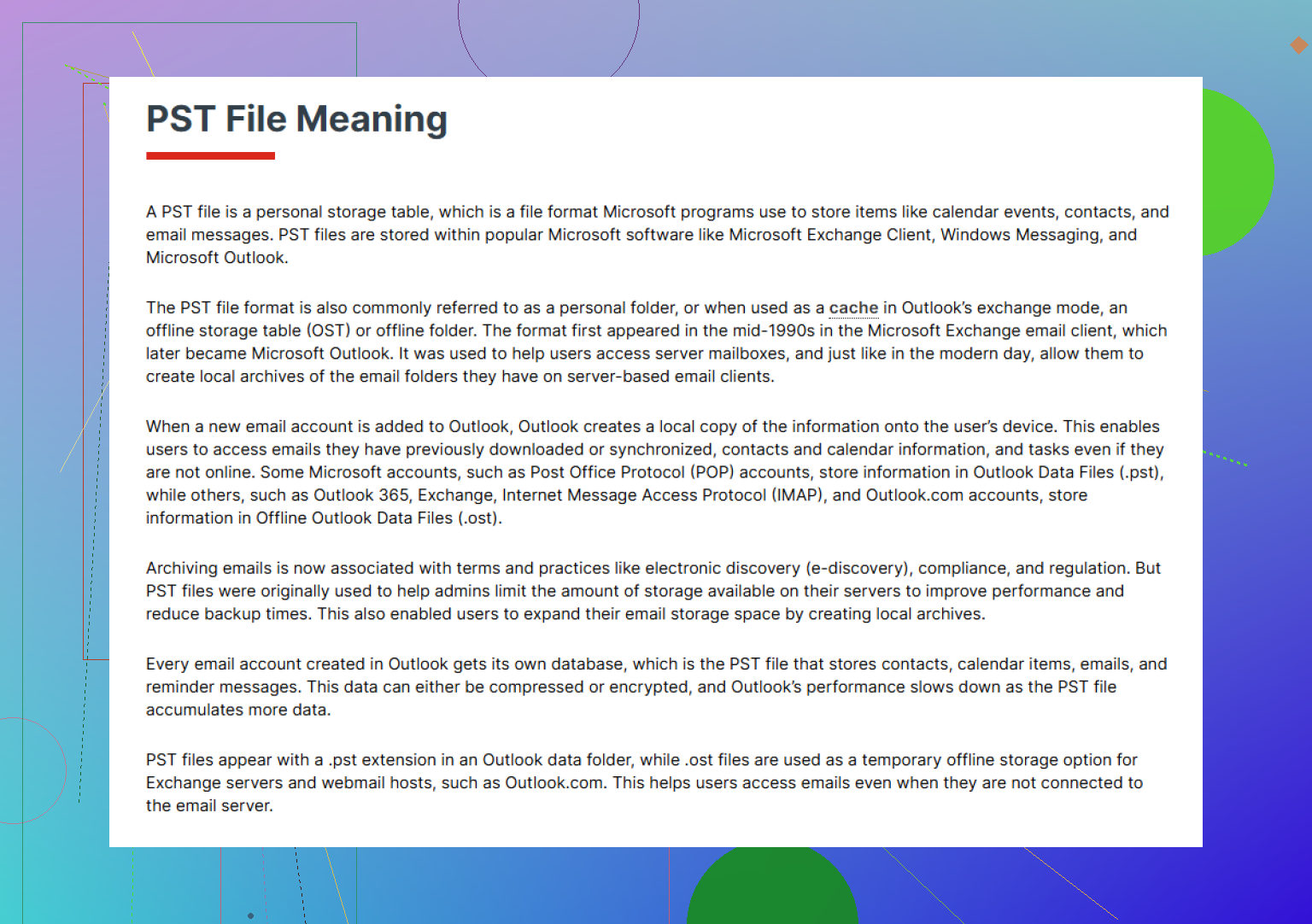
Also worth reading what an Outlook PST file does for email storage and archives is, if you need to confirm you’re hunting the right file.
One more thing. If your account was POP, the lost Outlook data file matters a lot more. If it was IMAP or Microsoft 365, mail often still exists on the server, but local folders, old exports, and archived mail do not. That part trips people up.
One angle I’d add that @mikeappsreviewer and @jeff only kinda touched on: check whether Outlook is opening the wrong profile, not just missing the file. I’ve seen Outlook act like the PST vanished when Windows update or Office repair quietly made a fresh profile with a blank data file.
Do this:
- Control Panel > Mail > Show Profiles
- see if there’s an older profile listed
- open each profile’s Data Files tab and note the exact PST names
Also, search by file size, not only name. If your old PST was 2.4 GB and all you’re finding are 265 KB files, that’s not your mail, that’s Outlook making a useless replacement. Annoying, but common.
Another thing people miss: if you “moved” it between drives, check free space changes. If D: suddenly gained 3 GB and C: lost 3 GB before this started, the file probly exists somewhere on D:. That sounds obvious, but it helps narrow the hunt fast.
If the file was damaged during the move, run Microsoft’s Inbox Repair Tool, scanpst.exe, before assuming it’s dead. Search Windows for scanpst.exe, then point it at the recovered PST.
If the file is truly gone, then yeah, Disk Drill makes sense for Outlook PST recovery, especially when you need to sort real archives from tiny junk files by size and type. If you want user feedback first, check real Disk Drill user reviews and recovery experiences.
One small disagreement with @jeff: Windows search can miss PSTs if indexing was off or the folder got excluded, so I wouldn’t trust search alone. Use profile checks, drive size clues, and then recovery if needed. If it was a POP account, I’d move fast becuase that local file may be the whole mailbox.