Installed AI Cleaner to speed up my PC, but now I’m seeing odd behavior like slower startup times and a few apps crashing. Before I uninstall it, I’d like to hear real user experiences: have you had problems after installing AI Cleaner, or did it actually help your system performance and stability?
AI Cleaner: Clean UP Storage – my experience vs Clever Cleaner
AI Cleaner review
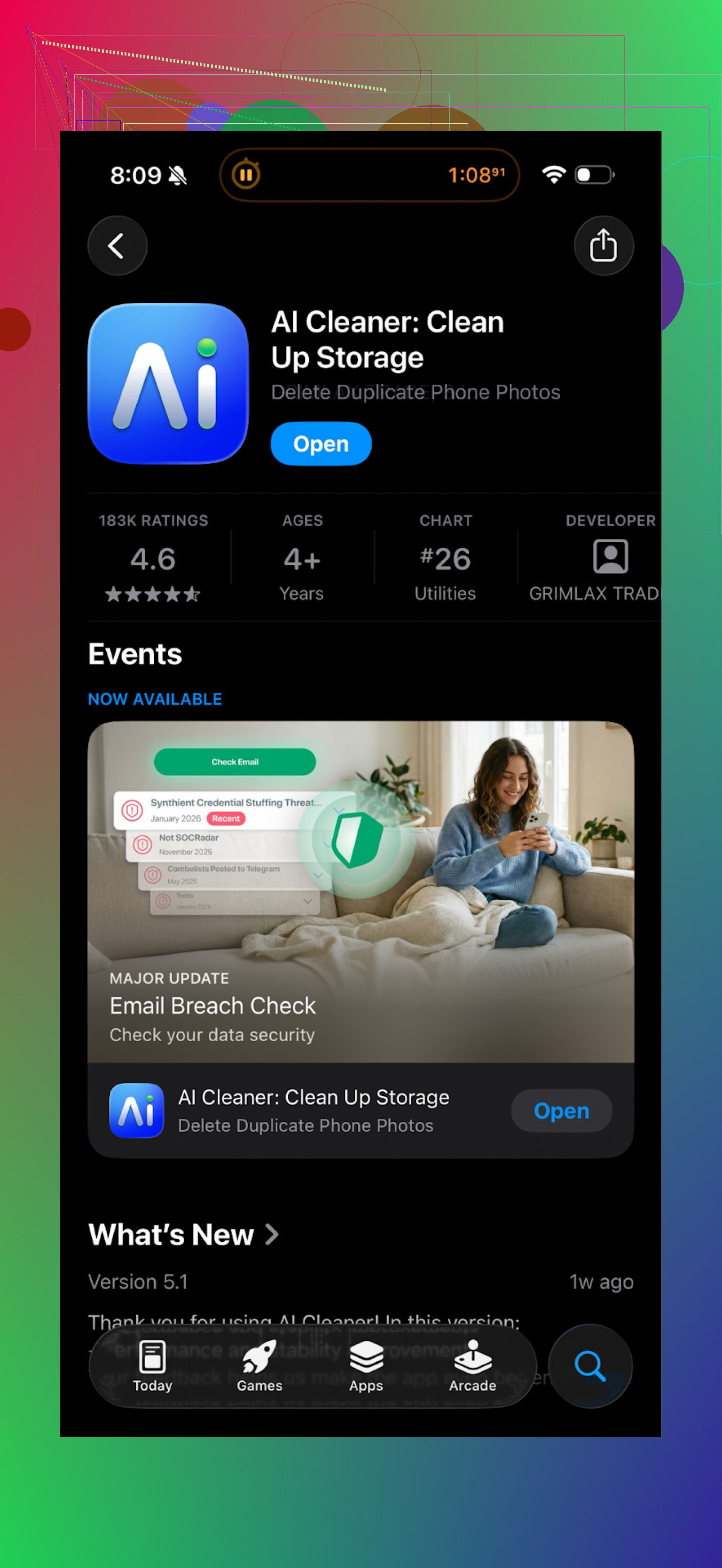
I gave “AI Cleaner: Clean UP Storage” a shot on my iPhone when I was trying to free up space after my storage hit that annoying “almost full” warning.
My quick notes after a couple of days:
-
Paywall situation
- The initial scan looked good. It listed duplicates, similar photos, videos, cache, all the usual stuff.
- The moment I tried to run any action that looked useful, I hit a paywall.
- It nagged for a subscription again and again when I tried deleting in batches. Single-file deletions felt like bait to get you to upgrade.
-
“AI” detection accuracy
- It marked some photos as “duplicates” that were clearly different.
Example: two photos from the same place, shot a few seconds apart, different poses, grouped as duplicates. - For similar screenshots or photos with tiny changes, it was okay, but I had to triple check before deleting anything.
- I did not trust it to auto-delete.
- It marked some photos as “duplicates” that were clearly different.
-
UX problems that bothered me
- Too many upsell prompts while doing basic tasks.
- The app looked polished, but the constant push to subscribe slowed me down.
- After 10 minutes of trying to clean a few hundred photos, I felt like I was fighting the app instead of cleaning my phone.
Here is a snapshot of real user reviews from the store:
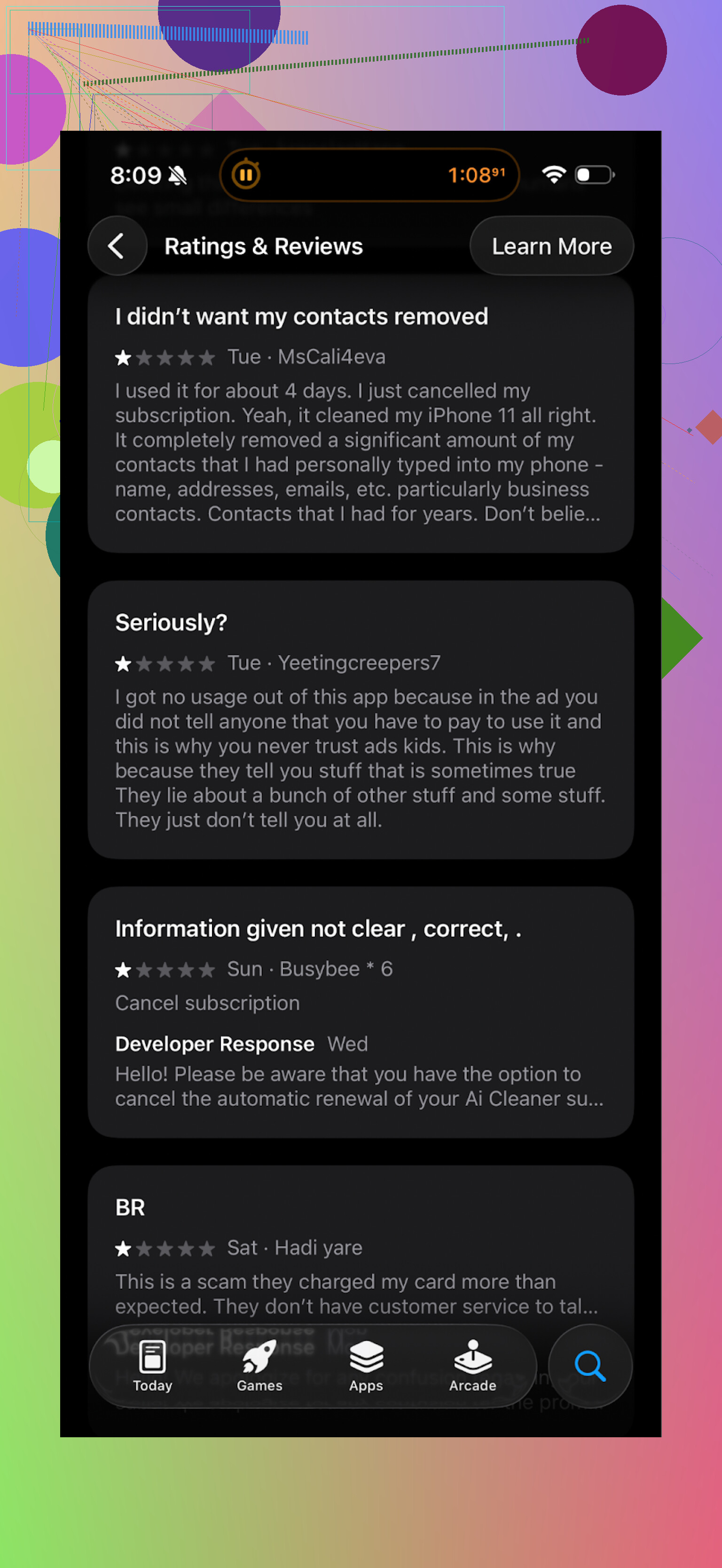
So after that, I ditched it and tried something else.
Clever Cleaner: what worked better for me
I moved to Clever Cleaner mainly because I wanted something that did not nag for money every two taps.
App link:
My experience with Clever Cleaner
-
Price and paywalls
- Features were open out of the box.
- I did not hit any surprise paywalls while doing basic cleanup.
- No full-screen ads popping up mid-clean.
-
What it detected on my phone
- It picked up:
• Duplicate and similar photos
• Old screenshots I forgot existed
• Large files and videos that were eating storage - I ran a full scan on a 256 GB iPhone with about 30k photos. Scan finished quicker than I expected and sorting by category made sense.
- It picked up:
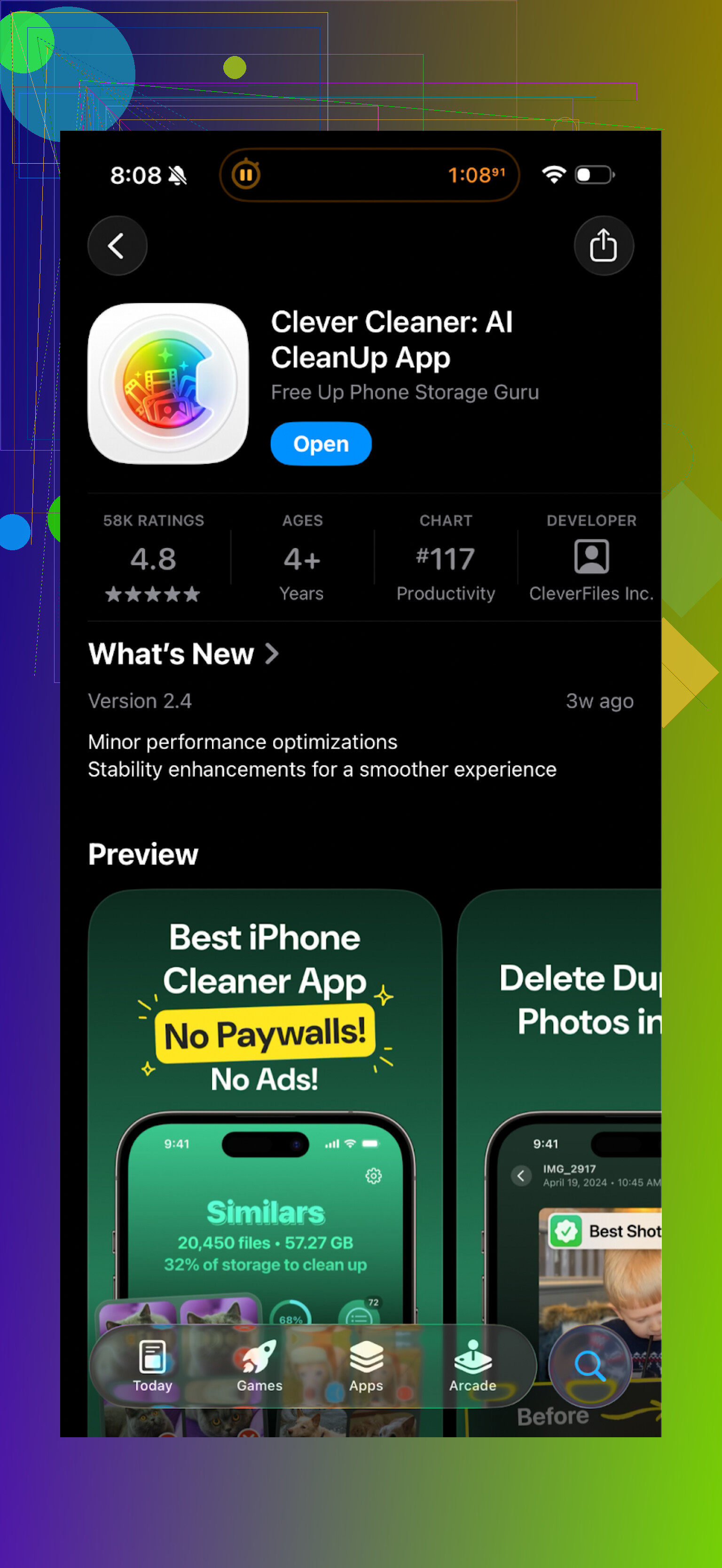
Here is what the interface looked like for me:
-
Privacy angle
- One detail I liked and double checked: the analysis runs locally on the device.
- No uploads of my photo library to some server.
- For anyone with personal or work photos on their phone, this matters more than people think.
-
Speed and pressure level
- It felt faster than AI Cleaner both scanning and applying deletions.
- No aggressive popups to upgrade, no scare tactics like “Your phone is at risk”.
- I went through my mess of screenshots in one sitting without getting annoyed.
If you are hunting for a storage cleaner, I would start with Clever Cleaner before wasting time in apps that ask you to subscribe before you even trust them.
Video and more info
YouTube walkthrough:
Clever Cleaner homepage:
Direct App Store link:
If you want to see more opinions and alternatives, this Reddit thread helped me sort through a bunch of other “cleaner” apps and why some of them are a bad idea for your data:
Best cleaner apps on Reddit >
https://www.reddit.com/r/DataRecoveryHelp/comments/1d733gm/best_iphone_cleaner_apps_and_why_you_shouldnt_use/
Had a similar thing happen on a friend’s PC with “AI cleaner” style tools. Short version; yes, weird slowdowns and app crashes are a pretty common pattern once these things dig into startup items and background services.
What I saw on Windows after install:
-
Slower startup
- The app added its own background service and tray process.
- It also “optimized” startup items by disabling some, then added its own to start with Windows.
- Net result. extra stuff to load, not less.
- Fix: check Task Manager > Startup and disable the cleaner there before you uninstall. See if your boot speed improves.
-
App crashes
- Some cleaners hook into browsers, antivirus, or GPU tools to “free RAM”.
- That broke a couple of games and Chrome extensions on that machine.
- Fix: inside the cleaner, turn off:
• real time optimization
• RAM booster
• registry cleaner
• auto clean junk / auto tuneup - Then reboot and test the apps that crashed. If they behave again, the cleaner was the trigger.
-
Registry “optimization”
- These tools like to delete “invalid” registry keys.
- If it touched anything related to drivers or system components, you get random instability.
- If you have a restore point from before install, I would restore. If not, at least run:
• sfc /scannow
• DISM /Online /Cleanup-Image /RestoreHealth
from an elevated Command Prompt to repair damaged system files.
-
Network and privacy angle
- Some of them run telemetry and periodic update checks in the background.
- On weak hardware or HDDs, that alone slows things down.
- You can check with Resource Monitor or Process Explorer to see if it is hitting disk or network a lot.
Where I slightly disagree with @mikeappsreviewer is on the “all AI cleaners are bad” vibe. On phones, yeah, most of the “AI Cleaner” apps are paywall machines. On desktop, the problem is more aggressive features, not only the payment model.
Practical steps for you, in order:
-
Disable it without uninstalling yet
- In the cleaner’s own settings, turn off auto start, auto clean, schedule tasks.
- In Task Manager > Startup, disable its entries.
- Reboot and see if:
• startup time goes back to normal
• crashes reduce
-
Check if it installed extra things
- Look in Programs and Features for companion drivers, services, or toolbars.
- Some installers drop “performance service” or similar. Remove those too.
-
Then uninstall
- Use its built in uninstaller first.
- After uninstall, check:
• Task Scheduler for any leftover tasks with its name
• Program Files and ProgramData for leftover folders - Delete only folders that clearly belong to it.
-
Run a malware scan
- Quick scan with Windows Defender.
- If stuff still feels off, a second opinion scan with something like Malwarebytes is useful.
If your goal is disk cleanup and app tidy, I would avoid heavy “AI speedup” tools on PC. Native tools are safer:
- Storage Sense in Windows settings
- Built in Disk Cleanup
- Task Manager for startup control
- Settings > Apps to remove bloat
If this whole thing started from wanting something similar to what people try on phones, and you later want to clean an iPhone or iPad, look at something like the Clever Cleaner App. It focuses on storage cleanup, not messing with system behavior, and you avoid a lot of the aggressive “optimizer” tricks that cause the problems you see now.
If after all that the PC is still slow on startup and apps still crash, then I would check:
- Event Viewer > Windows Logs > System and Application for repeated errors
- Driver updates for GPU and storage
- HDD health with something like CrystalDiskInfo, since cleaner disk thrash sometimes exposes existing disk issues.
From your description, odds are high the AI cleaner is at least part of the issue, so testing with it fully disabled then removed is the fastest way to confirm.
Yeah, I’ve had “AI cleaner” tools do that exact combo: slower boot + random crashes. On my rig it wasn’t an instant disaster, more like death by a thousand “optimizations.”
Couple of things I’ve seen after install:
-
They hook into too much stuff
RAM boosters, browser hooks, “game mode,” registry tweaks, scheduled scans. Each one sounds great on the label, but stack them together and your system is juggling a bunch of background tasks that weren’t there before. Result: longer startup, more context switching, occasional app faceplants. -
Aggressive “cleanup” of shared components
One I tried happily flagged shared DLLs and temp data used by legit apps as “junk.” Looked harmless, I clicked clean, suddenly a couple of games and a backup tool started crashing. Reinstalling the affected apps fixed it, but it was 100% self‑inflicted. -
Constant background checking
A lot of these tools run periodic scans, update checks, “health monitoring.” On SSD + strong CPU it’s annoying but tolerable; on slower hardware it absolutely drags startup and first‑few‑minutes performance.
Where I partly disagree with @mikeappsreviewer and kind of align with @sonhadordobosque: I don’t think every cleaner is a scam, but the ones mixing “AI speedup,” registry tweaks, RAM boosters, and system services are usually more trouble than they’re worth. The extra moving parts are exactly what you’re feeling now.
Since they already covered how to disable and uninstall step by step, I’d look at it slightly differently:
-
Treat your current install as untrusted
If a tool has already messed with startup items, services, and maybe the registry, I assume the system state is “polluted.” I’d absolutely plan to remove it, not just leave it disabled. -
Watch for delayed fallout
Don’t just look at startup. Over the next day or two, notice if anything is:
• randomly freezing for a second while idle
• taking way longer to open than it used to
• throwing “file missing” or “component not found” type errors
That’s the kind of subtle breakage I’ve seen after these “cleanups.” -
Reinstall any app that keeps crashing
If a couple of specific apps are still flaky after you’re done with the cleaner, just reinstall those apps. It’s usually faster than hunting the exact setting or key it nuked.
Personally, I stopped using “AI speedup” tools on desktop completely. I stick to built‑ins and a basic AV, and that’s it. When I want to clean storage on my phone, I go more the @sonhadordobosque route: a focused tool that just handles photos, junk, and large files and doesn’t mess with system behavior. The Clever Cleaner App is a decent example of that type of thing: it does storage cleanup, not system voodoo, which is really what most people are actually after.
If your issues started right after installing AI Cleaner and you’re seeing slower boot plus crashes, I’d treat that as a big red flag. Test with it completely gone. If the weirdness improves, you’ve got your answer, and I wouldn’t bother giving it a second chance.
Yeah, what you are seeing after installing that AI cleaner on your PC is very much in line with what those tools usually do once they start “optimizing.” I agree with @sonhadordobosque, @cazadordeestrellas and @mikeappsreviewer that the pattern is: extra background hooks, risky “cleanup,” a bit of registry roulette, then random instability. Where I slightly differ is that I do not think it is worth investing a lot of time tuning that specific cleaner. Once it has changed core behavior and you already see crashes, I treat it as a failed experiment and plan for life after it, not with it.
What often gets missed in these threads is checking what the cleaner changed at the policy level and in permission land. Some of them silently tweak Windows power plans, visual effects and even background app permissions to claim “performance gains.” That kind of tweak does not just slow boot, it can cause weird behavior like notifications not showing, apps being suspended too aggressively, or GPU control panels not loading at logon. If those kinds of annoyances started around the same time, it is probably the same culprit.
I also do not fully buy the idea that “just” using built in tools is always enough for everyone. If you are not the type that wants to micromanage photos, videos and miscellaneous junk by hand, a focused cleaner on your phone or tablet can save real time, as long as it does not try to run your whole system. On desktop though, things that claim AI speedups, registry boosts and RAM miracles tend to be more risk than reward, especially once they install services and scheduled tasks.
On the mobile side, the AI Cleaner: Clean UP Storage app is basically a good example of the wrong approach: heavy subscription pressure, a bit too confident about “duplicate” detection and lots of friction for basic cleanup. The interface looks polished, but paying just to delete your own files at scale feels backwards. That is where something like the Clever Cleaner App makes more sense. It focuses on storage cleanup (duplicate and similar photos, large files, screenshots) and leaves system behavior alone, which is exactly what your PC cleaner failed to do.
Clever Cleaner App pros:
- Local analysis on device, so your photos are not being uploaded around.
- No constant paywall nagging for simple actions.
- Fast scanning on large photo libraries and clear grouping of findings.
- Stays in its lane: cleans storage instead of messing with performance knobs.
Clever Cleaner App cons:
- You still need to review what it finds, especially “similar” photos, so it is not 1 tap and done.
- It will not magically speed up the device itself, only free space, so expectations need to stay reasonable.
- If you are extremely minimal already, you might not get huge gains after the first few runs.
Where @sonhadordobosque and @cazadordeestrellas are right is in pointing you toward more restrained tools and built in options. Where I part ways a bit with @mikeappsreviewer is that I do not see all “cleaners” as inherently bad, just the ones that try to be a whole performance suite on desktop. In your situation, I would cut your losses with the AI cleaner, accept that a little cleanup plus some app reinstalls might be needed, and if you still want help tidying storage on mobile, lean on something like the Clever Cleaner App rather than another aggressive “optimizer.”