My external SSD suddenly shows up as RAW instead of NTFS, and Windows is asking me to format it before I can open it. It has important files on it, so I’m trying to find a safe way to convert the RAW drive back to NTFS without losing data. Has anyone dealt with this before or found a reliable recovery method?
If a drive suddenly shows up as RAW, I would not convert it to NTFS first. I made this mistake once on an old external drive, and it cut down what I was able to pull off it.
Windows throws the format prompt because it no longer reads the file system. It does not mean your files are gone. A lot of the time, the partition still exists and the data is sitting there, but NTFS got damaged enough for Windows to stop understanding it.
Recover first. Fix later.
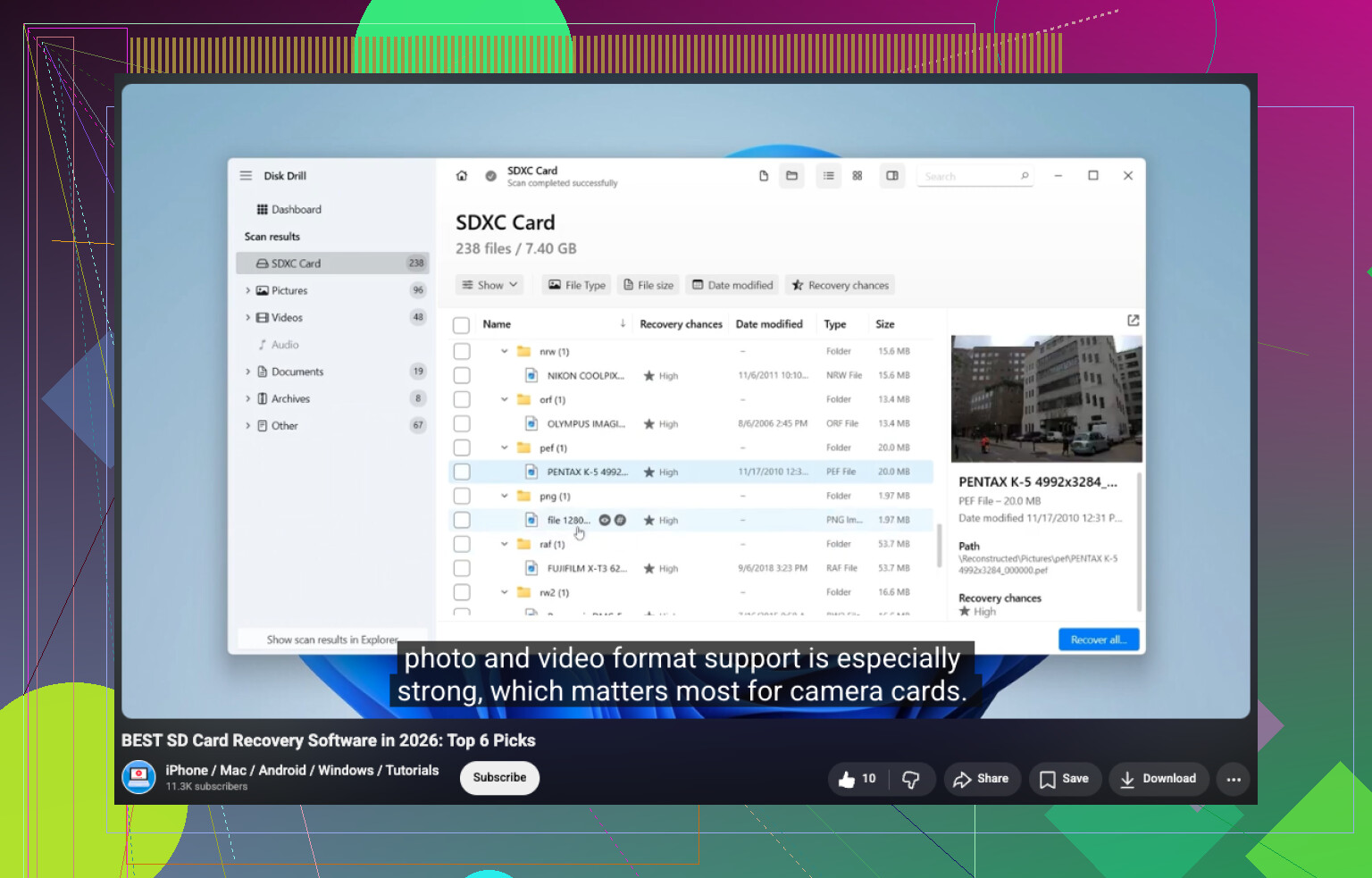
If the drive still shows the expected size, I’d start with a scan before touching anything else. Disk Drill is one of the simpler options for this kind of case. It tends to spot RAW volumes on its own and runs a few recovery methods in one pass, which saves time. Pick the RAW drive, run the scan, wait it out, then look through the results.
What I liked here was the preview step. You can open photos, documents, videos, and check whether the files still make sense before you recover them. If you do recover anything, put it on another disk. Don’t write it back to the RAW one. I know this sounds obvoius, but people still do it.
If the first scan misses stuff, I’d compare with other tools before changing the drive. UFS Explorer has pulled files for me in cases where other apps came up short. DiskGenius is worth a look too, especially if the issue is tied to a damaged partition layout and not only lost files. Side by side results help more than guessing.
Once your important files are copied somewhere safe, then deal with the RAW partition itself. What you do next depends on the cause.
- Format it to NTFS if your only goal is to make the drive usable again.
- Restore the partition if the partition table got messed up and the data still seems present.
- Run CHKDSK after recovery only if this looks like light NTFS corruption. It repairs file system issues. It is not a recovery tool.
- Replace the drive if SMART errors, bad sectors, or repeated read failures keep showing up. At that point I’d stop trusting the hardware.
The big thing I would avoid is running repair commands right away. Every write to a damaged file system raises the risk a bit. Pull your data off first. After that, repair, reformat, or retire the drive.
Do not convert it first. RAW is a symptom, not the fix.
I agree with @mikeappsreviewer on the main part, recover first. Where I differ is I would also check the enclosure, cable, and port before running heavy scans. External SSDs often go RAW from bad USB communication, not only file system damage. I’ve seen a drive read as RAW on one port, then mount fine on another PC. Sounds dumb, but it happens.
My order would be:
- Stop using the drive.
- Try a diff USB cable, port, or machine.
- Check Disk Management. If the size looks correct, your data might still be intact.
- Run a read-only recovery scan. Disk Drill is a solid pick for RAW SSD recovery because it detects lost partitions and file signatures in one job.
- Save recovered files to another disk, never back onto the SSD.
I would skip trying to ‘convert RAW to NTFS without data loss.’ Windows does not do that in the way people hope. Most tools claiming direct conversion are risky or shady.
If you want extra info before scanning, look at SMART with CrystalDiskInfo. If health is bad or temps/error counts look off, clone the drive first if you cna.
For people comparing tools, this video on top data recovery software for 2026 is worth a look.
If the files matter, treat recovery as the goal. NTFS comes later.
No, I wouldn’t try to “convert” RAW to NTFS in place. That idea sounds neat, but in real life it usually means writing changes onto a disk Windows already can’t read. That’s how small file system damage turns into bigger damage.
I mostly agree with @mikeappsreviewer and @cacadordeestrelas, but I’m a little less excited about jumping straight into a full scan if the SSD is acting weird. On SSDs, weird USB bridge behavior is stupidly common. If this is an external drive, I’d first remove as many variables as possible:
- check if it shows the correct capacity in BIOS or Disk Management
- try a direct motherboard USB port, not a hub
- if it has a detachable cable, swap it
- if the enclosure supports it, test on another machine
If it still stays RAW, then I’d stop trying to mount it over and over. Repeated reconnects can make a flaky enclosure or controller situation worse.
Also, if the drive is physically healthy, TestDisk is worth mentioning before formatting. Not for everybody, because the interface is kinda ugly and old-school, but if the partition table or NTFS boot sector is the main issue, it can sometimes restore access without doing a full file-by-file recovery. Different use case than Disk Drill. Disk Drill is easier if your priority is simply getting files off fast and previewing what’s recoverable. TestDisk is more of a surgical tool, and also easier to mess up if you click too fast.
Important distinction:
- RAW because partition metadata is broken
- RAW because NTFS itself is damaged
- RAW because enclosure/controller is lying to Windows
Those are not the same problem, even if Windows shows the same annoying “format disk” pop-up.
If the files are important, safest path is:
- diagnose connection/hardware
- recover or clone first
- only then reformat NTFS
For reading around, this RAW drive to NTFS recovery discussion with real user experiences is worth skimming too.
Short version: don’t “convert” it. Either restore the structure if possible, or recover the data, then format. Two very diff things.
I’d push back a little on the “scan first” instinct from @mikeappsreviewer and @cacadordeestrelas, at least for an external SSD. If the enclosure is glitching, a recovery scan can waste hours reading through a bad USB bridge and give you junk results. First thing I’d check is whether the drive identifies consistently in Device Manager and Disk Management across reconnects. If the reported size flips around, stop there. That points more to hardware path issues than plain NTFS damage.
Also, don’t use CHKDSK on a RAW volume hoping it will “bring NTFS back.” Best case, it refuses. Worst case, you start changing metadata on a disk you haven’t secured yet.
One thing nobody mentioned enough is sector-level imaging. If the files really matter, make an image of the SSD to another drive before experiments. Then test recovery against the image, not the original. That gives you retries without stressing the SSD.
About Disk Drill:
Pros
- easy to use
- good preview support
- handles RAW volumes well enough for most home cases
Cons
- not the cheapest option
- deep scans can take a while
- power users may want more low-level control
So my version is: verify hardware behavior, image if possible, then try recovery on the copy. If imaging isn’t practical, sure, Disk Drill is a reasonable next move. After data is safe, full format to NTFS and monitor whether the SSD goes RAW again. If it does, retire the enclosure or the drive.