My iPhone storage is nearly full from photos, downloads, app data, and duplicate files. I’m looking for a safe, free way to clean up iPhone storage in 2026 without accidentally deleting anything important. Which built-in tools or free apps work best?
Start with your photo library. On an iPhone, that’s usually where you’ll recover the most space, especially if you have years of videos, screenshots, Live Photos, and near-duplicate pictures.
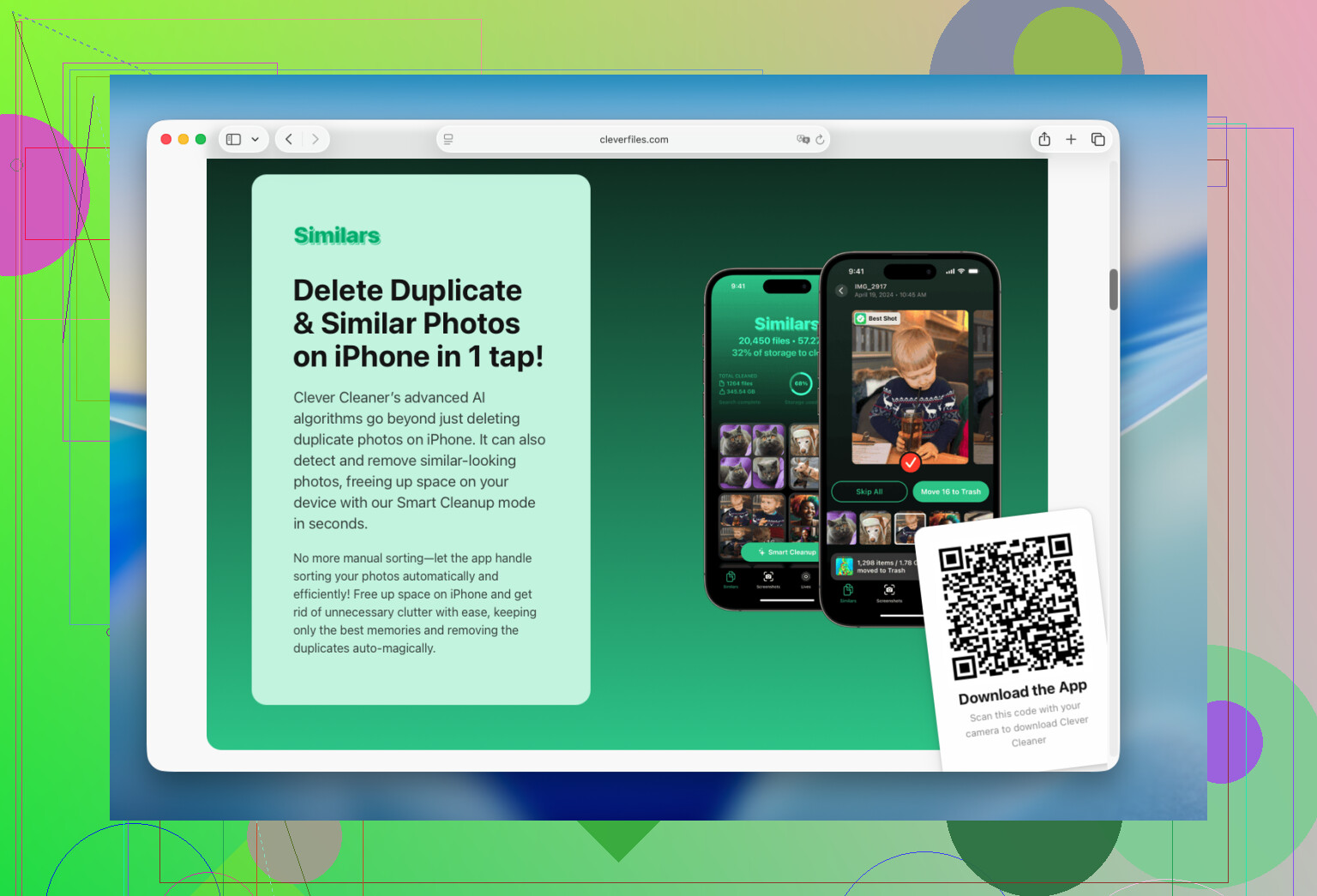
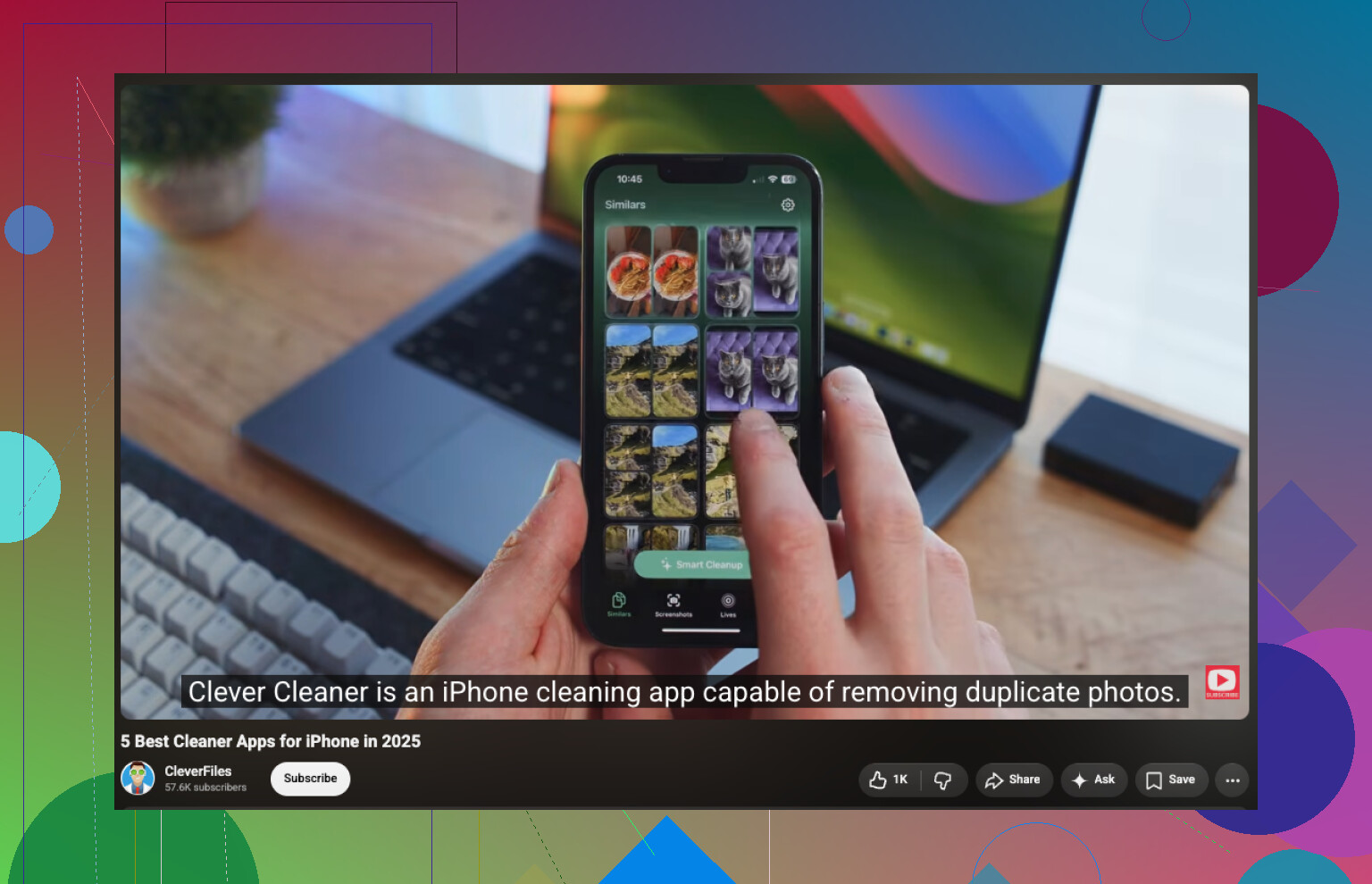
I used Clever Cleaner for this. I initially wanted to remove duplicate photos, but it also found hundreds of similar shots, forgotten videos, old screenshots, and Live Photos. Going through those took about 15 minutes and freed much more storage than deleting apps or manually clearing caches.
The basic cleanup process is straightforward:
- Install the app and give it access to your photo library.
- Open Similars and review the duplicate or closely related photos. It suggests which one to keep, but you can change the selection before deleting anything.
- Check Videos, since a few large clips can take up a surprising amount of space.
- Go through Live Photos and Screenshots.
- Use Smart Cleanup to handle several categories together, or Swipe if you prefer reviewing photos individually.
It’s ad-free, processes the library on the device, and the free version is enough for routine cleanups.
Once you delete the photos, remember to open Photos > Recently Deleted and empty that album. Otherwise, iOS keeps the deleted items temporarily and you won’t get the storage back right away.
After that, check Settings > General > iPhone Storage. You can offload or remove apps you haven’t touched in months, clear cached files and offline downloads from apps such as Telegram, Spotify, Netflix, or YouTube, and delete old downloads from the Files app.
I wouldn’t put much faith in apps marketed as full iPhone “junk cleaners.” Apple limits access to system files and hidden caches, so third-party apps can’t completely clean iOS. They’re mainly useful for organizing and removing your own data, which is often the real storage problem anyway.
If iCloud Photos is turned on, be careful: deleting a photo from the iPhone deletes it from iCloud and your other synced Apple devices too. “Optimize iPhone Storage” is the safer first move because it keeps smaller local copies without removing the originals from your library.
For a completely free cleanup, I’d start in Settings > General > iPhone Storage and follow the category sizes rather than trusting a cleaner’s estimated “junk.” Messages attachments, downloaded podcasts, offline music or video, and the Downloads folder can quietly consume more space than duplicate photos. Offloading an app keeps its documents and data, while deleting the app may remove them, so those two buttons are not interchangeable.
Clever Cleaner can make photo sorting less tedious, but @omeganinja6093 is right that it cannot clear hidden iOS caches. Before any bulk photo cleanup, make a backup and review the deletion selection yourself. Automatic “similar photo” choices can easily include burst shots or slightly different pictures you intended to keep.
If the storage is mostly iCloud Drive files or app data, photo cleanup may barely move the needle. Check Settings > General > iPhone Storage first and let the storage chart finish calculating before deciding what to remove.
For files stored in iCloud Drive, use Remove Download instead of Delete. In the Files app, press and hold a large file and choose Remove Download. That removes the local copy while leaving the file in iCloud for later. Deleting an iCloud Drive file removes it from your other synced devices too, which is an easy mistake to make.
I’d be less enthusiastic about offloading apps than the earlier replies. It works well when the app itself is large, but offloading keeps Documents & Data. If an app has accumulated 8 GB of downloads or cache, you may recover surprisingly little. Open the app and remove offline content there first. Deleting and reinstalling can clear more, but only do that after confirming its data is synced and you know the login details.
For photos, Apple’s built-in Duplicates collection is the safest free starting point: Photos > Collections > Utilities > Duplicates. It handles actual duplicates without giving another app access to the entire library. Clever Cleaner makes more sense if you specifically want help finding similar shots, screenshots, and other clutter that Apple may not classify as duplicates. I would treat its suggestions as a sorting queue, not an automatic delete button.
Don’t waste an afternoon trying to force “System Data” down to zero. Some of it consists of caches, indexes, voices, and other files managed by iOS, and the amount can change on its own. Concentrate on storage you can identify: offline video, message attachments, podcast episodes, voice recordings, Safari downloads, and cloud files that are still downloaded locally. That is usually safer and more productive than repeatedly installing cleaner apps or clearing tiny caches.

Don’t reinstall an app just because @dima_rust mentioned it clears more than offloading. That trick works, but only after you’re absolutely sure your login and any in-app data are recoverable. I’ve seen people nuke a messaging or 2FA app to reclaim a few gigs and then spend the next hour locked out of accounts. If it holds authenticator codes or anything tied to your identity, leave it alone.
The advice about following the storage chart instead of a cleaner’s ‘junk’ estimate is the correct instinct. But that chart lies to you a little at first. Give it a couple of minutes to settle, because right after an iOS update or a big sync it’ll show inflated System Data that shrinks on its own. Don’t make deletion decisions off the first number you see.
Where I’d slightly diverge from the whole thread: everyone jumped straight to photos. Fair, since that’s usually the biggest bucket, but check Messages first if you never clear it. Set Messages to keep 30 days or 1 year instead of Forever, and iOS will purge years of attachments in one shot. No app needed, no library access granted to anyone. That single toggle has freed more than manual cache clearing ever will for people who text a lot of media.
On the tool itself, Clever Cleaner is fine for the specific job it does, which is surfacing similar shots and old screenshots that Apple’s built-in Duplicates won’t catch. Treat it exactly like @swifthiveedge said, a sorting helper, not an auto-delete. And the reminder to empty Recently Deleted afterward matters more than it sounds. People clean for twenty minutes, check storage, see no change, and panic. The space comes back after that album is empty, not before.
One thing nobody flagged: if iCloud Photos is on and you’re low on iCloud space too, ‘Optimize iPhone Storage’ only helps so much. You’ll still hit a wall until you either delete originals or pay for more iCloud. Worth knowing before you assume local cleanup alone fixes it.