My drive suddenly changed to a RAW partition, and I can’t open it or access important files. I tried running CHKDSK, but it failed and didn’t fix anything. I need help figuring out the safest way to recover data from a RAW drive without making the damage worse.
When Windows flips a partition to RAW, I would not hit Format. I know that prompt is sitting there like the obvious fix, but if your files matter, it’s a bad first move. RAW usually means Windows stopped understanding the file system. It does not mean your data is gone.
I always break it down like this. What do you care about more right now, the files, or the partition itself? If the files matter, I’d treat the partition as secondary and get the data out first.
This is the order I’d follow:
- Do nothing to the RAW partition.
- Pull the files off to another drive.
- Try to repair the partition only after recovery.
- If repair fails, rebuild it and format it.
Get the files off first
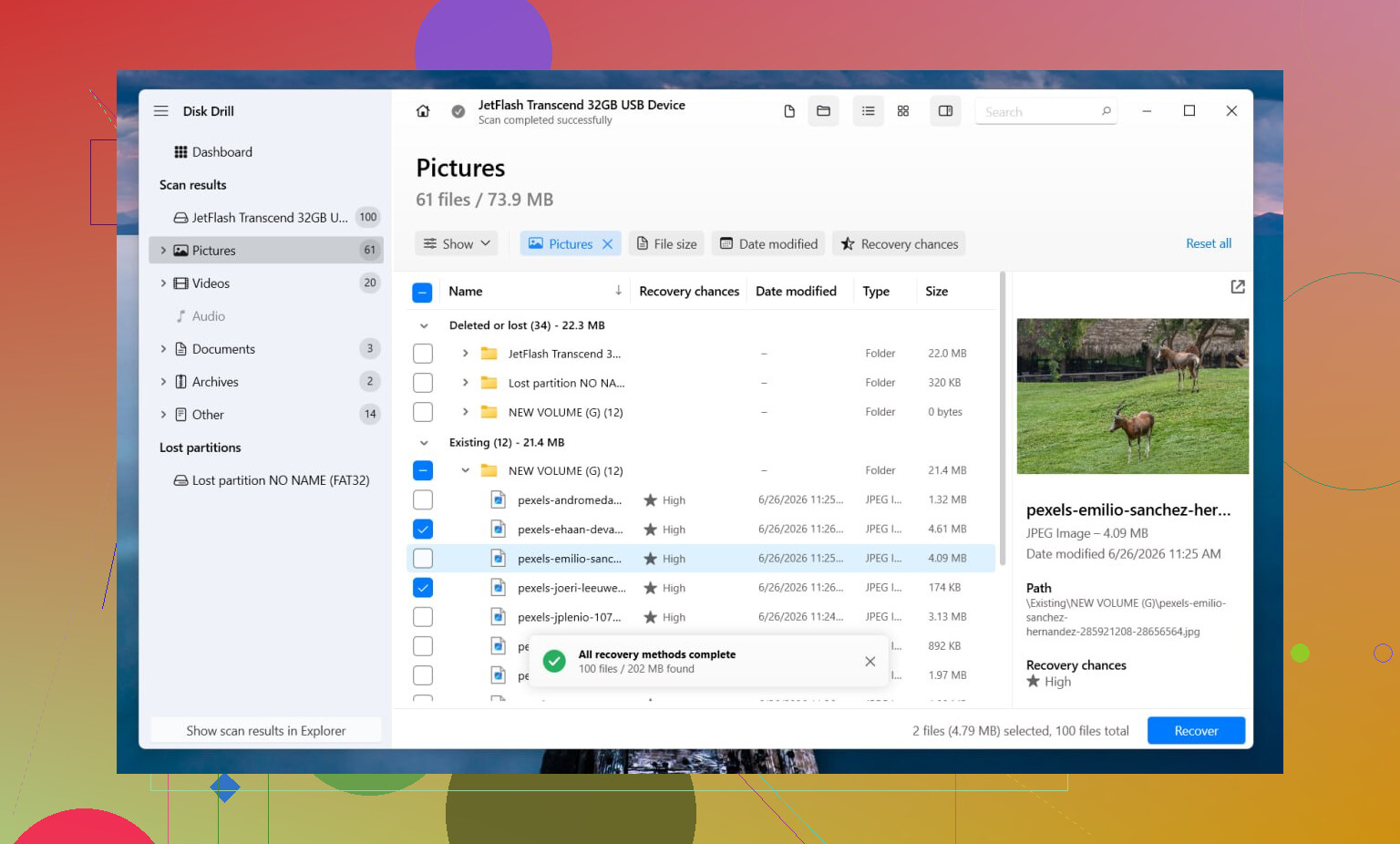
I’d start with Disk Drill. I used it once on a drive Windows swore was unreadable, and it did a decent job sorting through the mess without much setup. One reason I lean toward it first is because it tries multiple recovery approaches in one pass. If parts of the old file system still exist, it often pulls files back with folders and names intact. If the file system is too far gone, it falls back to file signature scanning and searches for a long list of file types. The preview feature helps too, since I don’t like recovering 200 GB of junk only to find half the files are broken.
What I’d do:
- Install Disk Drill somewhere else, not on the damaged drive.
- Launch it and pick the RAW disk or partition.
- Click Search for Lost Data. On an external drive, use Universal Scan if it asks. I’d only switch to Advanced Camera Recovery for footage from cameras, drones, or similar gear.
- Let the scan finish. Don’t interrupt it halfway unless the drive is acting up.
- Preview the files you care about.
- Recover everything to a different drive.
If the drive is dropping offline, freezing Explorer, or making the system hang, I’d image it first. Disk Drill has a sector-by-sector backup option, and I’d rather work from a copy than keep poking a drive that looks unstable. I learned this one the annoying way. A flaky disk often gets worse while you’re still deciding what tool to try.
Only after recovery, try fixing the partition
Once your files are safe somewhere else, then I’d mess with repair tools.
If the original file system was NTFS, CHKDSK is worth a shot. Sometimes it repairs boot sector damage or NTFS metadata issues well enough to bring the partition back. If the partition was FAT32 or exFAT, I’d skip CHKDSK for this. It won’t help in the same way. And I would not run it before recovery, since it writes changes to the file system.
If CHKDSK gets nowhere, I’d move to TestDisk.
- Run testdisk_win.
- Create the log.
- Select the affected drive.
- Accept the detected partition table type.
- Choose Analyse.
- Run Quick Search. If needed, follow with Deeper Search.
- If it finds the lost partition correctly, choose Write and reboot.
If TestDisk still comes up empty, I would stop there. I’ve seen people burn an entire weekend stacking random repair tools one after another, and it usually turns into noise. If the data is already recovered, I’d open Disk Management, make a New Simple Volume, do a quick format, and copy the rescued files back.
Stuff worth taking seriously
SSDs are a little different. If this RAW partition is on an SSD and you plan to recover data, I would not leave it sitting around for days. TRIM may wipe blocks in the background, and once that happens, recovery gets ugly fast or flat-out fails.
Also, if the drive clicks, vanishes at random, or shows up only sometimes, I’d stop the do-it-yourself route. Those are the kinds of symptoms I’ve seen before a drive dies completely. In that case, a recovery lab makes more sense, esp if the files are one-off stuff you can’t replace.
Yes, data recovery from a RAW partition is still possible after CHKDSK failed. CHKDSK failing usually means Windows cannot read the file system structure, not that your files are gone.
I agree with @mikeappsreviewer on one big point, stop writing anything to that drive. I disagree a bit on repair timing though. Before trying more repair tools, check the drive’s health first. If SMART shows bad sectors, rising pending sectors, or read errors, every extra scan hurts your odds.
My order would be:
- Check SMART with CrystalDiskInfo or Hard Disk Sentinel.
- If health looks bad, clone the drive first with ddrescue or HDDSuperClone.
- Scan the clone, or the original if health is stable, with Disk Drill.
- Save recovered files to another disk.
- Only then think about partition repair or format.
Why this matters:
A RAW partition often comes from corrupted NTFS boot records, a damaged partition table, USB bridge issues, or failing storage. CHKDSK writes changes. On a weak drive, that’s a bad bet.
Disk Drill is a solid pick for RAW drive data recovery because it handles lost partitions and deep file scans in one workflow. If you need to recover data from a RAW partition after CHKDSK failed, start with file recovery, not file system repair. Preview results first so you do not waste hours pulling broken files.
Also, test the drive in a different USB port, cable, or enclosure if it’s external. I’ve seen RAW errors come from a bad adapter, not the disk itself. Easy thing to rule out.
For a quick visual on handling unreadable storage, this RAW partition recovery walkthrough is relevant.
If the drive clicks, drops offline, or scans at snail speed, stop DIY stuff. That’s lab territory.

Yes, usually you can still recover data from a RAW partition even after CHKDSK bailed out. CHKDSK failing just means Windows can’t make sense of the file system enough to repair it. It does not automatically mean the files are gone.
I mostly agree with @mikeappsreviewer and @chasseurdetoiles, but I’d push one extra point harder: before doing any big scan, check whether this is a connection problem pretending to be file system damage. If it’s an external drive, try a different cable, different USB port, different enclosure, or plug it into another PC. I’ve seen drives show as RAW because the USB bridge was being weird, not because the partition was actually dead. Super boring fix, but it happens.
What I would not do:
- don’t format it
- don’t copy anything onto it
- don’t keep rerunning CHKDSK hoping it suddenly gets smarter
- don’t use “repair” tools one after another like a slot machine
One small disagreement: people jump to TestDisk kinda fast sometimes. Great tool, yes, but if the drive is unstable, repeated analysis passes can be rough on it. If the data matters more than the partition structure, I’d rather recover files first with something like Disk Drill, especially since RAW partition recovery is one of the common use cases. You can preview what’s still there and save it elsewhere, which is the whole point.
Also, if the recovered files matter a lot, sort them by priority first. Grab irreplaceable docs, photos, project files first. Don’t waste time recovering giant movies you can redownload while your important stuff sits there.
If you want extra reading, this is a decent step by step lost partition recovery guide for external hard drives.
If the drive clicks, disappears, or scans crazy slow, stop. That’s not a software problem anymore, that’s “your drive is trying to die” territory.
I’d add one thing the others only touched lightly: check Event Viewer and Device Manager before a long recovery run. If Windows is logging disk resets, controller errors, or USB disconnects, your “RAW partition” may be secondary damage from an unstable connection path, not just file system corruption. In that case I would not spend hours hammering the original disk with repeated scans.
I agree with @chasseurdetoiles, @voyageurdubois, and @mikeappsreviewer on avoiding writes, but I slightly disagree with the idea that partition repair deserves much attention at this stage. If CHKDSK already failed, I’d stop thinking “fix the partition” and start thinking “extract readable data with minimum stress.”
My approach would be:
- Check SMART and Windows error logs.
- If errors look physical or transport-related, clone first.
- Mount the clone read-only if possible.
- Recover highest-value files first, not everything at once.
- Verify a sample of recovered files before doing a giant export.
About Disk Drill specifically:
Pros
- Easy RAW partition scanning
- Good preview support
- Finds both file system traces and signature-based files
- Lower learning curve than forensic tools
Cons
- Deep scans can take a long time
- File names/folders may be lost if metadata is badly damaged
- Best features are not really aimed at advanced manual carving workflows
- Not my first pick for severe hardware failure cases
If Disk Drill sees the partition and previews your important files correctly, that’s a good sign. If previews are corrupted or the drive keeps stalling, stop pushing it. At that point, clone or go to a lab.
One more unpopular opinion: sometimes the fastest way to confirm whether recovery is realistic is trying a few priority folders first, not committing to a full-disk rescue immediately. That tells you a lot without wasting wear on a dying drive.