I checked my iPhone Storage and noticed System Data is taking up a huge amount of space, but I’m not sure what it actually includes or why it got so large. I need help understanding what System Data means on iPhone, what causes it to grow, and whether there’s a safe way to clear it without affecting my phone.
Your iPhone storage usually sneaks up on you at the worst time. I kept running into it when I was about to record video or pull down a huge game update. Then the phone throws the ‘Storage Almost Full’ alert, and everything starts feeling slow. If you want to figure out what is taking space, it helps to know there are a few different ways to check it, and they do not all show the same thing at the same time.
If you want to check storage without opening Settings, I had the best luck by connecting the iPhone to a computer. On a Mac, open Finder and click your iPhone in the sidebar. On Windows, use the Apple Devices app or iTunes. After it connects, look near the bottom for the storage bar. I trust this view more when I need a fast read before installing something large. The number shown on the phone sometimes lags behind while iOS recalculates space. Through the computer, I often saw a cleaner snapshot, and it seemed to reflect cleared temp junk sooner.
If the phone will not even boot, or you are checking an older device before selling it, you still have a path. You can look up the total capacity with the IMEI. I found the IMEI on the SIM tray on newer iPhones. Older ones, like the iPhone 6, often had it printed on the back. You might also see it on the original box or inside your carrier account under the device management page.
The part people trip over most is System Data, which used to show up as Other. I got stuck on this one too. It is a grab bag. Siri voices, dictionaries, fonts, logs, cached app files, bits from streamed music and video, all of it lands there. So if System Data looks bloated, it does not always mean something is broken. iOS is supposed to clear some of it when space gets tight. In my experience, it does, but not on the timeline you want.
Once free space gets low enough, the phone starts acting weird. I saw apps hanging on launch, the camera taking an extra beat, scrolling getting choppy. When my iPhone 13 felt slow a while back, I checked and had around 2GB left. That was enough to make the whole thing feel off. Low free storage is one of the biggest reasons an iPhone starts dragging, even before you fully run out.
Apple’s built-in cleanup suggestions help a little. Offload unused apps, review large attachments, the usual stuff. I used those first. They were fine, but they did not get me through my photo mess in a useful way. The thing eating most of my storage was media, not random apps.
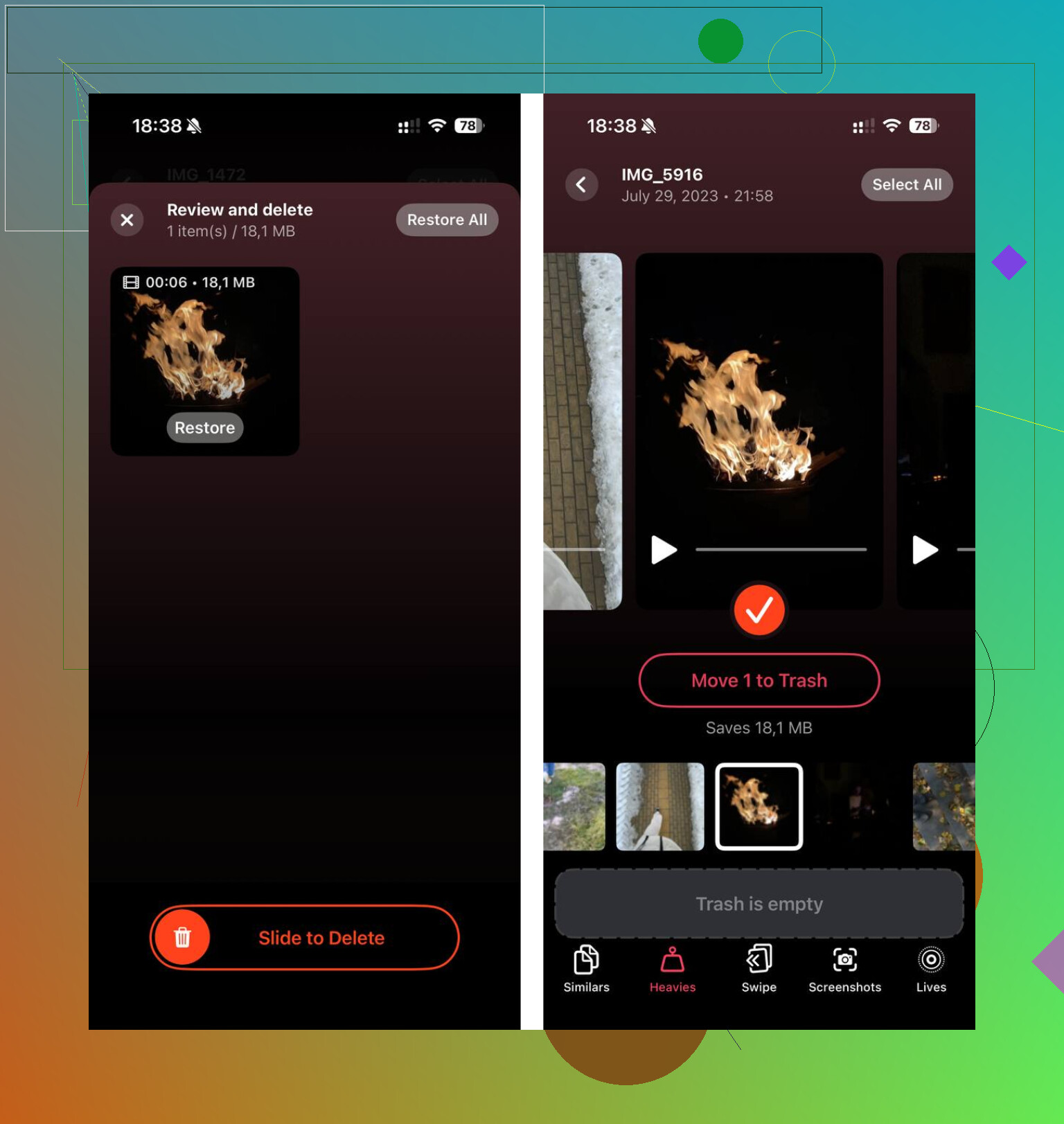
What worked better for me was Clever Cleaner. I ended up using it after trying a pile of other fixes, and it was the first one that felt direct. No ads popping up. No fake free tier nonsense. It focuses on photos and videos, which is where my storage was going anyway. The Heavies section made the problem obvious fast. I could see which giant old 4K clips were sitting there taking 1GB or 2GB each. Brutal, but useful.
The Similars tool helped too. I take too many repeat shots, same subject, same angle, tiny differences, then never clean them up. It grouped those together so I could keep the good one and dump the rest. One detail I liked, and yeah I checked because I do not want my library sent off somewhere, is it processes on the device. My photos stayed local. It also showed the file size for screenshots and other junk, which made cleanup feel less blind.
If your iPhone feels slow, start with the storage bar. If you are close to the limit, clear the biggest videos first, then the duplicate or near-duplicate photos. In my case, freeing a few gigabytes changed the phone right away. I would do that before removing apps you still use, becuase half the time the real problem is your camera roll, not your app list.
System Data is iPhone’s junk drawer. It holds caches, logs, update files, Safari data, streamed media leftovers, Siri files, and temporary files iOS makes while doing normal stuff. It also grows after failed updates, heavy browsing, lots of messaging, and long uptime.
I partly disagree with @mikeappsreviewer on one point. The number you see from a computer is not always more “true.” iOS storage figures shift while the phone re-indexes files. Both views lag sometimes.
What to do.
- Restart first. Simple, but it clears some temp files.
- Check Safari, Settings, Safari, Clear History and Website Data.
- Review Messages, big video threads and attachments bloat storage fast.
- Make sure iOS update files are gone, Settings, General, iPhone Storage, look for an old iOS update.
- Sync Photos fully if you use iCloud Photos.
- If System Data stays huge, back up and erase, then restore. This is the fix when the number is bugged or stuck.
If photos and videos are the real issue, Clever Cleaner helps sort large files and dupes faster than doing it by hand. That frees space System Data often refuses to give back right away.
Also, this iPhone storage cleanup video on Facebook is easy to follow.
Rule of thumb, if System Data is under 10 to 20 GB on a busy phone, I wouln’t panic. If it jumps way past that and stays there for days, somethng is off.
System Data is basically iPhone’s misc folder that Apple never bothered to label in a human way. It can include caches, indexing files, Spotlight database stuff, downloaded voices, update leftovers, analytics logs, app temp files, mail attachments, Safari site data, and even encrypted stuff iOS uses internally. So yeah, it looks vague because it is vague.
I kinda disagree with @mikeappsreviewer on checking from a computer as the “better” source. Sometimes it is, sometimes it isn’t. iPhone storage math is weird and can take hours to settle after updates or deletions. @sonhadordobosque is closer on that part.
What matters more is this: if System Data is big but stable, that’s normal-ish. If it keeps growing for no obvious reason, that’s when it gets suspicious. Common triggers are:
- major iOS update recently
- tons of Safari tabs
- huge Messages threads
- streaming/downloading media a lot
- Mail app caching attachments
- apps that hoard temp files
One thing people skip is checking Mail. If you use the built-in Mail app with multiple accounts, it can quietly cache a ridiculous amount of attachments. Also look at Podcasts, downloaded voices in Accessibility, and offline maps. Those can blur into storage categories in annoying ways.
And honestly, sometimes “System Data” is not the real villain. It just looks guilty while Photos is the actual criminal. If your space problem is media, Clever Cleaner is probly more useful than poking around random menus, since it helps find large videos, duplicates, and similar shots fast. If you want a solid guide, this one on freeing up iPhone storage with Clever Cleaner explains it pretty clearly.
Short version:
- under 10 GB, usually don’t care
- 10 to 25 GB, depends how full your phone is
- 30+ GB that stays there, yeah somthing is off
If it never drops after a few days, the nuclear fix is still backup, erase, restore. Annoying, but it works way more often than Apple would like to admit.

System Data is partly real usage and partly accounting fog. I agree with @sonhadordobosque and @himmelsjager that it covers caches, logs, indexes, update debris, and temp files. Where I disagree a bit is the “junk drawer” label, because some of it is necessary working space iOS will rebuild even after you clear things.
What I’d check that wasn’t stressed enough:
- Voice memos and GarageBand sound libraries
- Downloaded Apple TV / Music content
- Files app local downloads
- Mail accounts with giant attachment history
- Third-party apps with in-app caches like TikTok, Instagram, Spotify
Also, System Data can spike while iPhone is:
- indexing after an update
- syncing iCloud Photos
- restoring from backup
- transcribing voice features
So timing matters. Check again after charging overnight on Wi-Fi.
If your actual problem is media bloat, not System Data itself, Clever Cleaner is useful. Pros: fast at surfacing large videos, duplicates, similar shots. Cons: it won’t magically “fix” corrupted System Data, and any auto-clean style tool still needs you to review deletes carefully.
Briefly, @mikeappsreviewer is right that computer-based storage views can help, but I would not treat them as the final truth either. They lag too.
My rule:
- fluctuating System Data = normal
- huge and stuck for days = investigate
- huge plus overheating/slowness = likely cache or failed update residue
If it stays absurdly high after normal use settles, backup, erase, restore is still the cleanest reset.
Try deleting and reinstalling your largest cache-heavy app. Go to Settings, General, iPhone Storage. Check apps like TikTok, Instagram, Spotify, or Podcasts. If an app uses 500 MB but its Documents and Data shows 5 GB, delete it fully, restart your iPhone, then reinstall it. Do not choose Offload App, since offloading keeps cached data. This often frees several gigabytes without erasing the phone. Confirm your login details and synced downloads first. Check System Data again after an hour. The figure might take time to recaculate.
Reinstalling a big app can backfire if your downloads aren’t actually synced. @turborouter150’s trick works, but people forget that some apps store stuff locally with no cloud copy, so you can wipe voice memos, drafts, or downloaded media you can’t get back. Check what’s cloud-linked before you delete anything.