My iPhone storage is almost full because my Downloads folder has piled up, and deleting files one by one is taking forever. I’m trying to find a faster way to delete downloads on an iPhone, whether that’s through the Files app, Safari downloads, or another setting I may have missed.
I ran into this on my own iPhone, and the annoying part is simple: downloads are scattered around iOS. There is no one place where everything lands, so deleting one batch often leaves a bunch of junk sitting somewhere else.
Where your downloads end up
I kept looking for one master folder. It does not work like that on iPhone. Stuff is split by app.
- Safari downloads usually go into the Files app
- Downloaded songs stay inside the Music app
- Offline stuff from apps like Netflix or Spotify stays trapped in those apps
- Chrome and Firefox often keep their own folders inside Files
So if your storage number barely moves after deleting a few files, this is why.
Delete downloads from Files first
This is the first place I checked, and it held most of the junk.
- Open Files
- Tap Browse
- Under On My iPhone, open Downloads
- Check browser folders too, like Chrome or Firefox
- Tap the three-dot menu, hit Select, choose what you want gone, then delete it
Small gotcha here. Deleting from Downloads does not wipe the files right away. iOS moves them into Recently Deleted. I missed this the first time and thought my phone was bugging out. Go back to Browse, open Recently Deleted, and clear it there. Until you do that, your storage space will not come back.
Clear Safari’s download list
If you want to remove the visible list in Safari, do this:
Safari > Downloads icon > Clear
That removes the history list only. The files still sit in Files unless you delete them there too.
Remove all downloaded music in one shot
I would not bother deleting tracks one at a time.
Go to:
Settings > Music > Downloaded Music
Tap Edit, then hit the red minus next to All Songs. Your library stays in Apple Music, but the local copies are removed from the phone.
Find downloads hidden inside apps
This part catches people off guard. Downloads from Netflix, Spotify, YouTube, and similar apps do not show up in Files. You need to hunt them down app by app.
The fastest path I found was this:
Settings > General > iPhone Storage
Wait a few seconds for the storage bar and app list to load. Then scroll through the apps sorted by size. If one app is eating 15GB, 20GB, whatever, there is a good chance it is stuffed with offline content. Open that app and look for its Downloads or Offline section.
Why this helps when the phone feels slow
When iPhone storage gets packed, the whole thing starts feeling rough. I saw app crashes, camera lag, weird pauses, little stutters when switching screens. Clearing downloads helps because iOS needs free space for temp files and normal background tasks.
For a lot of people, though, downloads are only part of the mess. Photos and videos usually take a bigger chunk.
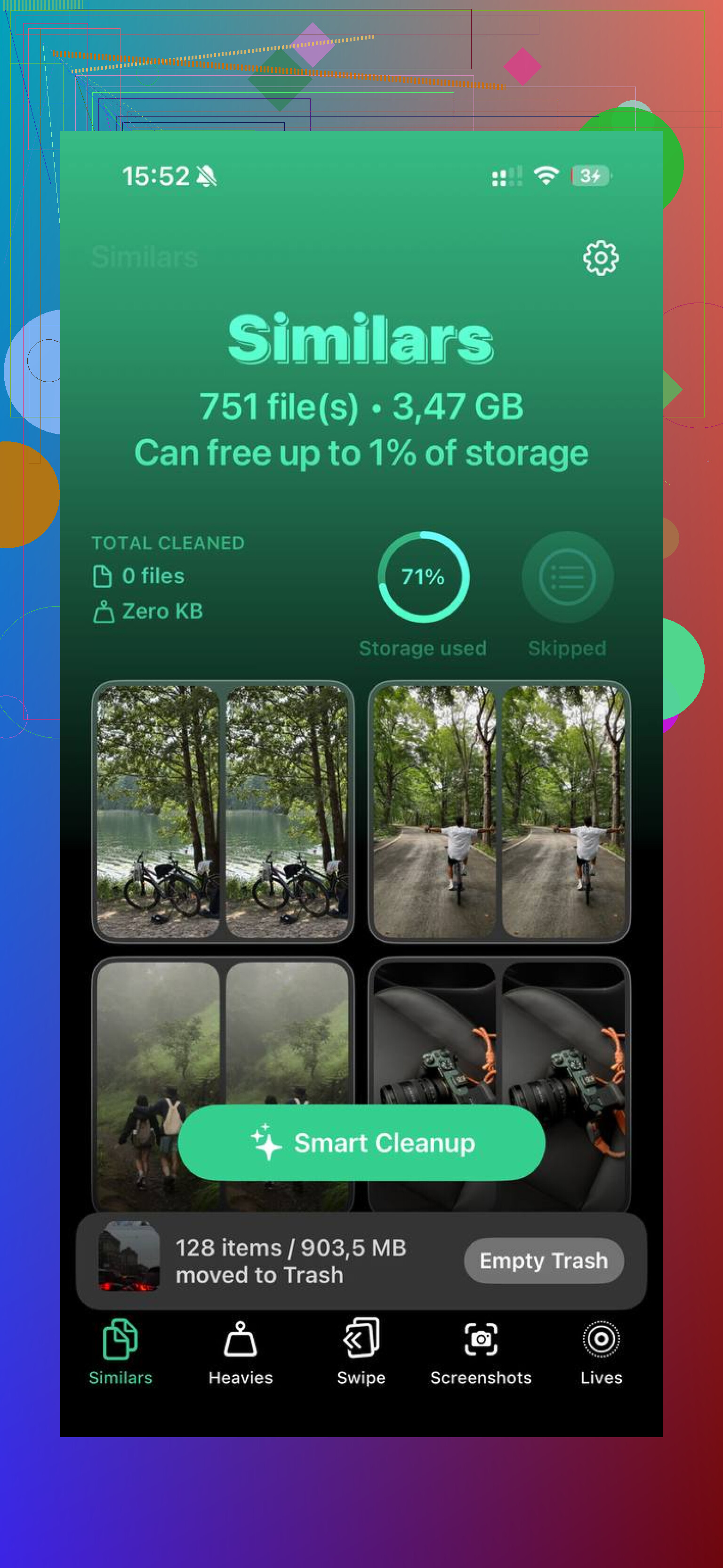
I used Clever Cleaner after the manual cleanup. The part I liked was how it put big media front and center instead of making me scroll forever. Large videos showed up by size, and similar photos were grouped so I could ditch the duplicates faster. From my phone alone, I got back around 40GB, give or take, and the lag stopped after that.
Fastest way is bulk delete, not tapping files one by one.
I slightly disagree with @mikeappsreviewer on one point. I would start in Settings, not Files. Settings shows where the space hogs are first, so you do not waste time guessing.
Do this.
- Go to Settings > General > iPhone Storage.
- Tap the biggest apps first.
- If Files is large, open Files and use Select to remove batches.
- After deleting, empty Recently Deleted. A lot of people miss this part.
- If Safari data is bloated, go to Settings > Safari > Clear History and Website Data. This will not wipe every downloaded file, but it often cuts junk fast.
- For apps with offline media, remove the app and reinstall it if the app does not offer a clean bulk delete option. It is faster than hunting through menus.
One more thing. Check your Messages app. PDFs, ZIPs, and videos saved from chats eat storage too.
If your goal is the fastest iPhone storage cleanup, Clever Cleaner is worth a look. It helps free iPhone storage fast by finding large videos, duplicate photos, and similar images without endless scrolling. This clip shows it better than words, see how to free up iPhone storage fast.
Manual cleanup works, but it gets old realy fast.
Honestly, the fastest way is sometimes to stop treating “Downloads” like it’s one real folder on iPhone. @mikeappsreviewer and @chasseurdetoiles already covered the usual spots, but I’d add this: use the search and sort tools inside Files so you can wipe chunks faster instead of browsing like it’s 2012.
In Files, go to Browse, open the location you use, tap the three dots, then sort by Size. Biggest junk floats to the top. You can also use the search bar for stuff like .zip, .pdf, .mp4, or file names ending in common download types. That saves a ton of time if your mess is mostly docs and archives.
Also, if your downloads are synced into iCloud Drive, deleting them on iPhone removes them everywhere. That can be useful, or a total oh no moment. So check whether the files are under On My iPhone or iCloud Drive before mass deleting. People miss that alll the time.
One thing I sorta disagree with is reinstalling apps too quickly. It works, sure, but some apps cache login data weirdly and it becomes more annoying than just clearing their stored media from inside the app.
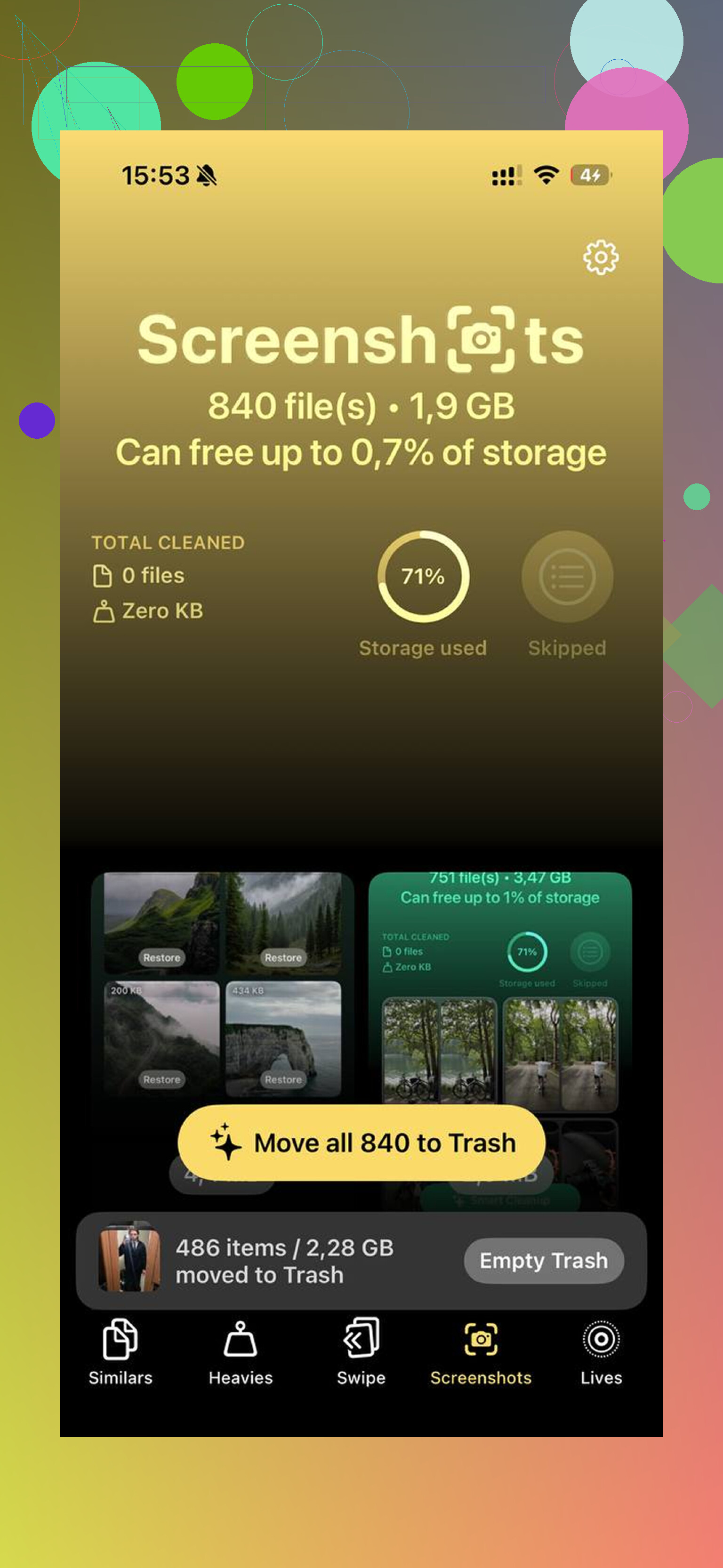
If the bigger problem is that downloads are only part of the storage mess, Clever Cleaner is probly the faster route for the rest. It’s more useful for finding giant videos, duplicates, and similar photos than for browser downloads specifically. This review breaks down what it does pretty clearly: full Clever Cleaner review for freeing up iPhone storage.
Short version:
- Sort Files by size
- Search by file type
- Be careful with iCloud Drive
- Empty Recently Deleted
- Use Clever Cleaner for the non-download clutter
That’s way faster than deleting one file at a time.