I use iCloud Photos on my iPhone, iPad, and Mac, and I have some pictures in the Hidden album. If I delete hidden photos on my iPhone, will they also be removed from iCloud and my other Apple devices? I’m trying to clear space without accidentally deleting anything I still need.
The first thing to check is whether the Hidden album is even allowed to show up. Apple has a separate setting for that, and after iOS updates it can feel like the album just disappeared.
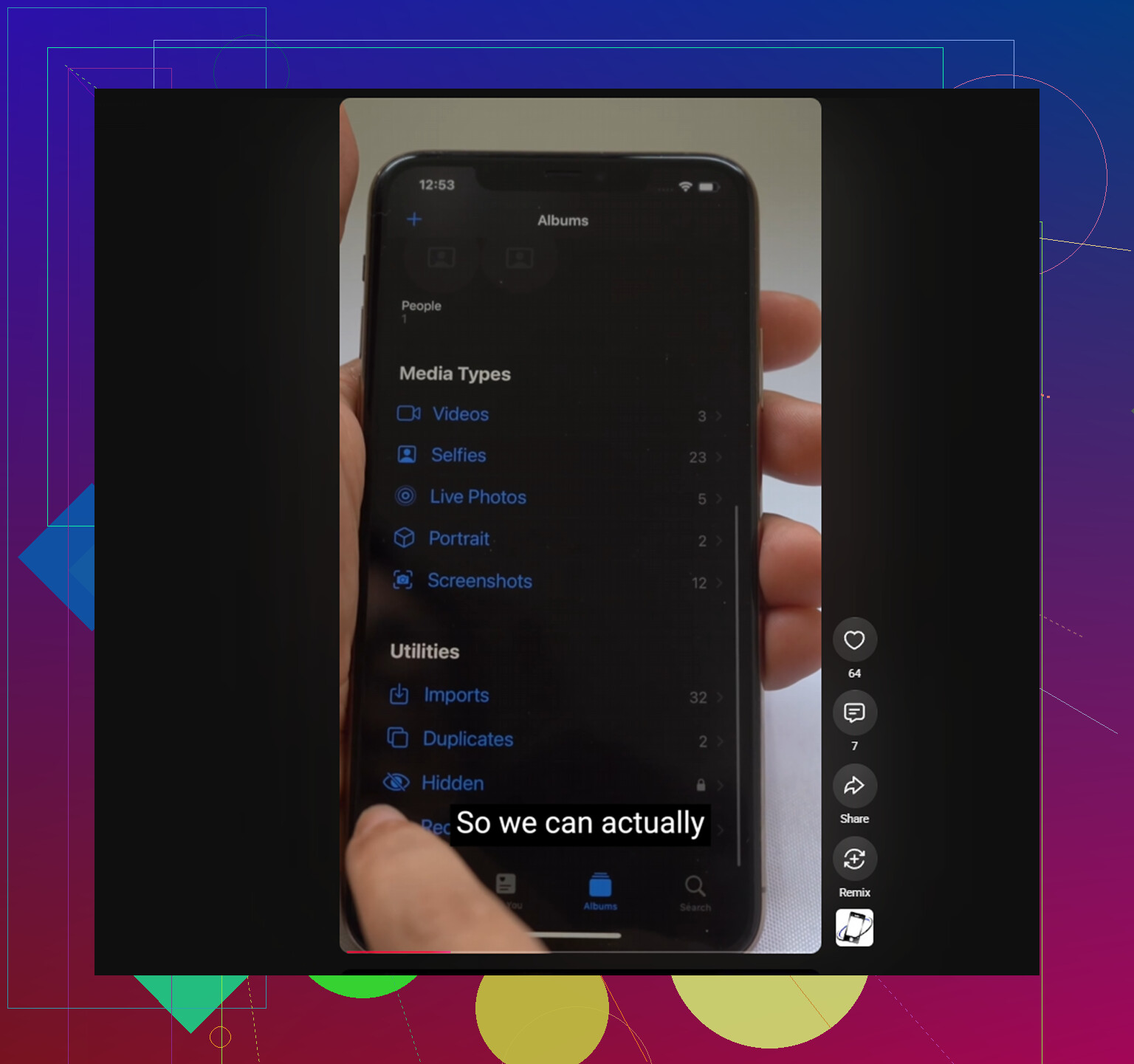
Go to Settings, then Photos, and turn on Show Hidden Album. If that switch is off, the photos are still on the phone, but the album will not appear in Photos at all. Once it is enabled, you should see Hidden again near the bottom of the Albums tab under Utilities.
If Face ID will not open the Hidden album
Since iOS 16, the Hidden album is supposed to be locked behind Face ID, Touch ID, or your passcode. If you tap it and nothing happens, or the unlock prompt never shows up, try a hard restart. That usually clears whatever got stuck.
There is not really a Photos-app workaround for this. The lock is built into the system, so you have to get the biometric prompt working rather than bypassing it.
Deleting everything from Hidden faster
Once you can get into the album, you do not need to tap every photo one at a time. Tap Select in the upper-right corner, then drag your finger across the photo grid to select whole rows quickly. After that, hit the trash icon.
But that still does not free the storage yet. Deleted photos go to Recently Deleted, also under Utilities, and they keep taking up space for 30 days unless you remove them from there too. So after clearing Hidden, go into Recently Deleted and tap Delete All if you actually want the storage back.
What happens with iCloud Photos
If iCloud Photos is turned on, deleting something from Hidden deletes it from the shared iCloud library, not just that one iPhone. It should disappear from other devices using the same Apple ID pretty quickly.
If the same photos keep showing back up, it is probably a sync issue. Turning iCloud Photos off and then back on in Settings can force the library to re-index, which usually stops that repeat-delete problem.
Hidden is usually only part of the mess
A big Hidden album often means the rest of the library has the same problem, just spread out more. Old screenshots, bursts with ten almost identical shots, huge videos you forgot about, random screen recordings, all of it adds up.
That matters because iOS needs free space to work normally. When storage gets too close to full, basic stuff can start feeling slow, including the camera, keyboard, and switching between apps. Emptying Hidden helps, but it may not be enough if the main library is packed too.
Cleaning up the rest of the photo library
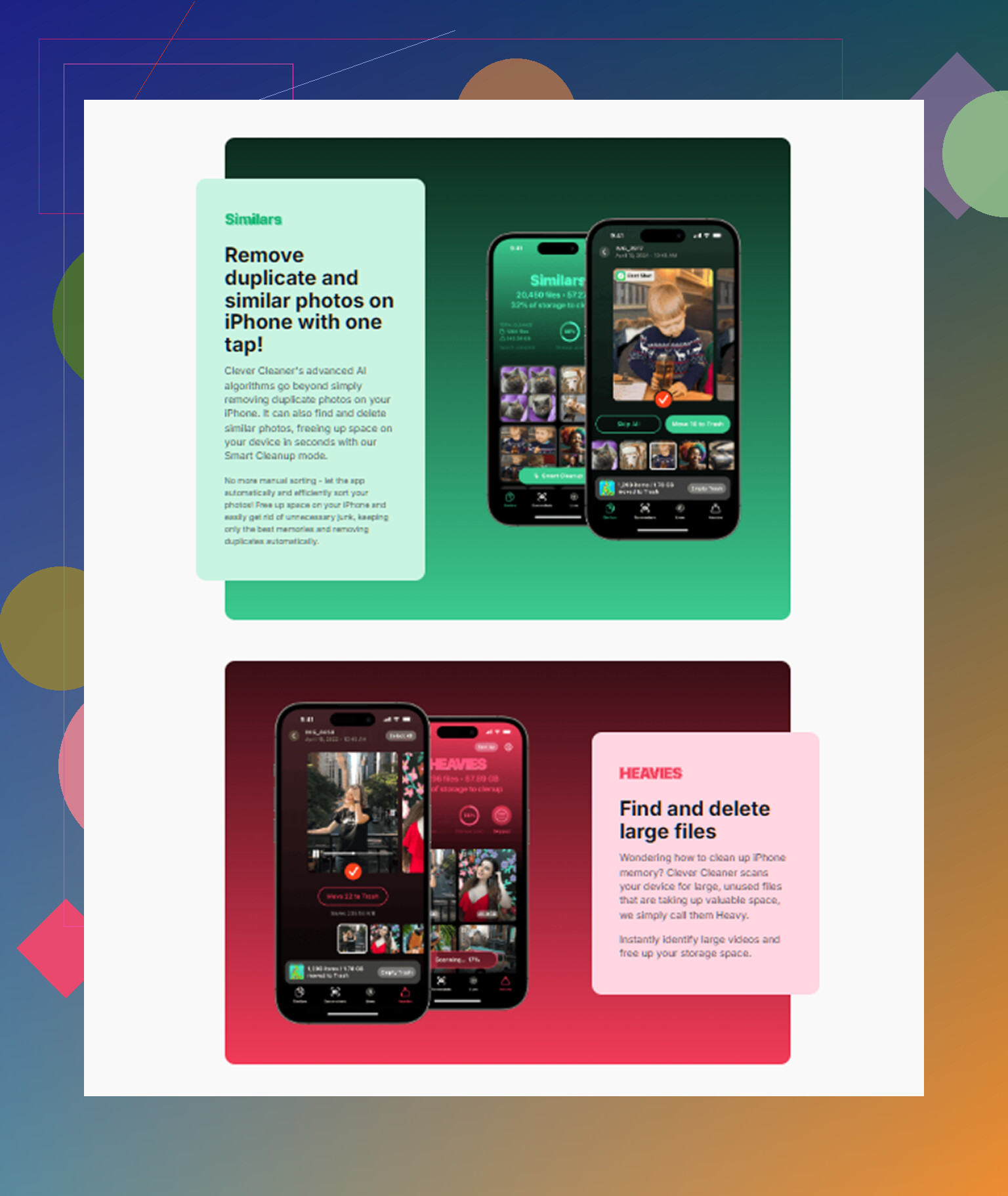
One catch first: Clever Cleaner cannot access the Hidden album. Apple blocks third-party apps from reading that folder, so the Hidden cleanup has to be done manually.
For the normal library, though, it can save a lot of time. The app is free, with no ads, subscriptions, or locked cleanup features.
The Similars tab is useful after you clear Hidden because it often finds the same kind of clutter in the main library: several near-identical photos taken back to back. It groups them together, picks the sharpest one as the keeper, and lets you delete the extras in one tap.
The Heavies tab is also handy because it sorts files by actual size. Instead of hunting through years of photos and videos, the biggest storage hogs are right at the top.
Screenshots show their file size before you delete anything, which makes it easier to decide what is worth keeping.
The scan and cleanup happen on the phone itself. Nothing gets uploaded during the process.
Deleting from Hidden is still deleting the actual photo, not just taking it out of the Hidden album. If iCloud Photos is on, that delete syncs to iCloud and your other devices, but it may sit in Recently Deleted until you remove it there too.
Hiding a photo and deleting a photo are two very different actions, and iCloud treats the second one as a library change. If the photo is in Hidden and you tap delete, you are not just removing it from that folder. You are deleting the original item from your iCloud Photos library, so it will disappear from your iPad and Mac too once they sync.
The annoying caveat is timing. A Mac or iPad that is offline, paused, low on battery, or not syncing Photos yet may still show the picture for a while. That does not mean it was saved there separately. Once that device talks to iCloud again, the deletion should catch up. Same goes for Recently Deleted: if it is still there, it can usually be recovered from any of your devices until it ages out or you empty it manually.
If there is anything you might want later, export it first instead of trusting Hidden as a kind of private backup. Save it outside Photos, like to Files, an external drive, or another cloud service, then delete it from Photos. Hidden is just a visibility setting inside the same library, not a separate vault.
If your Mac has downloaded originals, that does not make them a separate backup inside Photos. Deleting the hidden photo on your iPhone deletes the iCloud Photos item, so it should vanish from the Mac and iPad too after sync; only an exported copy outside the Photos library would survive.
Watch out if you ever set up an iCloud Shared Photo Library, because that changes the whole answer. A photo can live in your personal library or the shared one, and if it ended up in the shared library, deleting it can pull it from everyone in that group, not just your own devices. Hidden doesn’t override that. So before you go on a deleting spree, check whether any of those pictures are actually shared items.
The general point the others made is right though. @voyageurdubois and @himmelsjager both nailed it: Hidden is a visibility flag inside one library, not a separate storage location, so a delete is a real delete that syncs everywhere once the other devices check in.
The bit I’d be careful with is the suggestion to toggle iCloud Photos off and back on to fix sync problems. That’s fine on the iPhone, but I would not do it casually on the Mac if that Mac holds your only fully downloaded copies. Turning it off there can start pulling things out of the shared library state and you can end up in a confusing spot. If sync is stuck, I’d rather just leave the devices on wifi and power overnight and let it settle.
On the cleanup goal itself, remember the storage won’t actually drop until Recently Deleted is empty, and that folder syncs too, so a device showing the photo isn’t proof it survived. Clearing Hidden by hand is unavoidable since Apple walls it off from any third party app. For the rest of the library, something like Clever Cleaner is fine for spotting the near duplicates and the giant videos eating space, but treat it as a helper for the visible library only, not as your Hidden solution. And anything you might miss later, drag out to Files or an external drive first. Hidden was never a safe place to stash the one copy you care about.
Yes. Deleting hidden photos removes them from iCloud Photos and your synced iPad and Mac. Recently Deleted retains them for 30 days unless you permanently delete them sooner.
If your goal is freeing phone sapce while keeping your pictures, use storage optimization instead. Open Settings, tap your name, then iCloud, then Photos. Choose Optimize Storage, under iPhone Storage if shown. Your phone keeps smaller versions while iCloud retains the orginals. This reduces local storage use as needed without deleting your pictures, but it does not reduce iCloud storage use.