My iPhone storage is almost full, and I just realized thousands of my pictures were saved as Live Photos. I don’t want to delete them one by one, and I’m looking for the easiest bulk method to remove Live Photos and free up space without losing the photos I want to keep. Any advice would really help.
I ran into this mess too. Live Photos felt harmless at first, then a few years passed and my storage got eaten alive. The part people miss is simple, each Live Photo is a photo plus a short video clip. One or two, fine. A few thousand, not fine.
If you want them gone
This part is easy.
Go to Photos > Media Types > Live Photos. Hit Select, pick what you want gone, delete it, then open Recently Deleted and clear it there too. If you skip that last step, iPhone keeps the files around for up to 30 days.
One catch. If you delete a Live Photo without making a still version first, you lose the whole thing, photo included.
If you want to keep the picture and lose the motion
This is what I was trying to do.
You need to turn the Live Photos into regular still images, then remove the original Live versions. Apple does let you do it, but I found it annoying once the count got past a small batch. You duplicate each one as a still, then circle back and delete the Live originals yourself. It works. It also drags.
What helped me
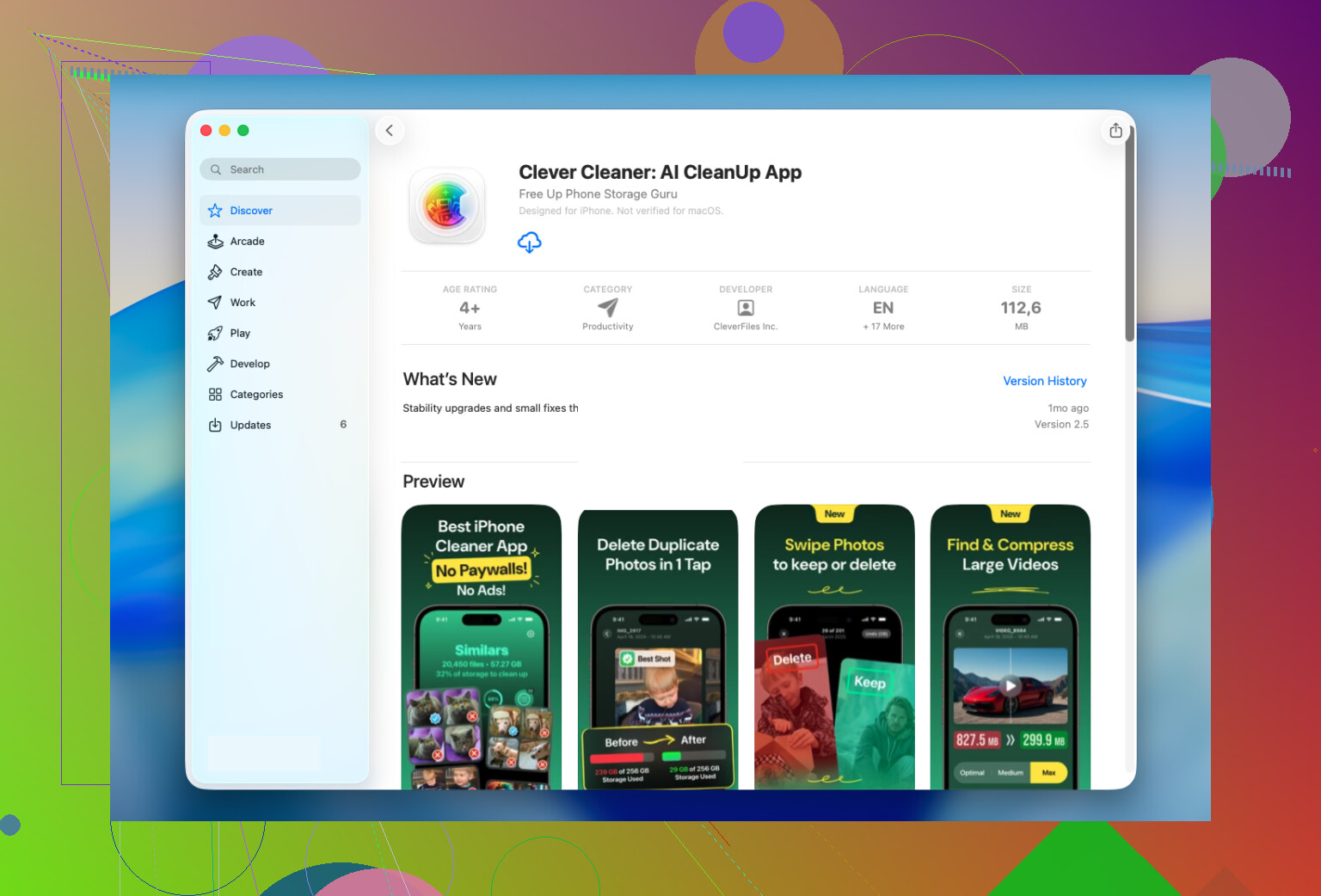
I ended up using Clever Cleaner because my library was too big for the manual route.
There’s a Lives section in the app, and it pulls all Live Photos into one spot. No digging through albums. No weird filtering. I could sort by date or size, pick a few, pick all of them, and do the conversion in bulk.
The useful part for me was the storage estimate before doing anything. I like seeing the number first. After conversion, it makes still copies, then asks what you want done with the original Live Photos. Keep them for now, move them to the app trash, or delete them.
I liked that part. Nothing got wiped without a review pass.
Why I kept it installed
The Live Photo cleanup was the reason I tried it. The other sections were what made me keep it.
Here’s what I used after:
- Similars, for duplicate or near-duplicate photos the Photos app usually leaves behind
- Heavies, for large videos, and it also helps shrink some of them
- Screenshots, for dumping old screenshots fast
- Swipe, for going photo by photo without digging through menus
For me, Similars and Heavies freed more space than the Live Photos cleanup did. I wasn’t expecting that.
What I’d do in your spot
If your library has a small number of Live Photos, stick with Apple’s built-in tools. It’s slower, but manageable.
If you’ve got hundreds or more, I’d skip the manual grind. Clever Cleaner made this way less tedious for me. The Lives section is built for bulk conversion, it keeps the still images intact, and it turned a cleanup job I was putting off for weeks into somthing I finished in a few minutes.
I’d take a slightly different route than @mikeappsreviewer.
If your goal is free space fast, don’t start inside Photos. Start in Settings, iPhone Storage, Photos. You’ll see how much space the library is using, and whether Optimize iPhone Storage is already off or on. If it’s off, turn it on first. For a lot of people, this cuts local storage use without deleting anything. It’s the first thing I’d check, bc deleting thousands of Live Photos is a pain if storage pressure is your only issue.
If you still want them gone in bulk, a cleaner app is the easier route. Clever Cleaner makes more sense when you have hundreds or thousands. The useful part is grouping all Live Photos in one place so you sort by size or date and clear the worst offenders first. I’d do biggest files first, not all at once. Less risk, faster results.
One more thing people skip. If you use iCloud Photos on other devices, deletions sync everywhere. So check your iPad and Mac situation before going wild.
Also, if you want a visual walkthrough, this step by step guide to deleting Live Photos on iPhone is pretty easy to follow.
Short version:
- Check Optimize iPhone Storage first.
- Confirm iCloud Photos sync.
- Use Clever Cleaner for bulk review and removal.
- Empty Recently Deleted, or space won’t come back right away.
I wouldn’t mass delete blindy. A few old Live Photos are useless. Some are the better version of the moment. That part bit me once.

I’d actually split this into 2 diff goals, because people mix them up:
- free up space fast
- remove Live Photo motion but keep the pic
@mike34 is right that checking Optimize iPhone Storage first can save you from doing a giant cleanup for no reason. I kinda disagree with starting by mass deleting though, because once iCloud syncs that delete, it’s gone from all your Apple stuff unless you restore it.
What I’d do first is use search in Photos with terms like “concert,” “pet,” “vacation,” etc. A lot of Live Photos are worth keeping, and bulk nuking all of them is a little too scorched-earth IMO.
If you really have thousands, Clever Cleaner is probly the least annoying option because you can review Live Photos in one place and batch deal with them. That’s better than trying to micromanage inside Apple’s app forever. I’d still do it in chunks, not all 3,000 at once. Less regret, less panic.
Also, if storage is the bigger problem, Live Photos might not even be the main culprit. Usually giant videos, duplicate pics, screen recordings, and downloaded media are the real storage vampires. That’s where something like Clever Cleaner tends to help more broadly, not just with Lives.
For more easy ways to free up iPhone storage fast, that’s a decent extra read too.
My short take:
- Check Optimize Storage
- Audit big videos first
- Review Live Photos in batches
- Use Clever Cleaner if the library is too big to manage manualy
- Don’t forget Recently Deleted or you freed up basiclly nothing
I’m gonna push back a little on the “delete all Live Photos” idea from @mike34, @chasseurdetoiles, and @mikeappsreviewer. Bulk deleting is fast, sure, but it’s also the easiest way to wipe out shots that actually benefit from Live, like kids, pets, group pics where someone blinked, or those frames where you can later pick a better key photo.
What I’d do instead is bulk turn off Live capture first so the problem stops growing:
Camera app > tap the Live icon so it’s off > Settings > Camera > Preserve Settings > enable Live Photo.
That won’t clean old ones, but it prevents future clutter.
Then for the old library, sort by year or event and target the least valuable batches first. Random daily snaps, screenshots of food, receipts, parking spots, junk like that. Way safer than deleting every Live Photo category-wide.
If the built-in Photos app feels too clunky, Clever Cleaner is useful mostly because it centralizes the review. Pros: faster scanning, easier batch selection, good for spotting large Live items mixed with other junk. Cons: you still need to review before deleting, and any cleaner app needs full photo access, which some people won’t love.
My take: use Clever Cleaner if you’ve got a massive library, but be selective. “Bulk” should mean smarter chunks, not one giant nuke.