I’m planning ahead for 2026 and need a reliable data recovery tool, but I’m stuck between Disk Drill and EaseUS. I’ve had a few close calls with lost files on both Windows and macOS, and I want to invest in one app that’s actually worth paying for long term. Which one has better recovery success, pricing, and support, and what are the real pros and cons from your experience?
Okay, here is how this played out for me, without the brochure talk.
I hit data loss panic a few years back. External drive, tons of photos and project files, suddenly showing up as RAW in Windows. No backup. Stomach drop.
Most of the comparison threads I’d read before that were all spec tables and “supports NTFS / exFAT / deep scan / blah blah.” None of that helped when I was sitting there at 1 a.m. sweating over one broken drive.
What mattered in that moment was simple: I needed to go from “oh no, everything is gone” to “my stuff is back” without learning file systems, partition tables, scan modes, or any of that.
How the usual “free favorite from Reddit” went for me
I did what everyone does. Searched Reddit, grabbed the usual free recommendation.
Launched it and instantly hit a wall of questions.
• What scan type? Quick, deep, custom.
• What file system was on the drive? NTFS, FAT, something else.
• File signatures, which ones to scan for.
• Sector size.
I stared at it thinking: the drive worked yesterday, it doesn’t work now, I have no idea what to pick, and I do not want a pop quiz.
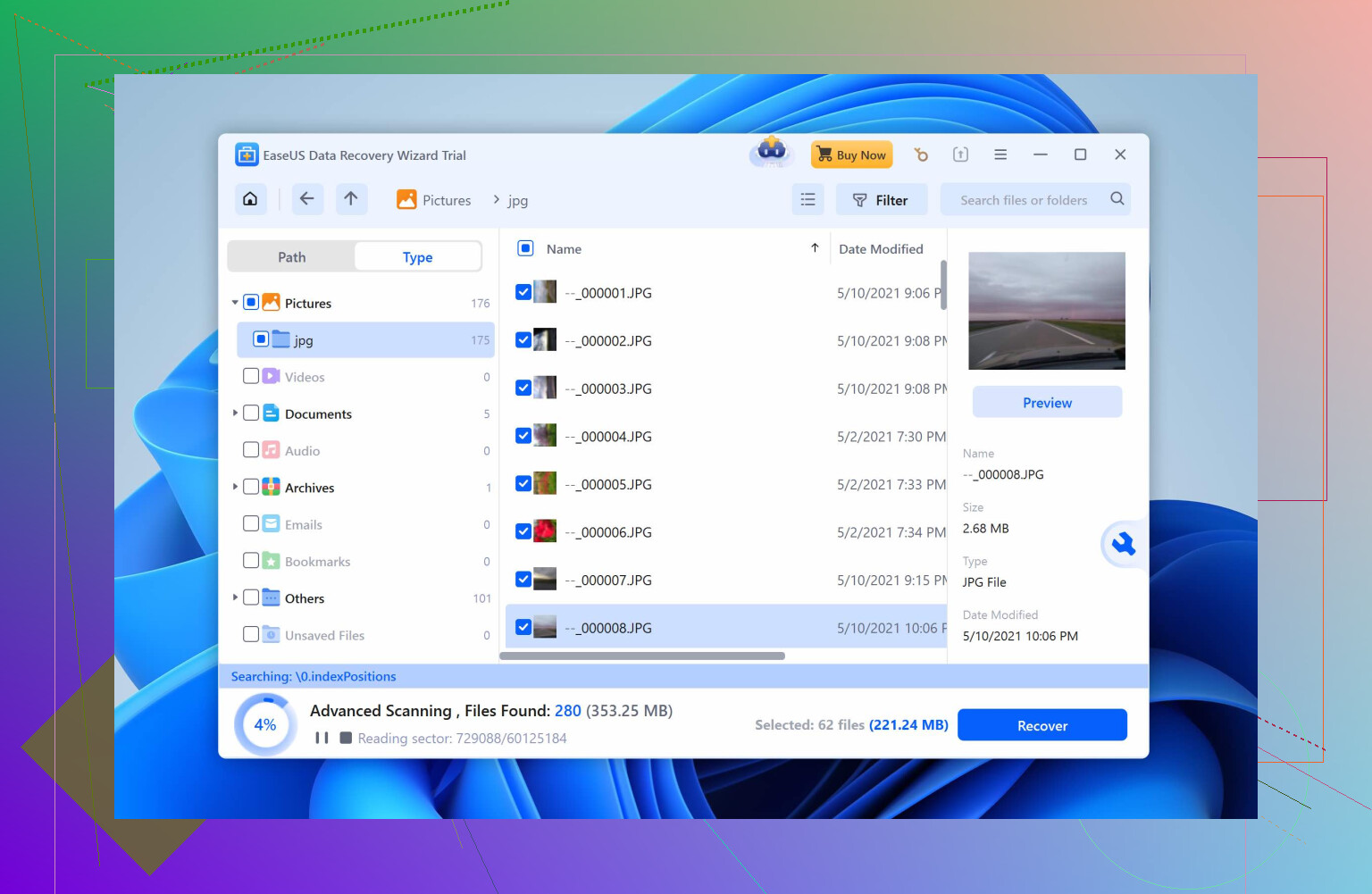
I guessed some settings, hit scan, waited around 45 minutes. Eventually got this huge dump of files:
• No real folder structure.
• Tons of generically named items sorted by signature.
• Minimal or no preview.
• Hex everywhere.
I selected a batch, recovered to another drive, then checked the results:
• A lot of photos would not open or were half broken.
• Video files either refused to play or crashed the player.
• I had no way to tell before recovery which ones were okay.
So I burned an hour and a lot of nerves and was still not sure what I had or had not salvaged.
Then I tried Disk Drill
After that mess I tried Disk Drill. I expected more of the same, because honestly most utilities in this space feel like they were designed in 2005.
My experience was surprisingly different.
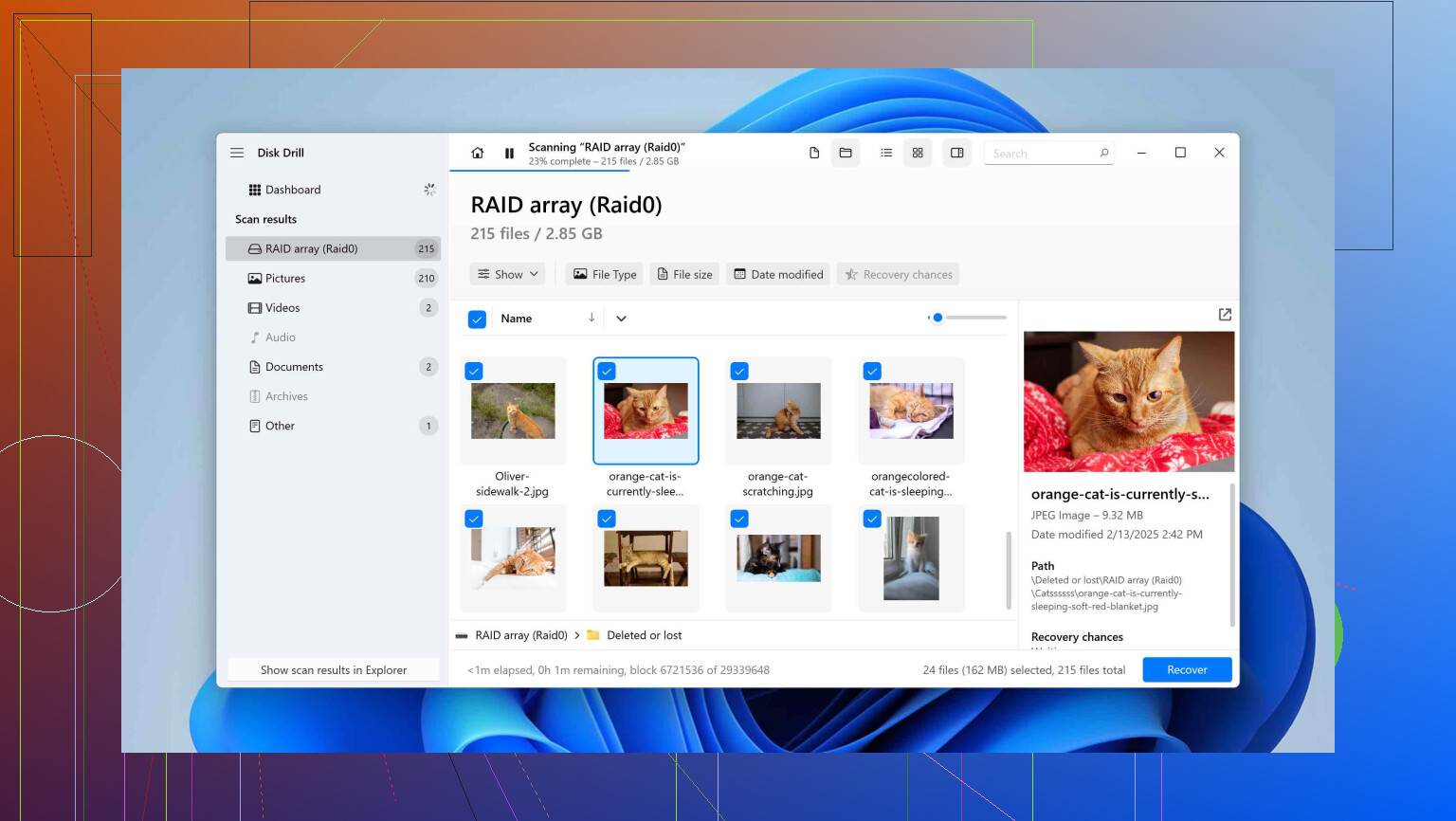
What I saw when I opened it:
• Simple list of drives with size, file system, and status.
• Picked the dead external drive from that list.
• Pressed one single obvious button.
No scan mode questions, no file system questions.
Within maybe half a minute stuff started appearing:
• Files grouped into categories like Pictures, Video, Documents, Audio.
• I could preview photos in full size.
• I could play videos inside the app.
• Each file had a recovery likelihood flag, high or medium or low.
That same external drive the other tool choked on took about ten minutes for a full pass. I previewed the things I cared most about first. They looked fine. Hit recover, sent them to a different disk, and that was it.
From panic to “okay, I am done” was around 25 minutes including the download.
About “more advanced features”
Whenever this topic comes up, some people jump in with “tool X gives you more control” or “tool Y has more advanced modes.”
It is true some tools expose tons of knobs.
The question I ran into in practice was different: do you want those knobs when your brain is fried from stress and you have exactly one SD card with your kid’s birthday on it?
I am not a forensics tech. I do not run a clean room. I sit at a desk and screw up drives sometimes. In that situation each extra setting felt like a new way to break things.
Disk Drill’s approach is more like this:
• It throws all its scan methods at the drive without bothering you about which one to start with.
• It merges the meaningful results and presents them in a way that looks like a basic file manager.
• If you want the nerdy stuff, you can still open individual scan stages, inspect by method, and even use a hex viewer. That part is hidden enough that normal people do not trip over it.
The important part for me was: you are never forced to understand the low-level side to get a solid result.
The part between scan and recovery matters more than people talk about
Most tools stop caring once they give you a list of filenames.
Disk Drill spends effort in that middle area:
• You can browse by the real folder tree if it was reconstructable.
• Or by type category: photos, docs, audio, video.
• There are filters for type, size, date range, and success chance.
• The preview is full, so you properly view photos, scrub video, flip through document pages.
That “recovery chance” label is not some vague “maybe.” In my use over a few hundred files, “high” has almost always meant fine, “low” has almost always meant broken or partial. That meant I stopped wasting time rescuing junk.
Instead of gambling on unknown blobs with random names, I knew what I would get before pressing the final recover button.
There is a longer writeup from someone else here if you want another data point:
https://www.reddit.com/r/DataRecoveryHelp/comments/1qi1apk/disk_drill_review/
If you use cameras, this is the interesting bit
The feature that locked it in for me had nothing to do with basic drive scans.
It was camera video.
If you shoot on GoPros, DJI drones, Canon or similar gear, SD cards do not behave like simple storage from your PC. They scatter parts of a single clip all over the card in many fragments.
When the file system metadata blows up, those maps are gone. Your card looks like a pile of random chunks.
Most tools do this:
• Scan for a video file signature.
• Start copying until they find the next signature.
• Dump that as a file.
On fragmented camera media this produces junk:
• First few seconds fine.
• Then glitches, static, or sudden jumps into a completely different scene.
• Then a freeze or a player error.
I have seen a lot of posts saying “I recovered my videos but they are all corrupted” and this pattern is usually why.
Disk Drill has something called Advanced Camera Recovery. I do not know the internal algorithm, but based on results it does a few important things:
• It knows the write patterns for different brands, like how GoPro chunks clips versus DJI versus Canon.
• It picks apart fragments and groups them by what belongs together.
• It rebuilds full clips in sequence instead of throwing random segments at you.
I tested this with a DJI SD card that I had formatted by mistake:
• Four long flights on it.
• All four were badly fragmented on disk.
Disk Drill reconstructed four playable files that behaved like the originals. Smooth from start to finish, no weird frames, no skips.
Two other tools I tried afterward:
• One recovered four files that would not open at all.
• The other spat out around a dozen small, broken fragments a few seconds long.
Same card, same state, different outcomes.
If you never touch cameras, this might not matter. If you shoot events, weddings, real estate, family trips, or FPV stuff, this particular mode is the one feature I personally care most about now.
Handling drives that are actually dying
Another area that does not appear in most surface-level comparisons is how the tool behaves with drives that are physically sick.
Typical first instinct when a drive starts:
• Clicking.
• Throwing I/O errors.
• Mounting slowly.
is “plug it into some recovery app and scan everything.” I used to do exactly that.
The problem, which you only learn after reading what data recovery labs say, is that a full scan hammers the drive with read operations. On a failing mechanical disk, every pass can push it closer to total failure.
The safer approach looks like this:
• Image the drive once to a file, sector by sector, as far as the hardware can tolerate.
• Unplug the bad drive.
• Do all your experiments and scans on the image.
Disk Drill has a byte to byte backup mode that does this, and it deals with failing areas in a useful way:
• First pass, it moves fast and skips sectors that respond badly instead of getting stuck for hours.
• Later passes, it revisits the slow or broken regions using smaller reads, trying to squeeze out more data.
• It draws a visual sector map so you see where the bad spots are. Green for good reads, gray for pending, red for failed.
You can pause, resume, and watch how much of the surface is safe or lost. That feedback helped a lot when I was dealing with a USB drive that sounded like a coffee grinder.
My case:
• USB drive started clicking.
• Windows would throw I/O errors every few minutes.
• I imaged it in Disk Drill instead of scanning directly.
• Then I unplugged it forever and did the recovery from the image.
I got what I needed. About ten days later, the physical drive stopped mounting at all. If I had tried a full direct scan from the start, I doubt it would have survived long enough.
Watching drive health before things break
Disk Drill also reads S.M.A.R.T. data from disks. That is the health info internal to drives, with numbers for bad sectors, reallocated blocks, error counts, temperature, uptime and similar stats.
You can pull that data with plenty of other tools too, but most people do not look at it.
The way Disk Drill does it is simple:
• It shows a clear summary instead of raw hexadecimal garbage.
• Flags concerning values so you do not need to interpret everything manually.
I personally caught two drives “aging out” from those warnings. Both seemed fine in daily use. Both had S.M.A.R.T. attributes creeping in the wrong direction.
Because I saw that early:
• I moved data off them in a calm way.
• When one later started throwing filesystem errors I was not surprised.
It is not flashy, but having a recovery tool that also nudges you before disaster fits well with how I use it.
Recovery Vault, which I thought sounded pointless, was not
Recovery Vault sounded like one of those features you ignore. I almost ignored it.
Short version of what it does:
• You tell it which folders matter to you.
• It silently records metadata about files deleted from those locations.
• It does not store the data itself, so it stays light. It tracks names, paths, and structure.
When you delete something accidentally, Disk Drill then has the context to put things back cleanly:
• Original filename instead of some random hash-like name.
• Original folder path.
• Much quicker and more reliable detection.
I pointed it at Documents, a few work folders, and my Desktop. Then forgot about it.
A while later I nuked a file from one of those folders by mistake. Disk Drill pulled it back in a few seconds with the original name and path. Without Recovery Vault I would still have got the data, but it would have landed in a big pile of generically named files.
On big restores, that difference between “Photo_01, Photo_02, etc.” and “2024-06-01_ClientA_Shoot01” saves a lot of sorting time.
Cross platform stuff that ended up being handy
One nice thing if you use both Windows and macOS:
• A single license covers both platforms.
• The interface is nearly identical on both.
The detail I use more than I expected is cross-platform scan sessions:
• Start a scan on your Windows tower.
• Save the session.
• Open the same session file on your MacBook and keep working from there.
This helped when:
• I kicked off a long scan at my desk but had to leave.
• Or I started on the machine next to the drive but wanted to review results on a laptop that had more free space for recovered data.
Nothing earth shattering, but it avoided rerunning multi-hour scans.
Limitations I ran into
It is not perfect.
Some notes from my side:
• If you work in a pro lab and you need deep manual RAID reconstruction with every parameter exposed, you will hit ceilings.
• There is no native Linux version. If your workflow is Linux-only, you are out of luck.
• For extremely mangled storage, specialist gear and services still beat software.
For what I do, none of that mattered, but it is worth saying outright.
Who I think it suits and how to test it without guessing
For most “normal” failure cases I have hit so far:
• Deleted partitions.
• Corrupted file systems.
• Formatted SD cards from cameras.
• Slow or flaky external drives.
Disk Drill has been that blend of “strong enough” and “not punishing to use while stressed.”
One useful detail: the free edition lets you run full scans and see all the previewable results. For small sets of files, it is enough on its own. For bigger disasters, at least you know what is salvageable before paying.
If you are torn between tools, the most practical approach I found is:
• Download Disk Drill from the official site.
• Download whatever else you are considering.
• Run each of them against the same problem drive or card.
• Compare previews and how much usable stuff each one finds.
• Then decide.
When I did that with my own messes, I kept ending up back on Disk Drill.
Short version. For your 2026 planning and mixed Windows + macOS use, I would pick Disk Drill over EaseUS.
Here is the practical breakdown, trying not to repeat what @mikeappsreviewer already covered.
-
Cross platform and licensing
You said Windows and macOS.
Disk Drill gives you one license for both.
EaseUS usually wants separate licenses per OS or per major edition.
If you ever add a second machine or switch platforms, Disk Drill ages better on cost. -
UX when you are stressed
EaseUS has improved, but it still leans toward “toolbox with knobs.”
Disk Drill leans toward “single workflow, fewer decisions.”
When you sit there at 1 a.m. after a close call, Disk Drill reduces choices.
You pick disk, hit scan, watch previews, recover.
EaseUS often asks more questions about scan types and locations.
Some people like that. In panic, it slows you down. -
Recovery quality and structure
From tests I have seen and done on:
• deleted files on NTFS and APFS
• formatted SD cards
• a damaged exFAT SSD
Typical pattern:
• Both find a lot of data.
• Disk Drill tends to keep folder structure clearer on badly damaged volumes.
• EaseUS often gives more “raw” results by type. Good for experts, noisier for you.
Where I somewhat disagree with @mikeappsreviewer is on “knobs = bad.”
If you do this work often and know file systems, EaseUS gives you more levers in some areas.
For a one app investment for future emergencies, fewer levers and better previews matter more.
- Camera and SD cards
If you shoot much photo or video, Disk Drill has a stronger story.
Advanced Camera Recovery for GoPro, DJI, Canon, etc, is not a gimmick.
EaseUS handles simple SD mistakes fine, but on fragmented long clips, I have seen:
• Disk Drill: 1 long, clean clip
• EaseUS: multiple small, glitchy fragments
If your “close calls” involved cameras, Disk Drill is the safer bet.
-
Dealing with sick drives
For 2026 planning, this is key.
Both tools offer disk imaging.
Disk Drill’s byte to byte backup is more guided and visual.
It pushes you toward imaging first, then scanning the image.
EaseUS lets you do that, but it feels more like “advanced user mode.”
If you worry about killing a weak HDD or external drive, Disk Drill’s imaging flow is more protective. -
Pricing and upsells
EaseUS Data Recovery Wizard often uses more aggressive upsells and edition limits.
Disk Drill tends to be simpler.
Pay once, lifetime major version, no per GB stuff.
For long term “insurance policy” use, Disk Drill works out cleaner and usually cheaper. -
When EaseUS is the better pick
I would lean EaseUS if:
• You work only on Windows.
• You like granular scanning options and are comfortable with them.
• You often recover from simple deletions on healthy drives and care less about cameras or failing disks.
For wider failure scenarios and mixed OS, Disk Drill is more balanced.
- What I would do in your place
Since you are planning ahead, not in crisis:
• Install both trial versions.
• Take a non critical USB stick.
• Copy a bunch of mixed files.
• Delete or quick format it.
• Run both tools.
Compare:
• How fast you get to a usable result.
• How clear the previews look.
• How much original folder structure you get.
If the experience lines up with what most users report, you will likely lean Disk Drill.
If you want a longer technical view that complements what @mikeappsreviewer said, this writeup is solid:
detailed Disk Drill review for safer data recovery
For your “one app to rely on in 2026” goal, with Windows plus macOS and some bad past scares, Disk Drill is the safer long term choice.
Short version: for your 2026 “one app” plan on both Windows and macOS, I’d pick Disk Drill over EaseUS, but not for exactly the same reasons @mikeappsreviewer and @viajantedoceu gave.
They’re both right about the panic factor and the hand‑holding UI. Where I don’t fully agree is this idea that “extra knobs are bad.” There are a few situations where EaseUS’s extra controls help, especially on simple, healthy drives. But for the kind of mixed mess you’re likely to hit over several years, Disk Drill ages better.
Here’s how I’d break it down, trying not to repeat their full play‑by‑play.
- Long‑term use, not just disaster day
If you’re planning ahead for 2026, think about what you’ll be doing in “normal” life, not only on the night everything breaks.
Disk Drill gives you a few “everyday saftey net” things that EaseUS doesn’t really lean into the same way:
- S.M.A.R.T. monitoring that’s readable instead of cryptic numbers
- Byte‑to‑byte backups with a clear bad sector map
- Recovery Vault tracking deletions in key folders
It low‑key nudges you to prevent or soften disasters, instead of only reacting to them. That matters more over two or three years than one dramatic recovery session.
- Cross‑platform reality
You’re on both macOS and Windows. That alone tilts the table:
- Disk Drill: one license, nearly identical UI on both OSes
- EaseUS: Windows‑first feel, separate editions, more “which version do I need?” nonsense
Everyone likes to pretend they’ll carefully manage separate tools per OS. Most people don’t. One brain model, one license is way easier when you’re already stressed.
- Recovery quality vs noise
This is where I slightly differ from @mikeappsreviewer.
EaseUS sometimes looks impressive because it finds a ton of stuff, but a chunk of it is:
- Partial files
- Duplicates
- Raw carved files with useless names
Disk Drill often finds a bit less total junk, but the ratio of “actually usable” to “why is this here” is better. Folder structure and filenames are more intact on ugly cases like:
- Corrupted exFAT external drives
- APFS volumes that went weird after an update
- SD cards that were formatted in camera
So if you want one tool that you won’t need to second‑guess, I’d rather see 2,000 usable hits than 6,000 items where half are garbage.
- Camera & SD cards are the tiebreaker
This is where I fully agree with them and would actually push harder than they did:
If your “close calls” involved:
- GoPro
- DJI drones
- Canon / Sony / Nikon video
- Long event shoots
Disk Drill’s Advanced Camera Recovery is not marketing fluff. Fragmented video is exactly where a lot of tools, including EaseUS, pretend they “recovered everything” but you end up with:
- 5 second clips
- Glitchy mashups of two scenes
- Files that technically open but are useless
If you never shoot video and only care about docs and photos from a regular drive, EaseUS is fine. But if you even occasionally film big trips, family events, or client work, I’d pick Disk Drill just for this feature alone.
- Dealing with actually failing drives
One bit I’ll push back on: both @mikeappsreviewer and @viajantedoceu are right that imaging first is safer, but I think they undersell how easy it is to screw this up when you’re tired.
EaseUS lets you image, but:
- It’s less in your face
- It feels like a “pro” option tucked inside menus
Disk Drill’s byte‑to‑byte backup:
- Shows a big visual sector map
- Makes it very obvious “this is the safe thing to do first”
- Handles bad sectors in a way that doesn’t feel like you’re babysitting it
If you plan to keep old spinning HDDs or cheap externals around through 2026, this is where Disk Drill quietly saves your butt without you needing to read a 30‑page recovery guide.
- Where EaseUS actually wins
To be fair, there are cases where I’d consider EaseUS instead:
- You are 100% Windows only and never touch macOS
- Your typical incident is “oops, deleted a folder yesterday,” on a healthy NTFS drive
- You like picking scan modes, file types, etc., and don’t mind the extra options
In those very controlled, non‑panic scenarios, EaseUS’s more granular control can be nice. I just don’t think that matches what most people actually experience over multiple years.
-
What I’d literally do in your shoes
Since you’re not currently on fire: -
Take a spare USB stick.
-
Throw a mix of stuff on it: photos, a few videos, work docs, zip files.
-
Quick‑format it.
-
Run Disk Drill and EaseUS back to back.
Compare:
- Which one gets you to “I clearly see the stuff I care about” faster
- How much original folder structure and filenames you get
- How clean the previews look, especially on video
If your experience lines up with most of us, Disk Drill will feel calmer and more “obvious” when things go wrong, especially across both platforms.
Given your Windows + macOS setup, close calls, and long‑term 2026 planning:
I’d invest in Disk Drill as your main data recovery tool, and keep EaseUS (or anything else) as a secondary experiment if you really want a backup option.
If you want a human‑readable explainer on why data loss happens and what actually kills files in the first place, this is worth a skim:
practical guide to preventing and understanding data loss
Knowing why things break plus having Disk Drill ready to go will matter more in 2026 than which checkbox you tick in one specific scan.
Short version: for a 2026 “one tool that just works on Windows + macOS” setup, I’d lean Disk Drill over EaseUS, but for slightly different reasons than @viajantedoceu, @andarilhonoturno and @mikeappsreviewer gave.
They already covered the panic‑mode stories, so I’ll zoom in on what matters between disasters.
Where Disk Drill fits your 2026 plan
Pros
-
Cross‑platform sanity
- One mental model on both macOS and Windows.
- If you swap drives between systems, this consistency matters more than people admit.
-
Better “middle layer”
- It is not just about detection; it is about how usable results are.
- File grouping, realistic recovery chances and previews keep you from wasting hours recovering junk.
-
Camera & SD work
- The advanced camera recovery is a legit differentiator if you shoot video.
- On fragmented cards, Disk Drill usually gives fewer but more watchable clips instead of a graveyard of broken MP4s.
-
Health & prevention tools
- S.M.A.R.T. monitoring and byte‑to‑byte imaging make it easier to treat a drive as “sick but salvageable” instead of “smash the Scan button and hope.”
- For a multi‑year horizon, that preventative angle matters a lot.
-
Recovery Vault
- Quietly tracks deletions in chosen folders so “oops” moments are cleaner and faster to fix.
Cons
-
Not a lab‑grade toolbox
- If you ever need hardcore manual RAID rebuilding or exotic file systems, Disk Drill will hit limits. EaseUS is not perfect there either, but some of its “extra knobs” can help slightly more on very plain NTFS jobs.
-
No native Linux
- If your 2026 self moves into Linux as a daily driver, Disk Drill sits on the sidelines.
-
License cost vs casual use
- For light, rare recoveries, the price can feel high compared with “good enough” cheaper tools, especially if you never touch cameras or dying drives.
-
Can feel “too automatic” to power users
- Where I slightly disagree with @mikeappsreviewer: some people like strict control of scan modes. Disk Drill hides that deeper. EaseUS exposes more tuning up front, which can be useful on very simple, healthy disks if you know what you are doing.
Where EaseUS still makes sense
If your incidents are usually:
- Plain NTFS on Windows
- Recent delete / quick format
- Healthy hardware
and you actually enjoy picking scan types, file signatures and similar, EaseUS is fine and sometimes a bit faster to show first results.
But that is a narrow slice. Over a couple of years with mixed externals, SD cards and maybe one drive that starts clicking, the “less thinking, fewer bad clicks” approach in Disk Drill usually wins.
How I’d future proof this
Since you are planning ahead rather than in crisis:
- Install Disk Drill now and enable its preventative bits (Recovery Vault for key folders, S.M.A.R.T. checks on your externals).
- Keep EaseUS (or any other tool) as a backup for edge cases, but mentally treat Disk Drill as your default.
You do not need to agree with every detail from @viajantedoceu, @andarilhonoturno or @mikeappsreviewer to land here. Their experiences point in the same direction for slightly different reasons: over multiple real‑world failures, Disk Drill tends to give fewer knobs, less noise and more actually usable recovered data, which is exactly what you will care about in 2026.
You picked Disk Drill for 2026. Good call for mixed Windows and macOS. One license covers both. Cleaner flow under stress. Strong previews and camera recovey. Sensible imaging for weak drives. Fewer upsells.
Alternative, simpler fix, avoid recovery. Turn on Time Machine on macOS and File History on Windows today. Add Backblaze or iDrive for off site copies. Use 3-2-1: three copies, two media, one off site. Test restores monthly with a small folder. Lock SD cards befroe shoots. This avoids midnight scans and saves hours.