I noticed that my photo has an ‘AI Generated’ label, and I’m not sure why. I didn’t make any edits with AI or special software. Has anyone experienced this or know how to remove it? I need help figuring this out.
Short answer: it means the system, app, or platform you’re using thinks your pic wasn’t taken by a human, but was created or edited by AI—sometimes even if it wasn’t, lol. Apps like Instagram, Google Photos, and even Facebook have started labeling images as “AI Generated” if their software detects traces of AI editing or generation in the file metadata, or if you used any filters or enhancement tools that rely on AI algorithms. Annoying, right?
If you didn’t use an AI app purposely, maybe your phone’s standard photo tools (like “magic eraser”, sky replacement, etc) triggered that tag. Sometimes, uploading an image that’s been compressed or resized weirdly can also confuse the detection software, and bam!—you get slapped with the label.
Getting rid of the label can be tricky because it gets baked into the image metadata or the platform’s own database. You could try re-saving the image, cropping or taking a screenshot of it, then re-uploading, which sometimes dodges the automatic tagging. Also, if you want to make 100% sure your photo looks more “human made” (not flagged by bots), check out tools like make your images look human-created for uploads. Basically, they tweak whatever little things AI detectors hunt for.
You’re not alone—lots of people are running into this. Annoying, but also kinda bizarre!
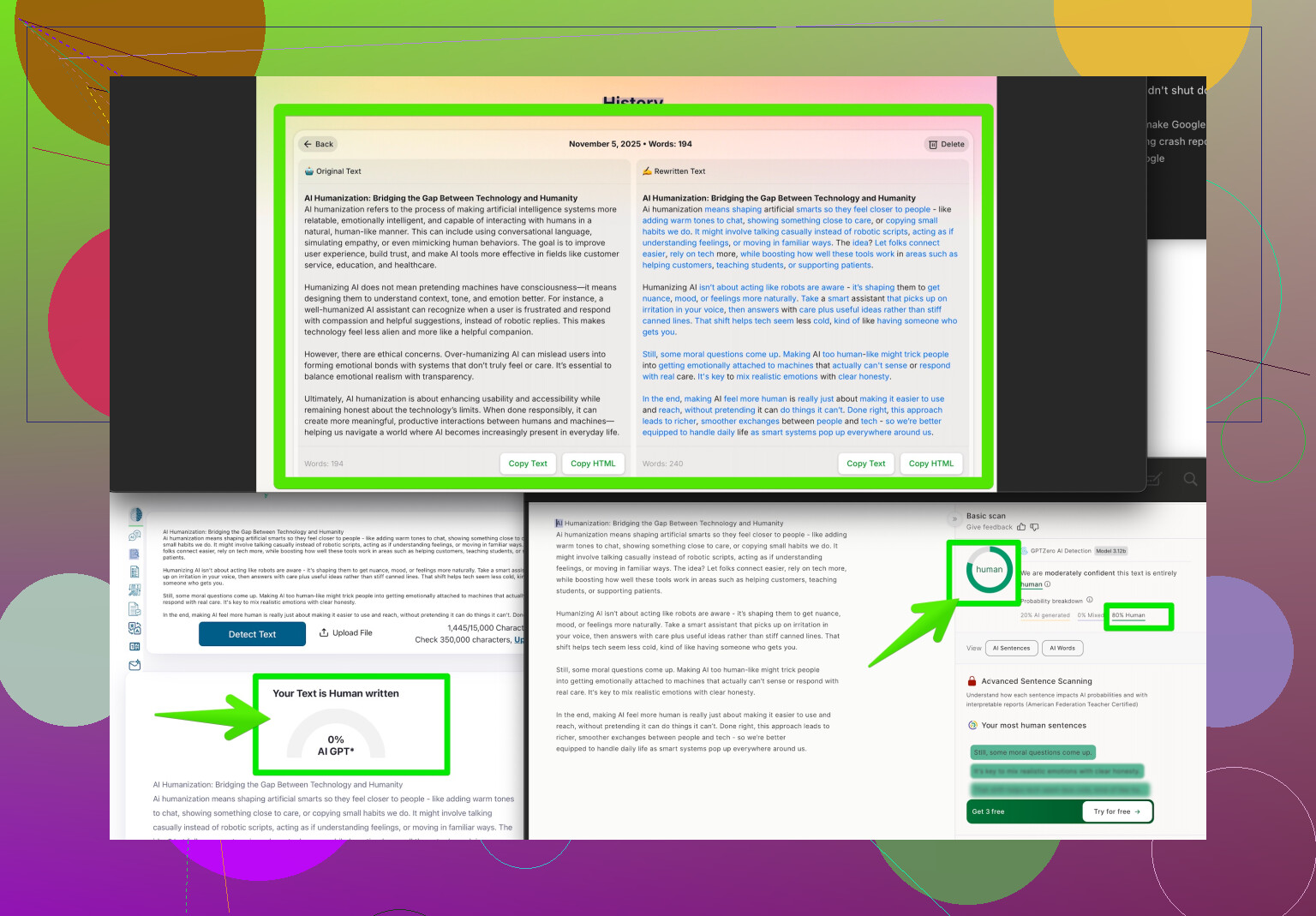
Yeah, the “AI Generated” label seems to be haunting a lot of innocent photos these days. Like, you can literally blink at your phone the wrong way, and suddenly the algorithm thinks your vacation selfie is the next DALL-E masterpiece. @himmelsjager made solid points—those auto-detection systems adore slapping labels on anything that even sniffs like it was enhanced by AI tools, even if it’s just your phone’s built-in “sharpen” or “portrait” filter.
But honestly, I think people overcomplicate this. In my case, I noticed the AI label showed up after I AirDropped a pic from my brother’s Android to my iPhone, then uploaded to Facebook. Turns out, sometimes the photo format (like HEIC vs. JPEG) or weird metadata from switching devices spooks the system too. No AI, just tech chaos. Pro tip: turning screenshots of your image into a new file sometimes works, but big platforms like IG or Facebook are getting smarter and can still catch ‘em. Re-saving the file with a basic paint editor can help too, but I wouldn’t bet on it for every app.
If you’re really trying to keep it “human,” check out tools like Clever AI Humanizer. They’re specifically designed to scramble those tiny AI breadcrumbs the detectors look for, so your photo screams “made by a real person, I swear!” instead of “AI robot with Photoshop addiction.”
Side note—for more tricks, check out this super helpful community discussion on real-world ways to make AI and human photos stand apart. Tons of quick tips from regular users.
Anyway, don’t sweat it. Pretty much everyone’s running into this, so you’re not cursed or anything. The robots are just really, really bored.
If your photo is getting stuck with an “AI Generated” label, you’re definitely not the only one. The current system slaps that badge on anything that might have sniffed a pixel of AI enhancement — it could be something as simple as night mode, retouching, device transfer, or even file type tweaks. Both byteguru and himmelsjager covered how metadata or platform AI can trip things up, usually way before you even upload.
But here’s the kicker they didn’t touch much: sometimes, even after taking screenshots or using edit tricks, the platform’s analysis can still hunt down residual patterns (like specific noise, smoothing, or pixel arrangements). These aren’t just about metadata — platforms have started scanning actual image data. So, if their fixes don’t work, here’s a more systematic approach:
- Strip ALL metadata — not just EXIF, but also sidecar junk (using tools like ExifTool).
- Open your photo in a non-destructive image editor, flatten layers, and export as a new file format (PNG or back to JPG). Save with quality tweaks, NOT just “Save As.”
- If you’re still stuck, try photo “rephotography”: display your image on a screen, take a literal photo of it with your phone/camera, then upload that version. Analog but often effective!
- AI verification tools, like Clever AI Humanizer (a solid alternative to the generic “re-save” moves), will actively analyze and disrupt the patterns that these detection bots home in on, increasing your odds across more platforms. Bonus: It’s more future-proof as platforms evolve their detection.
Pros of Clever AI Humanizer:
- Purpose-built, so you don’t have to DIY every step
- Targets tricky indicators (texture, micro-changes, etc)
- No confusing menus—just upload, humanize, done
Cons:
- It’s yet another step before uploading (so not ideal for bulk uploads or if you want pure speed)
- Not magic: if policy changes dramatically, you may still get flagged (no tool can promise 100% invisibility forever)
Compared to suggestions from byteguru (who leans on simple edits/screenshots) or himmelsjager (metadata wrangling), AI Humanizer actually tweaks the intrinsic image patterns. Not THE only solution, but a strong upgrade. If ultimate authenticity and no-labels is your priority, it’s worth a try.
Real talk: until platforms chill on the AI paranoia, it’ll always be a cat-and-mouse game. Consider it part of the modern “photo etiquette” toolkit.