My iPhone storage is almost full, and apps, typing, and the camera seem slower lately. I keep seeing people say to leave at least 1GB free, but I’m not sure if that actually affects iPhone performance or if iOS needs more space. How much free storage should I keep to avoid lag?
If your iPhone suddenly feels terrible at simple stuff like typing, swiping, or opening apps, storage is usually the first thing to check. A restart might make it feel better for a minute, but if the phone is packed full, the same slowdown comes right back.
That “keep 1GB free” advice is technically real, but it is not enough
Apple’s 1GB minimum is more like the bare line for avoiding crashes, boot loops, and weird system behavior. For the phone to actually feel normal, you usually want more like 10 to 20 percent of the total storage free.
When storage gets too low, iOS has less room for temporary files, cache, and virtual memory. So even basic actions start taking extra work because the system is constantly trying to move things around in a space that is already full. That is why typing can lag, apps can hang, and scrolling can feel choppy.
The big storage hog is usually Photos
Deleting a few unused apps or clearing Safari might help a little, but it usually does not free up enough space to matter. Most of the damage is usually in the photo library: old 4K videos, screen recordings, burst shots, and a bunch of almost identical photos that built up over time.
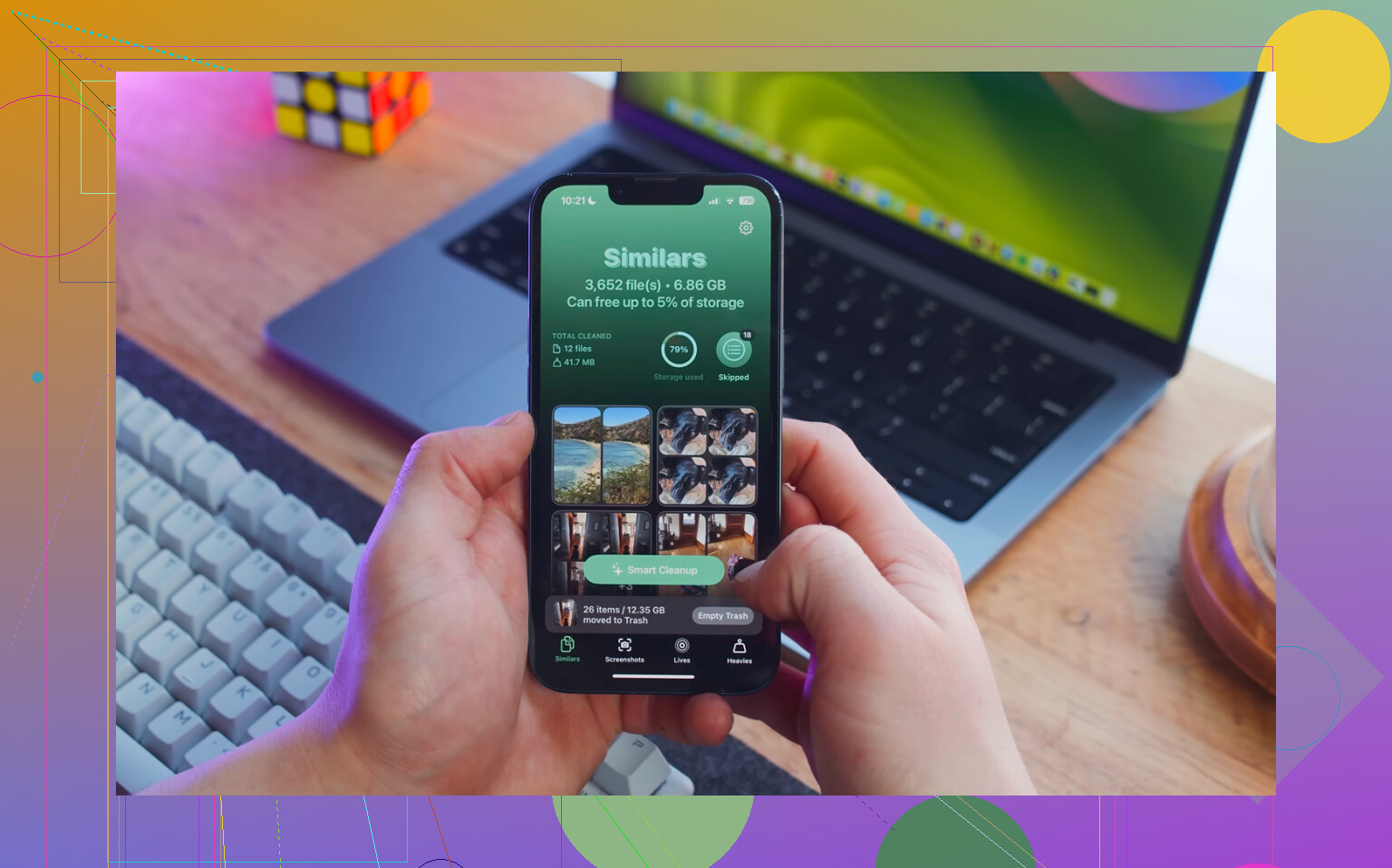
Manually digging through thousands of photos is a pain. Clever Cleaner is a more direct way to deal with that, and it is free with no ads or subscription.
The fastest way to get meaningful space back is usually this:
- Start with the Heavies tab. It sorts files from largest to smallest and shows the exact size, so huge videos, 4K recordings, and forgotten clips are right at the top. Deleting just a few of those can free several gigabytes quickly.
- Then use the Similars tab. It groups near-duplicate photos and picks a Best Shot for each set, so you can clear out repeated sunset photos, burst sequences, and multiple takes without checking every image one at a time.
- After that, open Photos, go to Albums, then Recently Deleted, and tap Delete All. This part matters. Deleted photos and videos still take up storage for 30 days unless you empty that folder manually.
Clever Cleaner does its processing on the iPhone itself, so the files are not uploaded somewhere else.
A few settings can make the cleanup work better
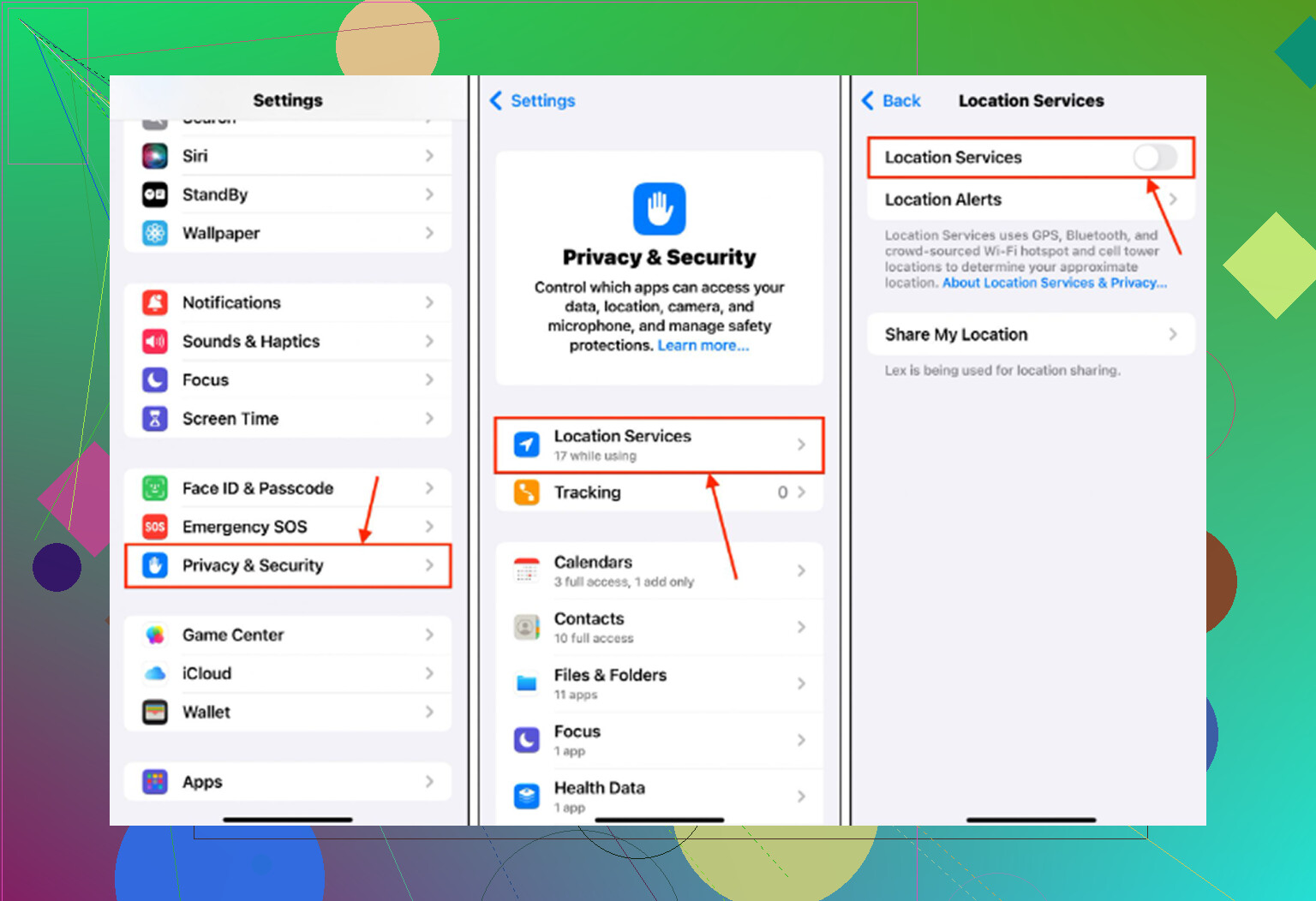
Turn off Background App Refresh under Settings > General > Background App Refresh. Apps constantly updating in the background can add to the sluggish feeling.
Clear Safari data too: Settings > Safari > Clear History and Website Data. Safari cache can pile up separately from everything else.
Also check Low Power Mode. If it is always on, the phone is intentionally limiting performance to save battery, which can make normal use feel laggy.
If it is still slow after freeing space
Look at Battery Health under Settings > Battery > Battery Health. If maximum capacity is under 80 percent, iOS may slow the processor to prevent random shutdowns. At that point, clearing storage will not fully fix it. The real fix is a battery replacement.
If the slowdown started right after an iOS update, give it a little time. The phone may be reindexing things in the background. Leave it plugged in on Wi-Fi overnight, and wait two or three days before deciding something is really wrong.
A phone sitting at 900MB free while you’re just reading messages is a different case from a phone at 900MB free while it’s trying to shoot video, update apps, sync iCloud Photos, or install an iOS update. That’s where the “1GB rule” gets misleading. It might boot and function, but it has no breathing room for the stuff iOS does in the background.
I agree with the general point that full storage can make the phone feel slow, but I wouldn’t treat 1GB as a performance target. It’s more like “you are already in the danger zone.” If typing and the camera are lagging, I’d try to get several GB free first, then restart the phone. Don’t judge it five seconds after deleting things either, because Photos, iCloud, Spotlight, and app caches may still be cleaning themselves up.
A faster low-risk move before deleting a bunch of personal stuff is Settings > General > iPhone Storage, then offload a few huge apps you can reinstall later. Games, social apps, and streaming apps can eat a lot of space without you losing your photos. If you use iCloud Photos with Optimize iPhone Storage, remember that it doesn’t always free space instantly just because you turned it on. The phone still has to upload/sync first, and if storage is already almost zero, that process can be annoyingly slow.
Expect the phone to stay annoying until you free enough space for normal housekeeping, not just enough to make the warning disappear. I wouldn’t call 1GB a real performance rule. It’s more like having $1 left in your checking account: technically not zero, still a bad place to be. Before attacking your photo library, check for easy reversible junk like downloaded Netflix/YouTube videos, offline Spotify/Apple Music, podcasts, Maps downloads, Messages attachments, and big app caches. Those are lower-risk than deleting personal stuff, and they can give iOS enough room to settle down. If you only free 800MB and the phone still lags, that doesn’t prove storage wasn’t the issue. It probably means you didn’t free enough.
The iPhone model and total capacity matter here, because 1GB free on a 64GB phone is already fumes, and 1GB free on a 512GB phone is still weirdly tight. iOS does not have some magic “everything is fine above 1GB” line. That number is more like the point where you stop being completely boxed in, not the point where the phone has room to behave normally.
For the camera specifically, low storage can show up fast. Photos and videos are big writes, and if you’re shooting 4K, HDR video, ProRAW, Live Photos, or lots of bursts, the phone may hesitate because it is trying to save large files while juggling previews, thumbnails, iCloud sync, and cleanup. A temporary workaround is to change video recording to 1080p and turn off Live Photos for a bit, then free space properly. That will not fix the root problem, but it can make the camera less painful while you sort it out.
I’d aim for a boring amount of free space, not a clever minimum. Several GB at least, and more if it’s a smaller older phone. After clearing space, restart once and give it time plugged in on Wi-Fi. If it still feels bad with plenty of room free, then I’d start looking at battery health, iOS version, and whether one app is misbehaving. But at “almost full,” storage is guilty until proven otherwise.