My external hard drive appears in Windows, but I can’t open it or access any files. It may be corrupted after an unsafe disconnect, and I need help figuring out how to repair the drive or recover my data without making things worse.
If the drive still shows up in Disk Management and the capacity looks right, that’s a good sign. It doesn’t prove the drive is healthy, but it usually means Windows can still see the hardware. After a hard crash, the issue is often the file system or partition data getting messed up, not the actual files disappearing.
I’d avoid trying to “fix” it right away. Don’t format it, don’t run CHKDSK yet, don’t copy anything new onto it, and don’t keep rebooting over and over hoping it comes back. Those kinds of fixes can change data on the drive, and if the wrong thing gets changed, recovery can get harder.
The safer order is:
- Check Disk Management and confirm the drive shows the correct size.
- If it’s external, try another USB cable, USB port, or another computer.
- Recover the files you care about first.
- Repair or format the drive only after the files are somewhere safe.
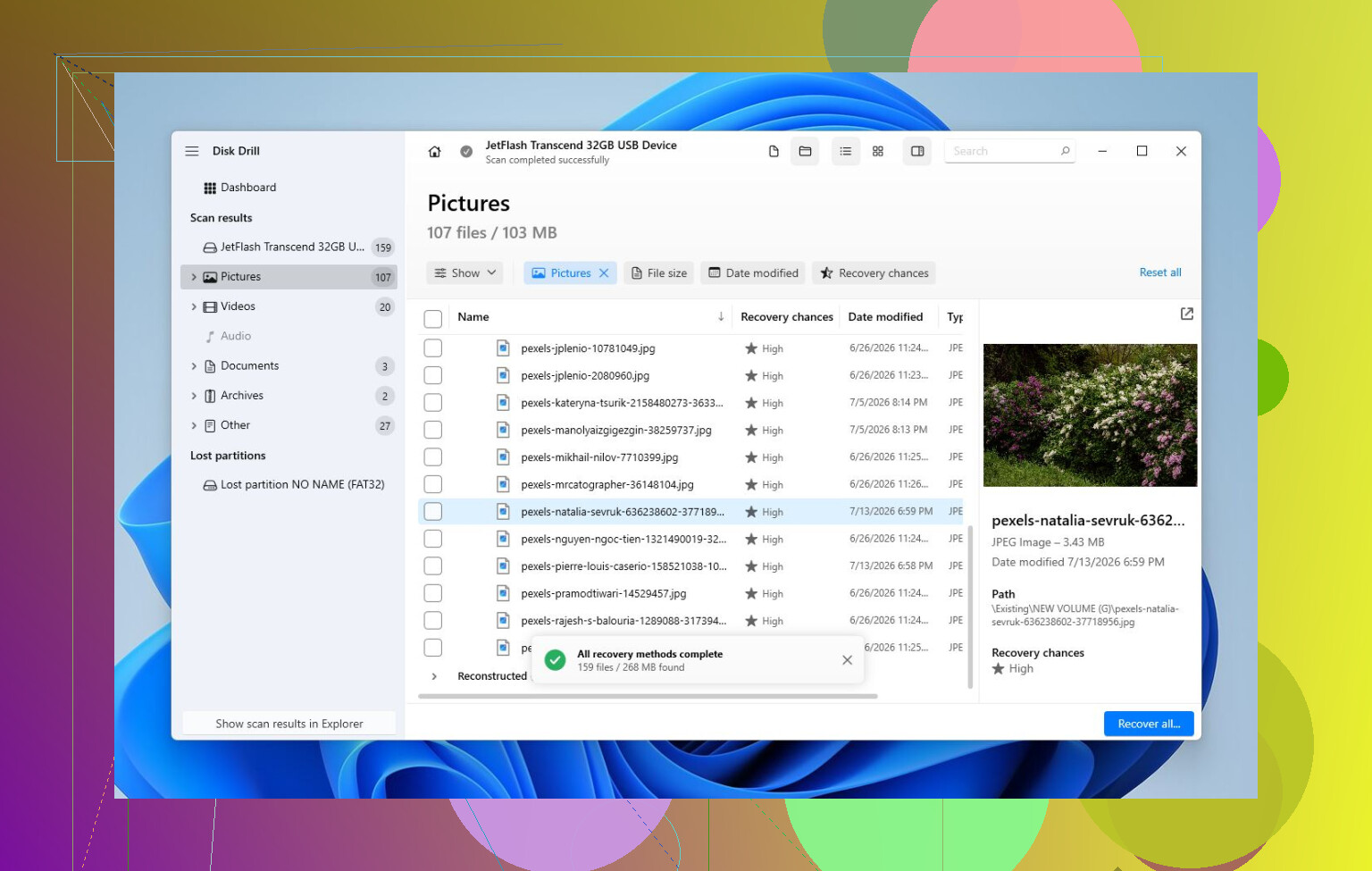
For recovery, Disk Drill is worth trying because it can make a full image of the HDD before scanning. That matters if the drive is unstable, since scanning an image is safer than repeatedly hammering the original disk.
The basic workflow would be:
- Install Disk Drill on a different drive, not the corrupted one.
- Create a complete image of the bad HDD.
- Open the image in Disk Drill.
- Run Universal Scan.
- Preview what it finds.
- Recover the files to another healthy drive.
The preview part is useful because you can check whether your photos, videos, documents, etc. are actually readable before spending time recovering everything. You can also use the scan and preview features to get a sense of whether the files are recoverable before buying the full version.
After your files are backed up, then I’d look at repair options. If the file system is still somewhat readable, CHKDSK may help, but I’d only run it after recovery because it modifies the drive. If the partition turned RAW or the partition table is damaged, TestDisk may be the better first repair attempt. If neither helps, a quick format can rebuild the file system, but I’d only do that once the data is already recovered.
Also watch how the drive behaves. Clicking noises, vanishing from Disk Management, showing the wrong capacity, or taking forever to respond are all bad signs. That points more toward hardware failure than simple corruption. If you see that, stop scanning it with recovery tools and consider a professional recovery service instead. They can clone the disk with specialized hardware and work from the clone, which is much safer for a failing drive.
So yeah, I wouldn’t assume the files are gone yet. If it still appears with the right size, there’s a decent chance the data can be recovered. Just get the files off first, then worry about making the drive usable again.
If Windows asks to initialize or format the drive, cancel it every time. That prompt does not mean the drive is empty, it usually means Windows can’t understand the file system, and accepting it can make recovery messier before tools like Disk Drill or TestDisk even get a clean shot at it.
Check whether Windows has assigned it a drive letter and what it calls the file system before you run any repair. If Disk Management says RAW or Unallocated, treat it like recovery first, like mikeappsreviewer said. But if it still says NTFS/exFAT and the error is “Access denied,” that may be a permissions or ownership problem, not corruption, and recovery tools may be overkill. In that case, try opening it from another Windows account or another PC before changing permissions on the drive. If it asks to format, disconnect it and stop poking around. The annoying truth is that “shows up but won’t open” can mean several different things, and the exact message Windows gives you matters a lot.
Whether the problem is the disk itself or the USB enclosure matters a lot. A flaky external enclosure or cable can make Windows see “a drive” but fail when it tries to read the file system. If this is a 3.5’ desktop external drive, make sure the power brick is good too. If it is a bare SATA drive in a cheap USB adapter, I’d try a different adapter or connect it directly to a desktop SATA port before assuming the file system is trashed.
I agree with the others about not running CHKDSK first. CHKDSK is a repair tool, not a recovery tool, and it can “fix” a directory structure by throwing damaged entries into found.000 or removing references Windows can’t make sense of. That may make the drive mount again, but it can also make the folder layout worse if you still need the data.
A simple order I’d use is: check whether the drive shows the correct capacity, try a different cable/port/computer, then look at the SMART health with something like CrystalDiskInfo. If SMART looks bad, don’t do a long scan on the original drive. Clone/image it first and work from the copy. Disk Drill’s image-first approach is fine for that, but the key point is the image, not the brand. If the drive clicks, disconnects, or changes capacity, stop there and don’t keep testing it for hours. That is when DIY software starts turning a recoverable case into a worse one.