My iPhone storage is almost full because I have thousands of old photos and screenshots. Deleting them one by one is taking forever, and I’m trying to find the fastest safe way to bulk delete iPhone photos without accidentally removing anything important from iCloud or other devices.
If your iPhone keeps yelling about storage, the Photos app is usually the first place to look. I thought I had already cleaned mine out pretty well, then found more than 18,000 photos sitting there. Deleting them one at a time was not happening, so I ended up using a few different methods depending on what needed to go.
For smaller cleanups, the normal Photos app works fine. Open Photos, tap Select, then drag your finger across rows of photos instead of tapping each one. If you’re dealing with a bigger chunk, zoom out to the Months view first so you can grab larger groups without as much scrolling. Once everything is selected, hit the trash icon.
That gives you the most control, but it gets old fast once you’re dealing with thousands of pictures.
If most of the junk is screenshots, screen recordings, bursts, or similar stuff, use Apple’s built-in albums instead. Go into Photos, open the Collections tab, scroll to Media Types, then pick something like Screenshots or Screen Recordings. From there you can tap Select and then Select All, which is much faster than trying to manually highlight every single image.
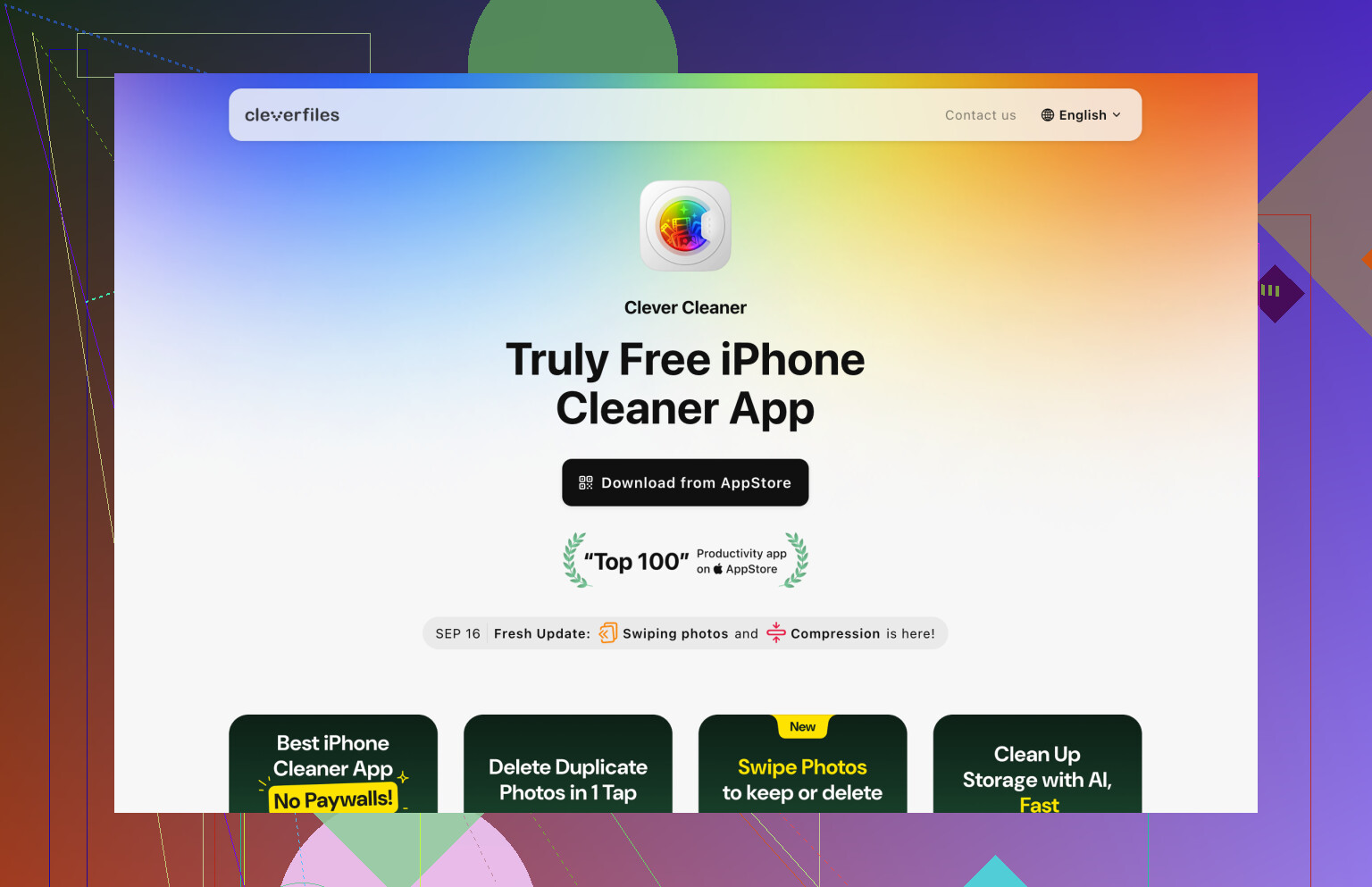
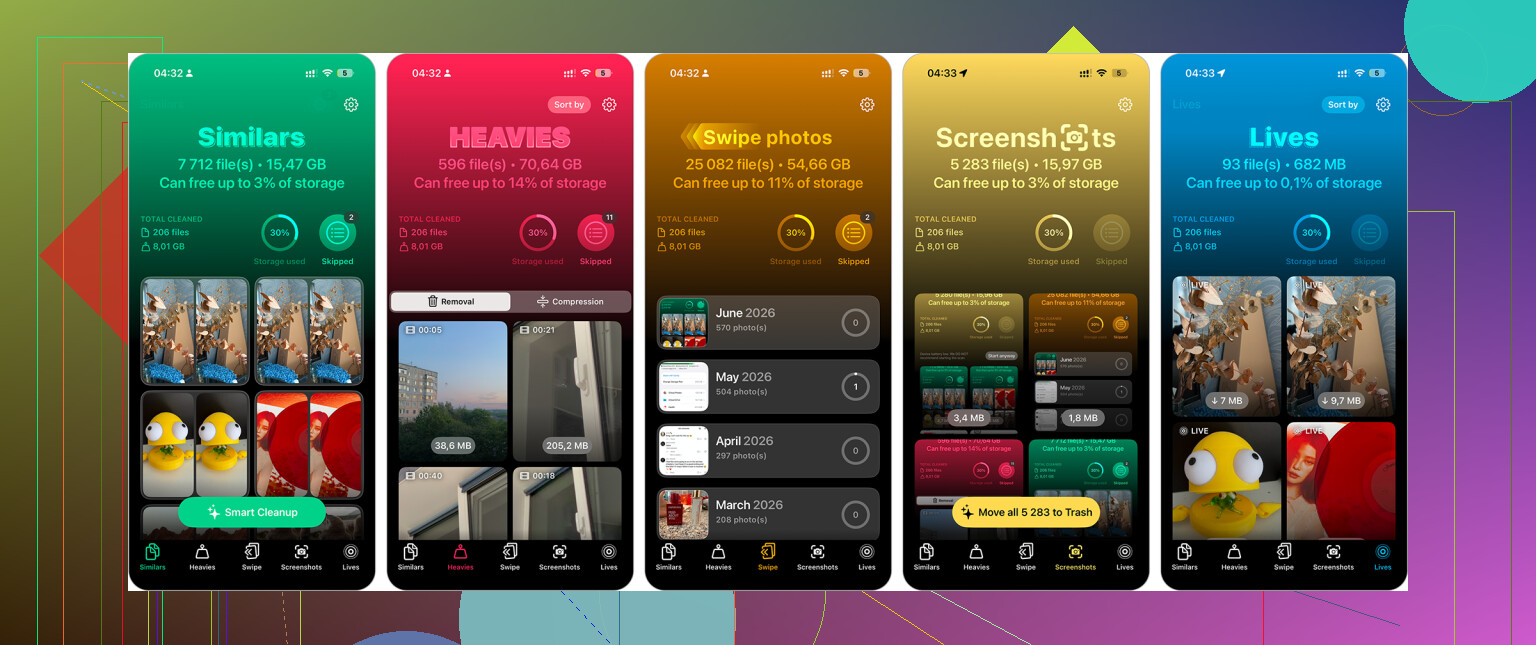
For a really large library, Clever Cleaner was the thing that saved the most time for me. I’m usually pretty skeptical of cleaner apps because a lot of them are ad-heavy or subscription bait, but this one is free and it handled a big photo library better than I expected.
After you install it, check the Similars section first. It groups near-duplicate photos and suggests the best one to keep, so you can swipe away the extras. The Screenshots section is useful for bulk deleting those, and Live Photos can be reviewed if you want to turn some into regular still images to save space. Also don’t skip Heavies. Large videos can clear more storage in a few taps than deleting hundreds of normal photos.
If you’re deleting several thousand items, doing it from a computer is usually less annoying. If you use iCloud Photos, go to iCloud.com, sign in, and select photos with Shift-click to grab large ranges. Delete what you don’t want, then let the changes sync back to your iPhone. A keyboard and mouse make this way less painful than dragging around on a phone screen.
And if you truly want everything gone, photos included, the fastest option is a factory reset. Back up anything you might care about first, then go to Settings > General > Transfer or Reset iPhone > Erase All Content and Settings. Follow the prompts and the phone will be wiped.
I wouldn’t do that unless you’re selling the phone, handing it off to someone else, or starting completely fresh. But for clearing absolutely everything, nothing else is faster.
If iCloud Photos is turned on, remember that deleting from the phone is deleting from iCloud too, not just “clearing local storage.” That’s the bit people miss when they bulk select thousands at once. I’d first export anything important to a computer or external drive, then do the big delete, then go to Albums > Recently Deleted and empty that folder or you won’t actually get the space back right away. Cleaner apps can speed up sorting junk, but the final space-saving step is still making sure the deleted photos are really removed.
The amount of space you get back depends on whether the full photos are actually stored on the phone or only cached there through iCloud Photos. That’s the detail I’d check before deleting thousands of things and wondering why the storage number barely moved.
Go to Settings > General > iPhone Storage > Photos first. If it says Photos is taking 80 GB, then yes, deleting photos and emptying Recently Deleted should make a big difference. If it’s much smaller than expected, your problem might be videos, Messages attachments, downloads, or app caches instead. The Photos app can look huge emotionally because there are 20,000 items in it, but storage-wise a few 4K videos can matter more than a mountain of screenshots.
For bulk deleting, I’d use the built-in filters before dragging across the whole camera roll. In Photos, search terms can be surprisingly useful. Try searching:
screenshots
screen recordings
receipts
memes
documents
videos
duplicates
Then select from those results and delete in batches. It’s slower than “delete everything,” but safer because you’re removing categories that are usually junk first. The Videos category is the one I’d hit early, because one long video can be worth more than hundreds of photos.
I agree with @cazadordeestrellas on the iCloud warning. If iCloud Photos is on, deletion is not a local cleanup button. It syncs the deletion. If your goal is “keep these in iCloud but remove them from this iPhone,” don’t bulk delete. Turn on Optimize iPhone Storage under Settings > Photos instead. That lets the phone keep smaller local versions and manage space automatically. It won’t give you perfect control, but it avoids nuking your cloud library.
If your goal really is to permanently remove old stuff, do it in passes instead of selecting 8,000 items at once. Delete a year, a media type, or a search result group, then check Recently Deleted. Huge deletes can lag, fail to sync cleanly, or make it hard to recover if you grabbed the wrong range. Boring method, but it’s less painful than restoring from a backup because you accidentally included vacation photos or family pictures.
Clever Cleaner can be useful if you mostly need help finding similar shots and junky screenshots, but I wouldn’t hand any cleaner app the final decision without reviewing what it selects. Apps are decent at spotting duplicates and blurry repeats, not so great at knowing which ugly photo is the one you actually care about.
Final cleanup step: after deleting, go to Photos > Albums > Recently Deleted and empty it. Then restart the phone and give storage a little time to recalculate. iPhone storage numbers are sometimes slow and weird, so don’t judge it five seconds after tapping delete.