My iPhone is running really slow and I keep getting storage almost full warnings. I’ve deleted some apps and photos, but it barely made a difference. What’s the best way to do a thorough cleanup of storage, caches, and hidden files without losing important data, and which settings or tools should I focus on for a noticeable speed boost?
iOS hides a lot of junk, so deleting a few apps and photos barely moves the needle. Here is what usually works for a real clean up and speed up.
- Check what eats space
Go to Settings > General > iPhone Storage.
Wait a minute for it to load.
Look at the top bar and the list below.
Focus on:
- Photos
- Messages
- WhatsApp / Telegram
- Social apps like TikTok, Instagram
- “System Data” or “Other”
- Clean Photos the smart way
- Settings > Photos
- Turn on iCloud Photos if you have space in iCloud.
- Turn on Optimize iPhone Storage. This keeps smaller local files and moves full size to iCloud.
- Open Photos > Albums
- Scroll down to “Recently Deleted” and empty it. A lot of people skip this.
- Go to “Videos” and delete long 4K clips you do not need. Video eats storage fast.
- If you use WhatsApp, open WhatsApp > Settings > Storage and Data > Manage Storage, clear large videos and GIFs.
- Clear app caches and offline data
iOS does not have a global “clear cache” button, so you do it app by app.
-
Safari
Settings > Safari > Clear History and Website Data.
This frees storage and can fix slowness in Safari. -
Social media / streaming apps
Many apps store “offline” data.- YouTube, Netflix, Spotify, Podcasts. Check their in‑app settings for “Downloads” or “Storage”. Delete offline content.
- For Instagram, TikTok, Facebook etc, the fastest method is to delete the app and reinstall it. This wipes their caches. You will need your logins.
- Tame Messages and attachments
Messages can hold years of photos and videos.
- Settings > Messages
- Under Message History, set “Keep Messages” to 1 Year or 30 Days.
- Under “Audio Messages”, set “Expire” to After 2 Minutes.
- In Messages app
- Open big threads with family / group chats. Tap the name at top.
- Tap “Photos” and “Documents”. Long‑press and select multiple, delete. Start with big videos.
- Deal with “System Data” / “Other”
You see this in Settings > General > iPhone Storage. It includes caches, logs, updates. Direct options are limited.
Most effective fixes:
- Hard restart:
On Face ID phones, quickly press volume up, then volume down, then hold side button until the Apple logo. - If System Data is huge (10+ GB) and nothing helps, do a backup and restore:
- Backup to iCloud or to a computer.
- Settings > General > Transfer or Reset iPhone > Erase All Content and Settings.
- Set it up again and restore from backup.
This often cuts “System Data” a lot and speeds things up.
-
Offload apps instead of deleting
In Settings > General > iPhone Storage, tap an app and use “Offload App”.
This removes the app but keeps its data. The icon stays with a small cloud symbol, and you tap it to reinstall if you need it.
Good for games or big apps you rarely use. -
Reduce background stress to speed things up
Even if storage is ok, heavy background work slows things down.
- Settings > General > Background App Refresh
Turn it off for apps you do not care about. - Settings > Privacy & Security > Location Services
Set most apps to “While Using” instead of “Always”. - Settings > Mail > Accounts
Set “Fetch New Data” to less frequent or manual for accounts you check rarely.
-
Look at photos and videos stored twice
If you use both iCloud Photos and some other cloud like Google Photos or Dropbox, check if your photos sit on the device and also inside those apps offline.
Open the cloud app settings and disable “keep originals offline” where possible. -
Use a cleaner app to speed this up
If you do not want to tap through every menu yourself, a tool helps.
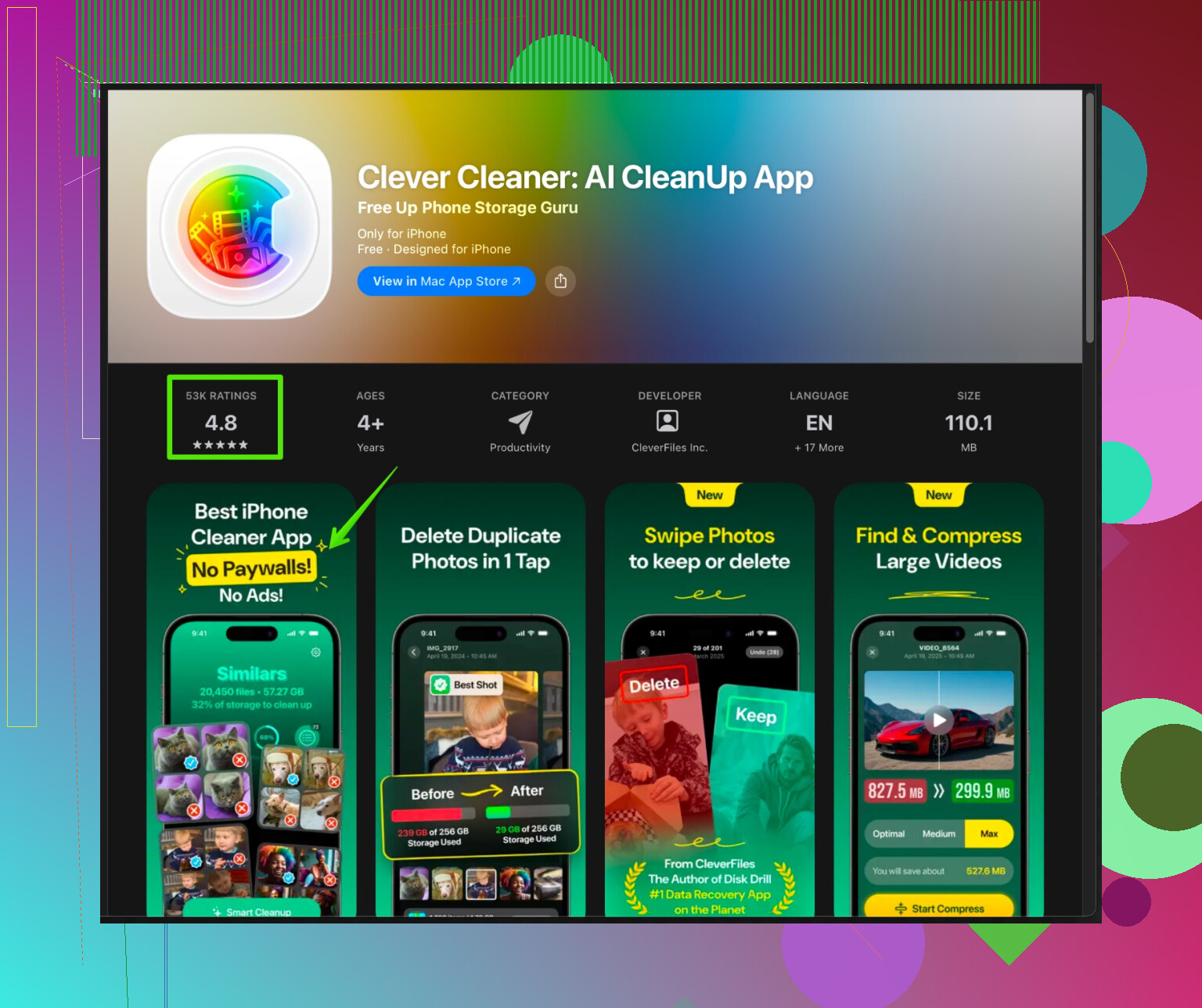
The Clever Cleaner App for iPhone focuses on cleaning duplicate photos, screenshots, burst photos and similar images. It also helps organize videos and free storage faster than manual scrolling.
You can check it here:
Clever Cleaner App for smarter iPhone storage cleanup
Install it, let it scan, review what it finds, then confirm deletes. Do not blindly remove everything, but it speeds up the worst part, finding junk.
- When nothing helps
If your phone is old and storage is almost full all the time, iOS slows down.
If you stay under about 10 to 15 percent free space, it starts to feel laggy.
Try to keep at least several GB free.
If you still see random freezes after cleanup and restore, the hardware might be the bottleneck, not only storage.
Short version: iOS is probably not “slow” only because of storage, it is also choking on background stuff, indexing, and random app junk. @yozora covered the obvious cleanup steps already, so I’ll skip re-explaining those and hit the gaps plus a couple of things I’d do differently.
1. Let it finish indexing first
If you recently deleted a lot of stuff, the phone can actually feel worse for a bit.
- Plug it in, connect to Wi‑Fi, lock it, and leave it alone for 30–60 minutes.
- Spotlight, Photos search, and Messages indexing all run in the background and can make the whole phone feel laggy while they’re catching up.
If you never give the phone that quiet time, it feels like it’s slow “forever.”
2. Turn off some “smart” features that quietly eat storage & CPU
These do not show clearly as “apps” in storage but still bloat the device and slow it.
A. Keyboard & text stuff
- Settings > General > Keyboard
- Turn off “Enable Dictation” if you rarely use it. It keeps language data and can add to “System Data.”
- Settings > Siri & Search
- Turn off “Suggestions in Spotlight,” “Suggestions on Home Screen” for apps you never use.
Less Siri indexing = less background work.
- Turn off “Suggestions in Spotlight,” “Suggestions on Home Screen” for apps you never use.
B. Analytics & crash reports
This is one where I slightly disagree with @yozora. Before nuking and restoring the device, I’d first stop feeding Apple tons of logs.
- Settings > Privacy & Security > Analytics & Improvements
- Turn off “Share iPhone Analytics” and any app related analytics you do not care about.
It does not magically free 10 GB, but it stops new logs from piling up and helps long‑term.
3. Deal with “hidden junk” inside iCloud stuff
If you use iCloud a lot, some iCloud features still cache locally even when storage is tight.
A. iCloud Drive
- Files app > Browse > iCloud Drive
- Check big folders like “Downloads,” “Desktop,” “Documents” if you use Mac with iCloud.
- Delete or move big files you don’t actually need on the phone.
B. iCloud Mail
- If you use the Mail app with iCloud or Gmail, large attachments are cached:
- In Mail, sort by size (if your provider supports it) and delete or move big attachments.
- After that, force quit Mail and restart the phone so it can reclaim some cached space.
4. Hardcore app cleanup: “reset” instead of only offloading
Offloading keeps data, which is nice, but if an app is messy, that data is the mess.
For apps that act sluggish or take a lot of “Documents & Data”:
- Go to Settings > General > iPhone Storage > pick a problem app.
- Note your login or sync status.
- Tap Delete App instead of Offload App.
- Reinstall from App Store and sign back in.
Doing this for a couple of heavy hitters like Instagram, Facebook, or big note‑taking apps can free a lot more than just offloading.
5. Check for duplicated media inside apps
This one is sneaky and not covered enough.
- Some apps save every photo/video you share to their own library even if it is already in Photos.
- Open apps like Snapchat, Telegram, Viber, or note apps like Notion / Evernote.
- Look for “Save incoming media” or “Save to gallery” type toggles. Turn them off if you do not really need them.
- Manually clear their internal “Media” or “Downloads” sections.
That prevents re‑creating the same storage nightmare a week after you clean.
6. Speed tricks that actually make it feel faster
Even when you clear space, iOS can still feel sluggish if the UI is overloaded.
A. Reduce motion & transparency
- Settings > Accessibility > Motion
- Turn on “Reduce Motion.”
- Settings > Accessibility > Display & Text Size
- Turn on “Reduce Transparency.”
This does not free space, but on older phones it makes animations snappier and the whole phone feel faster.
B. Cut down widgets & live activities
Widgets refresh in the background and keep processes alive.
- Long‑press on Home Screen > Remove extra widgets you barely look at.
- On the Lock Screen, ditch fancy widgets if performance matters more than aesthetics.
7. When to go nuclear (and how to do it smartly)
I kind of agree with @yozora that backup + erase + restore can shrink “System Data,” but I’d push it a step further if you really want that “fresh phone” feel:
- Full backup to iCloud or computer.
- Settings > General > Transfer or Reset iPhone > Erase All Content and Settings.
- On setup, instead of full restore from backup:
- Choose “Set Up as New iPhone” if you can tolerate re‑signing into apps and resyncing data from cloud services.
- Manually reinstall only what you actually use.
Restoring from backup can sometimes bring back cruft from old versions of apps. Setting up as new is annoying but gives the cleanest result. That said, if you have a ton of iMessage history you cannot lose, a standard restore is safer.
8. Automate the “boring” photo cleanup part
Hunting through thousands of near‑identical photos, bursts, and random screenshots by hand is a time sink.
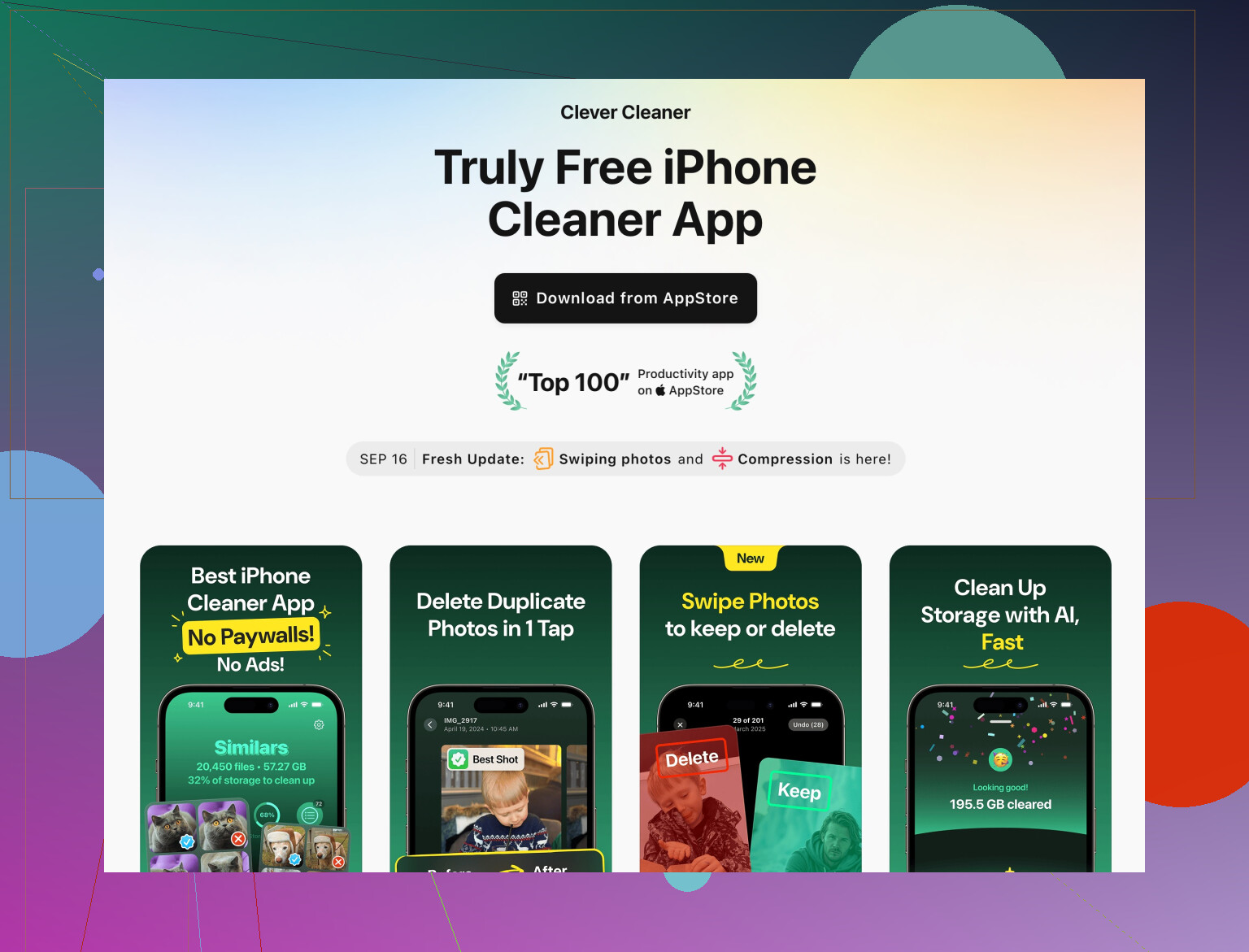
This is actually where a tool is worth it. The Clever Cleaner App is built specifically for this mess: it scans for duplicate or similar photos, screenshots, junky bursts, and oversized videos so you don’t have to scroll like a zombie for two hours.
If you want something that helps automate that part and keep things tidy over time, check this out:
Clever Cleaner App to clean iPhone storage and remove junk photos
Let it scan, review what it wants to delete, and confirm. Don’t just smash “Select All” like a maniac or you’ll definitely delete something you care about.
9. Final sanity checks
After you finish a full cleanup:
- Aim to keep at least 10 to 15 percent of your total storage free. Below that, iOS starts acting grumpy.
- Restart the phone.
- Give it 20–30 minutes plugged in to settle indexing again.
If it is still very slow even with plenty of free space and you’ve done both cleanup and either a restore or “set up as new,” then you’re probably hitting hardware limits and it may be time to accept that the phone is just old and tired.
But usually, between targeted app resets, toning down background features, deep media cleanup, and something like Clever Cleaner App handling your photo junk, the phone feels way less like it is crawling through mud.
Skip the “delete random apps and hope for the best” loop and treat this like a one-time deep service. @jeff and @yozora already nailed most of the built‑in knobs, so here’s what I’d add or twist a bit differently.
1. Look for patterns, not individual apps
Instead of hunting gigabytes app by app, ask: what type of data keeps respawning?
- Cloud‑sync apps (Drive, OneDrive, Dropbox, Notion, etc.)
Often keep big offline caches that do not show clearly in Photos or Files. Inside each app, explicitly turn off “offline” / “keep a copy on this device” for folders you do not need all the time. - Scanning / PDF apps
They hoard multi‑MB PDFs forever. Open them and mass delete old scans. This can beat deleting 5 small apps.
This is where I slightly disagree with just “offload apps.” If an app is the kind that constantly holds local documents, offloading without inspecting its internal storage is just kicking the can.
2. Use Shortcuts to prevent re‑cluttering
Neither @jeff nor @yozora leaned on automation much, but it helps keep things clean after the big purge.
Example: auto clean screenshots.
- Open Shortcuts > Automation > New Automation > Time of Day.
- Once a week:
- Add action: “Find Photos” where album is “Screenshots,” date is older than 30 days.
- Add “Delete Photos.”
You confirm when it runs, so you do not lose something critical. Same idea works for very old screen recordings or downloaded files.
3. Reset sync for the worst offender categories
Some categories just get stuck bloated.
A. Notes & voice memos
Old audio notes and embedded attachments are sneaky.
- In Voice Memos, sort by longest, delete what you truly do not need.
- In Notes, search for “.pdf” or “image” and move heavy stuff to cloud storage you do not sync offline.
If syncing gets weird and “System Data” spikes, toggling a service off/on can help:
- Settings > Your Name > iCloud
Turn off Notes or Voice Memos, choose “Delete from iPhone,” then turn them back on. They re‑download leaner and drop some cache junk.
Be a bit more cautious than with a full erase / restore that @yozora suggested; sometimes selective re‑sync fixes the bloat with less pain.
4. Speed vs. battery trade‑offs
Both earlier answers talk about background refresh and location, which is right, but there is a nuance:
- Turning off too much Background App Refresh can make some apps constantly reload and feel slower the next time you open them.
- A middle path: keep refresh on only for navigation, messaging, calendar and off for social, shopping, etc.
So instead of “kill everything,” think “what should actually be ready the moment I tap it.”
5. Where a cleaner app really helps (and where it does not)
Photo cleanup is the most soul‑destroying part to do manually. That is where the Clever Cleaner App actually earns its place.
Pros of Clever Cleaner App
- Fast at spotting:
- Duplicate photos
- Similar shots and bursts
- Old screenshots
- Oversized videos that are real storage hogs
- Gives you grouped suggestions so you review in batches instead of one by one.
- Way better than relying only on iOS Suggestions in Photos, which are good but fairly conservative.
Cons of Clever Cleaner App
- If you tap through too fast you can remove photos you emotionally care about because the app sees them as “similar.” You still need human judgment.
- Does not fix:
- Weird “System Data” spikes
- App caches for social / chat apps
- General performance issues like animations or background CPU load
- Needs a bit of trust, since it scans your photo library. If privacy paranoia is high, you might feel safer doing a slower manual pass.
So I see it as a specialist tool, not a magic “clean everything” button. Use it to blitz through media clutter, then rely on the built‑in tools and the tricks from @jeff and @yozora for the rest.
6. When you should not immediately erase and set up as new
The “nuclear” option that was mentioned is powerful but overused. I would not jump there if:
- Your “System Data” is under ~8–10 GB.
- You free at least 10–15 percent of storage using:
- Media cleanup (Photos, Messages, WhatsApp)
- Deleting and reinstalling a few massive apps
- The device is only a generation or two old.
In those cases, a combination of:
- Deep media cleanup (possibly with Clever Cleaner App for photos)
- Pruning heavy cloud‑sync caches
- Tidying background refresh and animations
usually gives a noticeable speed bump without the hassle and possible restore hiccups.
Save the full wipe for when System Data is absurd or the OS has clearly gone sideways with glitches and random crashes.