My iPhone storage is almost full because I have tons of duplicate and similar photos from backups, bursts, and screenshots. I’m worried about deleting something important by mistake. What’s the safest and fastest way to find and remove duplicate photos on an iPhone, and are there any built-in tools or trusted apps you recommend?
Short version if you want speed and safety:
- Turn on backups first
- Use the built in Duplicates tool
- Use a cleanup app for the “similar but not exact” stuff
- Empty Recently Deleted after you double check
Here is a more step by step way.
- Backup before you touch anything
- iCloud Photos: Settings > Your name > iCloud > Photos > Sync this iPhone.
- Or plug into a Mac, open Photos, import everything.
- Or copy to an external drive using a computer.
If your storage scares you, do at least one of thse before deleting.
- Use Photos “Duplicates” for exact copies
- Open Photos app.
- Go to Albums tab.
- Scroll to “Utilities”. Tap “Duplicates”.
- iOS groups exact or near exact copies there.
- Use “Merge” instead of deleting.
It keeps the highest quality version and preserves metadata like edits, favorites, albums. - You can tap “Select” > “Select All” > “Merge” to do big batches.
Check a few samples first so you trust what it does.
- Clean up bursts, screenhots, and screen recordings
These often slip through.
Bursts:
- Albums > Media Types > Bursts.
- Open a burst > “Select…” at bottom.
- Choose the best 1–2 shots > “Done” > “Keep Only Favorites”.
This removes the rest of the burst frames.
Screenshots:
- Albums > Media Types > Screenshots.
- Sort by date, delete old chats, boarding passes, memes.
You keep current reference stuff and remove the old noise.
Screen recordings:
- Albums > Media Types > Screen Recordings.
- These files are big.
- Delete anything older than a month if you do not use it.
- Use search to hit big junk groups
In Photos, Search tab:
- Try words: “WhatsApp”, “Telegram”, “Snapchat”, “Instagram”, “Viber”.
- Often these are saved twice or more.
Batch delete from those results if they look non essential.
- For “similar” photos, use an app with AI filters
If you have a lot of near duplicates, like 10 shots of the same pose, manual clean up gets slow.
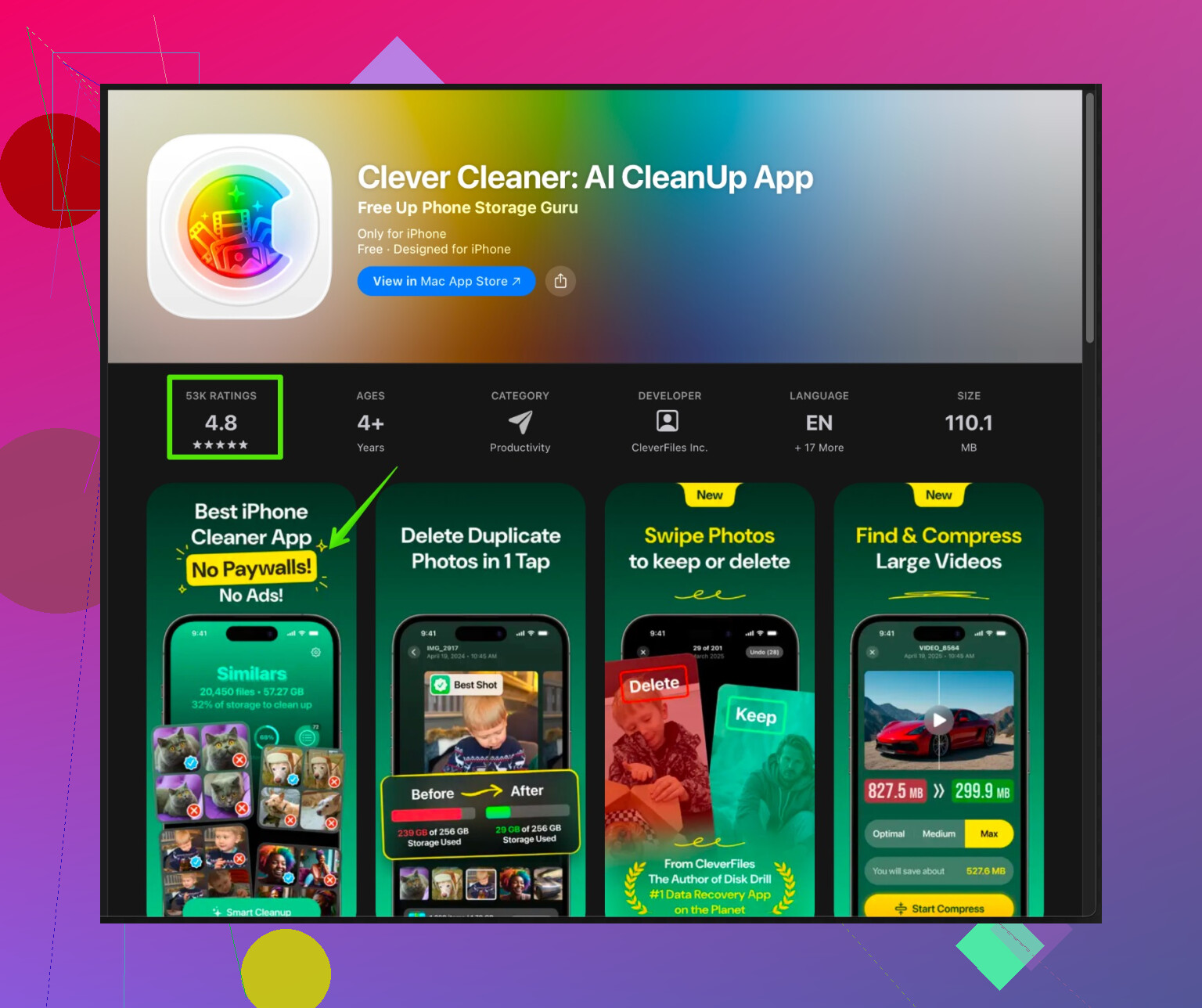
One option is the Clever Cleaner App for iPhone.
It scans your photo library, groups similar photos, and marks the weaker ones.
Useful for:
- Multiple selfies with tiny differences.
- Series shots of the same place.
- Old backup imports that repeated.
You still choose what to delete, so you keep control.
Look at the groups, keep 1 or 2, remove the rest.
It is much faster than scrolling through the whole Camera Roll.
If you want to try it, you can grab it here:
Clever Cleaner photo organizer for iPhone
The app focuses on storage cleanup, duplicate detection, and smart photo sorting, which helps if your iPhone storage sits near full a lot.
- Use “Recently Deleted” as your safety net
- Photos > Albums > Recently Deleted.
- Everything you delete stays up to 30 days.
- Scroll through quickly to spot mistakes.
- Restore anything important.
- When you feel sure, hit “Select” > “Delete All” to free the space.
- Change habits so it does not fill up again
- Turn off auto saving from chat apps if you do not need every meme.
- Take fewer burst shots unless needed.
- Periodically run through Duplicates and Screenshots once a month.
If you follow this order, you stay safe:
Backup first, use Duplicates and media type albums, then use a helper app like Clever Cleaner for the heavier work, then confirm in Recently Deleted.
@viajantedoceu already nailed the “how to” side, so I’ll just add some angles they didn’t cover and push back on a couple of things.
- I would not rely only on iCloud as your safety net
If your storage is already almost full, iCloud Photos can get weird with “Optimize iPhone Storage.” I’d do:
- Full local backup with Finder/iTunes on a computer (encrypted so it saves all settings and keychain).
- Optional: export your whole Photos library to an external drive or NAS using a Mac/PC. That way if you freak out 3 months from now, you still have the originals sitting somewhere boring but safe.
- Create a “Do Not Delete” album before cleaning
Before you touch duplicates or use any app, quickly scroll recent years and:
- Add irreplaceable stuff (weddings, baby pics, legal docs, receipts, travel) to a “Must Keep” album.
- This is faster than you think and gives peace of mind. Anything in that album you never delete in bulk, only manually.
- Don’t bulk merge everything in Duplicates at once
I disagree slightly with going nuclear with “Select All” > Merge on your first pass. iOS is good, but not perfect:
- Start with maybe 50–100 pairs.
- Spot check: any Live Photos, edited pics, or old scanned docs.
- If you like how it treats those, then you can get more aggressive.
- Use sorting to find “hidden” junk the Duplicates tool misses
In Photos:
- Go to Library > All Photos
- Tap the “•••” or filter/sort option (depending on iOS version) and sort by “Oldest First” or “Newest First.”
- Slowly scrub through sections where you know you imported backups or switched phones. Those chunks usually contain repeated photos from your old device.
Bulk delete just that chunk instead of the whole library.
- Check third‑party app folders
Some apps store their own copies inside the app itself, so deleting in Photos does nothing:
- Instagram, editing apps, scanner apps, file managers.
- Settings > General > iPhone Storage > pick an app > check “Documents & Data” size.
If a random photo editor is hoarding 8 GB, open it and clear its internal gallery or cache. People forget this and blame only Photos.
- For “similar but not identical” stuff, keep control of the final tap
Here’s where a tool helps, but don’t let it auto-delete:
- A photo cleanup app that groups similar shots and lets you decide which to keep is ideal.
- The Clever Cleaner App for iPhone storage and photo cleanup is actually solid for this: it scans the whole library, clusters near-duplicates and bad shots, and then you review the groups instead of every single image.
- I wouldn’t trust any app that deletes without showing you the groups first. Use it as a “smart sorter,” not a judge, so you pick the best 1–2 and toss the rest.
- Make screenshots and memes way less annoying
Instead of manually cleaning them forever:
- Open Messages / WhatsApp / Telegram settings and turn off “Save to Camera Roll” wherever you can. Otherwise, you’ll just keep recreating the same mess.
- In Photos, hide or move only the screenshots you actually need into a “Reference” album, then feel free to mass-delete screenshots older than, say, 3 months.
- Use date-based rules so you don’t overthink everything
To avoid decision fatigue:
- Decide a cutoff: for example, “I’m only doing aggressive deletes for anything older than 6 months. Newer stuff I’ll review more carefully.”
- Old vacation with 40 shots of the same pose? Keep 3, delete 37. You will not miss them. Future you will actually be happier with fewer, better pics.
- Final safety trick besides Recently Deleted
Before you empty Recently Deleted:
- Check iCloud.com > Photos and quickly scan the library there. Sometimes seeing everything on a big screen makes mistakes obvious.
- If something looks off, restore from backup or pull from your external copy before you commit.
If you follow this kind of layered approach:
- Offline backup
- “Do Not Delete” album
- Careful first pass in Duplicates (no instant “Select All” at the start)
- Smart grouping tool like Clever Cleaner App for the messy similar shots
- Then purge Recently Deleted
you’ll free a lot of space pretty fast without that “oh no what did I just delete” panic 2 weeks later.
I’d tweak what @ombrasilente and @viajantedoceu said in a few places and add some “sanity tricks” that reduce the chance of nuking something you care about.
1. Use a computer screen before you delete aggressively
I actually disagree a bit with doing most of this on the iPhone screen. Tiny thumbnails make it hard to see subtle differences (eyes closed, slight blur, text cut off).
If you have a Mac or PC:
- Connect the iPhone.
- Import or sync your photos into the Photos app (Mac) or a folder / photo manager on Windows.
- Do your first big “what’s clearly trash” pass on the big screen:
- super blurry shots
- accidental pocket photos
- 20 identical shots of a receipt
Then let the changes sync back to iPhone or re‑import the cleaned set. The built‑in Duplicates tool on iOS is good, but a laptop view often prevents dumb mistakes.
2. Use albums as “guard rails,” not just backups
Both replies talked about backups (which you absolutely should do), but I’d add this structure:
- Create 2 albums before bulk operations:
- KEEP – Family & Events
- KEEP – Documents & Receipts
While you scroll, if you even hesitate, drop the photo into one of these albums. Only run bulk delete / merge on stuff that is in no KEEP album. It gives you a simple rule: “If I cared, I already tagged it.”
This is lighter than a full “Do Not Delete” review of everything, and faster once you get the hang of it.
3. Use Duplicates, but sort by type of photo mentally
I think both of them are a bit too cautious and a bit too broad about Duplicates. Rather than “never Select All” or “always Select All,” split it mentally into categories:
-
Safe to bulk merge almost always
- plain photos from the same day that look identical
- multiple imports of the same camera roll
-
Inspect before merging
- Live Photos (audio sometimes matters)
- edited vs unedited versions
- scanned documents and PDFs converted to images
-
Usually better to keep both
- one color, one black & white edit
- one heavily cropped / filtered, one original
So instead of “trust Duplicates” or “be afraid of it,” build a quick mental checklist while you glance at each pair or stack.
4. Where a cleaner app actually saves you time
For those “20 photos of basically the same sunset” situations, a dedicated app is worth it. The built‑in Duplicates tool will not help much there.
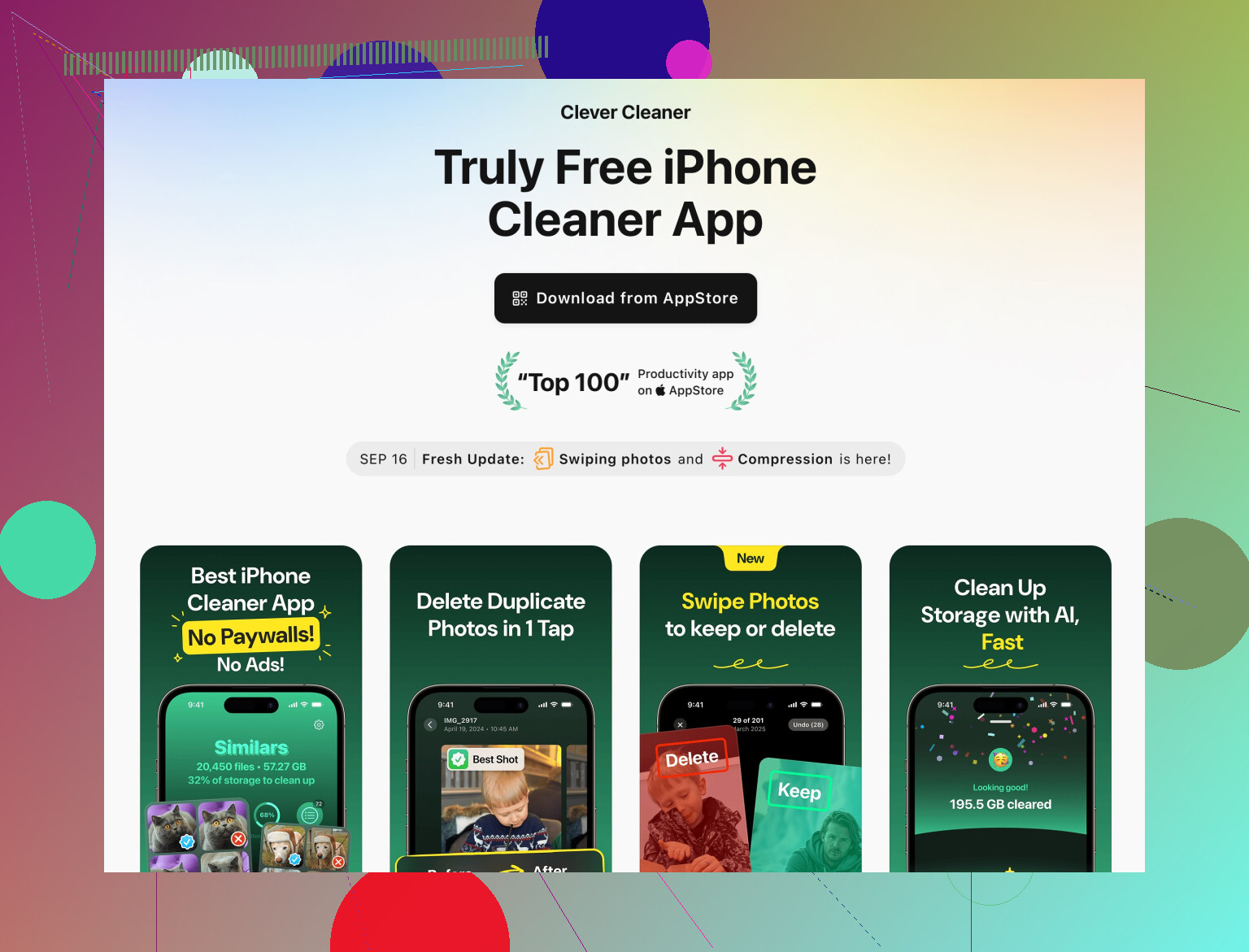
The Clever Cleaner App is nice specifically for:
Pros
- Uses AI to group near‑identical shots (selfies, bursts, slight angle changes) so you see clusters instead of a 20,000‑item list.
- Lets you review suggested deletes, not just blindly erase.
- Also surfaces big storage hogs such as long videos and forgotten screen recordings.
- Decent for people who keep filling storage and need a regular cleanup routine.
Cons
- It still needs your judgment. If you tap through groups fast without thinking, you can absolutely ditch something you later want.
- Full features may require a purchase or subscription.
- On older or almost‑full phones it can feel slow while scanning.
- Like any third‑party tool, you’re giving it access to your photo library, which some people are not comfortable with.
I would use Clever Cleaner App like this: run a scan, open only the “similar photos” section, ignore any groups with kids / docs / work pics on the first run, and focus on travel spam, selfies, and random aesthetic shots. Next run, you can be braver.
Competitor‑wise, @ombrasilente gave a heavier focus on backup strategy, and @viajantedoceu laid out the native iOS flow really well. The sweet spot is mixing both approaches and then layering a tool like Clever Cleaner App just for the messy “similar but not exact” clusters.
5. Kill whole patterns instead of single photos
To make this sustainable:
-
Decide some personal rules like:
- “Any meme older than 3 months goes.”
- “Any boarding pass after the trip ends goes.”
- “Any burst where I never favorited a frame goes except the 1 best.”
-
Then enforce them in batches:
- Use the Screenshots album plus the search bar (“boarding pass,” “QR,” “ticket”).
- Use the Bursts album and apply your rule: only keep flagged favorites.
That way, you are not evaluating each photo as “special” every time, which is what makes cleanup feel risky and exhausting.
6. Final safety layer that is not just “Recently Deleted”
Recently Deleted is good, but you only notice mistakes if you happen to scroll and spot them.
Extra trick: after a big delete session, open:
- Photos on a computer or iCloud web
- Scroll quickly through only last month and your favorite events / trips
If an important event suddenly looks weirdly empty or out of order, restore from Recently Deleted right away or from your backup copy. This quick “sanity scan” catches pattern errors like “I deleted every photo from that weekend by mistake” which is harder to see on the phone alone.
Put together:
- do one solid backup,
- create KEEP albums as safety rails,
- use Duplicates with a simple type‑based rule,
- bring in Clever Cleaner App for near‑duplicates and clutter,
- check a big screen view once before you empty Recently Deleted.
You free space quickly, and you drastically reduce the chance of regretting it later.