My iPhone storage is almost full and it’s slowing everything down, but I don’t want to lose important photos, messages, or apps I actually use. iCloud is nearly full too, so I’m not sure what to safely delete or offload, or which settings to change to reclaim space without breaking anything. Can anyone share practical tips or step-by-step ways to free up storage on an iPhone and keep it from filling up so fast in the future?
First thing, check what is eating space.
-
Check storage breakdown
Settings > General > iPhone Storage.
Wait a bit for it to load.
Look at the top bar. Usually Photos, Apps, and “System Data” are the big ones. -
Photos without losing them
If you use iCloud Photos and iCloud is full, do this:
• On a laptop or PC, go to iCloud dot com and download older photos you care about.
• Move them to an external drive or Google Photos / OneDrive.
• Then delete old photos and videos from the iPhone Photos app.
• Go to Albums > Recently Deleted and empty it, or they still take space.
Turn on “Optimize iPhone Storage” if not already.
Settings > Photos > Optimize iPhone Storage.
That keeps smaller versions on the phone, full versions in iCloud.
- Clear big hidden junk in Messages
Messages hoard photos and videos.
Settings > General > iPhone Storage > Messages.
Check “Photos”, “Videos”, “GIFs and Stickers”, “Other”.
Delete large threads or big attachments you do not need.
You keep the text, but remove the big files.
You can also set messages to auto delete after 1 year.
Settings > Messages > Keep Messages > 1 Year.
- Offload apps without losing data
Settings > General > iPhone Storage.
Sort by size. Tap big apps you rarely open.
Tap “Offload App”.
The icon stays, your data stays, but the app binary is gone.
When you tap it later, it downloads again with your stuff intact.
You can also enable auto offload.
Settings > App Store > Offload Unused Apps.
-
Clear Safari and app caches
Safari: Settings > Safari > Clear History and Website Data.
Some social and video apps have their own cache clearer inside the app settings.
Example: in TikTok, Instagram, etc, look in settings for “Cache” or “Storage” and clean it.
These rebuild over time, but you get a quick win. -
Deal with “System Data” bloat
System Data is tricky. It includes logs, caches, etc.
Things that help reduce it:
• Restart the phone.
• Make sure iOS is up to date.
• If it is enormous (like tens of GB) and you feel brave, a full backup to computer via Finder or iTunes, then erase all content and restore from that backup. That often shrinks it.
Do this only if you have time and a cable. -
Offload photos with an app
If you do not want to think too much, use a cleaner app that finds duplicate photos, similar screenshots, huge videos and junk files.
For example the Clever Cleaner App for iPhone helps organize and clean your gallery, remove duplicates, merge duplicate contacts, and clear hidden junk so your phone feels faster and has more free space.
You can grab it here:
smart iPhone cleanup with Clever Cleaner
Run it, review what it suggests, do not auto accept everything, and delete only what looks safe. -
Quick wins list
• Delete old downloaded videos in streaming apps.
• Remove offline maps you do not need in Google Maps or similar.
• Clean “Recently Deleted” in Photos and Files.
• Delete large voice memos after exporting important ones.
If you free up 5 to 10 GB, the phone feels smoother, apps open faster, and updates install without drama.
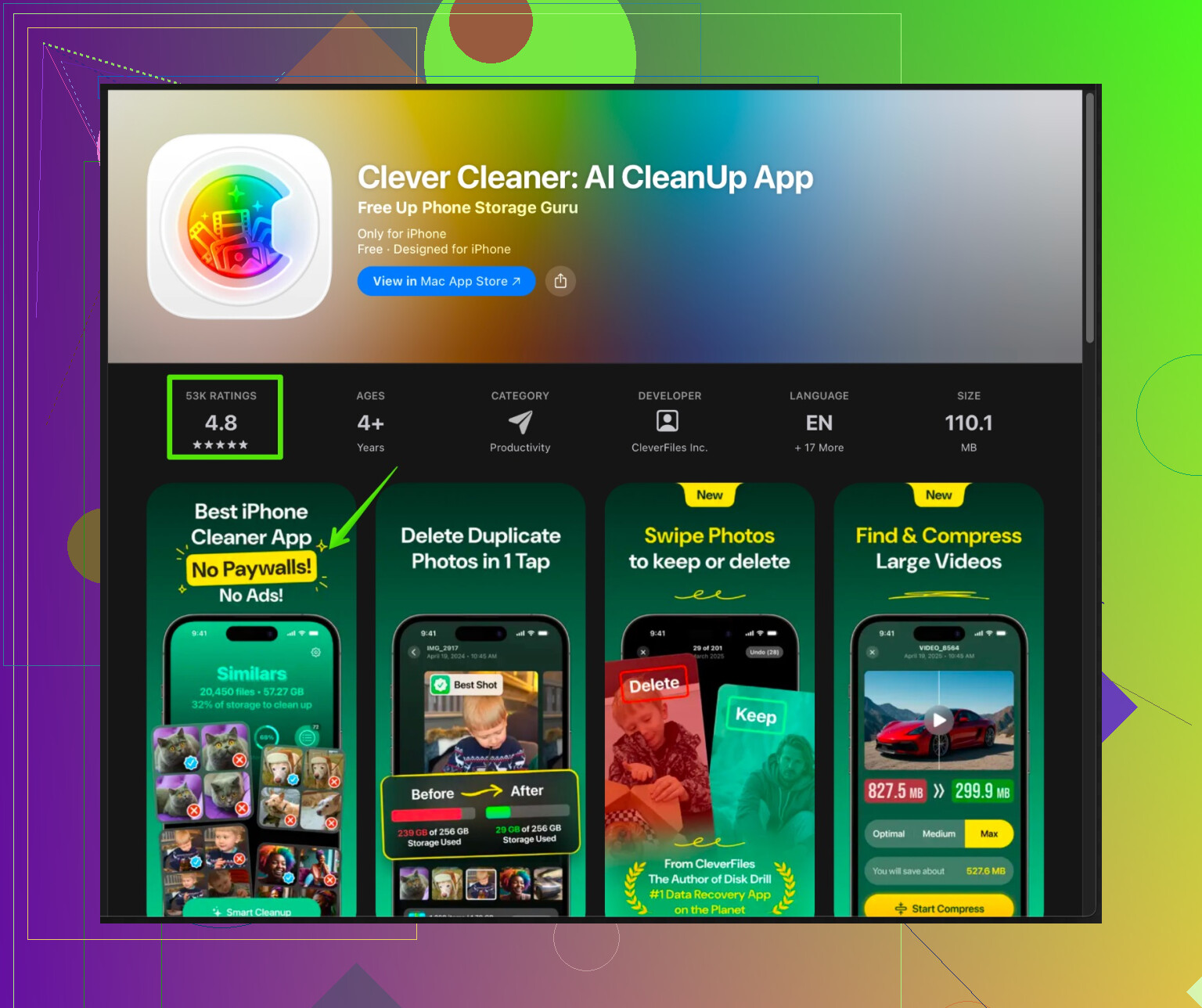
@espritlibre covered a ton of the “normal” stuff already (Photos / Messages / offload apps etc), so I’ll skip rehashing the same menus and add some other tricks + a slightly different POV.
1. Stop iCloud from silently filling itself up
A lot of people miss this:
- Go to Settings > Your Name > iCloud > iCloud Backup
- Tap your iPhone, look at what’s actually inside that backup
- Turn off backup for big, easily redownloadable apps (Spotify, Netflix, big games). They just bloat your iCloud backup for no reason.
- Then hit Back Up Now so a smaller backup overwrites the old fat one.
Same thing with:
- iCloud Drive: look for big random files that got dumped there (PDFs, videos, huge ZIPs) and move them to a computer or external drive.
This can free both iCloud and on‑device space indirectly since iOS stops screaming about storage every 3 minutes.
2. Deal with “Downloads” & Files you forgot existed
People obsess over Photos and forget Files:
- Open the Files app
- Check On My iPhone and Downloads folders
- Delete old PDFs, installers, offline documents, random junk from WhatsApp/Telegram exports
- Then open Photos > Albums > Recently Deleted and also Files > Recently Deleted and clear them, otherwise they still take space
Half the time I clean other people’s phones, there’s 2–5 GB just sitting there in Files.
3. Attack media inside social apps, not just Safari
Instead of only nuking Safari data like @espritlibre said (which is fine but often not the biggest hog):
- Go into Instagram, TikTok, Facebook, Telegram, WhatsApp, YouTube
- Look for Offline / Downloads / Saved / Watch Later / Cache sections
- Delete:
- “Downloaded” videos
- Offline playlists and podcasts
- Saved reels / stories that are already in your Camera Roll anyway
Most of this stuff you can re-stream anytime, so it’s low‑risk deletion and high payoff.
4. Tweak Messages & WhatsApp going forward
I slightly disagree with relying on auto deletion of messages alone like @espritlibre mentioned. It helps, but you can make future growth way slower:
- In Settings > Messages, set:
- “Low Quality Image Mode” to ON so every meme your friends spam is smaller
- In WhatsApp > Settings > Storage and Data:
- Disable auto download for photos/videos in every chat type
- Then in Storage and Data > Manage Storage, sort by “Larger than” and wipe just the huge files
That way you are not re-running the same cleanup every 2 months.
5. Look for “hidden” photo hogs that Photos doesn’t show clearly
Even if you do not want to lose photos:
- Filter inside Photos:
- Go to Albums > Media Types > Videos
- Sort by largest (tap the 3 dots, if available, or at least scroll to 4K stuff)
- Keep the important ones, export them to a computer / cloud of your choice, then delete them locally
- Do the same for Slow‑mo and Time‑lapse. These are massive.
Recorded screen videos are also sneaky storage killers.
6. Check mail attachments
If you use the Mail app:
- Settings > Mail > Accounts
- For accounts you don’t really need offline, set them to fetch and not keep a ton of mail locally
- In the Mail app, search for “has:attachment” or just filter by attachments, and delete the big ones after saving files you need to Files or a computer
Some mailboxes quietly sit on gigabytes of old PDFs and PowerPoints.
7. When “System Data” is crazy, do the nuclear but safe-ish route
@espritlibre mentioned backup + erase + restore. I’ll be blunt: if System Data is like 20+ GB and you’ve had the phone for years, this is often the only real fix.
If you do it, do it properly:
- Plug into a Mac or PC, use Finder or iTunes
- Make an encrypted backup (so passwords and Health data are saved)
- Settings > General > Transfer or Reset iPhone > Erase All Content and Settings
- Restore from that computer backup
Yes, it’s annoying. Yes, it usually shrinks “System Data” by a lot.
8. Use a cleaner app, but don’t blindly trust it
Cleaner apps can be helpful if you treat them as assistants, not bosses.
If you want a quick visual way to spot duplicates, similar shots, and huge videos without tapping every single photo manually, something like the Clever Cleaner App can be handy. It helps you:
- Find duplicate photos and similar bursts
- Detect extra large videos
- Organize screenshots and junk images
- Clean up contacts
Just review what it suggests and don’t accept everything in one tap.
If you’re curious, here’s a solid resource for it:
smart iPhone cleanup with Clever Cleaner
I’d personally use a tool like that once in a while, then maintain things with the built‑in iOS tools the rest of the time.
9. Priority checklist if you want to be fast and safe
If I were sitting with your phone for 20–30 minutes and trying not to lose anything important, I’d go in this order:
- Clean Files / Downloads / Recently Deleted in both Files and Photos
- Remove offline videos & downloads inside social / streaming apps
- Trim Messages / WhatsApp big attachments, not the whole chats
- Offload large, rarely used apps instead of deleting them
- Shrink iCloud backup by excluding big apps and redoing the backup
- If “System Data” is insane, plan a backup → erase → restore session when you have time
That should give you a decent chunk of space back without sacrificing your core photos, messages, or main apps.
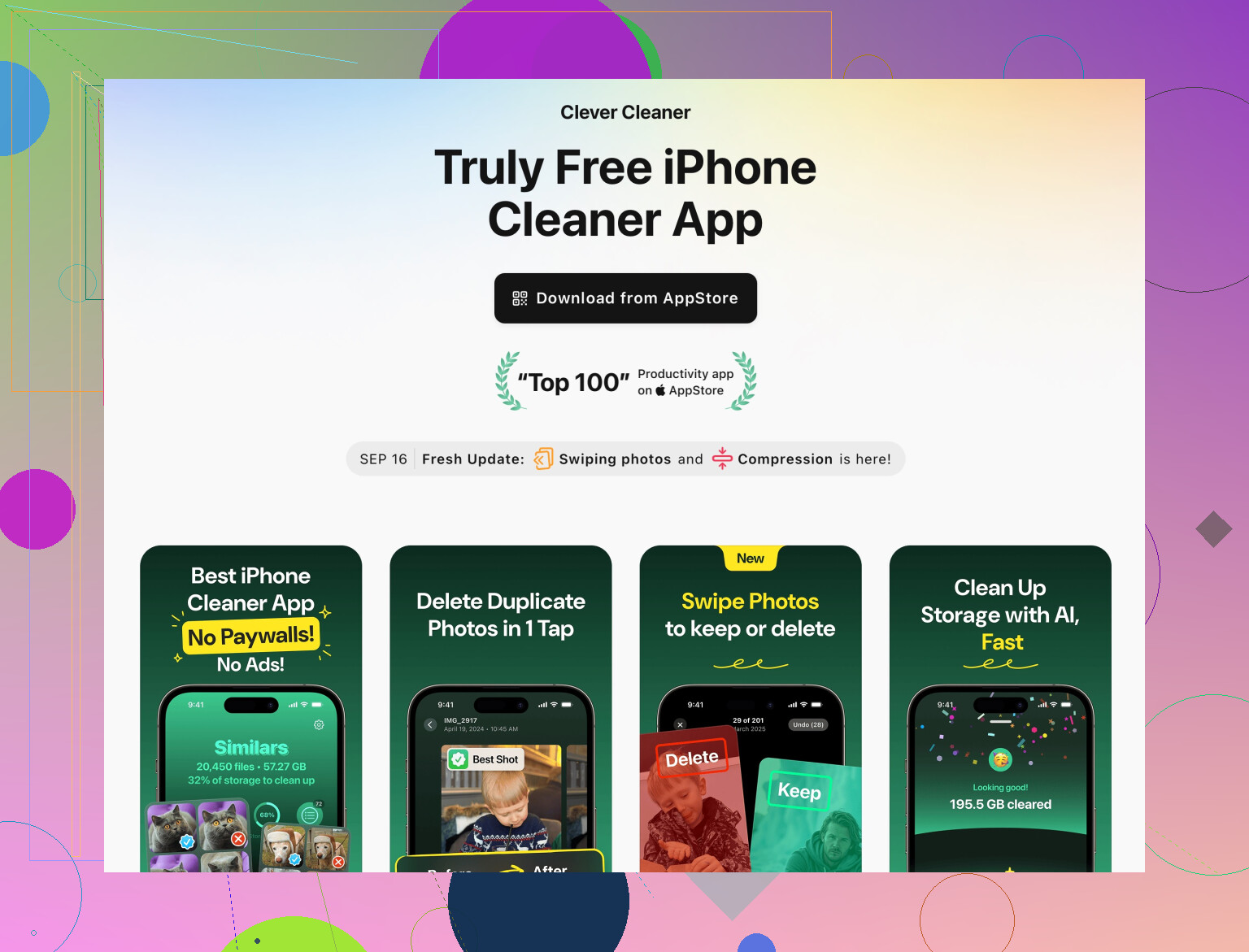
Skip Photos / Messages / storage breakdown since @himmelsjager and @espritlibre already nailed those. Here are some “less obvious” knobs to turn plus a quick take on cleaner apps like Clever Cleaner App.
1. Kill auto‑clutter at the source
If you only clean once and change nothing, you will be full again in a month.
Podcasts & music
- In Podcasts app
- Settings inside the app > turn off “Automatic Downloads” for shows you only stream
- Set “Delete Played Episodes” to “After 24 hours”
- In Spotify / Apple Music
- Remove old downloaded playlists or albums you no longer listen to
- Turn off “Download in Cellular” so you are not accidentally caching big stuff on the go
These are easy GB wins and almost risk free.
Third‑party camera & scanner apps
Scan apps, camera apps and editing apps often keep their own copy of every file.
- Open those apps and look for “Save to Photos & keep original” type settings
- Change to “Save to Photos only” or “Delete after export”
That stops duplicate photo & PDF hoarding.
2. Attack “On My iPhone” from inside apps
A lot of storage sits in app‑specific lockers that don’t show clearly in Files.
Examples:
- Note apps (Notability, GoodNotes, etc.)
- Export old notebooks as PDFs to a computer or external drive
- Then archive or delete inside the app
- Offline reader / “read later” apps
- Clear old saved articles and offline packs
This is slower than nuking whole apps, but safer if you care about their contents.
3. Tune iCloud so it actually helps instead of nagging
Slight pushback on relying too heavily on iCloud optimization alone: if both iPhone and iCloud are nearly full, optimization has very little room to work.
On top of the backup tweaks already mentioned:
- In Settings > Your Name > iCloud > Manage Account Storage
- Check “Backups” but also “Messages in iCloud,” “Photos,” “Mail”
- For Mail, clean big attachments from a computer where it is faster
- If iCloud Photos is completely choked, consider temporarily moving only your largest videos and Live Photos out to a computer or a different cloud. Then let iCloud resync with more headroom.
You are basically giving the system some breathing room so it can offload intelligently again.
4. Background app behavior that quietly fills storage
A few toggles that slow down future bloat:
- Settings > App Store
- Turn off “Automatic Downloads” for apps if multiple devices keep cloning the same huge games
- Settings > TV / streaming apps
- Turn off “Automatic Downloads” of next episodes
- Limit “Download Quality” to “Good” instead of “Best” when you only watch on the phone
Small quality hits, big storage savings over time.
5. Cleaner tools: where they fit and what to watch for
You already got good system‑based advice. Where something like the Clever Cleaner App fits is when you want to visually sort through junk without opening 20 different menus.
Pros of Clever Cleaner App
- Fast duplicate & similar photo detection so you can prune messy bursts
- Groups huge videos and lets you kill the worst offenders first
- Tidy contact merge (surprisingly useful if you have multiple accounts)
- Good as a “maintenance pass” every month or two, instead of one giant panic clean
Cons of Clever Cleaner App
- It is still a third‑party tool, so you must manually review suggestions
- Can mark “similar” shots you actually care about, so one‑tap clean is risky
- Does not solve structural issues like huge iCloud backups or insane System Data
- You still need to know the basics of Photos / Messages cleanup to avoid confusion
Think of it as a layer on top of what @himmelsjager and @espritlibre described, not a replacement.
Alternatives
- Some gallery apps and “storage cleaner” tools focus only on photos
- Others specialize in contacts or videos
Most of them overlap in features, so the real difference is how clear their interface is and how comfortable you are checking every deletion.
6. If you want a simple action plan from here
Without redoing steps already listed by others, I’d do:
- Turn off auto downloads in Podcasts, Music, and streaming apps, then delete old offline media.
- Open your heaviest note / scanner / reader apps and export + archive old stuff off the phone.
- Adjust iCloud storage roles so it stops backing up things you can redownload and clear a bit of iCloud headroom.
- Run a pass in a cleaner like Clever Cleaner App to find duplicate / similar photos and gigantic videos, but manually confirm every batch.
That combination keeps your important content safe while slowing down how quickly the phone fills up again.