My USB drive suddenly stopped opening after I plugged it into my laptop, and now it says the drive is corrupted and needs to be formatted. It has important photos and work files on it, so I’m trying to find free USB data recovery methods before I lose everything. What’s the safest way to recover files from a corrupted flash drive without making the damage worse?
I’ve seen this go bad fast, so I’d slow down first. A USB stick starts throwing format prompts, stops opening, or shows weird errors, and the first bad move tends to be trying fixes before pulling the files off. I would not format it yet. I would not run CHKDSK yet. I would not throw random “repair” apps at it either. Get the data out first if the drive still shows any sign of life.
These things fail for boring reasons most of the time. I’ve had one corrupt after being pulled during a copy job. I’ve also seen file system damage after a power drop, malware cleanup gone wrong, flaky USB drivers, and old flash storage wearing out. Cheap sticks age badly. One day they work, next day Windows acts like it has never met them.
What you do next depends on what the drive is doing.
When I’d still try software first
- The USB shows up in Disk Management.
- The size looks right.
- Windows keeps asking to format it.
- It appears as RAW, or you open it and get blocked.
If you’re in one of those cases, I’d usually start with recovery software before doing any repair step.
When I’d stop messing with it and hand it off
- The drive does not appear anywhere.
- It connects, drops, reconnects, drops again.
- The plug or board looks bent, cracked, or loose.
- The stick gets hot fast.
- The files matter enough that one bad attempt would hurt.
I learned this one the hard way years ago. If a USB device keeps disconnecting while being read, every extra attempt feels like rolling dice with your data. If the files are important, stop early.
What I’d use for recovery
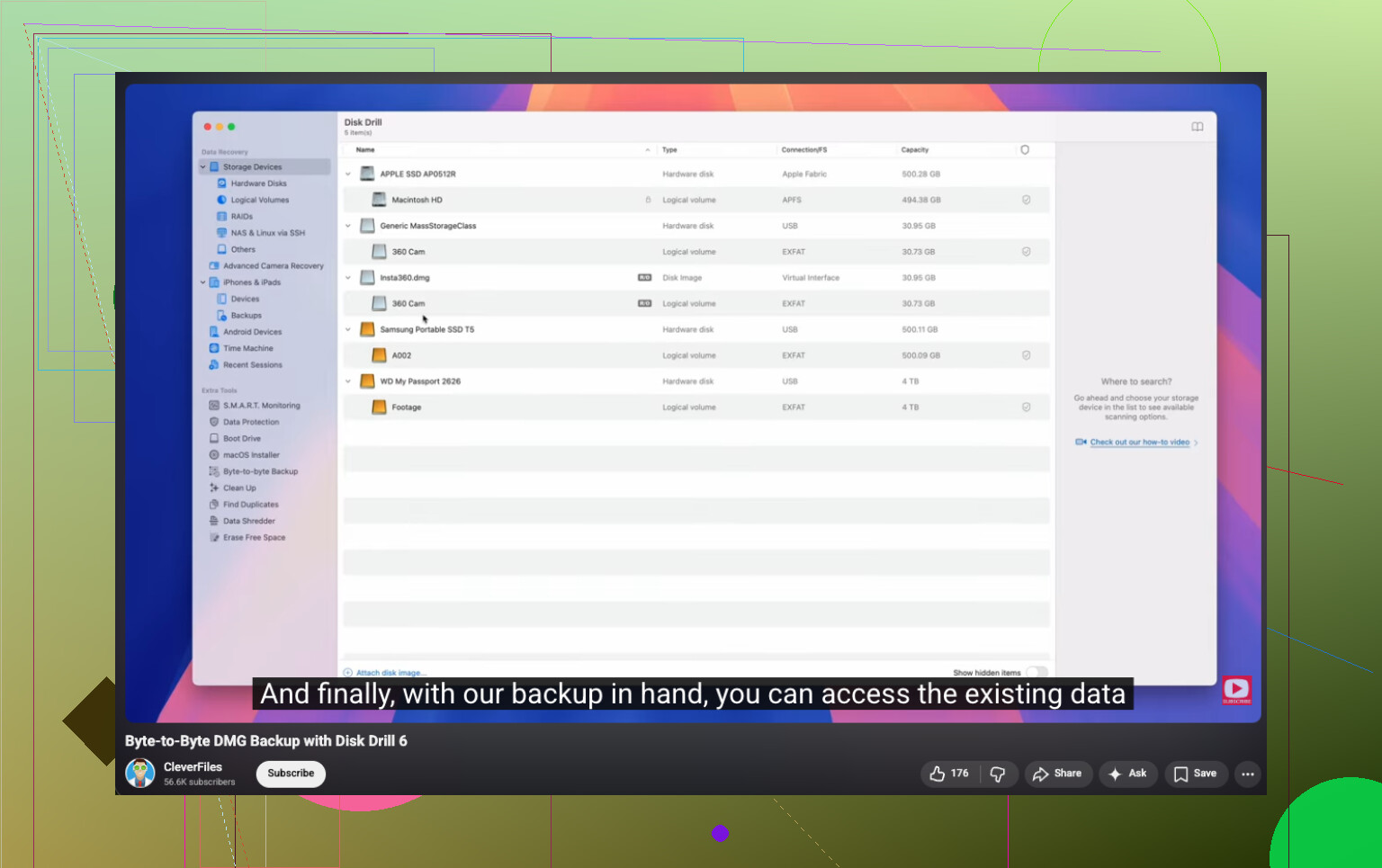
I’ve had decent results with Disk Drill on broken flash drives, RAW volumes, and sticks Windows refused to mount. The part I liked most was the option to make a byte-for-byte image before scanning. If the drive is shaky, working from an image is safer than hammering the original over and over.
The order I’d follow
- Install Disk Drill on your PC. Not on the USB stick.
- Plug in the USB.
- Open the app and pick the USB device.
- If it looks unstable, make a byte-to-byte backup first.
- Run the full scan.
- Preview what it finds.
- Recover the files to a different drive.
Do not save recovered files back onto the same USB. I did this once with another tool a long time ago. Bad idea. It overwrote stuff I still needed.
After the files are safe
Then I’d look at fixing the stick itself. Before data recovery, no. After, fine.
Stuff worth trying:
- Give it a new drive letter in Disk Management.
- Run CHKDSK if the file system looks damaged.
- Try Windows Error Checking.
- Remove and reinstall the USB device in Device Manager.
- Format it if corruption keeps coming back.
I don’t keep trusting a USB stick after repeat failures. If files vanish, writes fail, it drops connection mid-transfer, or corruption returns after a format, I replace it. Storage is cheap. Lost photos, work docs, or old backups are not. Learned tha one from a dead 32GB stick with tax files on it. Never again.
Do not format it. Not yet.
I agree with @mikeappsreviewer on one big point, skip CHKDSK first. I only disagree a little on timing. If the USB is stable and shows the right size, I’d spend 2 minutes checking it on another USB port and another PC before any scan. Bad ports and flaky laptop power do weird stuff.
Free path I’d try:
- Plug it into a different port, no hub.
- Check Disk Management.
- If it shows up with correct capacity, use recovery software first.
- Recover files to your internal drive or another external drive.
- Format the USB only after your files are safe.
For free recovery, PhotoRec is ugly but strong. It ignores the broken file system and pulls files by signature. Great for photos, docs, PDFs. Downside, filenames and folders often come back messy. Recuva is easier, but weaker on RAW or badly corrupted USB drives.
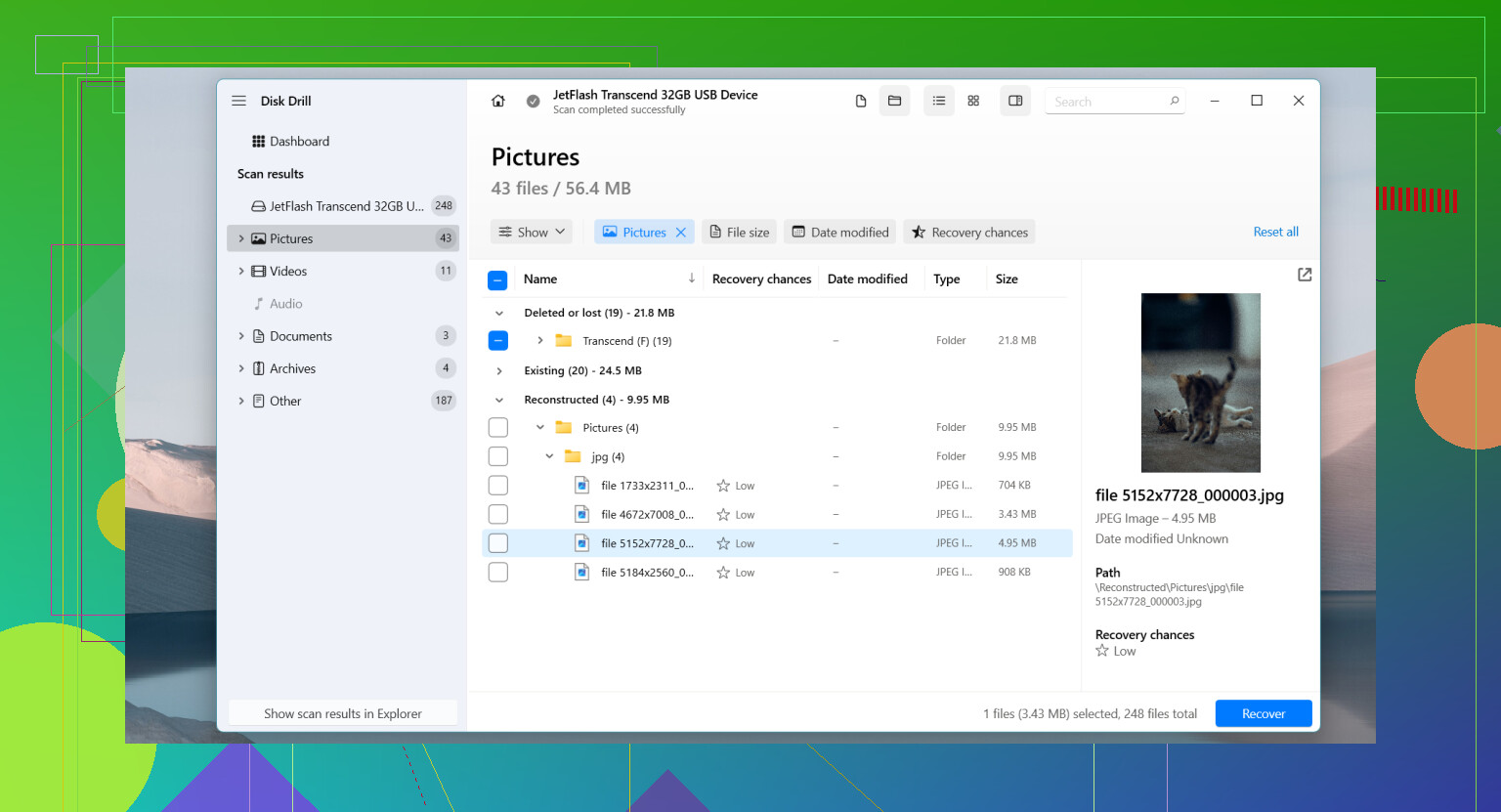
Disk Drill is worth a look too, even if you start free. It’s easier to sort previews, and for photo and work file recovery from a corrupted USB, ease matters. If the stick keeps dropping, stop poking it. Repeated reads can make a dying drive worse. Yeah, it sucks.
If you want a simple walkthrough, this USB file recovery video guide for corrupted flash drives is easier to follow than random blog spam.
One more thing. If the USB shows 0 bytes, gets hot, or disconnects every few seconds, software won’t do much. At taht point, stop.
I’d add one thing that neither @mikeappsreviewer nor @hoshikuzu really leaned on enough: if the files are that important, make an image of the USB first with a totally free tool before you do any deep recovery pass. Not everybody needs to jump straight into scanning the physical stick over and over.
If you’re on Windows, try USB Image Tool or even HDD Raw Copy Tool to clone the flash drive to an image file or another disk. If the USB can still be read at all, this gives you one safer working copy. Then you can throw recovery apps at the image instead of stressing the dying stick. That matters more than people think.
After that, my free-order would be:
- TestDisk if the partition/file system is just damaged and you want a chance at restoring access.
- PhotoRec if you only care about getting files back and don’t mind ugly filenames.
- Windows Security scan on the PC, because sometimes “corruption” is actually malware or shortcut-virus junk.
- Only after recovery, consider repair/format stuff.
I slightly disagree with the “never CHKDSK” vibe people post sometimes. It’s not evil, it’s just risky before recovery. After your files are safe, sure, test it. Before that, nah.
If you want something easier to navigate than the old-school freebies, Disk Drill is still one of the more user-friendly USB recovery options, especially for previewing photos and documents before restoring. For more comparisons, this thread on best flash drive recovery software recommendations is worth skimming.
One more blunt truth: if the drive shows 0 bytes, vanishes randomly, or takes forever to detect, free software may not save you. At taht point, every retry is kinda gambling.
Try a Linux live USB instead of Windows recovery tools. Use a spare USB to start Ubuntu in “Try Ubuntu” mode. Do not install it.
Connect the corrupted drive after Ubuntu loads. Open Files and check whether your folders appear. Linux often reads damaged FAT or exFAT drives when Windows refuses them. Copy everything to your laptop or another drive. Start with the most importnt files.
Avoid moving, renaming, or deleting anything on the damaged USB. If Ubuntu fails to detect the correct size, stop retryng.
Imaging a flash drive first sounds safe, but it’s not the same as imaging a hard disk, and that’s the part getting glossed over here. When a USB stick’s controller starts flaking out, tools like the raw copy stuff @caminantenocturno mentioned will hit a bad block, retry, hang, retry again, and each pass keeps the chip powered and working when it’s already struggling. On a spinning drive that caution makes total sense. On cheap flash it can be the thing that finishes it off. So yes, image it if it reads cleanly, but if the copy crawls or stalls at the same spot over and over, pull the plug and don’t keep forcing it.
The Linux tip from @mr_lynx is genuinely good, with one catch nobody flagged: some setups auto-mount the drive read-write and quietly try to replay the file system journal the second you plug it in. That’s a write to a drive you wanted left alone. If you go the Ubuntu route, mount it read-only, or at least don’t let the file manager touch it before you’ve confirmed it’s read-only. Otherwise you get the benefit of Linux being less picky and the downside of it writing anyway.
Disk Drill came up a few times and it’s fine for the preview-and-pick-files part, especially if TestDisk and PhotoRec feel like too much. I wouldn’t treat it as the magic fix though. If the stick shows the right capacity and just throws format prompts, any of these tools will probably get your photos back. If it’s dropping off the bus every few seconds, no software recovers from a connection that won’t stay up. That’s the real dividing line, not which app you pick.