How can I recover deleted files from my hard drive?

I accidentally deleted important files from my hard drive and realized too late that I still need them for work and personal records. I’m looking for the best way to recover deleted files after accidental deletion, including any reliable recovery software or steps I should take right away to avoid making things worse.

I’ve seen a lot of “my hard drive is dead” posts where the drive wasn’t dead at all. The files were hidden from the file system, not erased from the disk. Big difference. I’ve done the same dumb thing with photos before, and yeah, your stomach drops fast. Still, don’t start clicking around and trying random fixes.

When photos get deleted from an internal or external drive, they usually do not vanish on the spot. The file system removes the references to those files and marks their old space as free for future writes. Until new data lands there, parts or all of those photos often still sit on the drive.

First move, stop using the drive. If it’s an external drive, eject it and unplug it. Leave it alone until you know your next step. If the photos were on your main internal drive, the risk goes up fast. Your OS keeps writing temp data, logs, cache, updates, little bits of junk all the time. The longer you keep booted into that drive, the higher the odds your deleted files get overwritten. Best case, shut the machine down, pull the drive, and connect it to another computer as a secondary disk. Internal or external, same rule applies. If you keep writing to the same drive, you might overwrite the exact sectors where the photos still exist. After that, software won’t save you. It’s done.

If the drive sounds normal, mounts normally, spins up, and doesn’t throw off signs of hardware failure, recovery software is usually the practical route. I would not jump straight to a lab for a plain delete job.

I’ve tried a pile of recovery apps on desktop drives and portable externals. The one I kept coming back to was Disk Drill. For photos, it did better for me than most. The layout is easy to follow, which matters when you’re already stressed, and the scan does a good job pulling up raw photo and video files. You can scan first and preview results before paying. If the preview opens and the image looks fine, the file is usually intact.

  1. Put the software somewhere else. Install it on a different drive. Not the one where the photos were deleted. Don’t write a single extra thing to the problem disk if you can avoid it.
  2. Make an image first. Safest move. Create a full byte-for-byte image of the drive and save it onto a healthy disk. I do this first when the files matter.
  3. Run recovery against the image. Scan the image file instead of hammering the original disk. Less risk, less wear, fewer chances to make things worse.
  4. Restore files to another device. Let the scan finish. Filter for images. Check previews. When you recover anything, save it to a different drive, not back onto the same one. I know this sounds obvious, but people still do it when they’re panicking.

There’s also a point where DIY stops making sense. If any of the signs below show up, quit trying software and send it to a recovery lab.

  1. The drive makes bad noises. Clicking, grinding, scraping, beeping. Those noises usually mean internal mechanical trouble.
  2. The drive won’t power up. No spin, no lights, no response. Could be a dead board or some other failed component.
  3. The system does not detect it at all. If it won’t appear in Disk Management or similar tools after swapping cables and ports, I’d stop assuming it’s a file deletion issue.
  4. The corruption is severe. If software can’t read the structure of the drive well enough to work with it, the problem is past normal home recovery.

Recovery labs use cleanroom setups and proper hardware tools to open and repair failing drives. It costs more, yeah. Still, if the photos matter and the drive has physical issues, that route makes more sense than gambling with it on your desk.

I hope you get the pictures back. I’ve been there, and it sucks. If you do recover them, set up backups after. Two copies beats this whole mess next time. Let the thread know what happened.
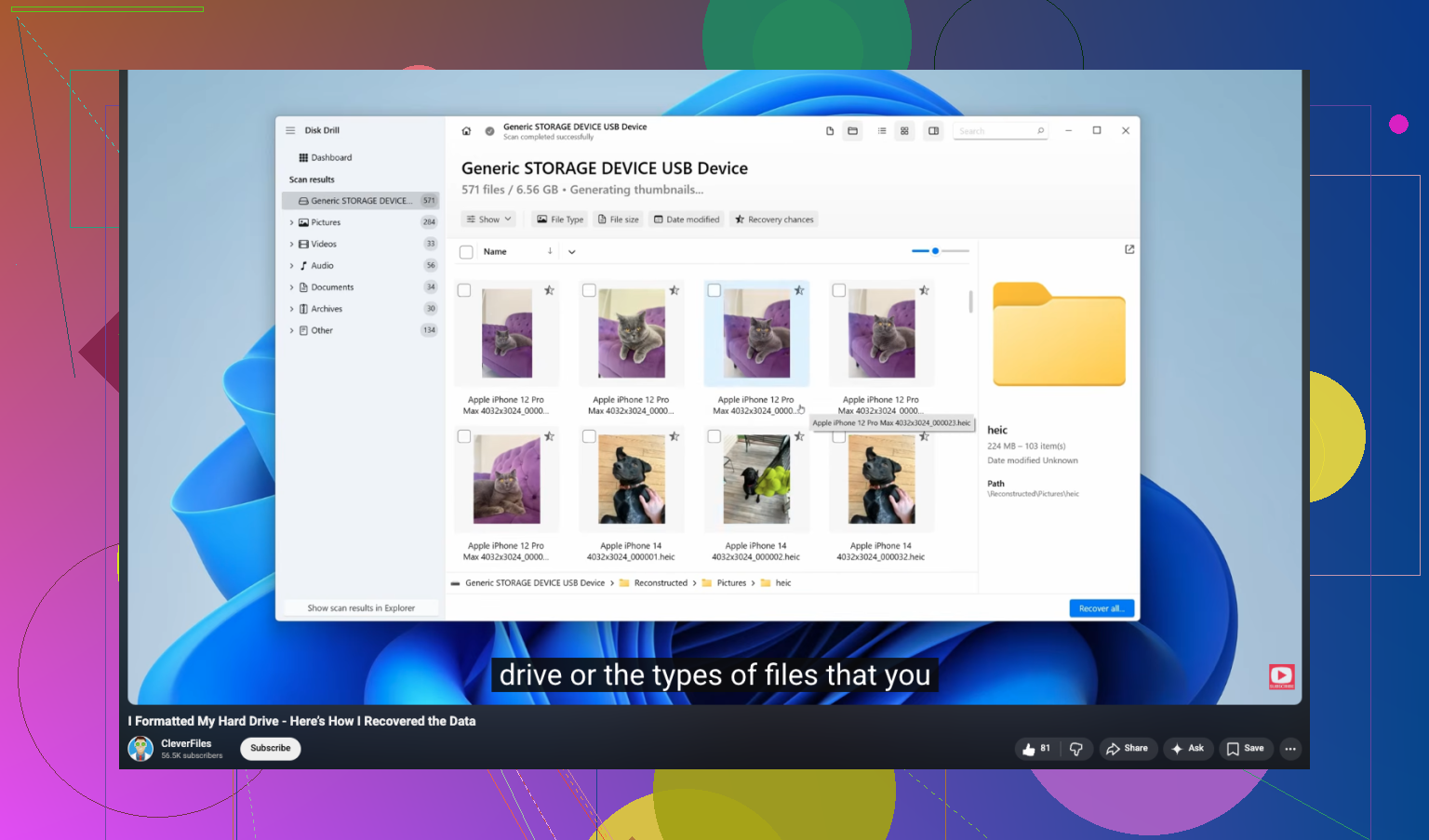
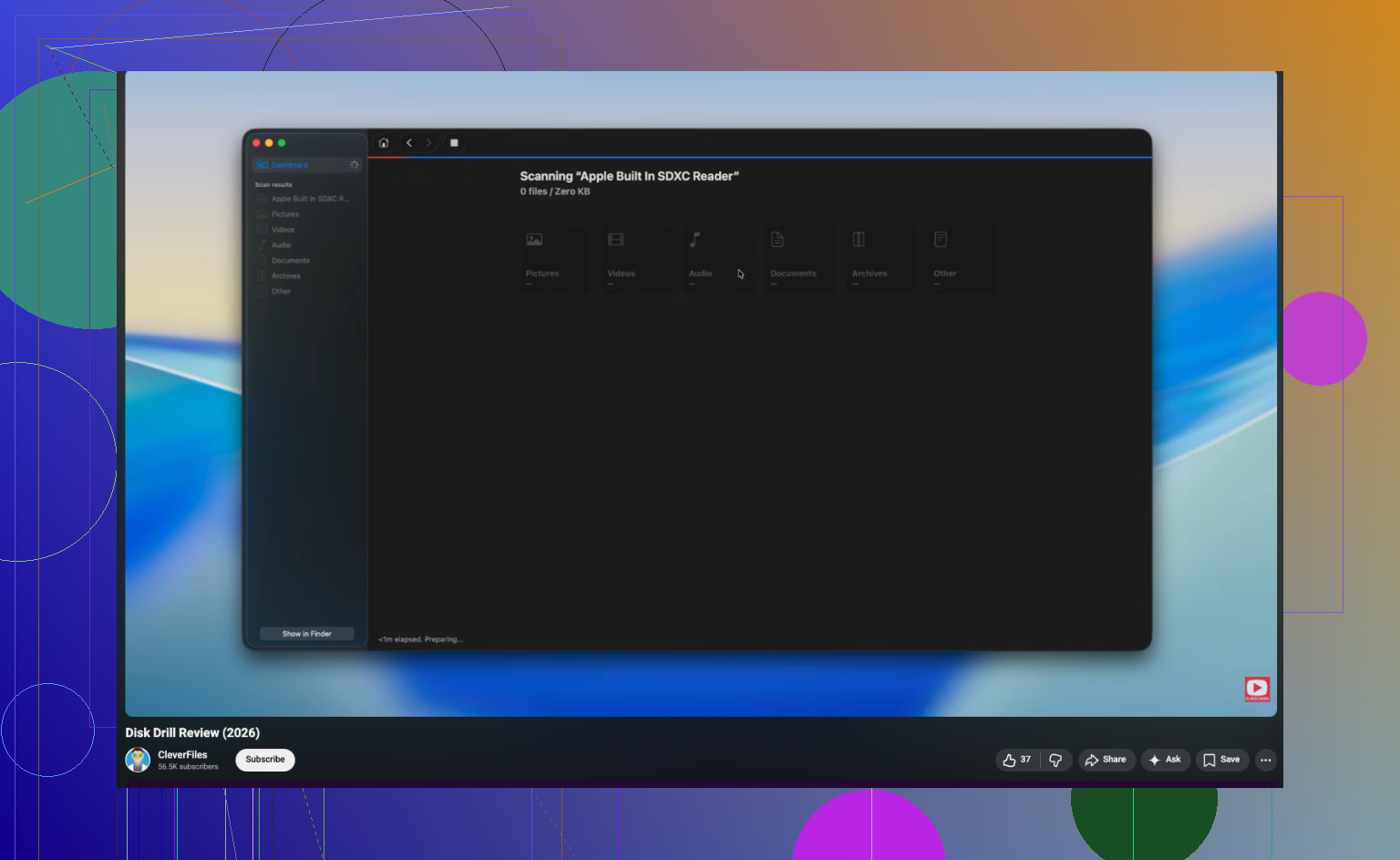
If the files were deleted recently, check the easy stuff first. Recycle Bin on Windows. Trash on Mac. Also check OneDrive, Google Drive, Dropbox version history if those folders were synced. A lot of people skip this and go straight into panic mode. I agree with @mikeappsreviewer on stopping writes to the drive. I disagree a bit on one point though. If your files are plain docs, PDFs, spreadsheets, and not only photos, pick a tool with strong filesystem recovery first, not only raw file carving. Raw scans often lose file names and folder paths, which is awful for work records. My order would be: 1. Stop saving anything to that drive. 2. If it is an external drive, unplug it. 3. If it is your system drive, use another PC if possible. 4. Check backups and cloud history. 5. Run a read-only scan with Disk Drill or another trusted recovery app. 6. Recover files to a different drive. Disk Drill is a solid pick because it handles deleted partitions, formatted drives, and common file types well. Preview matters. If your DOCX or JPG previews open, your odds are better. Recuva is fine for simple deletes on Windows, but it misses stuff on damaged file systems in my experiance. If the drive is an SSD, move fast. TRIM wipes deleted blocks sooner, so recovery odds drop faster than on old HDDs. If you need a walkthrough for formatted drive recovery, this video is easy to follow: watch this formatted hard drive data recovery guide on YouTube If the drive clicks, disappears, or freezes the PC, stop DIY. Lab time.
How can I recover deleted files from my hard drive?
One thing I’d add to what @mikeappsreviewer and @boswandelaar said: before you run any recovery app, check whether the deletion was actually done by an app with its own temp/save history. Microsoft 365, Adobe apps, even some accounting software can keep auto-recovery copies or previous versions outside the normal folder path. People forget that and go straight to sector-level recovery. Also, tiny disagreement with the “move fast” advice for every case. Move carefully is better. Panicked clicking is how folks turn a simple delete into a much bigger mess. My practical order: 1. Stop using the drive. 2. Check Recycle Bin/Trash. 3. Check cloud sync history and app-specific recovery folders. 4. On Windows, look at File History or Previous Versions. On Mac, check Time Machine snapshots if enabled. 5. If nothing shows up, connect the drive to another machine if possible and scan it from there. For software, Disk Drill is a solid choice because it’s easy to preview recoverable files and it supports more than just basic undelete cases. If you want a simple overview, this Disk Drill data recovery review and tutorial is pretty easy to follow. One more thing people mess up: if the files were encrypted, inside a virtual disk, or on BitLocker/FileVault storage, recovery gets trickier fast. Recover the container first, not random fragments. And yeah, never restore back to the same drive. Thats how you overwrite the stuff you’re trying to save.
How can I recover deleted files from my hard drive?
One angle missing from @boswandelaar, @viajeroceleste, and @mikeappsreviewer: check the drive’s health before doing a long scan. If SMART shows lots of reallocated, pending, or uncorrectable sectors, don’t sit there running repeated deep scans on the original disk. Clone first if you can, or hand it off. A weak drive can get worse just from being stressed. Also, slight disagreement with the usual “deep scan everything” instinct. If this was a normal delete and the filesystem is still intact, start with a quick metadata-based scan. It’s faster, preserves names/folders better, and avoids drowning in thousands of raw fragments. For software, **Disk Drill** is a reasonable option. **Pros** - Easy previews - Good at both simple undelete and tougher cases - Can scan images, which is safer than poking the original drive - Cleaner interface than some old-school tools **Cons** - Deep scans can return a ton of clutter - Best features are not all free - Raw recovery results can still lose structure on badly damaged volumes If Disk Drill doesn’t find what you need, I’d also consider R-Studio or UFS Explorer for more advanced filesystem work, especially on damaged partitions. One more thing: if these are work documents, validate recovered files properly. A DOCX that opens is good. A spreadsheet with broken tabs or a PDF with blank pages is not. Spot-check content, not just filenames.