My SD card suddenly stopped reading after I took a bunch of family photos, and now my computer and camera won’t open it. I really need help recovering the pictures because they weren’t backed up. Looking for the best way to recover photos from an SD card without making things worse.
I’ve seen this a bunch with SD cards. The card looks empty, then people assume the photos are gone for good. Usually not true. In many cases, the files still sit on the card until new data writes over the same space. If you caught it early and stopped using the card right away, your odds are still decent.
If I were doing this on my own card, I’d start with Disk Drill. I used it on camera SD cards, phone microSD cards, even a drone card once after it went weird and stopped reading right. It’s one of the simpler recovery tools I’ve tried, and it tends to pull up more than the stuff deleted five minutes ago.
What helped me is that it doesn’t only deal with plain deleted files. It also scans cards after formatting, cards showing up as RAW, and cards acting corrupt. It recognizes common photo types like JPG and PNG, plus RAW formats from cameras like Canon, Nikon, Sony, and similar gear.
This is the usual process I follow:
- Take the SD card out of the device right away.
- Plug it into your computer with a card reader.
- Open Disk Drill and pick the SD card from the list.
- Hit “Search for lost data.”
- Wait for the scan to finish, then check the Pictures section.
- Preview what shows up.
- Save recovered photos to a different drive, never back onto the same SD card.
One thing I learned the hard way, previews matter a lot. If the image opens fine in the scan results, recovery usually goes better. When previews are broken or blank, the file is often damaged.
If the software doesn’t pull back everything, I’d still check a few other places before giving up:
- Look through cloud backups like Google Photos, iCloud, OneDrive, or Dropbox.
- Check whether your camera or device stores anything in internal memory.
- Look at backups such as Windows File History, Time Machine, or anything similar you already use.
- Try another card reader or a different computer. I’ve had bad readers make a healthy card look dead.
- If the card has physical damage or keeps disconnecting, send it to a recovery service.
The main mistake to avoid is writing anything new to the card. Don’t format it. Don’t run repair tools yet. Don’t copy files onto it. Every one of those steps raises the chance of overwriting the photos you’re trying to get back.
Stop using the card. That part matters most.
I slightly disagree with @mikeappsreviewer on one point. I would not start with random repair tools, and I also would not trust the camera after it failed once. If the card mounts even for a minute, make an image of the whole card first. Recovery from the image is safer than hammering the card with repeated scans.
My order would be:
- Try a different card reader. Cheap readers fail a lot.
- On Windows, check Disk Management. On Mac, check Disk Utility.
- If the card shows a size close to normal, clone it first.
- Then scan the clone with Disk Drill or another recovery app.
- Save files to your computer or an external drive, never the SD card.
If the card shows 0 bytes, asks for format, or disconnects during reads, skip DIY after one or two tries. At that point, pro recovery has the best shot. Every extra read stresses a failing card.
Also, if your photos were from a DSLR or mirrorless camera, look for RAW sidecars and hidden DCIM folders. I’ve seen “empty” cards where the folder table was damaged, but the image data was still there.
One more thing people miss, clean the card contacts with a dry microfiber cloth. Sounds dumb, but I’ve seen it work. A lil dust is enough sometimes.
For a quick visual guide, this SD card photo recovery reel with simple recovery steps covers the basics in a way that’s easy to follow.
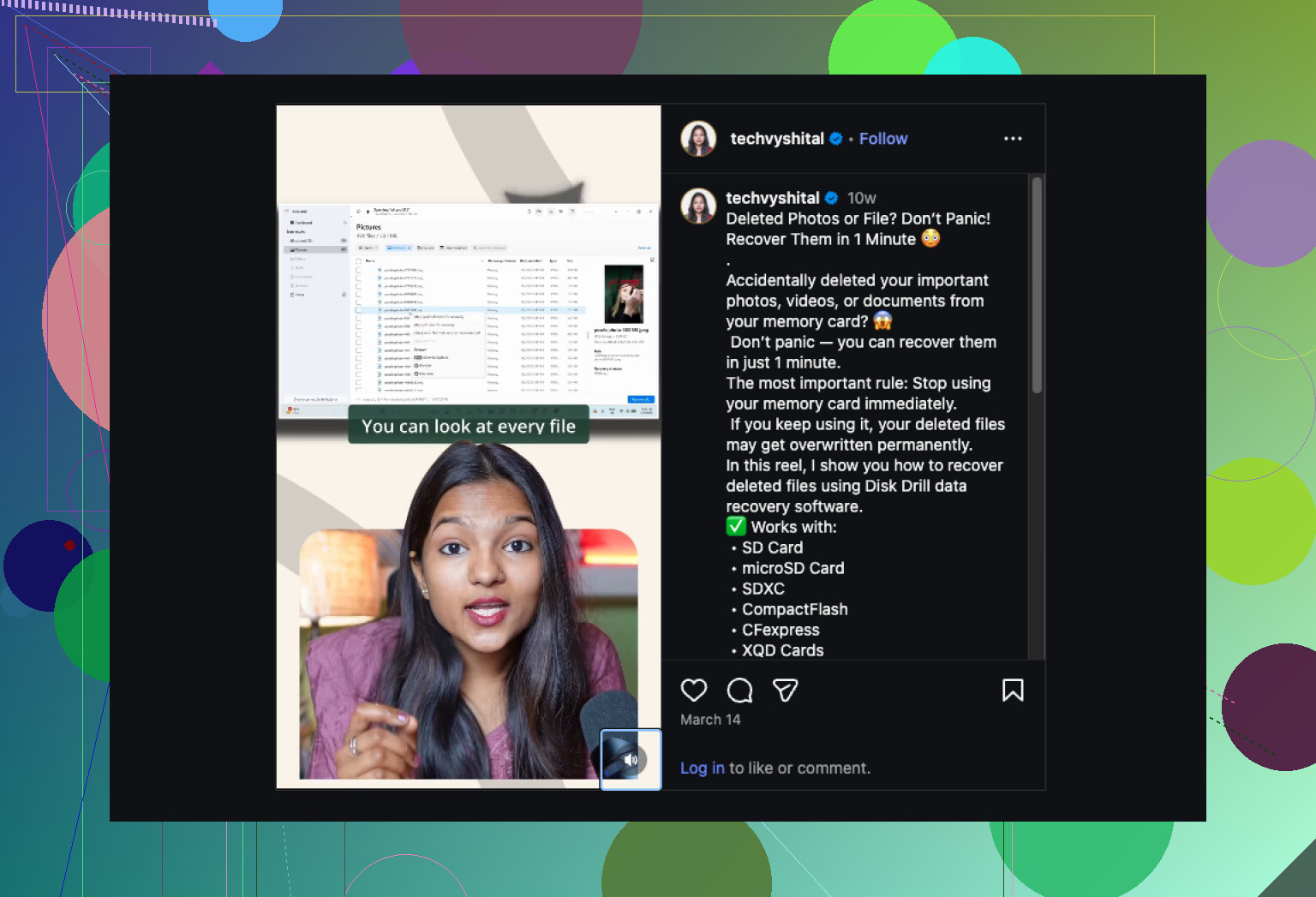
First thing, stop trying the card in the camera over and over. I know @mikeappsreviewer and @espritlibre already covered recovery/scanning, but I’d add one thing before any deep scan: check whether the problem is just the card’s partition info, not the photo data itself.
If you’re on Windows, open Device Manager and Disk Management. If the SD card appears there with the correct capacity, that’s actually a decent sign even if Explorer won’t open it. Same idea on Mac with System Information. If the system can still “see” the hardware, the photos may still be recoverable.
I also kinda disagree with using CHKDSK or First Aid right away. Sometimes those tools “fix” the file system by removing the exact broken references recovery apps need. They’re fine later, not first.
What I’d do:
- Test in a known-good USB card reader
- See if the computer detects the card size
- If yes, recover from it with Disk Drill
- Save everything to your SSD/HDD, never back to the SD card
- After recovery, then mess with repairs if you want
Disk Drill is one of the better options here because it can find photos by file signature even when the folder structure is trashed. That matters a lot with camera cards. You can usually tell what’s salvageable by previewing results before restoring.
Also check for weird stuff like the write-protect tab being half-slid, or the contacts being dirty. Sounds silly, but I’ve seen that be the whole issue lol.
If you want a quick walkthrough, this Disk Drill review and SD card recovery demo is easy to follow.
If the card keeps disconnecting, shows 0 bytes, gets hot, or makes the reader freak out, stop DIY. That’s the point where pro recovery is probly worth it.

I’m with @espritlibre and @waldgeist on one key thing: don’t “repair” the card first. But I’ll push it a bit further. If the card is truly failing, even repeated previewing and rescanning can make things worse, so keep your attempts limited.
A couple things not mentioned enough:
- Try reading it on a phone/tablet with an SD adapter if you have one. Sometimes mobile devices mount flaky cards that desktops refuse.
- On Linux, a read-only mount can sometimes succeed where Windows/macOS keeps nagging to initialize or fix it.
- If the card is microSD in an SD adapter, swap the adapter too. Those fail constantly.
About Disk Drill: solid choice if the card is still detectable.
Pros:
- easy to use
- good photo signature scanning
- previews help judge file health
- works well when folder structure is wrecked
Cons:
- deep scans can take a while
- recovered filenames/folders may be messy
- if the card is dropping offline, software recovery may not finish at all
I slightly disagree with @mikeappsreviewer only in this sense: software is not always the “start here” move. Detection stability matters first. If the card disappears, turns RAW, reports nonsense capacity, or gets unusually warm, stop DIY and go to a lab. That is usually flash memory or controller trouble, not just corruption.
If it does stay visible long enough, then yes, Disk Drill is a sensible next move after you’ve minimized reads.
Keep the damaged card untouched. Before trying recovery software, check photos you shared through texts, email, or family group chats.
Open each conversation from the day you took the pictures. Download the attachments to a seperate folder on your computer. Ask relatives to send back any photos they recieved, preferably as original files rather than screenshots.
This approach retrieves shared copies without accessing the damaged card. It won’t recover unshared photos, and some attachments will have reduced quality, but it gives you a simple place to start.
Don’t keep power cycling the card hoping it mounts ‘this time.’ Every plug-in is another jolt through a controller that already failed once, and warm flash chips don’t recover, they degrade. If it mounted five times and died, number six is not your friend.
I’ll push back a little on how Disk Drill keeps getting sold here on the previewing and signature scanning. Those are fine, but the thing people forget is the money side. The scan runs free and will happily show you a wall of recoverable thumbnails, then asks you to pay before it actually writes a single file to your drive. So budget for that before you get emotionally invested in a preview grid. Where it genuinely earns its keep for me is that you can let the full scan finish and judge the damage before spending anything, which tells you whether this is a DIY job or a lab job. That’s the useful part, not the previews themselves.
The bit nobody’s said plainly: if these were one-shot family photos with no copies anywhere, your single most valuable move is deciding early whether to stop touching it. People burn their best recovery window running three different tools back to back on a dying card. Pick one approach, run it once, and if the card drops offline mid-scan or the capacity reads as garbage, that’s your signal to stop and price out a recovery service instead of grinding it further. Unshared, unbacked-up photos are exactly the case where paying a lab stings less than losing them.