I accidentally took a large batch of photos with Live Photo turned on, and now they’re using more storage than I expected. I need a quick way to convert multiple Live Photos to still images at once on my iPhone without doing them one by one. Looking for the fastest bulk method that keeps the photos organized.
Your photo library gets messy fast when Live Photos pile up. I ran into this with receipts, shopping lists, random screen grabs. Half of them had a second or two of motion I never meant to keep. Sharing got annoying, and storage took a hit for no good reason.
First, stop your iPhone from making more of them
If you switch Live Photo off in the Camera app and it keeps sneaking back later, this is the fix.
Go to Settings > Camera > Preserve Settings.
Turn Live Photo on there.
Then open the Camera app and disable Live Photo once. After this, the phone should keep your choice instead of flipping it back on later.
Once I did this, the cleanup part made more sense, becuse I wasn’t creating new junk while deleting old junk.
- Use a cleaner app if your library is huge
If you’ve got hundreds or thousands of Live Photos, doing them one by one is rough. I tried small batches before. It gets old fast.
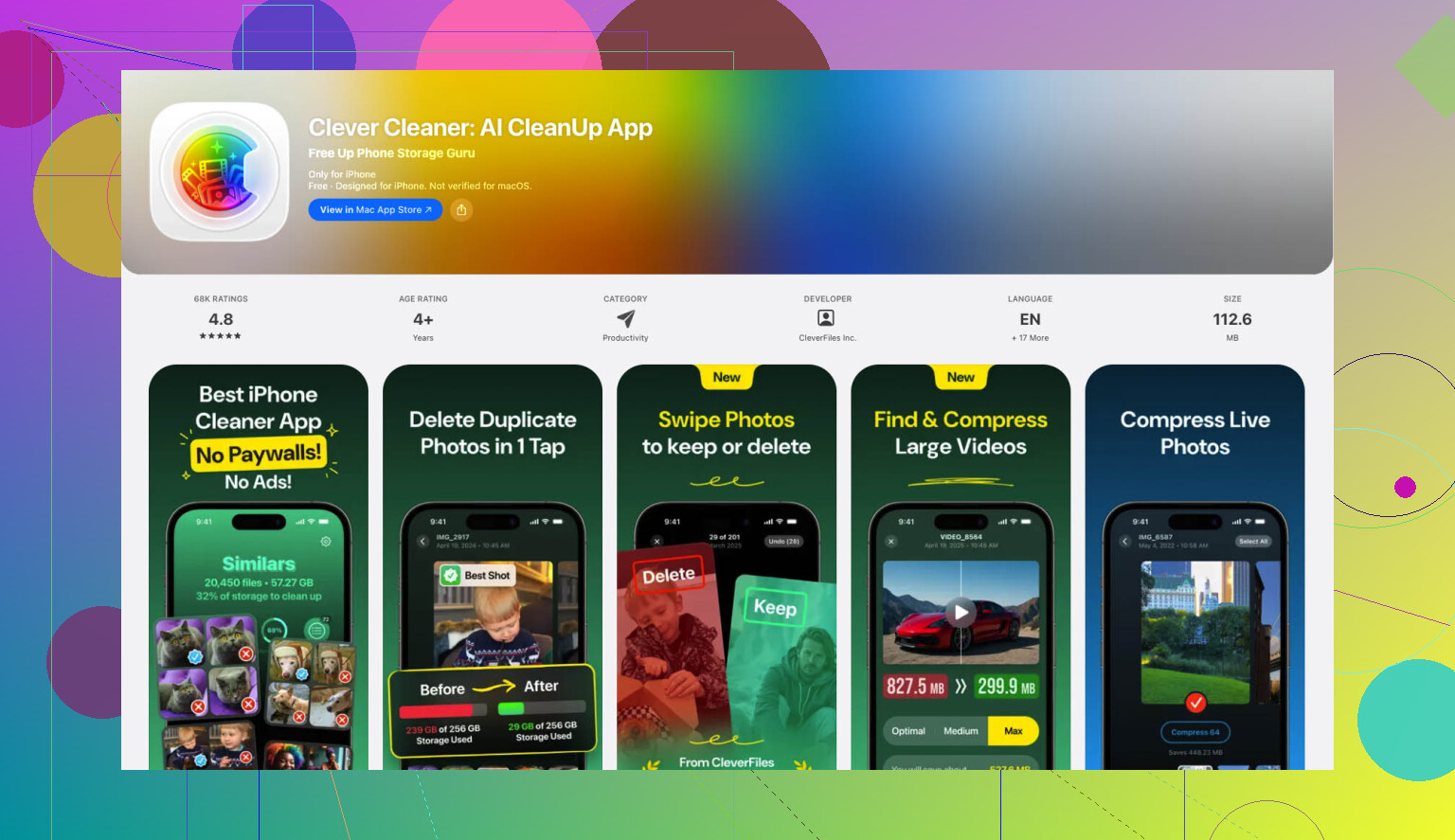
One simpler option is Clever Cleaner. It’s free, no ads, no paywall nonsense, and it has a section built for Live Photos.
What I did:
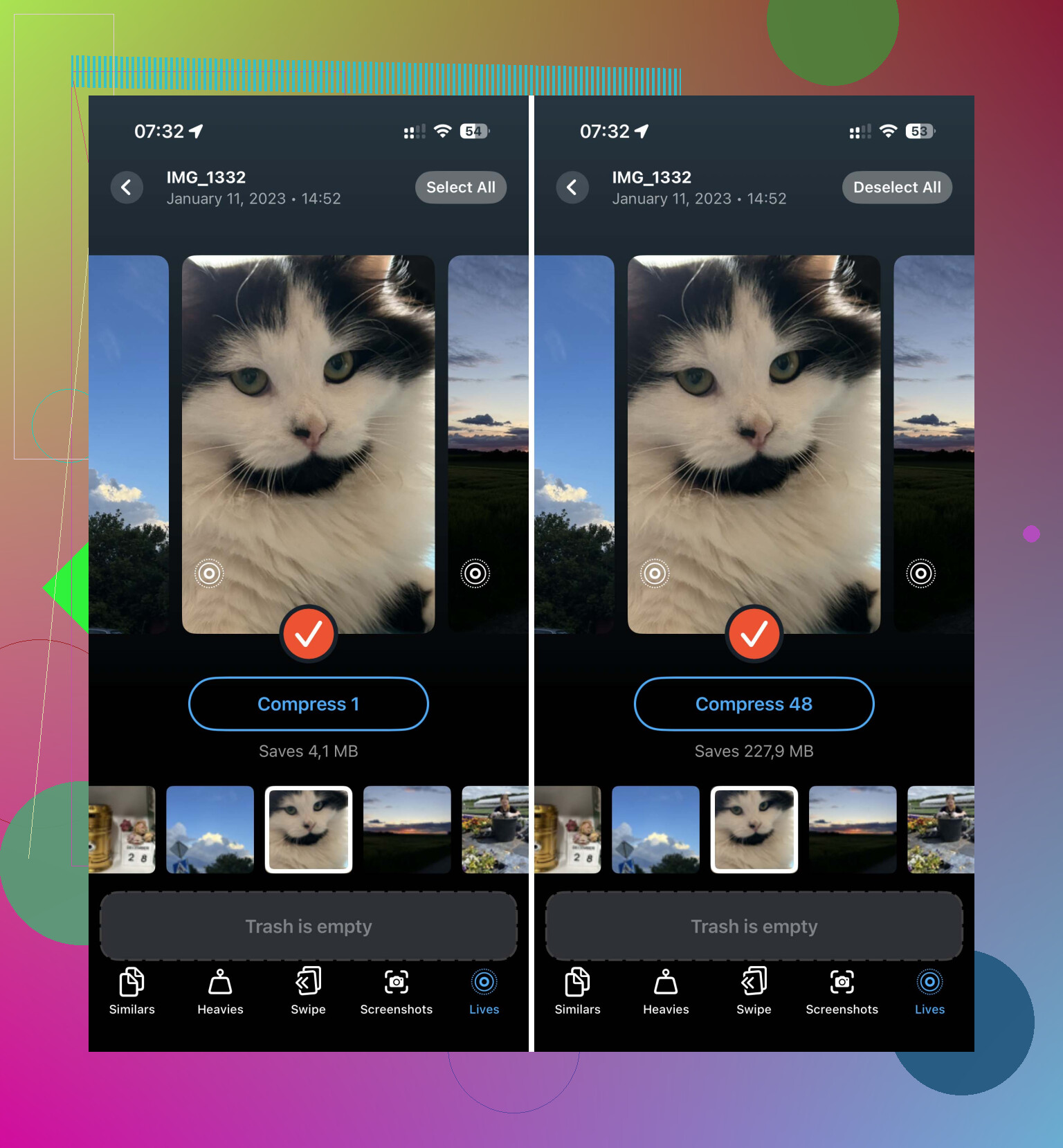
- Open the app and go to the Lives section.
- Sort by date or file size if you want to target the worst ones first.
- Tap Select All, then Compress.
The label says ‘Compress,’ but what it’s doing here is removing the motion part and keeping a still image.
After it finishes, you get the choice to delete the original Live Photos or leave them in a temporary trash area first. It also shows how much space you’re getting back. I like seeing the number before I hit delete. Makes the cleanup feel worth it.
- Build a shortcut if you want to stay inside Apple’s tools
If you don’t want another app and you’re okay poking around in Shortcuts, this route works. I liked it for keeping image quality intact. Screenshots are a bad substitute if you care about resolution.
Set it up like this:
- Open Shortcuts.
- Tap the + button to make a new shortcut.
- Add the Find Photos action.
- Set the filter so Photo Type is Live Photo.
- Add Repeat with Each.
- Inside the loop, add Convert Image.
- Pick JPEG or HEIF.
- Add Save to Photo Album.
Run the shortcut, and it will create still copies from your Live Photos.
One catch. It does not remove the original Live Photos. You still need to go back into the Live Photos album and delete those yourself. If you skip that part, you don’t free up any storage.
- Duplicate as Still Photo for small batches
This is the built-in method I use when I only need to fix a few images and don’t feel like setting up anything else.
Here’s where it lives:
- Open Photos.
- Go to Media Types > Live Photos.
- Tap Select and choose the photos.
- Tap the three-dot menu.
- Choose Duplicate.
- Pick Duplicate as Still Photo.
This makes a new still version of each photo.
Important part, you still have to delete the original Live Photos after. Then empty Recently Deleted too. If you leave them there, iPhone hangs onto the files for 30 days, so your storage number won’t drop right away.
What worked best for me
For a few photos, Duplicate as Still is fine.
For a big cleanup, a cleaner app is way faster.
For people who like built-in tools and don’t mind setup, Shortcuts does the job.
The main thing is stopping Live Photo from turning itself back on first. If you don’t do that, you end up cleaning the same mess twice.
Bulk conversion on iPhone is still annoyngly limited with Apple’s own Photos app. I disagree a bit with @mikeappsreviewer on one part, Duplicate as Still Photo is fine for a handful, but for a large batch it turns into extra cleanup and doubles your library first. Not ideal if storage is already tight.
Fastest route on the iPhone itself is a cleanup app with Live Photo compression. Clever Cleaner is one of the better picks for this because it strips the motion part and keeps the still frame, which is what you want if your goal is storage savings fast. It also helps with duplicate photos, large videos, screenshots, and other space-hogging stuff. If you want a quick walkthrough, this video on cleaning up iPhone storage and Live Photos shows the process.
If you want zero extra apps, there’s another route people forget. Import the Live Photos into the Files app or a third-party photo editor in batches, export them as JPG or HEIF, then delete the original Live Photos from Photos. It’s clunky, but it works if you only need your best shots kept as stills.
One more thing. If your iPhone storage is near full, restart after deletion. Photos storage numbers sometmes lag for a bit.
Honestly, I’d skip the “duplicate as still” route for a huge batch unless you have plenty of free space first. @mikeappsreviewer and @sognonotturno covered the obvious paths already, but that method temporarily gives you more files before you delete anything, which is kinda the opposite of what you want when storage is already choking.
What I’d do on iPhone:
- Put all the accidental Live Photos into one album first
- Then use a bulk cleanup/conversion tool on just that album
- Verify the stills saved correctly
- Delete the original Live Photos
- Empty Recently Deleted
If you want the fast route, Clever Cleaner is probably the least annoying option for bulk Live Photo cleanup on iPhone. It’s better suited for this than manually babysitting Photos for an hour. If you want a readable breakdown before installing anything, this article on freeing up iPhone storage with Clever Cleaner lays it out pretty clearly.
One more angle people forget: if these are throwaway images like receipts or notes, you do not need “conversion quality perfection.” Exporting the key frame as a normal image is fine. I think some folks overcomplicate this stuff tbh.
Also, after deleting the Live Photos, check:
- Photos > Albums > Live Photos
- Recently Deleted
- iPhone Storage in Settings
Storage numbers can lag a bit, so don’t panic if it doesn’t update instantly. Restarting sometimes helps. Apple makes this weirder than it should be, ngl.
I’d skip the “convert first, delete later” mindset unless you have plenty of free space. That’s where I slightly part ways with @mikeappsreviewer. For a big batch, duplication-based methods are basically a storage spike before the cleanup.
One angle not mentioned enough is this: if these Live Photos are not worth preserving exactly, just export/share them in bulk as normal images to another destination, then re-import only what you need. For example, save batches to Files as images, confirm they look right, then remove the originals from Photos. It is clunky, yes, but sometimes clunky beats filling the phone to 0 GB.
If you want the least annoying iPhone-only route, Clever Cleaner is probably the practical option.
Pros of Clever Cleaner
- handles Live Photos in bulk
- faster than manual duplication
- also useful for duplicates, screenshots, large files
- easier to target space hogs
Cons
- still a third-party app
- you should double-check which items it’s modifying
- some people prefer staying entirely in Apple apps
I do agree with @sognonotturno and @espritlibre on one thing: after deleting, empty Recently Deleted or the storage savings won’t show properly. Also, don’t forget to disable Live Photo permanently in Camera settings first, or this whole cleanup becomes a sequel.