Messenger is taking up a lot of storage on my iPhone and has started lagging when I open chats. I’m trying to clear the Facebook Messenger cache without deleting important messages, but I’m not sure what the fastest safe method is on iOS. Any help?
Yeah, this is a really annoying iPhone problem. Messenger can take up a ridiculous amount of space, and iOS doesn’t give you the nice simple Android-style “clear cache” button. So you have to work around it a bit.
The main thing to know is this: clearing Messenger’s cache will not delete your chats. Your messages, conversation history, and shared media are tied to your Meta account and sync back from their servers. The cache is mostly temporary stuff the app saves locally, like thumbnails, stickers, profile pictures, and other bits it keeps around so chats load faster.
On iPhone, you basically have two practical options.
Option 1: Offload Messenger
This is the safer quick fix. It removes the app itself but keeps its documents and data, so you usually don’t have to fully log back in.
- Open your iPhone Settings.
- Go to General > iPhone Storage.
- Find Messenger in the list and tap it.
- Tap Offload App.
- After it finishes, tap Reinstall App.
That can clear out a decent amount of junk without being too disruptive.
Option 2: Delete and reinstall Messenger
If Messenger is laggy, glitching, or acting weird after an update, this is the cleaner reset.
- Long-press the Messenger app icon.
- Tap Remove App, then Delete App.
- Or go through Settings > General > iPhone Storage > Messenger and choose Delete App.
- Download Messenger again from the App Store.
Just make sure you know your login details first. This method logs you out, so have your password and two-factor authentication ready if you use it. Once you sign back in, your chats should sync back normally.
The frustrating part is that Messenger cache comes back pretty quickly. I got stuck in the habit of deleting and reinstalling it whenever it hit 2GB or 3GB, but that was only a temporary fix. The app rebuilds a lot of that cache as soon as you start using it again. It may even feel slower right after clearing it because it has to download all those little images and assets again.
In my case, Messenger looked like the problem, but it wasn’t the biggest one. When I checked Settings > General > iPhone Storage, my Photo Library was taking up almost 60GB. That was where the real storage was going. Old screenshots, duplicate photos, burst shots, random videos, all of it added up way faster than Messenger cache.
Trying to clean that manually is awful. Apple still doesn’t make it easy to sort photos or videos by file size, so you end up scrolling forever and guessing which video is eating half a gig.
I ended up using Clever Cleaner. I’m usually skeptical of cleaner apps because a lot of them are just subscription traps, but this one is actually free, without the usual “3-day trial” nonsense.
The most useful part for me was the Heavies tab. It shows your largest videos and files first, so you can delete the stuff that actually makes a difference. The Similars tab is also handy because it finds photos that aren’t exact duplicates but are basically the same shot. It also shows file sizes for screenshots, which makes cleanup a lot less random.
It also processes everything on the phone, which matters if you don’t want your photo library being uploaded somewhere just to scan it.
So yes, delete and reinstall Messenger if it’s bloated or acting buggy. It can help. But if your real issue is the “Storage Almost Full” warning, check your photo library too. Clearing Messenger cache might buy you a little space, but cleaning out big videos, duplicates, and old screenshots with something like Clever Cleaner will probably save way more space.
If your goal is to shrink the “Documents & Data” number fast, Offload App may disappoint you because iOS keeps that data by design. I’d use offload only if you’re nervous about logging back in. For an actual cache purge, delete Messenger, restart the iPhone, then reinstall it from the App Store. Your normal chats should come back after sign-in, but make sure you know your Meta login and 2FA first, and don’t do it while you have unsent messages or anything half-uploaded. It’s not a permanent fix either. Messenger will rebuild cache as you open threads again, so think of reinstalling as a reset, not maintenance.
Don’t start deleting chats one by one thinking that is the cache. That is the slowest way to do it, and it can remove stuff you actually care about while barely touching the real storage problem.
The faster safe move is still the boring one: delete Messenger and reinstall it. Offloading is fine if you just want to refresh the app, but I agree with @sonhadordobosque that it usually is not the clean cache wipe people expect because iOS keeps the app’s documents and data. If the number you’re staring at is huge under iPhone Storage, Offload App may leave you wondering why nothing changed.
Before deleting it, do three checks:
-
Make sure you can log back into Facebook or Meta
Open Facebook/Messenger and confirm you know the password, email or phone number, and have access to whatever two-factor code method you use. -
Check for anything unsent
If a photo, video, voice note, or message is still spinning or says sending, wait. Reinstalling while something is half-uploaded is asking for weirdness. -
Don’t confuse Messenger cache with saved media in Photos
This is the thing people miss. If Messenger has been saving pictures or videos to your iPhone Photos app, deleting Messenger will not remove those files. They are now in Photos, not just inside Messenger. So if storage is still bad afterward, check Recents, Videos, Screenshots, and Recently Deleted in the Photos app.
The clean reset is:
Remove Messenger from the Home Screen, choose Delete App, restart the phone, then reinstall Messenger from the App Store and sign in again. Normal cloud-synced conversations should return after login. Secret conversations, unsent items, very old local-only oddities, or anything not synced properly are the cases where I’d be more careful.
After reinstalling, don’t judge the storage number immediately. Messenger will download profile photos, previews, stickers, thumbnails, and recent media again as you open chats. It may look great for a day and then climb back up. That does not mean the reinstall failed. It means Messenger is doing what Messenger does.
If the phone is lagging only when opening chats, I’d also avoid opening ten media-heavy group chats right after reinstalling. Start with the conversations you actually use. The app rebuilds less junk if you don’t make it reload every old thread full of videos and GIFs.
For storage warnings, I’d treat Messenger as a temporary cleanup target, not the main plan. Photos and videos usually beat it by a lot. A cleaner app like Clever Cleaner can be useful for spotting large videos or similar photos, but I wouldn’t install any cleaner expecting it to clear Messenger’s internal cache directly. iOS generally does not let third-party apps clean another app’s private data like that. Use it for photo library cleanup if that is where the big storage is hiding. For Messenger itself, delete and reinstall is the closest thing to a real cache clear on iPhone.
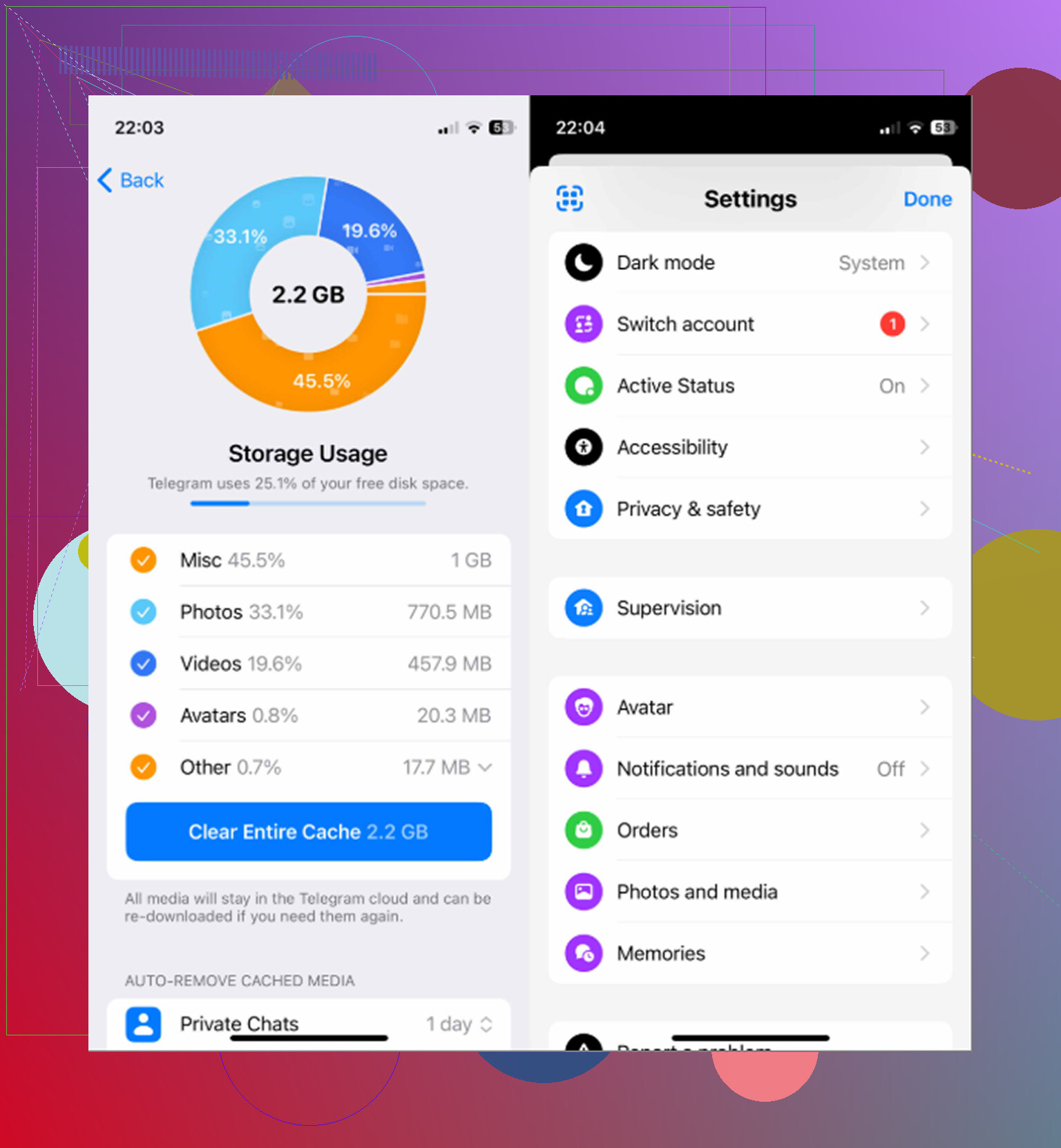
Expect the reinstall to be a temporary reset, not a permanent fix, and do it on Wi-Fi because Messenger may re-download a lot once you open chats again. I agree with using Delete App over Offload App, but if your iPhone is nearly full, clear a couple big videos first or iOS itself can keep lagging and make Messenger look like the only problem.
Secret conversations are the real trap here. Those are stored only on the device, so if you delete and reinstall like @nachtdromer suggested, they don’t sync back from any server and you lose them for good. Back those up or screenshot anything you care about before you wipe the app.