Twitter/X has been taking up a lot of storage on my iPhone since updating to the latest iOS. I’m trying to clear the app cache without deleting anything important, but I can’t find a clear option in settings. What’s the best way to free up space and clear Twitter cache on iPhone?
If Twitter is taking up multiple gigabytes on your iPhone, it is usually because the app has been saving a lot of temporary stuff locally. The good news is that clearing it will not wipe your account.
You are not deleting your Twitter account data
Your tweets, followers, bookmarks, and DMs are stored on Twitter’s servers. They are not sitting only on your phone. When you clear cache, you are removing temporary files like loaded images, videos, cookies, and web data. Your actual account content stays intact.
Clear the cache inside the Twitter app first
The setting is easy to miss because it is buried pretty deep:
- Open Twitter and tap your profile icon in the top-left corner
- Go to Settings and Support, then Settings and Privacy
- Tap Accessibility Display and Languages
- Choose Data Usage
- Scroll down to the Storage section
You should see two storage options there.
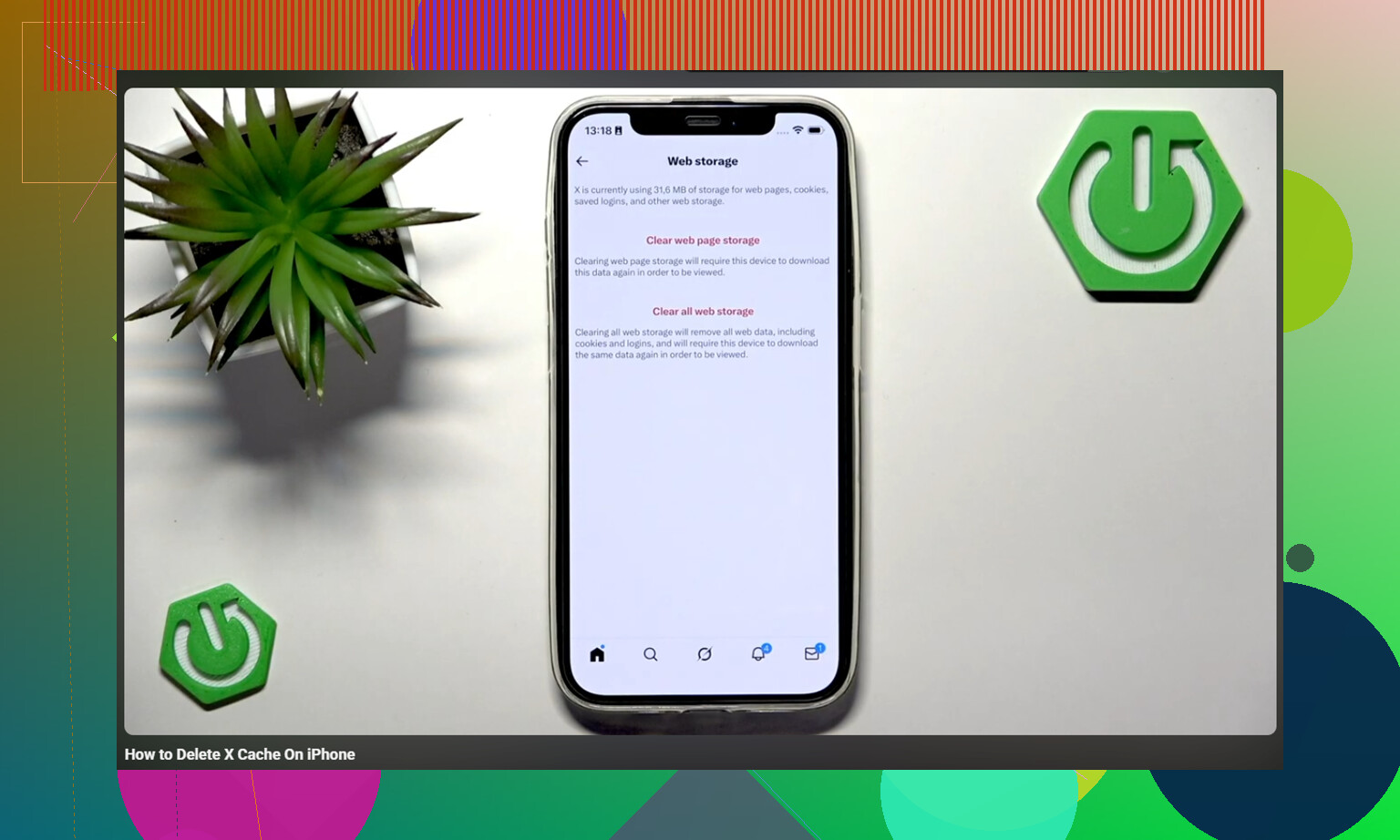
Media storage is the cache for things like images, GIFs, video previews, and thumbnails that load while you scroll. Clearing this is safe and should not sign you out.
Web storage is for pages and cookies from links you opened inside Twitter. If you clear web page storage, it usually just removes cached site data. If you choose to clear all web storage, cookies get removed too, so you may be logged out. Make sure you know your password before using that one.
If that does not free enough space, offload the app
There is a deeper iPhone-level option that can clear more than the in-app buttons sometimes do.
Go to iPhone Settings, then General, then iPhone Storage, then Twitter. Tap Offload App. This removes the app itself but keeps its documents and login data. After that, tap Reinstall App.
That can flush out extra cached videos and stored app data that the Twitter settings may leave behind. In most cases, the app comes back with your account still signed in.
Cache is usually only part of the problem
Clearing Twitter cache might give you back 1 to 3GB, which is nice, but it often does not fix the real storage issue. If your iPhone is still lagging, throwing storage warnings, or slowing down again a few days later, Twitter probably was not the main cause.
When iOS is low on free space, the whole phone starts acting rough. Apps open slower, the camera takes longer to launch, and switching between apps can feel choppy. App cache contributes to that, but photos and videos usually build up much more quietly over time.
The bigger storage hit is often the photo library
After clearing Twitter cache, the real space hog can turn out to be old screenshots, burst photos, repeated shots of the same thing, and large videos that have been sitting in the library for a year or more.
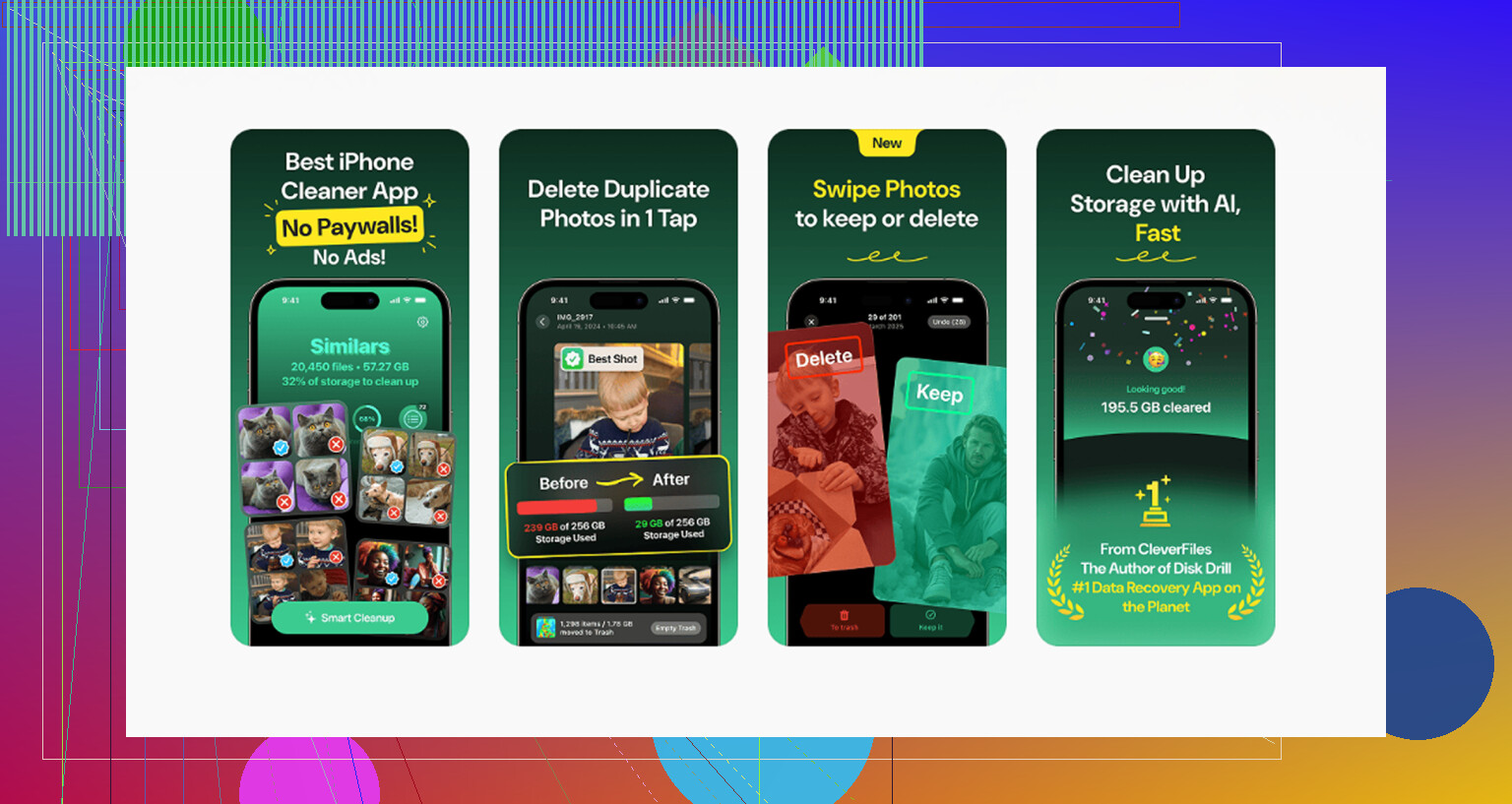
Clever Cleaner is useful for that part. It is free, has no ads, and does not require a subscription. It does not clear Twitter cache or touch Twitter data, so you still need the manual Twitter steps above. What it does help with is finding the big stuff hiding in your photo library.
The Heavies tab sorts your library by file size, largest first, with exact sizes shown. One forgotten video near the top can take up more space than months of Twitter cache.
The Similars tab groups near-duplicate photos and picks a Best Shot from each set. That makes it much easier to clear burst shots or repeated attempts without going through every image one by one.
It also shows file sizes on screenshots before you delete them, which helps when you realize those random screenshots have added up to several gigabytes.
Everything runs on the device, so the photos are not sent to an outside server.
The practical order
Start by clearing Twitter media cache because it is quick and safe. If the phone still feels slow or storage fills right back up, look at the photo library next. Use Twitter’s settings for the easy cache cleanup, use Clever Cleaner for the bigger photo and video cleanup, then open Photos and empty Recently Deleted. Deleted items stay there for 30 days and still count against storage until you clear that folder manually.
Do not use Delete App as your first move if you have unsent tweet drafts or you are not sure you can log back in. @mikeappsreviewer is right that your tweets, DMs, followers, etc. are server-side, but local drafts and login state are the annoying edge case. I’d try X’s own Data Usage storage buttons first. If the cache option is missing or storage still looks huge in Settings > General > iPhone Storage, offloading may not help much because iOS keeps the app’s documents and data. The more complete reset is deleting X and reinstalling it, but only after checking your password, 2FA, and drafts. Then empty Recently Deleted in Photos if you were cleaning storage generally, because iOS will still count that space until it is actually cleared.
Do not judge the result by the iPhone Storage screen right away, because iOS can be slow to recalculate app storage. After clearing X’s media/web storage, close the app, restart the phone, then check Settings > General > iPhone Storage again. Sometimes it looks like nothing changed until iOS refreshes that page.
The missing caveat here is that there is no universal “clear cache” button in iOS for apps like there is on some Android phones. If X’s own Data Usage options do not appear, or they barely reduce the size, your choices are limited: live with it, offload the app, or delete and reinstall. Offload is safer but often weaker because it keeps documents and data. Delete and reinstall is the cleaner reset, but only do that after confirming your login, 2FA method, and any drafts you care about.
I would not bother clearing Safari history expecting it to fix X storage. That only affects Safari, not the X app’s internal cache. For the X app itself, use its Data Usage storage buttons first, restart, recheck iPhone Storage, then reinstall only if the app is still sitting at some ridiculous size.
Do not install a random “iPhone cache cleaner” expecting it to clean X for you. iOS does not let another app reach into X/Twitter’s private storage and wipe its cache. At best those apps clean photos, contacts, or their own junk. They will not fix the X app’s Documents & Data number.
The useful distinction is in Settings > General > iPhone Storage > X. If most of the space is listed as the app size, there is not much to clear because that is just the installed app. If the huge part is Documents & Data, that is where cached media, browser data, drafts, and local app files tend to live. That is why the in-app Data Usage screen is the first place to try, but it also explains why it sometimes barely moves the number.
For the safest pass, clear media storage first inside X. Then clear web storage only if you are okay with possibly losing website cookies from links opened inside X. I would avoid using “clear all web storage” right before you need access to an account, a support page, or anything where being logged in matters. It should not delete your tweets or DMs, but it can make the app feel like you are starting fresh in some places.
If X is still sitting at some absurd size after that, I would skip offload if your goal is a true cleanup. Offload is nice when you are short on space and want to keep the app’s data, but keeping the data is exactly why it may not solve a cache problem. Delete and reinstall is the cleaner option, with the same warning others gave: check your password, 2FA, backup codes, and drafts first.
The annoying bit is that the storage number may not update right away. Force close X, reboot the phone, and give iPhone Storage a little time to recalculate before deciding nothing worked. If it grows back quickly after a reinstall, that is usually just how you use the app: lots of video, GIFs, spaces, embedded web pages, and scrolling will rebuild cache again. There is no permanent “keep X cache tiny forever” switch on iOS.
If X keeps swelling back to some huge number a few days after you clear it, the clearing itself was never the problem. That’s the part missing from most of this thread. Everyone’s focused on how to empty the cache, but almost nobody’s asking why it fills so fast in the first place.
The usual reason is autoplay. In that same Data Usage screen where you clear media storage, there are toggles for video autoplay and high-quality image loading. If autoplay is set to run on cellular and wifi, X pre-loads and caches video as you scroll, even clips you never actually watch. Set autoplay to wifi only or off, and knock image quality down if you don’t care about pixel-perfect photos. Do that once and the cache grows a lot slower. Clearing without changing those settings is just bailing water.
@shizuka nailed the Documents & Data distinction, and that’s the thing to check before you do anything drastic. If the app itself is only a couple hundred MB and the rest is Documents & Data, the in-app buttons are your real lever. If those buttons barely move it, that’s your sign the cache is mostly video, which loops back to the autoplay point above.
On the delete-and-reinstall debate, I lean the same way as the cautious crowd but with one blunt add: 2FA is where people actually get burned, not drafts. If your second factor is a text to a number you no longer use, or an authenticator app you never backed up, deleting X can lock you out for real. Check that you can actually pass 2FA before you delete. Password alone isn’t enough anymore.
The Clever Cleaner suggestion up top is fine for what it is, and the point stands that it won’t touch X at all. Just don’t let the photo cleanup distract from the actual question. Screenshots and old videos are a separate storage problem that happens to be worth solving, but you can burn an hour in there and still have X sitting at 4GB because you never touched the autoplay setting. Fix the X behavior first, then go clean photos if you’re in the mood.
And yeah, ignore the iPhone Storage number for a bit after any of this. It lags. Reboot, wait, then look again before you decide it didn’t work.