My iPhone storage is almost full, and I noticed large message attachments are taking up a lot of space. I tried clearing photos and apps, but it still isn’t enough. I need help finding and deleting large attachments through Settings so I can free up storage without removing important messages.
I ran into the same mess on my iPhone. Storage was full, Messages had turned into a junk drawer, and the phone slowed down hard. Apps closed out, the camera stalled, and every other minute I saw the storage warning again. I spent way too long digging through settings, so here’s the plain version.
How to remove message attachments in Settings
Apple’s built-in path is:
Settings > General > iPhone Storage
If iOS thinks your message attachments are taking up enough space, you’ll see “Review Large Attachments.” Open it, and you get a size-sorted list.
Here’s the bad part. There’s no bulk delete button. No “select all.” You tap Edit, then pick items one by one. If you’ve got years of photos, videos, voice notes, GIFs, all of it, this gets old fast.
If “Review Large Attachments” does not appear, stay in iPhone Storage and tap Messages. Scroll down. You should see sections like Photos, Videos, GIFs, and others. Open each section and remove files there. Same issue though, it’s still manual.
What happens with iCloud
This tripped me up at first.
If “Messages in iCloud” is on, deleting an attachment from Messages removes it from iCloud too. It also disappears from your other Apple devices tied to the same account.
But if you saved one of those pictures or videos into the Photos app before deleting it from Messages, the saved copy stays. Messages and Photos treat those as separate copies. So if something matters, save it first. I did this with family photos before wiping old threads.
Deleting attachments does not remove the texts
The conversation stays there. You’re only removing the photo, video, or file attached to it. In the chat, you’ll usually see a blank spot or placeholder where the attachment used to be.
The setting that wipes full conversations is somewhere else:
Settings > Messages > Keep Messages
If you switch this from “Forever” to “30 Days” or “1 Year,” iPhone starts deleting old messages and their attachments by age. I wouldn’t touch this unless you’re fine losing old chats too.
Why storage space does not update right away
I thought I messed something up when free space didn’t move after deleting a pile of files. Two things were going on.
First, deleted message items often sit in Recently Deleted for 30 days. You need to clear those too:
Open Messages, go to the main screen, tap Edit or Filters, then Recently Deleted, then remove them for good.
Second, the storage numbers in iPhone settings lag behind. They update slowly. A restart fixed it for me more than once. Annoying, but yeah, it worked.
Why a full iPhone starts feeling slow
Once my storage got close to max, the phone felt awful. Keyboard lag. Camera delay. Random app crashes. After clearing space, it settled down. From what I saw, iPhones get touchy when free storage gets too low. The system seems to need spare room for temp files and background stuff.
If the manual route is too tedious
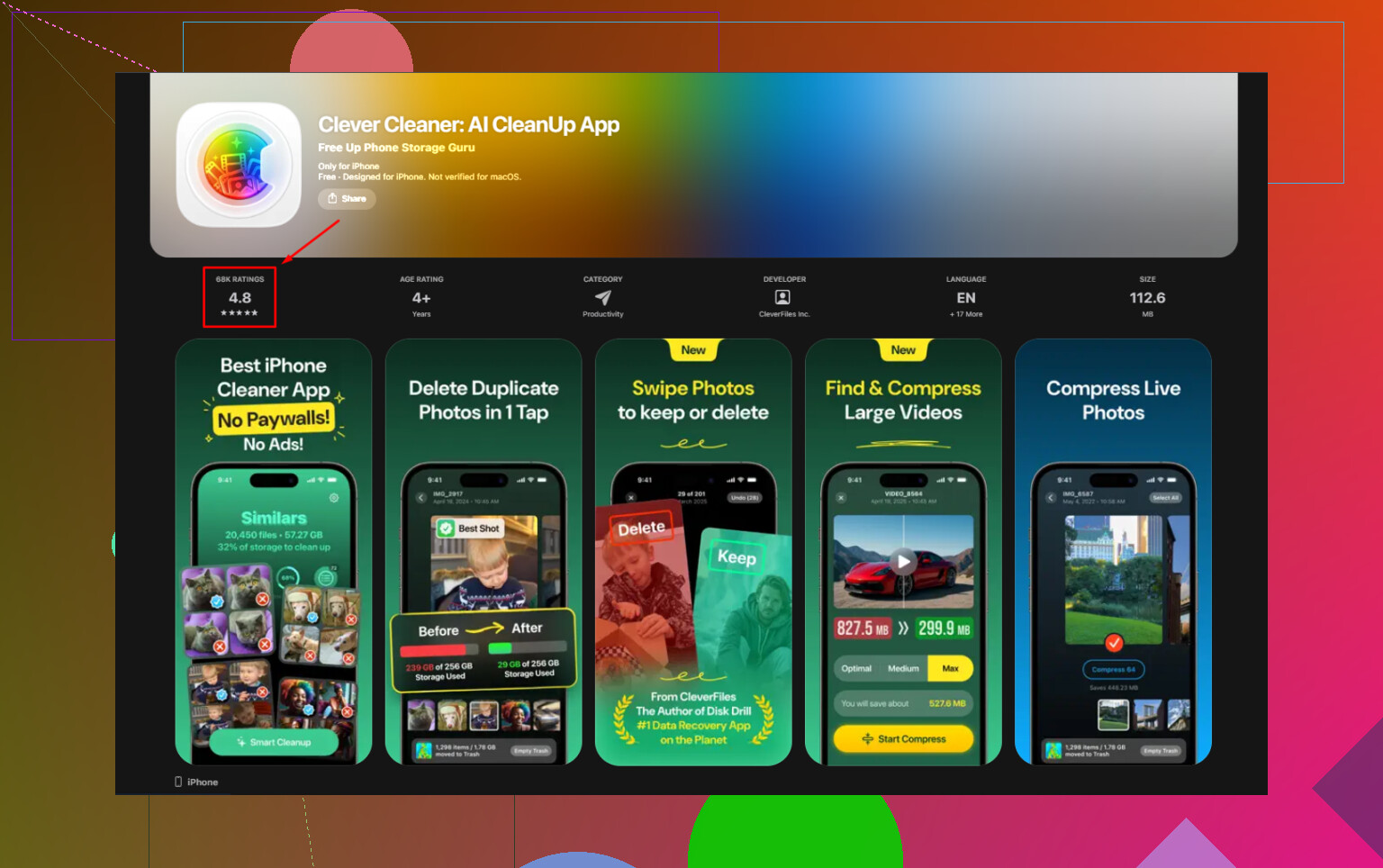
After tapping through Apple’s menus for a while, I gave up and looked for a faster way to clean the photo library itself. I ended up trying https://www.youtube.com/watch?v=PJZfJnOUmRE
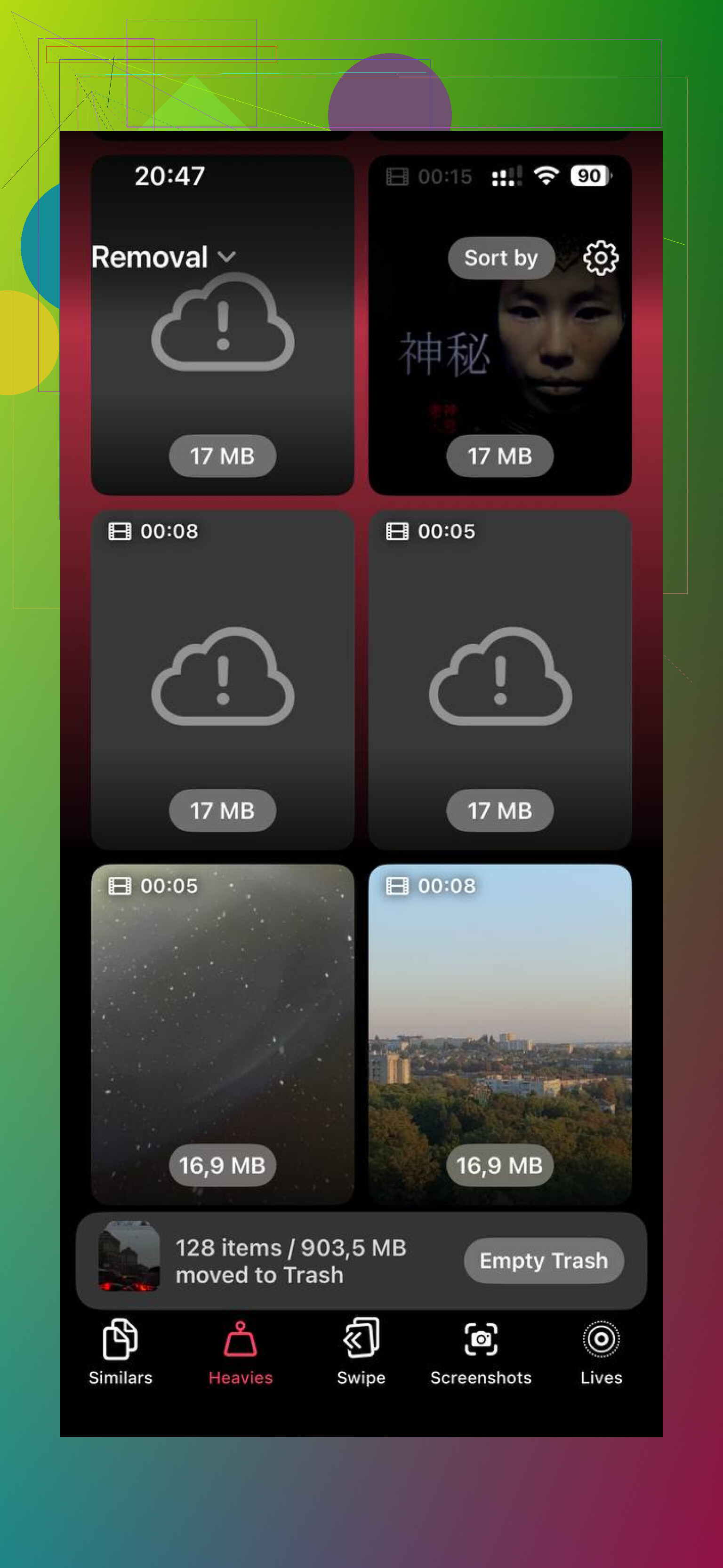
What stood out for me was how easy it was to spot the largest files fast. The “Heavies” section grouped big videos and photos by size, so I found a bunch of old 4K clips I forgot existed. Those were eating way more space than random screenshots.
There’s also a “Similars” section for duplicate-looking shots. Useful if your camera roll is full of five versions of the same pic because your thumb kept hitting the shutter. Mine was full of stuff like tht.
One part I liked, and I was picky about this, is local processing. My photos stayed on the phone. I did not want my library uploaded somewhere.
After clearing around 20 GB, my phone felt normal again. Less lag, fewer freezes, camera opened fast. If you want to use Apple’s built-in settings, it works, but it’s slow and manual. If you want something quicker for the media side, that video is where I started.
One extra trick, since @mikeappsreviewer covered the Settings route. Go into the Messages app itself and target the worst threads first. Open a chat, tap the contact name at the top, then Photos or Documents. Long press and delete from there. This is faster when one person sent you a ton of videos.
Also check your message retention setting. Settings, Apps, Messages, Keep Messages. If it is set to Forever, your phone keeps every old video and image untill you remove them. Switching to 1 Year cuts storage over time, though I don’t love 30 Days unless you don’t care about old convos.
One thing I disagree on a bit, restarting helps, but storage usually updates after Messages sync finishes. Give it a little time first.
If your storage issue is broader than Messages, use Clever Cleaner for iPhone to spot oversized media in Photos. This review is a solid overview, see how Clever Cleaner helps free up iPhone storage. It’s useful when attachments are only part of the problem.
Yep, but I’d add one thing to what @mikeappsreviewer and @cazadordeestrellas said: sometimes Settings is not actually the fastest place to clean this up, even if it feels like it should be. Apple kinda hid the useful stuff in diff places.
If you want to stay in Settings, also check this:
Settings > Apps > Messages
- Low Quality Image Mode: turn it on if you send a lot of pics
- Keep Messages: if it’s on Forever, that’s usually why storage keeps creeping up
Also, if attachments keep coming back in storage totals, open Messages search and search terms like:
- “.mov”
- “.pdf”
- a contact name who sends giant videos
That can surface heavy threads faster than poking around category by category. Kinda janky, but it works.
One small disagreement with the usual advice: I would not change message retention to 30 Days unless you’re desperate. People do that and then relize later they nuked stuff they wanted. 1 Year is the safer middle ground.
If the bigger problem is that your Photos app is also bloated, then Messages cleanup alone probly won’t save enough space. That’s where Clever Cleaner makes more sense, since it helps find large videos, duplicates, and similar shots way faster than iPhone’s built-in tools. This write-up explains why it’s one of the best iPhone storage cleaner apps for freeing up space fast.
So short version:
- Delete big attachments in Settings or inside the worst message threads
- Empty Recently Deleted
- Check Keep Messages
- If storage is still toast, clean the photo library too
Apple gives you the tools, just in the most annoyng way possible.
One extra angle the others only touched on: after deleting attachments, check Settings > General > iPhone Storage > Recommendations and look for Auto Delete Old Conversations. I actually prefer that over aggressively setting Messages retention to 30 Days, because it targets stale stuff without instantly wiping message history you might still want.
Also, don’t ignore Files. A lot of “message attachments” get saved there and keep eating space even after you clean Messages. Open the Files app, sort by size, and look in Downloads or On My iPhone.
I’d also push back a little on using Settings first every time. For some people, searching by sender in Messages is quicker than poking through Apple’s storage menus.
On the broader cleanup side, Clever Cleaner is worth a look if your Photos library is part of the issue too.
Pros
- finds big media fast
- helps with duplicates and similar shots
- simpler than Apple’s menus
Cons
- not really a Messages-specific tool
- you still need to review before deleting
- less useful if your problem is only text attachments
So with @cazadordeestrellas, @sternenwanderer, and @mikeappsreviewer covering the main paths, I’d add: check Recommendations, check Files, then use Clever Cleaner only if Messages cleanup alone doesn’t free enough space.