I imported my iPhone photos to my computer, but they’re still taking up a lot of storage on my phone. I need help figuring out the safest way to delete imported photos from my iPhone without losing anything, because I’m running out of space and need to free it up right away.
I burned way too much time on this mess, so here’s the plain version. Deleting photos from your iPhone does not have one simple answer if your Mac is in the mix. It all comes down to whether iCloud Photos is on. If it is, you’re editing one shared library. Delete on the phone, and the Mac loses it too. I learned this the tense way, with my finger hovering over Delete and zero trust in Apple’s wording.
Here’s how it behaves. Open Settings > Photos on your iPhone. If iCloud Photos is enabled, your iPhone and Mac stay in sync like they’re reading from the same shelf. Remove a picture from the phone, and iCloud pushes the same removal to the Mac. Good if you want matching libraries. Bad if your only goal is freeing space on the phone.
If you want the files gone from the iPhone but still stored on the Mac, stop the sync first. On the iPhone, go to Settings > Photos and switch off iCloud Photos. You’ll get a prompt with options like “Remove from iPhone” or “Download Photos & Videos.” If your photos are already copied to the Mac with a USB import, picking remove from the phone is the safer move. Once sync is off, the Mac copy stays where it is.
About the missing “Delete items after import” option in Photos on Mac, yeah, I looked for it too. It often does not appear while iCloud Photos is active. Apple seems to assume iCloud is doing the management. What worked better for me was Image Capture, the old built-in app sitting in Applications. Connect the iPhone with USB, open Image Capture, and you get direct access to the image files. Import them into a folder, then hit the small delete button, the red circle, to remove them from the phone.
One part people miss, I did too, is Recently Deleted. When you erase photos, the storage usually does not come back right away because iOS parks them there for around 30 to 40 days. So if your phone still says storage is full, go to Albums > Recently Deleted and clear it out with Delete All. Until you do, those files are still eating space.
And yeah, a full iPhone gets ugly fast. Mine slowed down hard once free space got low. Apps started closing, the camera hesitated, and recording video turned into a gamble. I hit this wall a while back when I was trying to film my kid and the phone was so packed it barely functioned. Going through 15,000 photos by hand felt endless, lots of duplicates, lots of old screenshots, lots of junk I should’ve dumped months earlier.
I ended up trying Clever Cleaner after putting it off for a bit. I usually don’t trust cleanup apps because most of them are stuffed with ads or push you into a subscription two taps later. This one felt different from what I saw. It was free when I used it, no ads, no paywall popping up every minute.
The part I kept using was the Heavies tab. It sorted photos and videos by file size, so the giant forgotten 4K clips floated straight to the top. There’s also a Similars section, which groups near-duplicate shots, the usual burst of ten photos where only one is worth keeping. I liked one other detail, the scan runs on-device, so your photo library isn’t being shipped off somewhere else. After one cleanup round, I freed around 12GB, which was enough for the phone to stop acting broken. Felt normal agian.
If your storage is jammed right now, I’d do it in this order. First, make one last manual import to your Mac so you know the files exist outside the phone. Second, empty Recently Deleted. Third, clean out the leftover clutter with something like Clever Cleaner if manual sorting is taking too long. Doing it by hand works, sure, but it gets old fast when your library is huge.
If your photos are already on your computer, the safest move is to verify the import first. Open a few random photos and videos from the copied folder. Check file sizes, dates, and Live Photos if you care about those. A lot of people skip this part and regret it.
I’d do one thing different from @mikeappsreviewer. I would not mass-delete from the Photos app first if you imported with File Explorer or a plain USB copy. On Windows, use File Explorer, open your iPhone’s DCIM folder, and delete in batches after you confirm the files are on the PC. On Mac, Finder is useless for this, so Image Capture or Photos works better.
Then force the space back. Go to Photos, Albums, Recently Deleted, and erase it. If you skip this, storage won’t return right away. Also restart the phone after. iOS storage numbers lag sometiems.
If “System Data” still looks bloated, connect the iPhone to power and Wi-Fi for a bit. iOS often recalculates storage later, which is annoyng but normal.
If the problem is duplicate shots and giant videos eating space, Clever Cleaner is worth a look. It sorts heavy files fast. This helps after the import, when you want to trim what stayed on the phone. Also, this Clever Cleaner guide for clearing large iPhone videos shows the workflow pretty well.
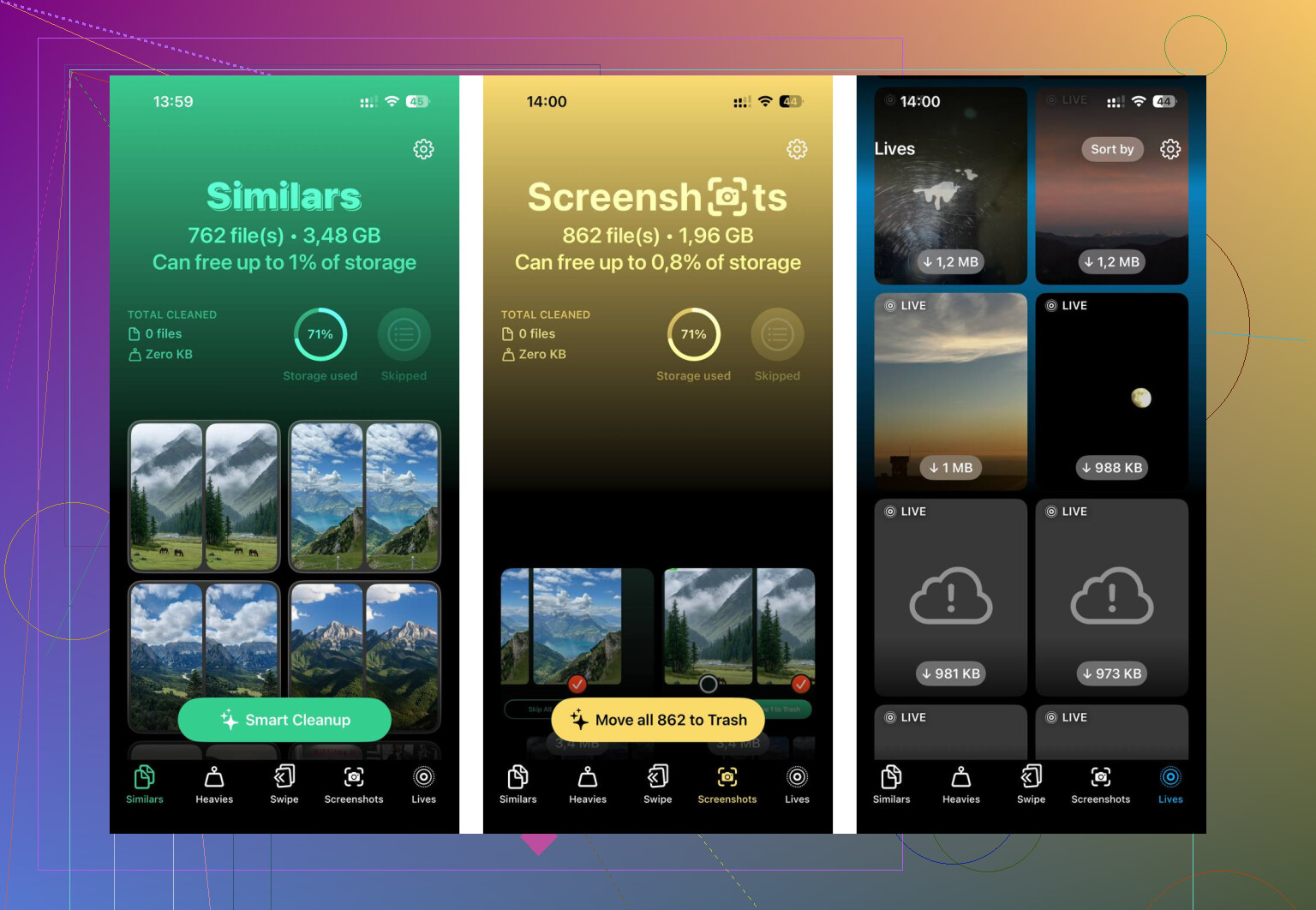
If you already imported them, the part I’d add to what @mikeappsreviewer and @cacadordeestrelas said is this: check where the import actually went. A lot of people import into the Mac Photos library or Windows Photos app, then assume they have normal files they can browse forever. Not always. If you want real peace of mind, make sure the imported pics are in a normal folder or fully backed up with Time Machine, OneDrive, external drive, whatever.
Also, I kinda disagree with deleting directly from DCIM as a first choice if you have thousands of items. It can get messy, and sometimes the iPhone throws weird file/folder behavior. I think the safer route is:
- Confirm the photos exist on computer and open correctly
- Make a second backup of the imported folder
- Delete from iPhone
- Empty Recently Deleted
- Wait a bit for storage to recalculate
One more thing people miss: if you use Shared Albums, WhatsApp, or saved attachments, those can still hog space even after your camera roll is cleaned out. So check iPhone Storage, not just Photos.
If your goal is ‘free up space right now,’ videos are usually the real storage killer. Clever Cleaner is actually useful there because it surfaces the biggest files fast instead of making you scroll for an hour like a caveperson. Their workflow is similar to this video walkthrough for clearing large files and optimizing phone storage.
And yeah, after deleting, restart the phone. Sounds dumb, works surprsingly often.