My iPhone storage is almost full, and I think large video files are the main reason. I’ve recorded a lot of clips over time, but I can’t tell which videos are taking up the most space. I need help finding the biggest videos on my iPhone so I can delete or move them and free up storage fast.
I ran into this again last week, and yeah, Apple still makes this harder than it should be. In Photos, there is no plain old option to sort your videos by file size. You would think a phone built for shooting 4K clips all day would show you which files are eating 12 GB, but nope.
The built-in route is ugly. You can open a video, swipe up, and read the info panel for the size. I tried doing this across a big library once. Miserable. If you’ve got hundreds or thousands of clips, don’t do it by hand unless you hate your own time.
What works inside iPhone settings
There is one semi-hidden place in iOS worth checking first. It does not give a clean full list of every video in your camera roll, so keep your expectations low. Still, it sometimes surfaces the biggest storage hogs.
- Open Settings > General > iPhone Storage.
- Wait a bit for the storage breakdown to finish loading.
- Look for recommendations such as Review Large Videos.
- Open those sections and see what iOS flagged.
- Swipe left on an item if you want to delete it fast.
I’ve had mixed results here. Sometimes it finds giant message attachments and old videos. Sometimes it misses stuff I know is huge. Still worth a look.
If you want an actual size-sorted list
I used to avoid cleaner apps because a lot of them feel sketchy or stuffed with nags. After fighting with Apple’s own tools, I gave in. For sorting videos by size without tapping every clip one by one, a dedicated app is the shortest path.
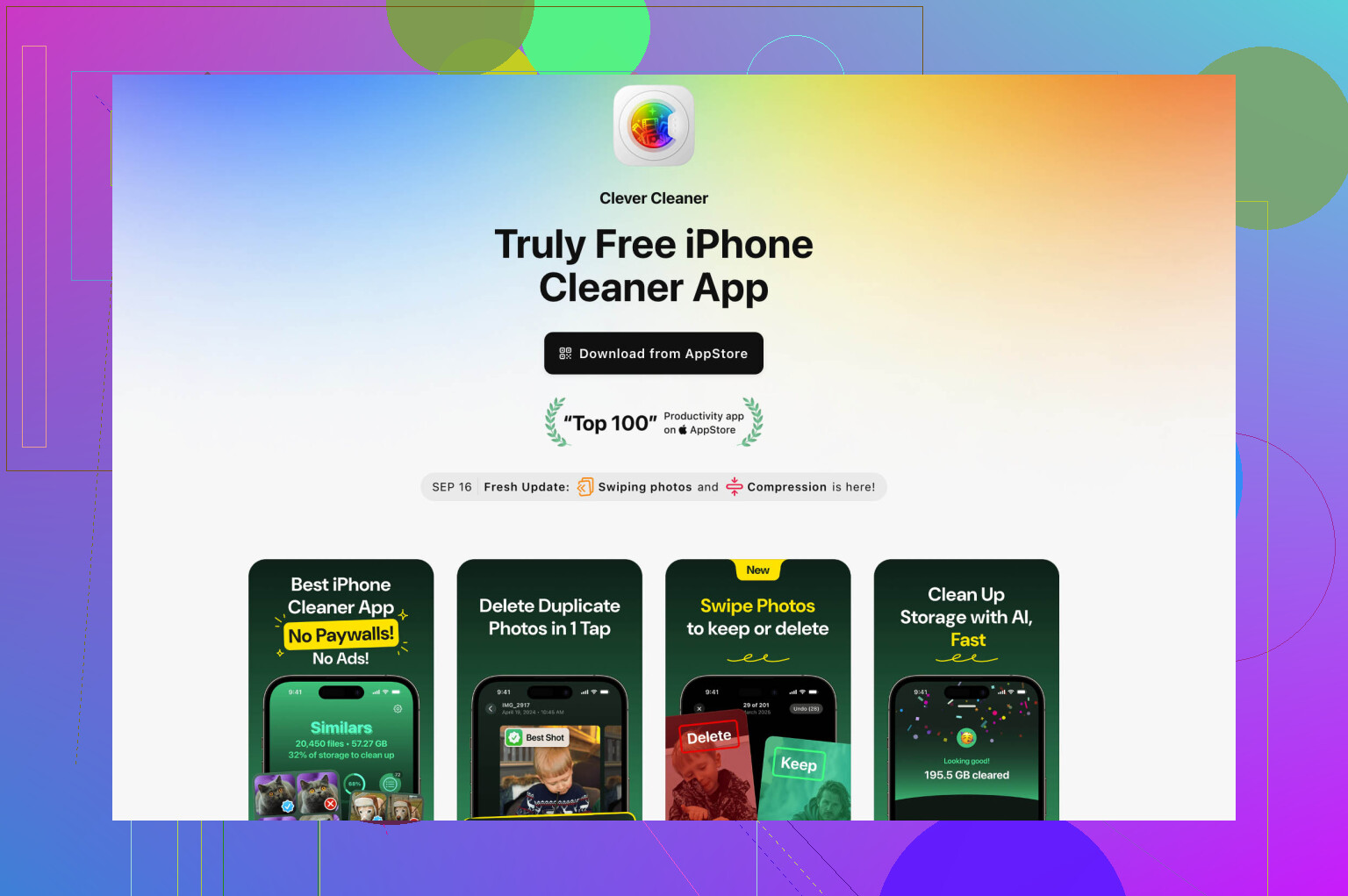
The one I had decent luck with is Clever Cleaner.
- Download Clever Cleaner and allow Photos access.
- Let it scan your library.
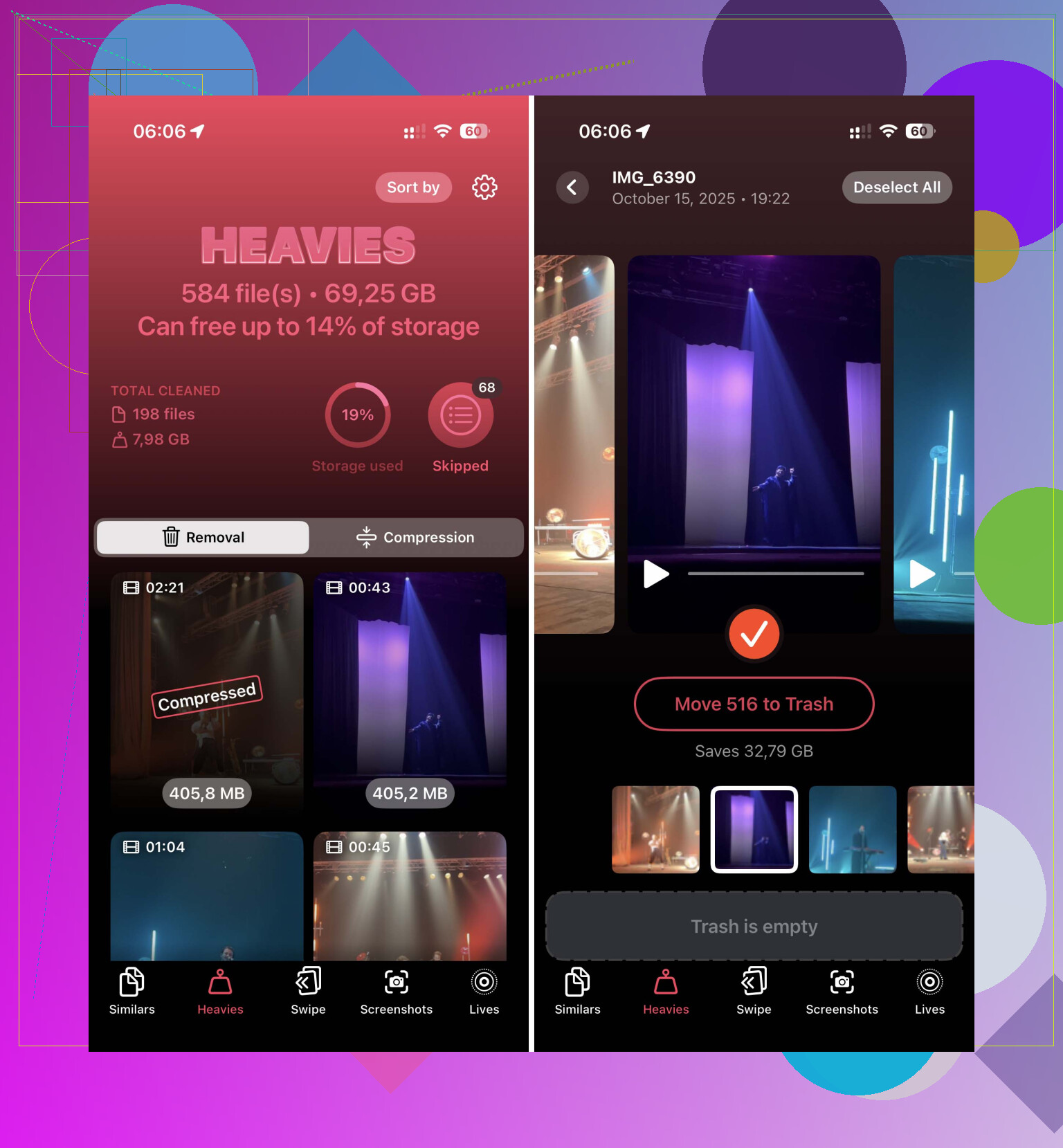
- Open the Heavies tab.
- You should see videos listed from largest to smallest.
- Each clip shows its file size in MB or GB.
- Select what you want gone, then move it to trash.
This part saved me the most time. Seeing the worst offenders at the top changes the whole cleanup job. No guessing, no opening random clips hoping one of them is the 6 GB monster.
There’s also a Compress option in the Heavies section. I used something like this for a long event video I wanted to keep. The smaller copy looked fine on my phone, and the storage drop was enough to matter. If your goal is space, not perfection, compression helps a lot.
For videos outside the Photos app
If the files came from Safari, Messages exports, a work app, or some random download, check the Files app instead. This part Apple did manage to make normal.
- Open Files.
- Go to On My iPhone or iCloud Drive.
- Find the folder where the videos live, often Downloads.
- Tap the three-dot menu.
- Choose Size.
That sorts files in the folder by size, so the biggest stuff rises to the top right away. It only works for files stored there, not your main Photos library.
One thing people forget
Deleting a video does not always free the space right away. iPhone sends it to Recently Deleted for 30 days. I forgot this once and thought my phone was bugging out. If you need the storage back now, open Recently Deleted in Photos and clear it manualy.
If I were doing this from scratch, I’d check iPhone Storage first for quick wins, then use the Heavies section in Clever Cleaner for the full list. For downloaded files, use Files and sort by size there. That’s the closest thing to a sane workflow I’ve found so far.
I’d check one thing people skip. Your recording settings.
Open Settings, Camera, Record Video. If you’ve been shooting 4K at 60 fps, 1 minute is often around 400 MB. A 20 minute clip hits about 8 GB. Slow-mo clips get ugly fast too. That helps you guess which events, concerts, or long clips are the pigs.
Inside Photos, use Albums, then Media Types, then Videos. It still won’t sort by size, and I agree with @mikeappsreviewer on that part, but I don’t love doing cleanup from iPhone Storage first. It flags stuff unevenly. I’ve seen it miss giant clips.
What worked better for me was filtering by duration first. Long videos are usualy the biggest. In Photos, scroll your Videos album and look for the longest timestamps. Open those first, swipe up, check size, delete the worst ones.
If you want a faster way, Clever Cleaner is the easier route. Its Heavies view saves time when your library is huge. I also found this useful if you want a cleaner overview of what it does: see this Clever Cleaner iPhone storage cleanup review
One more thing. If Photos is using iCloud Photos with Optimize iPhone Storage turned on, local storage numbers get weird. A clip might be huge in iCloud but not fully stored on your phone. Check Settings, Photos, then see if Optimize is on. That part trips people up alot.
After deleting, empty Recently Deleted. If you skip that, your free space won’t move much.
I’d go a little different than @mikeappsreviewer and @voyageurdubois here. They’re right that iPhone does a bad job surfacing file sizes, but I would not spend much time manually checking long clips in Photos unless your library is tiny. Duration is a rough clue, not the same thing as size. A 2 minute 4K/60 clip can outweigh a much longer older video, so that method gets messy fast.
What is useful is checking Photos app search. In Photos, tap Search and try terms like 4K, 60 fps, slow-mo, or even event names/months if you know when the giant files were recorded. That can narrow the suspects way faster than just doom-scrolling your Videos album. It’s not perfect, but it helps.
Also check Messages. A lot of people blame the camera roll, then find huge received/sent videos living in message threads. Open a convo, tap the contact name, then scroll through shared attachments. I’ve found some massive junk there before.
If you want the fastest actual answer, yeah, Clever Cleaner is probly the easiest because it surfaces heavy videos in one place instead of making you play detective. That’s more practical than Apple’s half-baked tools.
If you’re comparing tools, this roundup of the best iPhone storage cleaner apps to free up space fast is worth a look too.
One last thing people miss: restart the phone after a big cleanup. iOS storage totals can lag and look wrong for a bit. Annoying, but real.
I’d add one angle the others barely touched: export metadata to a Mac or PC if you want the real file sizes without tapping through the whole library.
If you plug the iPhone into a computer and open Image Capture on Mac, or Photos/File Explorer on Windows, you can often sort imported items by size before moving or deleting anything. That’s way more reliable than guessing from duration. I actually disagree a bit with using length as the main clue. Codec, frame rate, and HDR can make a shorter clip much bigger.
Also, check third-party apps that store video separately:
- CapCut
- Instagram drafts
- TikTok drafts
- VLC
- Downloads inside browser apps
Those won’t always show up where you expect.
On Clever Cleaner:
Pros: quick scan, easier to spot heavy files, less manual digging.
Cons: you’re giving a third-party app photo access, and results depend on how well it indexes your library.
So I’d combine the ideas from @voyageurdubois, @jeff, and @mikeappsreviewer with one extra rule: don’t assume all big videos live only in Photos. That’s where people miss a lot of storage.