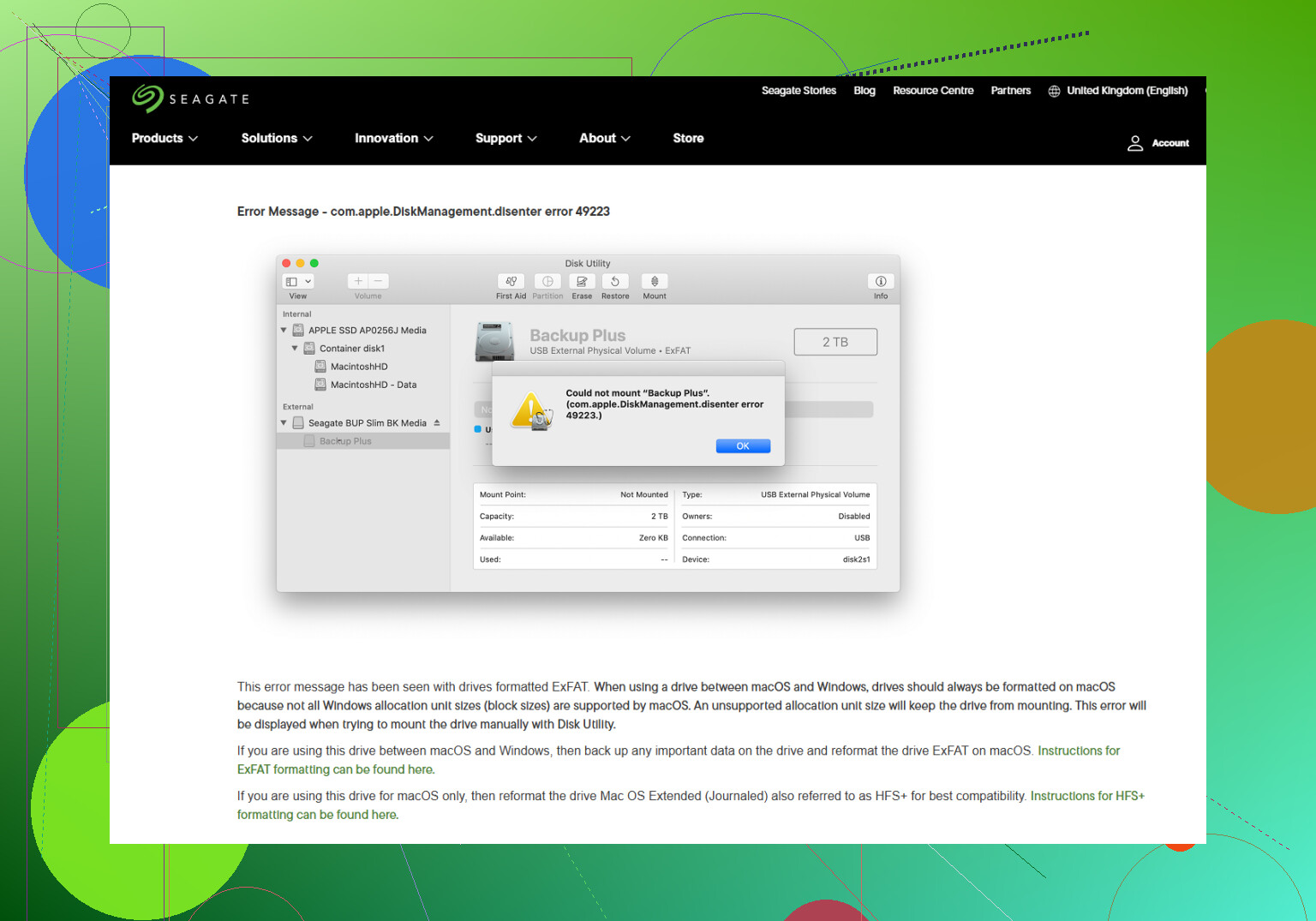
My external drive suddenly stopped mounting on my Mac, and I keep getting com.apple.diskmanagement.disenter error 49223 in Disk Utility. I’ve already tried reconnecting it and restarting my Mac, but the disk still won’t open. I need help figuring out what this Mac disk management error means and how to safely access the files again.
I ran into this with an external drive a while back. Disk Utility saw the device, but the volume stayed grayed out and macOS threw the same “com.apple.DiskManagement.disenter” message. What I found was simple enough, the Mac still saw the hardware, but it was choking on the file system and would not mount it.
From what I saw, this usually traced back to one of a few things. The drive got pulled without ejecting. The file system ended up in a bad state. Or macOS had some background disk check stuck and never let go.
Start with the low-risk stuff
Don’t jump straight to erase. I did that once years ago on a different disk and regretted it fast. Work through the safer steps first.
1. Kill a stuck fsck job
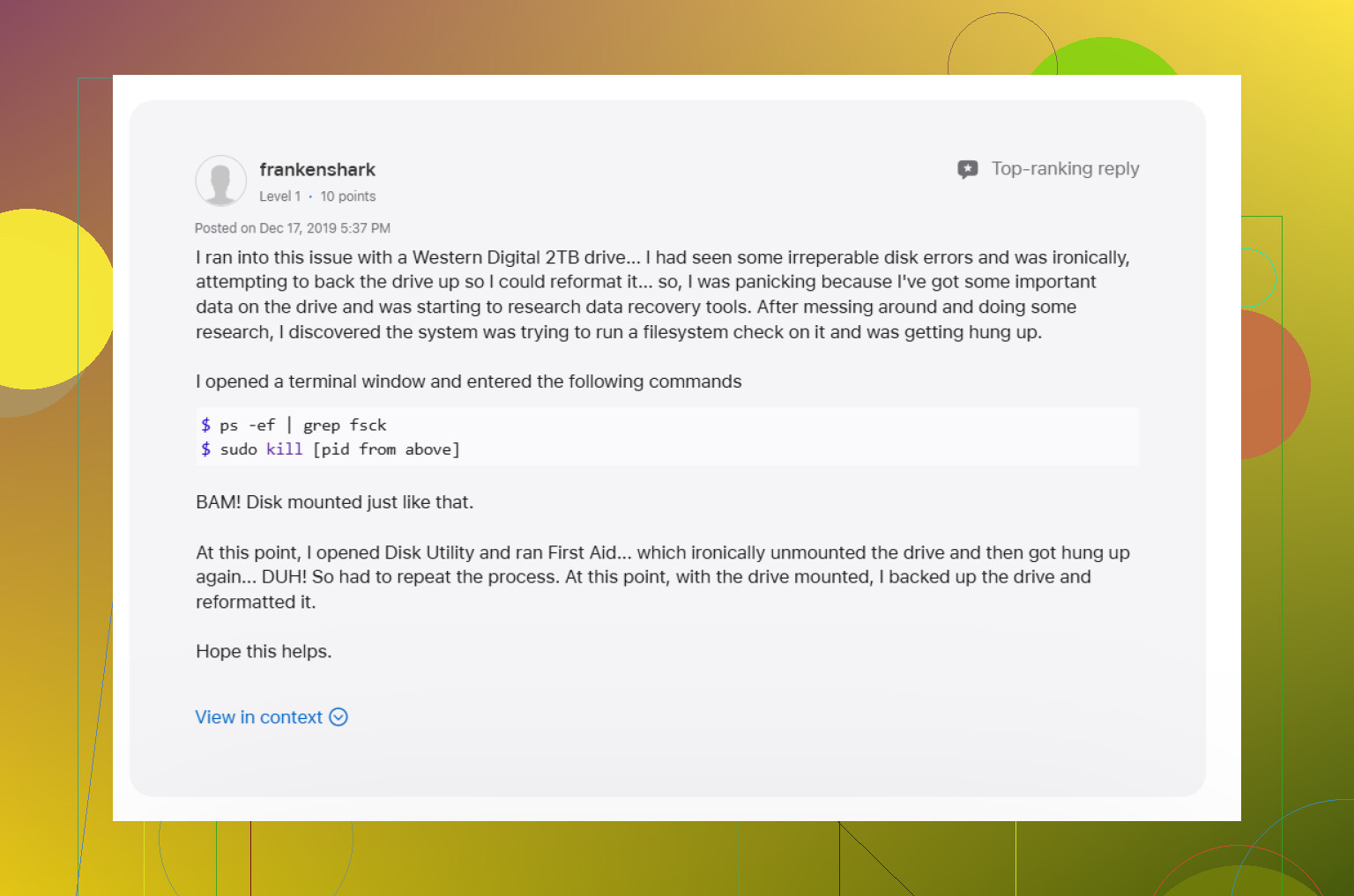
When a drive gets unplugged the wrong way, macOS often launches fsck on its own. The idea is fine. The problem is it sometimes sits there forever, especially on big drives or exFAT volumes. While it is hung, the disk stays locked.
Open Terminal from Applications > Utilities and run:
sudo pkill -f fsck
Type your Mac password when asked. You won’t see the cursor move while typing. Yeah, that part always feels broken, but it isn’t.
On my end, the drive showed up right after killing the stuck check. If yours mounts as read-only, copy your files off imediately to another drive you trust.
2. Run First Aid on every layer, not only the volume
This part gets missed a lot. In Disk Utility, click View, then Show All Devices. You want to see the whole stack, not only the final volume.
Then run First Aid in this order:
1. Physical disk
2. Container, if there is one
3. Volume
I’d run it more than once if the first pass changes anything. I’ve seen one run clear part of the mess and the next run finish the rest.
3. Sign out and test from another account
I know this sounds dumb. Still worth doing.
Once, the disk was fine and my main user session was the problem. I logged out, came back in, and the mount behavior changed. If you have another account on the Mac, try there too. If it mounts under that account, you’re looking at a user-level issue, permissions, prefs, or something weird in DiskManagement tied to your profile.
4. Check whether Time Machine is hanging onto it
If the drive was ever used with Time Machine, macOS sometimes clings to it longer than you’d expect. Backup tasks and snapshots seem to get in the way.
Open System Settings and turn off automatic Time Machine backups for the moment. I’ve seen this free up a disk so it would mount again.
5. If repairs fail, switch to recovery before you do more damage
At some point, forcing mounts and rerunning fixes stops helping. If Terminal and First Aid go nowhere, I’d stop there.
Repeated repair attempts on a damaged file system can make the directory structure worse. If your files matter, recover first.
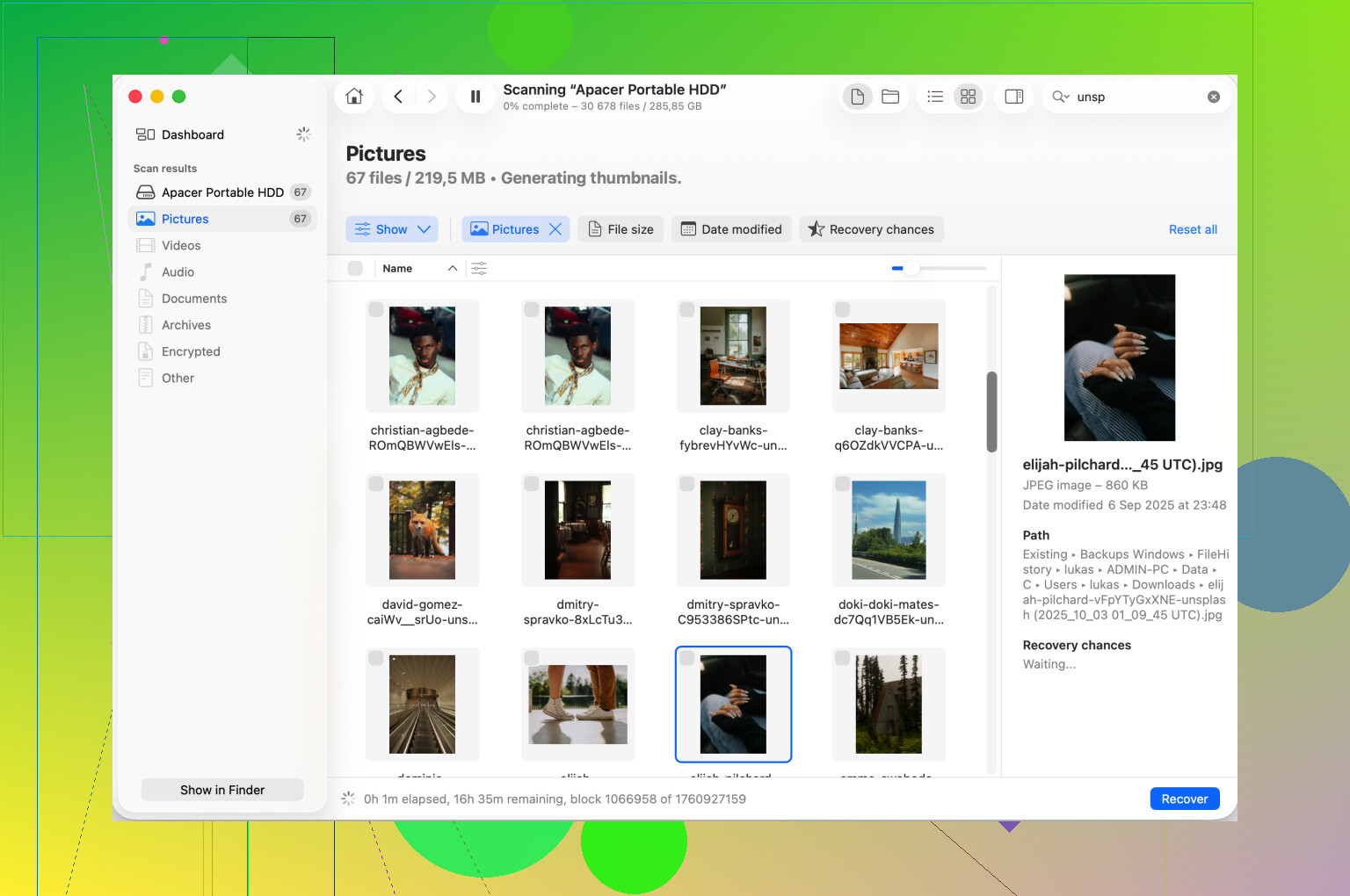
I’d look at a tool like Disk Drill. The reason people use it is pretty plain, it scans the raw drive data even when macOS refuses to mount the volume the normal way. If the disk is still readable at the hardware level, you might pull files off to another healthy drive before trying anything more aggressive.
The order matters here. Get the data out first. Fix the disk later.
6. Reformat after the files are safe
Once your stuff is copied somewhere else, then erase the drive in Disk Utility. Pick the physical device, not only the volume, then choose Erase.
If the drive stays with Macs only, I’d use APFS or Mac OS Extended Journaled. If you move between Mac and Windows, exFAT is the usual pick. I’ve had fewer weird issues when the exFAT format was done on the Mac itself.
What I’d keep in mind next time
Always eject before unplugging. It sounds boring until a disk refuses to mount and eats your evening. Bigger drives also take a while during checks, so give First Aid some time before deciding it froze. And if the drive holds anything you care about, keep another copy somewhere else. RAID doesn’t replace backups, and one external disk definitely doesn’t either.
Error 49223 often means macOS sees the device, but refuses the mount request. I agree with part of what @mikeappsreviewer said, but I would not spend too long rerunning First Aid if the drive clicks, disappears, or takes minutes to list info. At that point, stop poking it.
Try this path instead.
- Check if the disk is visible at the system level.
Open Terminal and run:
diskutil list
If your external drive shows up as something like /dev/disk4, run:
diskutil info /dev/disk4
Look for:
Protocol: USB or Thunderbolt
Read-Only Media: Yes or No
File System Personality
Mounted: No
If macOS sees the disk but not a mountable filesystem, the issue is often partition map damage, not the cable.
- Try a manual mount.
Run:
sudo diskutil mountDisk /dev/disk4
Or, for a single volume:
sudo diskutil mount /dev/disk4s1
If you get the same disenter error, note whether the volume is exFAT, NTFS, APFS, or HFS+. exFAT drives fail like this a lot more than APFS in my expereince.
- Verify the partition map.
Run:
diskutil verifyDisk /dev/disk4
If this fails with GPT or MBR errors, Disk Utility often shows the disk but blocks mounting. That points to map corruption, not a simple file repair issue.
-
Test on another Mac, or on Windows if the drive is exFAT.
This matters. If it mounts elsewhere, your Mac is the problem. If it fails everywhere, the drive metadata is damaged. -
If the data matters, switch to recovery before erase.
Disk Drill is worth trying here. It scans drives Mac refuses to mount and often pulls data from exFAT, HFS+, and APFS volumes as long as the hardware still reads sectors. Recover first, format later. -
If you do not need the files, wipe the whole device, not only the volume.
In Terminal:
diskutil eraseDisk ExFAT NEWNAME /dev/disk4
Or pick APFS if it stays on Mac only.
If you want more detail on safely stopping access to a stuck external drive and avoiding more file system damage, this Apple thread is useful:
how to safely stop interaction with a problematic disk on Mac
One more thing. Swap the cable and port even if the drive powers on. Bad USB cables cause weird mount failures all the time, and people skip this becuase the disk light still comes on.
I’d add one thing neither @mikeappsreviewer nor @viajantedoceu really leaned on: sometimes this error is not the filesystem, it’s macOS refusing to mount a drive because of stale mount points or a weird USB bridge issue. Disk Utility makes it look dramatic, but the actual problem can be pretty dumb.
Try this in Terminal:
mount
See if there’s already a broken entry for that external volume under /Volumes/. If there is a folder with the same drive name stuck there, macOS can get weird about remounting. Check:
ls /Volumes
If you see duplicate names like MyDrive and MyDrive 1, or a leftover empty folder for the drive that is not really mounted, remove the stale folder only if you are sure the disk is not mounted:
sudo rmdir '/Volumes/MyDrive'
Then retry mounting from Disk Utility or with:
diskutil mount readOnly /dev/diskXsY
I prefer readOnly first if the data matters. Less chance of macOS writing junk to a half-corrupted volume.
Another thing: boot into Safe Mode and test the drive there. I know people skip this becasue it sounds like generic tech support fluff, but Safe Mode disables a bunch of third-party filesystem helpers, login items, and junk kernel extensions that can interfere with mounting. If it mounts in Safe Mode, your drive may be fine and your normal boot environment is the mess.
Also check whether you installed any NTFS tools, antivirus, cleanup apps, or “disk manager” utilities. Those love causing mount conflicts.
If the drive shows in System Information under USB but keeps throwing 49223, and especially if it’s an external HDD in a cheap enclosure, I’d seriously suspect the enclosure bridge board. Pull the bare drive and test it in another enclosure or SATA-to-USB adapter if possible. People blame the disk all the time when the real villain is the $12 enclosure.
If your files matter, stop before erase and run Disk Drill. It’s one of the better options for Mac data recovery when an external drive won’t mount but still appears at the device level.
Also, if this is a Seagate unit, this Apple-side issue is worth comparing with Seagate Disk Utility error fixes for macOS external drives. That covers a lot of the common mount and disenter-type behavior on Mac.
My order would be: Safe Mode, check /Volumes, try read-only mount, test a different enclosure, then recover with Disk Drill, then format only after the data is off. Erasing first is how people turn an annoying night into a really stupid weekend.