My iPhone says there isn’t enough storage to install the latest iOS update, even after I deleted photos, apps, and old messages. I’m not sure what actually frees up space for an iPhone software update, and I need help figuring out the fastest fix so I can update without losing important data.
Nothing annoys me more than seeing an iOS update fail for “not enough storage” while the phone still claims I’ve got a few gigabytes open. I ran into this on my own iPhone, and the problem was simple. The update file is not the only thing your phone needs room for. iOS grabs space for the download, then more space to unpack and install it. A download around 2GB often ends up needing close to twice as much during setup. If you’re moving to a big yearly release like iOS 26, I’d want 10GB to 15GB free before I even start. Less than that, and the install gets sketchy fast.
If you’re done deleting random screenshots and still getting nowhere, here’s the order I’d follow.
Use a computer first
This saved me the most time. If you’ve got a Mac or Windows PC nearby, plug the iPhone in and update from there. On Mac, use Finder. On Windows, use iTunes. The big advantage is storage handling. The computer downloads the update and processes the bulky install files on its own drive, so your iPhone doesn’t need to carry the full mess locally.
Before you press Update, do a full backup to the computer. I did, and I’m glad I did. If something goes sideways, you’ve got a clean fallback.
There’s also the harder reset route. Back up the phone, erase it, set it up fresh, then restore your stuff. During setup, the phone usually pulls the newest iOS version your model supports. It works, but I’d leave this for last.
If you’re not going that far, then the job is clearing storage by force. These are the spots I’d hit first.
Photos and videos
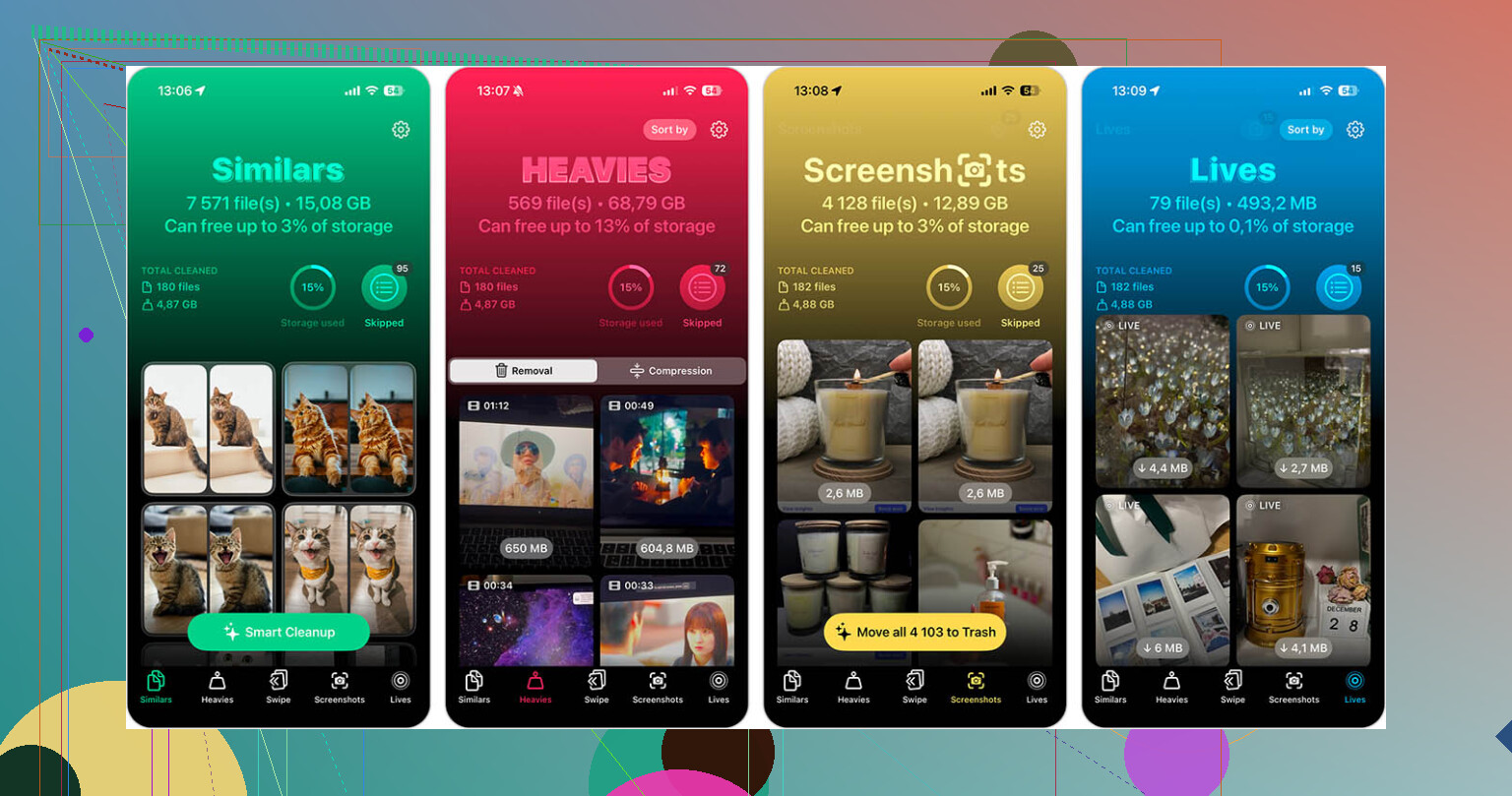
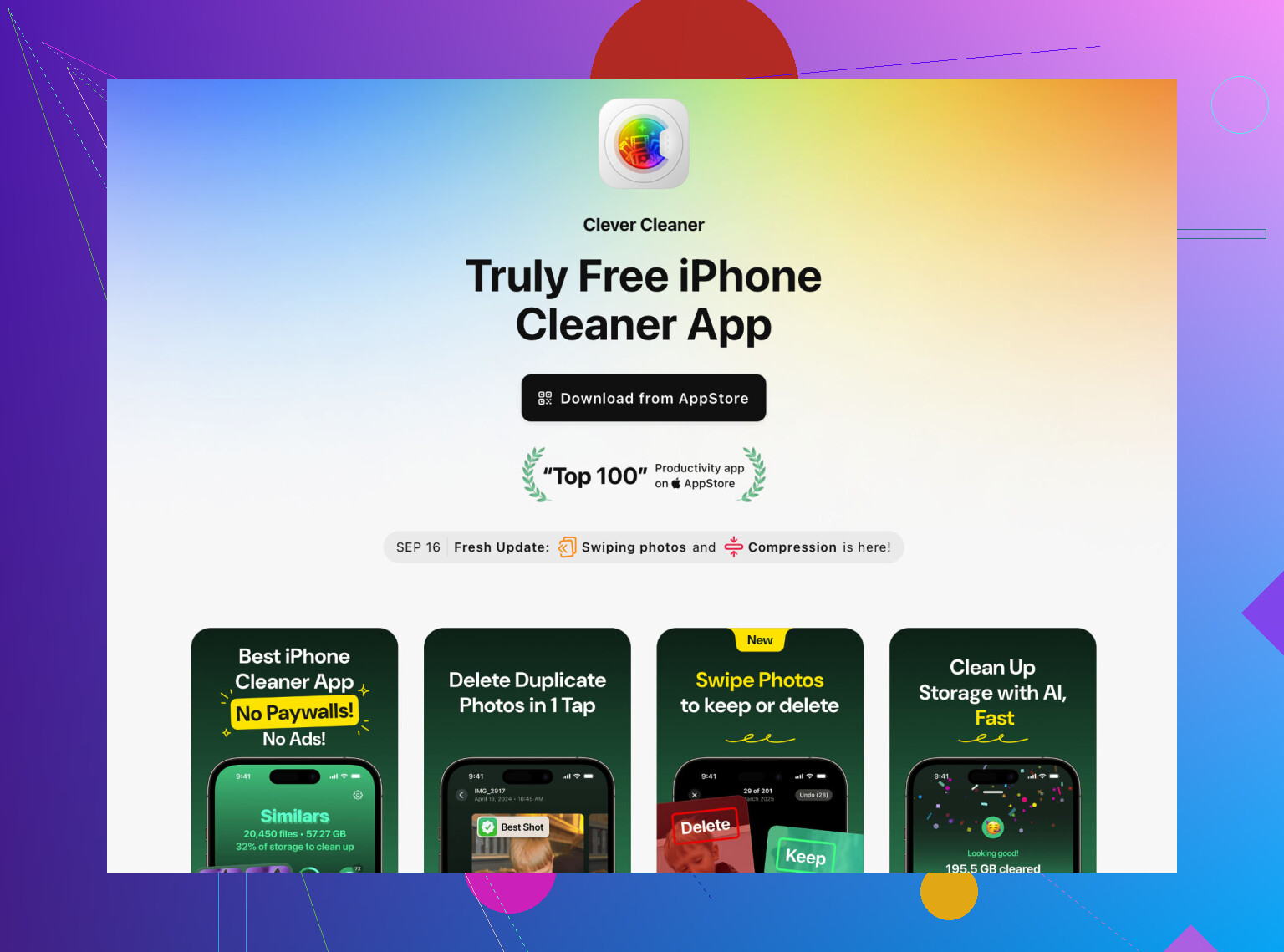
This is where I found the most space, by far. Digging through your library one photo at a time is a slog, so I’d use Clever Cleaner. I liked it because it wasn’t stuffed with ads and didn’t try to block basic cleanup behind a paywall.
The useful part for me was the Heavies section. It sorts videos by file size, which is what matters when you’re trying to free space fast. I deleted a couple of old 4K clips and got back more room than I would have from removing hundreds of photos. It also groups similar shots, so if you’ve got fifteen near-identical pictures from the same moment, you can trim the pile without much effort.
One thing people miss, I missed it too the first time. After deleting anything from Photos, open Recently Deleted and clear it out. If you skip this, your iPhone keeps holding those files for 30 days, and the storage number barely moves. Dumb system, but there it is.
Apps
When storage gets tight, I don’t bother offloading. I delete. Offloading leaves behind Documents & Data, and in a lot of apps, that leftover junk is the main problem. Social apps are usually the worst offenders. TikTok, YouTube, Instagram, they build up piles of cached data over time.
Delete anything you don’t use every day. Reinstall it later. Most apps come back in under a minute, and they often return much smaller than before. I did this with two apps I hadn’t opened in weeks and got a decent chunk of space back right away.
Hidden data
This part gets ignored a lot, even though it’s low effort.
Open Settings > Apps > Safari, then tap Clear History and Website Data. On my phone, Safari had been hoarding junk quietly in the background. You might get back 500MB, sometimes closer to 1GB.
Check message attachments. Go to Settings > General > iPhone Storage > Messages, then open Review Large Attachments. This is where old videos, images, voice notes, and random files pile up. Group chats are usually the worst. You delete the big files without wiping the whole conversation, which is the part most people care about.
If I had to do it again, I’d go in this order. Computer update first. Then big videos. Then full app deletions. Then Safari and Messages cleanup. Usually that’s enough to get the update through without wiping the whole phone.
What usually blocks the update is “System Data” and the old iOS package, not the stuff you already deleted. I’d check these first.
Go to Settings, General, iPhone Storage. If you see an iOS update file listed, tap it and delete it. Then restart the phone. That stale file gets stuck a lot.
Next, turn off and back on “Sync this iPhone” stuff for apps like Music or Podcasts if they cached a ton offline. Downloads in Netflix, Spotify, YouTube, and podcast apps eat space fast. Deleting the app is one fix, but clearing downloaded content inside the app is cleaner if you still use it daily.
I slightly disagree with @mikeappsreviewer on one point. Offloading apps is not useless. If an app itself is huge and its data is small, offload works fine. If the app has bloated cache, delete it fully.
Also check Mail. Big attachments pile up. Removing and re-adding a mail account sometimes drops a few GB, weirdly enough.
If photos are the main issue, Clever Cleaner helps spot the largest files fast. This Reddit thread on a free iPhone cleaner with no ads is worth a look.
Last trick. Set date and time automatically, plug into power, connect to Wi-Fi, then try the update again after a reboot. iPhones get dumb when storage is tight, no joke.
I’d actually add one thing neither @mikeappsreviewer nor @cacadordeestrelas really leaned on enough: wait a bit after deleting stuff.
Seriously. iPhone storage math is weird and kinda broken when you’re close to full. You delete 6 GB, and Settings still acts like nothing happened because Photos, Files, and system cleanup haven’t fully re-indexed yet. I’ve had it take 20 to 60 minutes, plus a reboot, before the free space number was real. Annoying, but true.
A few things that do help that are a little different:
- Check Files app > On My iPhone > Downloads. Safari downloads, PDFs, ZIPs, random junk live there forever.
- Open TV, Music, Podcasts, and Books. Downloaded episodes and offline media are easy to forget.
- If you use WhatsApp/Telegram, clear media from inside those apps. They can hoard multiple GB and not show it clearly.
- In Photos, if iCloud Photos is on, make sure Optimize iPhone Storage is enabled before trying the update. That can shrink local photo storage over time, though not always instantly.
- If Freeform, GarageBand, iMovie, or CapCut are installed, check them. Creative apps stash giant project files.
I slightly disagree with the “just delete apps” approach as the main fix. Sometimes the real hog is downloaded media or app projects, not the app itself. Deleting Spotify saves less than deleting 40GB of offline playlists, ya know?
If photos are still the bottleneck, Clever Cleaner is useful for spotting the biggest videos and duplicate-ish shots faster than doing it manually. That’s usually where the fast wins are.
Also, if you want a cleaner setup for automating iPhone storage cleanup and keeping space free, that can help prevent this mess next time.
If the update still refuses, I’d stop fighting OTA and do the update with a computer. At some point iOS just gets stubborn lol.
One angle I think @cacadordeestrelas, @byteguru, and @mikeappsreviewer didn’t stress enough: the update can fail because your iPhone needs a chunk of contiguous working space, not just a nice-looking “free GB” number.
What I’d try:
- Force a full shutdown, then power back on. Not just restart. This can clear temp swap space.
- Turn Low Power Mode off and make sure battery is above 50% or plugged in. iOS can delay cleanup jobs otherwise.
- If you use iCloud Drive, open the Files app and remove large local files marked as downloaded. A lot of people delete photos but forget giant local PDFs, ZIPs, and video exports.
- Check Voice Memos. Long recordings can be huge and easy to miss.
- Look at GarageBand sound library if installed. That thing can eat multiple GB by itself.
I slightly disagree with the “just keep deleting until it works” mindset. Once storage gets critically low, iOS can misreport space badly. At that point, updating with a computer is often less frustrating than chasing ghost files.
If you want help finding the biggest photo/video junk fast, Clever Cleaner is decent for that.
Pros:
- fast at surfacing large videos and duplicates
- easier than digging through Photos manually
- useful when you need space quickly
Cons:
- mostly helpful for media, not true system storage
- won’t magically fix bloated System Data
- you still need to review before deleting
If none of this moves the needle, I’d backup, update through Finder/iTunes, and skip the on-device install entirely.