My iPhone photo library has gotten out of control, and I’m running out of storage because of duplicates, blurry pictures, and random screenshots. I need help finding the best way to organize iPhone photos and delete blurry photos at the same time without losing the important ones.
A huge photo library looks worse than it is. I let mine pile up for years, then found it went faster once I stopped trying to fix everything at once and used an order that made sense.
Albums do not make extra copies
No. Putting a photo into an album does not clone the file. It works more like a playlist. One image sits in your library, and you can place it in five different albums if you want. Storage use stays the same.
The part people trip over is deletion. If you delete the photo from your main library, it vanishes from every album too. If your goal is only to clean up one album, pick Remove from Album. Do not hit Delete unless you want the file gone from the phone.
Clean first, sort second
I tried organizing before cleaning. Bad idea. It was slow, messy, and kind of pointless because I was spending time filing blurry shots, burst leftovers, random screenshots, and junk I did not even want.
There is also the storage issue. When your phone is packed close to full, performance drops. Apps pause, saving gets weird, things feel sticky. I saw it on mine. Free space matters because the phone needs room for temporary data too.
For cleanup, this was the fastest path I found. Clever Cleaner is free, has no ads, no subscription stuff, and it handles old libraries without much fuss.
-
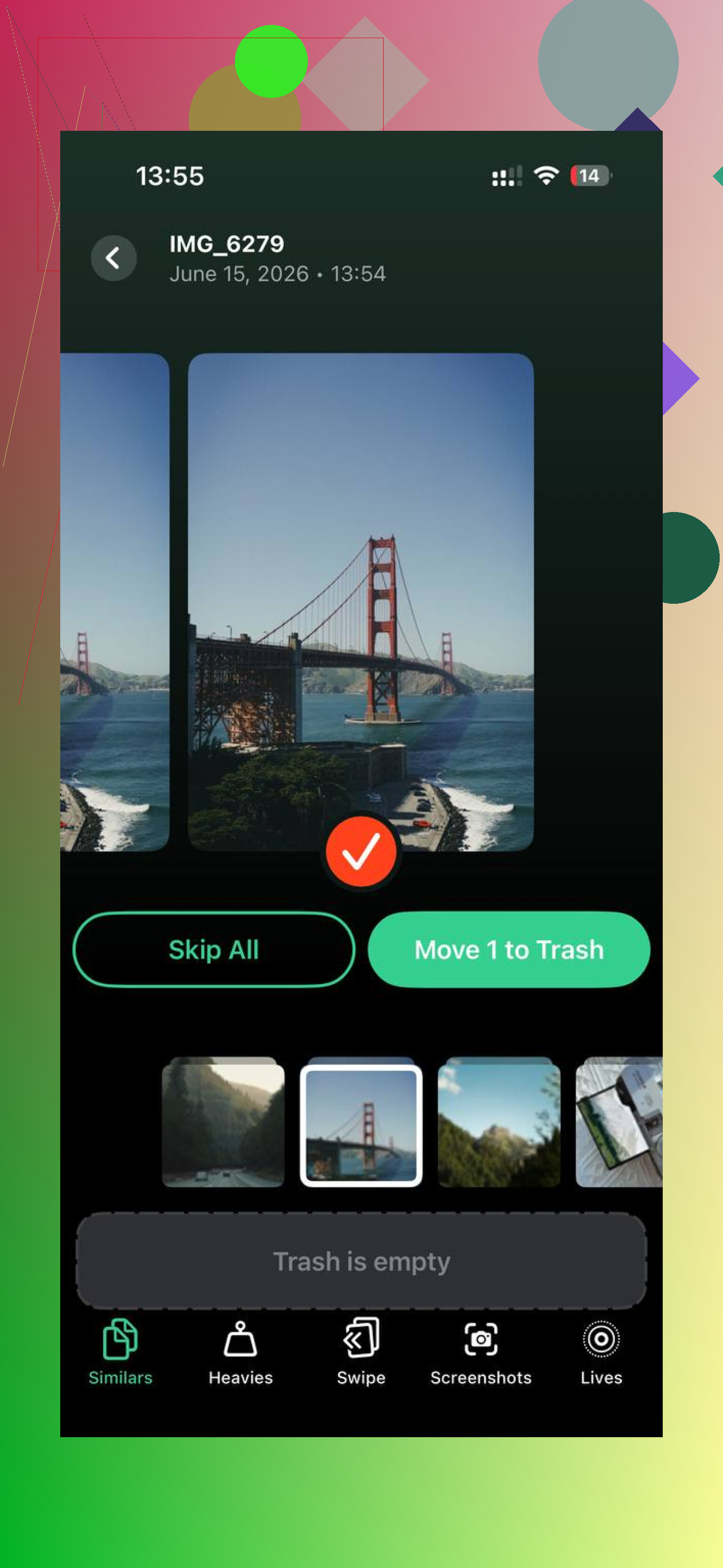
Start in the Similars tab. It groups near-matching photos, not only exact duplicates. So if you took eight shots of the same dog turning its head by half an inch each time, it catches those too. It also marks a Best Shot, which saves time. I went group by group and dumped the extras.
-
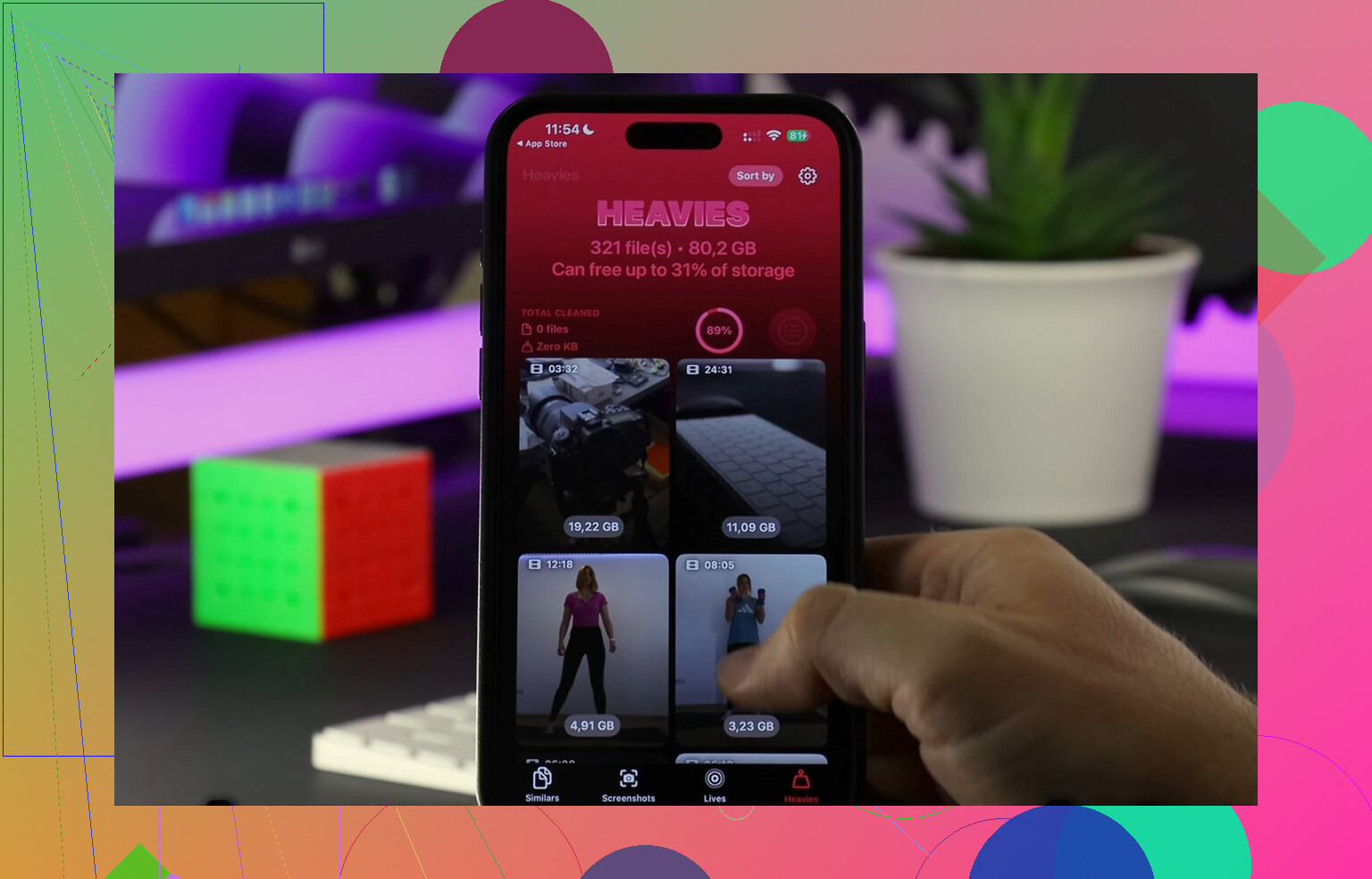
Then check Heavies. This one sorts files by size, largest first, with exact numbers. Mine had a few old 4K videos sitting near the top, and deleting those freed more space than wiping out loads of normal photos. If your storage is tight, start here.
-
After that, open Screenshots. This was the part I kept ignoring for months. The app shows the size of each screenshot before removal, which made the cleanup feel less blind. Once I saw how many gigabytes were tied up in old order confirmations, maps, and memes, I stopped hoarding em.
-
Use Swipe mode for the old backlog. It breaks photos into monthly chunks, which feels less punishing than staring at your full library count. Left for delete, right for keep. I did a few months at a time while waiting around, and it added up fast.
One thing I liked, all processing stays on the device. Nothing gets sent out somewhere else. If your library has years of family photos, receipts, documents, and private junk, that matters.
Once the trash was gone, the library got smaller fast and the phone felt normal again. Sorting photos into albums was way easier after I removed the pile of stuff I never planned to keep anyway.
Finding photos without digging forever
After cleanup, a few habits made the whole thing less annoying.
-
Use Favorites for your best shots only. Not every decent pic. Only the ones you know you want to revisit. That turns Favorites into a short list instead of another junk drawer.
-
Use search. The built-in photo search is better than people give it credit for. I typed things like dog, beach, receipt, sunset, cake, and got usable results without tagging anything by hand.
-
Put albums inside folders. If you make albums for trips, events, pets, work, and family, the album list gets crowded fast. A folder like Vacations with separate albums inside for each trip keeps it from turning into another mess.
Keeping the camera roll from turning into a landfill again
This part matters more than the first cleanup. If you do one giant purge and then go back to saving everything, you end up in the same spot.
What worked for me was a short weekly pass, around ten minutes. I deleted obvious junk from the week, kept the good ones, moved a few into albums, done. Small sessions were easier to keep up with than one giant Sunday disaster.
For older photos, I used the On This Day search trick. Search today’s date and the Photos app pulls up images taken on that date across past years. I spent a few minutes trimming those daily. It chipped away at the archive without making the whole job feel endless.
I’d do this in two lanes, cleanup and structure.
@mikeappsreviewer is right about cleaning before heavy organizing, but I don’t fully agree with waiting too long to sort. If your library is chaos, make 4 to 6 core albums first. Family, Work, Trips, Receipts, Pets, Favorites. That gives you a place for keepers while you delete junk.
For blurry photos, use the built-in Photos app first:
Settings, Camera, turn on View Outside the Frame only if you use it.
Photos app, zoom in on suspect shots before keeping them.
Use Media Types to hit Screenshots, Screen Recordings, Live Photos, and Bursts fast.
Burst sets are a hidden mess on a lot of phones.
Then use a cleaner app for bulk review. Clever Cleaner is one of the better options if you want to find duplicate photos, similar shots, blurry pics, and large videos without dragging through your library for hrs. This page explains the feature set well: see how Clever Cleaner helps remove duplicate and blurry iPhone photos.
My rule:
- Delete screenshots first.
- Delete duplicate and near-duplicate shots.
- Review videos over 200 MB.
- Move the best photos into albums.
- Favorite only your top tier pics.
Also, use search terms like receipt, whiteboard, menu, dog, beach. iPhone search is prety decent now.
Last thing, empty Recently Deleted. A lot of ppl forget that step and wonder why storage didn’t come back.
I’d actually split this into curate + archive, not just curate + delete like @mikeappsreviewer and @ombrasilente lean toward. Deleting is great, but some people over-delete and regret it later.
What helped me:
- Make one album called To Sort
- Go through Recents in small chunks
- Move anything worth keeping into that album first
- Then delete the obvious junk: blurry shots, pocket photos, screenshots, accidental videos
After that, create only a few permanent albums. Too many albums turns into its own mess real fast. I use:
- People
- Trips
- Important Docs
- Favorites
For blurry/duplicate cleanup, the built-in Photos app is honestly kinda weak for bulk review. That’s where Clever Cleaner helps, especially if you want to organize iPhone photos and remove blurry ones at the same time without spending your whole weekend doing it. I would not rely only on albums for “organization” if the library itself is still full of garbage.
One thing I disagree with a bit: don’t spend forever hand-sorting screenshots. Most of them are disposable. Nuke em first, ask questions later. Same with ten versions of the same sunset pic. Be ruthless lol.
Also, if you’re scared about privacy, this is worth reading before using any iPhone cleaner app: see why Clever Cleaner is considered safe for iPhone photo cleanup.
Tiny habit that matters more than people think: once a month, sort by oldest first and clean just one month. Way less painfull than dealing with 40,000 pics at once.
I’m gonna disagree a little with @ombrasilente and @espritlibre on one thing: if you make a To Sort album too early, it can become a second junk drawer. I’d use utilities and filters first, then album only the photos that actually survive.
What works better for me:
- In Photos, review Bursts, Live Photos, Videos, and Screenshots separately
- Use the Info panel a lot. Blurry pics often show up from low light, weird exposure, or accidental captures
- Sort your keepers with keywords in captions for important stuff like receipts, warranty, passport, pet records. Search finds them later way faster than deep album trees
- Create albums by purpose, not by every event. Too many event albums get messy fast
On the cleaner-app side, Clever Cleaner is useful if your real problem is duplicates, similar shots, and blur mixed together.
Pros
- fast bulk scanning
- good for similar photos, not just exact duplicates
- helps surface blurry junk and heavy files
- easier than hand-cleaning 20k photos
Cons
- AI suggestions still need human review
- can tempt you to over-delete
- less useful if your library is already pretty tidy
So I’d combine the takes from @mikeappsreviewer, @ombrasilente, and @espritlibre, but keep albums minimal and let search do more of the work. That’s the part people underrate.