Facebook is taking up a lot of storage on my iPhone, and I’m worried that deleting the app or clearing data might remove photos, messages, or account info. I need help reducing Facebook storage without losing anything important.
If Facebook is eating a ridiculous amount of space on your iPhone, there are really only a few things you can do. iOS does not have the same simple app cache button you might see on Android, so you have to work around it a bit.
The easiest first step is to offload the app. Go to Settings > General > iPhone Storage, tap Facebook, then choose Offload App. That removes the app itself but keeps its saved data, so when you reinstall it, you usually do not have to log back in or redo two-factor authentication. It can clear some temporary junk, but it will not wipe everything.
If Facebook is still sitting there at 2GB or 3GB, offloading probably is not enough. In that case, delete the app completely and reinstall it. You can do that from the iPhone Storage screen or by long-pressing the Facebook icon and choosing Delete App.
That full delete is what clears out the growing Documents & Data section. It gets rid of cached images, video thumbnails, scripts, and other stuff the app has saved over time. Your Facebook posts, photos, friends, and account are not stored only on your phone, so deleting the app does not delete your Facebook account. You will be logged out, though, so make sure you know your password first.
Also, Facebook and Messenger are separate apps. Deleting Facebook will not clean out Messenger. If Messenger is bloated too, you have to deal with that app separately.
There is one smaller cleanup people miss: Facebook’s built-in browser cache. When you open links inside Facebook, the app uses its own browser and saves cookies/cache there too. Open Facebook, tap the Menu with the three lines, then go to Settings & Privacy > Settings. Scroll to Browser and tap Clear next to “Cookies and Cache.” It will not free up a massive amount, but it can help a little.
The annoying part is that Facebook starts filling that space again almost immediately. Scroll through Reels, photos, and links for a while, and the app will rebuild a lot of that cache because that is how it loads things faster next time. So deleting and reinstalling can help, especially if the app is glitchy, but it is usually temporary.
I used to keep doing this with Facebook, Instagram, and TikTok, thinking I was fixing my storage problem. I would free up maybe 500MB, then the space would basically disappear again by the next day.
What made a bigger difference was dealing with my photo library. That was the real storage problem. Old screenshots, blurry receipt photos, duplicate pictures, giant videos, and ten slightly different versions of the same cat photo add up way faster than people realize.
If you want something more useful than constantly fighting the Facebook cache, take a look at Clever Cleaner. I found it after getting tired of cleaner apps that were either stuffed with ads or locked behind subscriptions.
It is free, with no paywalls, no pro version, and no ads. The Heavies section is handy because it sorts your photos and videos by file size, so you can quickly spot the giant 4K video that has been taking up a full gigabyte for no reason.
The Similars tab is probably the most useful part. It groups photos that are almost the same, shows the file size for each one, and lets you keep the best version while deleting the rest. There is also a screenshots section, which is great if your camera roll is full of “I’ll need this later” screenshots you never looked at again.
The privacy side is also nice. It works on-device, so it is not sending your private photo library off to some random server just to scan it.
So yes, delete and reinstall Facebook if you need a quick cleanup. It can help with short-term bloat and weird app behavior. But if you are doing that every week just to avoid the “Storage Full” warning, the bigger issue is probably your photos and videos. Cleaning those up will usually get you a lot farther than chasing Facebook’s cache over and over.
If you have any unfinished posts, Marketplace listings, story edits, or uploads stuck in progress, finish or cancel those before deleting Facebook. Posted photos, messages, friends, and account info live on Facebook’s servers, so reinstalling the app should not erase them, but temporary app-only stuff can disappear. I agree with the delete/reinstall advice more than offloading if the goal is real storage back, but take 30 seconds first to make sure you can log in, your phone number/email are current, and two-factor authentication is working. Then delete Facebook, restart the iPhone, reinstall it, and sign back in. Your Camera Roll photos will not be removed by deleting Facebook unless you separately delete them in the Photos app.

If you mostly browse Facebook and do not rely on instant notifications, the easiest long-term answer may be to stop using the Facebook app at all and use Facebook in Safari instead.
Deleting and reinstalling the app is fine for a cleanup, and @nachtschatten is right that your posted photos, friends, messages, groups, pages, and account info are not stored only inside the app. Those are tied to your Facebook account. Removing the app from the iPhone does not delete your Facebook account or your Camera Roll.
The part people sometimes miss is that the app will just start growing again. Reinstalling Facebook is more like emptying a trash can than fixing the reason trash keeps appearing. The app caches photos, videos, Reels, link previews, cookies, and other junk while you scroll. If you use Facebook every day, especially video-heavy stuff, that storage can come back pretty fast.
A cleaner way to think about it is this:
Facebook account stuff: safe, because it lives on Facebook’s servers.
iPhone photos: safe, unless you delete them from the Photos app yourself.
Local Facebook app junk: safe to delete, and this is what you are trying to clear.
Unposted drafts/uploads: not always safe, so check those before deleting.
If you want the low-risk version, do this:
- Make sure you know your Facebook password.
- Check that your email/phone number on the account is still current.
- Open Facebook and make sure you do not have a half-written post, unfinished Marketplace listing, or stuck upload you care about.
- Delete the Facebook app, not your Facebook account.
- Restart the iPhone.
- Reinstall Facebook only if you actually want the app back.
If you reinstall it and it bloats again, try using facebook.com in Safari for a week. You can even add it to your Home Screen from Safari’s share button, so it still feels sort of like an app. It is not as smooth, and notifications are not the same, but it keeps Facebook from owning a huge chunk of your phone storage again.
I would not expect cleaner apps to directly shrink Facebook’s own app data. They can help if your real storage hog is photos and videos, which is very common, but they are not a magic “clear Facebook cache” button. For Facebook specifically, delete/reinstall or switch to the browser are the practical options.
Just be careful with the wording on the iPhone screen. “Delete App” removes the app from your phone. It does not mean “delete my Facebook account.” Those are very different things.
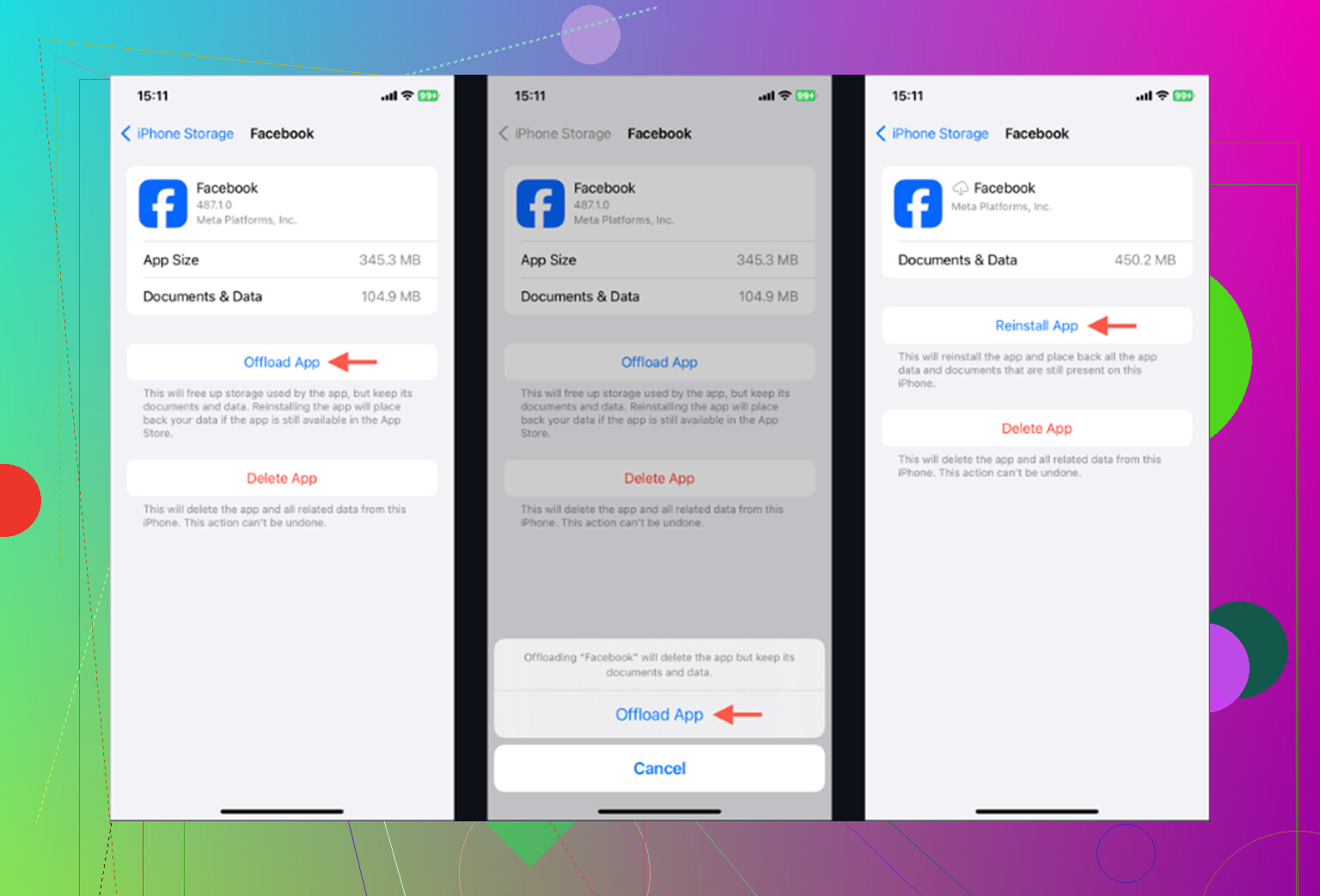
Don’t sit there clearing the in-app browser cache expecting real space back, that Browser clear does almost nothing. Offloading is the move if you just want your login and settings kept, delete/reinstall only when the app is actually glitchy or huge.