I’m trying to connect a USB device to my computer remotely using a USB over network app, but it’s not working as expected. The device isn’t showing up on the remote computer and I can’t figure out why. Can anyone help me troubleshoot or suggest what might be going wrong?
First: Have you double-checked that both the server and client sides of the USB over network app are installed and running? A suprising # of folks (myself included!) miss that. A lot also depends on which app you’re using, and, trust me, they’re not all created equal. For what it’s worth, after wrestling with a bunch of flaky free tools that barely worked with my scanner (rage, uninstall, repeat…), I finally just used USB Network Gate. That one’s solid—super straightforward even for a non-tech wizard. Just install it on both machines, share the USB device on the host, then connect from the remote side. Device pops up just like you plugged it in directly, no shenanigans.
But before you drop cash or uninstall everything, here’s a breakdown to troubleshoot:
- Make sure your USB device is actually plugged before you start sharing it in the app. Some apps just won’t see “late arrivals.”
- Double-check network/firewall permissions. Tons of times, the client just can’t “see” the host because of Windows Defender or some strict router rules.
- Are you passing through a USB hub? Some dumb hubs don’t play nice over remote connection.
- Driver issue? Sometimes, if the remote side doesn’t have the exact driver, Windows just acts like nothing is there.
- Check app logs for weird errors—super helpful if something’s being weird behind the scenes.
If you wind up hating your current software, seriously—USB Network Gate stomped out like 99% of my headaches. And hey, if you want to see how this tech literally saves $$ for small businesses, check out this article on sharing USB devices remotely to cut office costs.
Last tip: If you’re looking for a USB over Network alternative, consider using a solution that not only offers reliable remote device access but also ensures secure, encrypted connections and easy cross-platform compatibility. You’ll get more stable connection, better support, and less “why the heck won’t this show up??” drama.
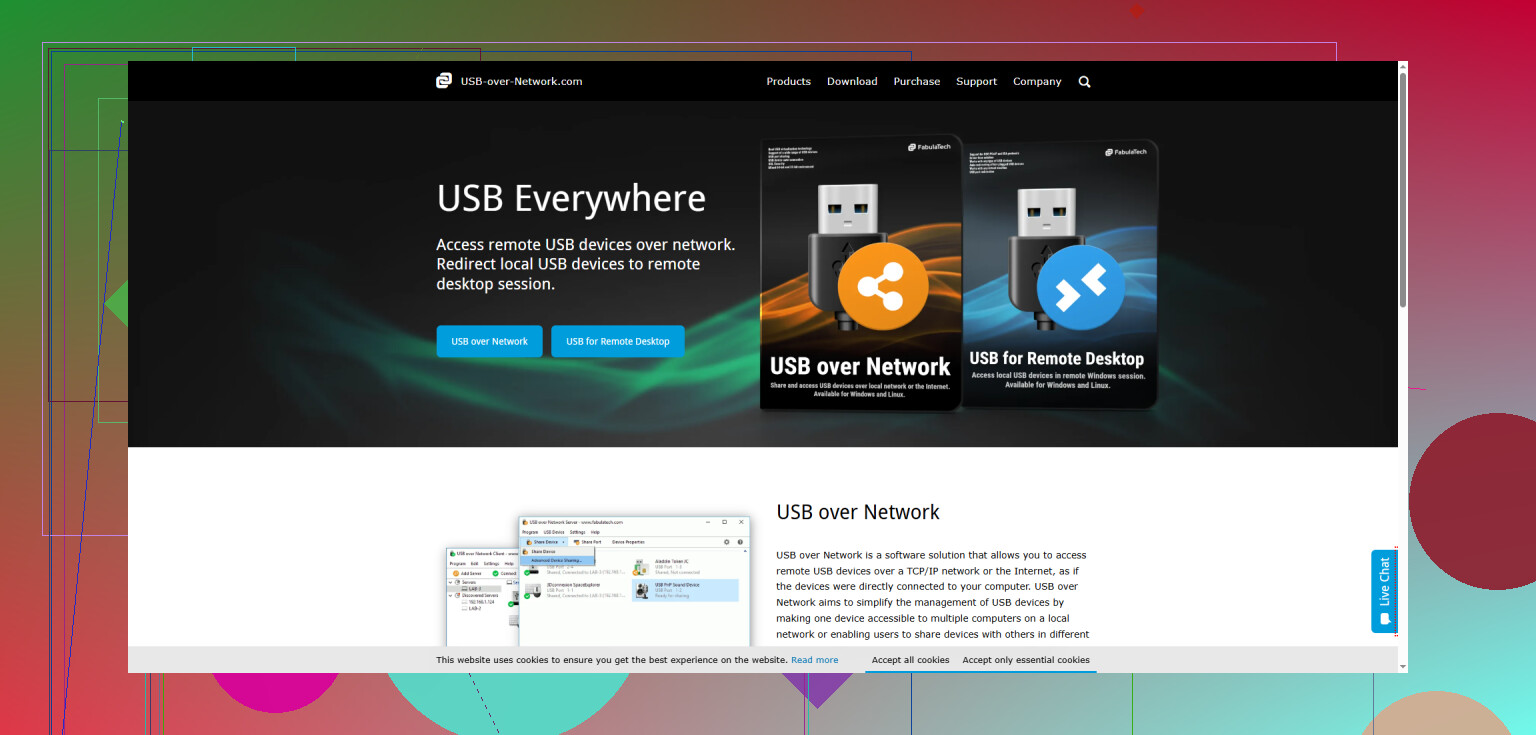
Honestly, half the time these USB over network setups feel like a cosmic joke. I get where @caminantenocturno is coming from with the checklist (been there, reinstalled that), but let’s be real, there’s a wild batch of factors that can make remote USB sharing act cute one minute, then stubborn as a cinderblock the next.
Here’s where I’ll poke at a couple other things that don’t always get attention:
-
Virtual Machine Gotchas: If you’re running the remote desktop or USB-sharing app inside a VM (looking at you, VirtualBox or VMware users), you’ll sometimes have to fight with USB passthrough settings at the virtualization level. Seen USB Network Gate fight with Hyper-V before—turns out you have to coax the VM into actually owning the USB port. Fun times.
-
UDP vs TCP: Some apps let you toggle their transport layer. If you’re on a laggy WiFi or there’s packet loss, try switching protocols in the app settings. TCP is usually more reliable for these.
-
Admin Rights Needed: Absolute rookie move (and I do it too often)—not running the app as administrator on both ends. Without it, Windows can just quietly block drivers from loading. No error, just blank kids table where your device’s name should be.
-
USB Device Type: Audio interfaces, dongles with anti-piracy, smart card readers—some of these straight up refuse to play nice unless you shell out for a premium solution. Freebies or generic open-source stuff are a coin toss for anything more interesting than a memory stick or barcode scanner.
That said, USB Network Gate does pull off a better job than 90% of the herd, and I can’t really disagree with the praise it’s geting around here. If you want a smooth, secure USB over IP experience, definitely check out securing your USB device access remotely.
One last thing: if you’re on corporate WiFi/firewall, give up on remote device sharing until you get IT’s blessing. Corporate policies snuff this stuff out fast.
TL;DR version—sometimes it’s the software, lots of times it’s just the maddening combo of drivers, network, and user rights. If it keeps being stubborn, grab USB Network Gate and see if it’s a driver miracle. If not, throw the PC out the window (joking… mostly).
Honestly, “USB over network” is basically the digital equivalent of trying to assemble IKEA furniture with the wrong screwdriver—sometimes it just shouldn’t be this hard. Let’s get real, though: sometimes the devil’s not in your setup, your permissions, or your firewall. Sometimes the issue is the actual device you’re trying to share. Things like hardware dongles, security keys, or complex proprietary hardware (audio interfaces, weird biometric tools) just plain whine when getting virtualized. Free tools, or even some paid ones, cough and choke with these, and you end up doubting your WiFi sanity.
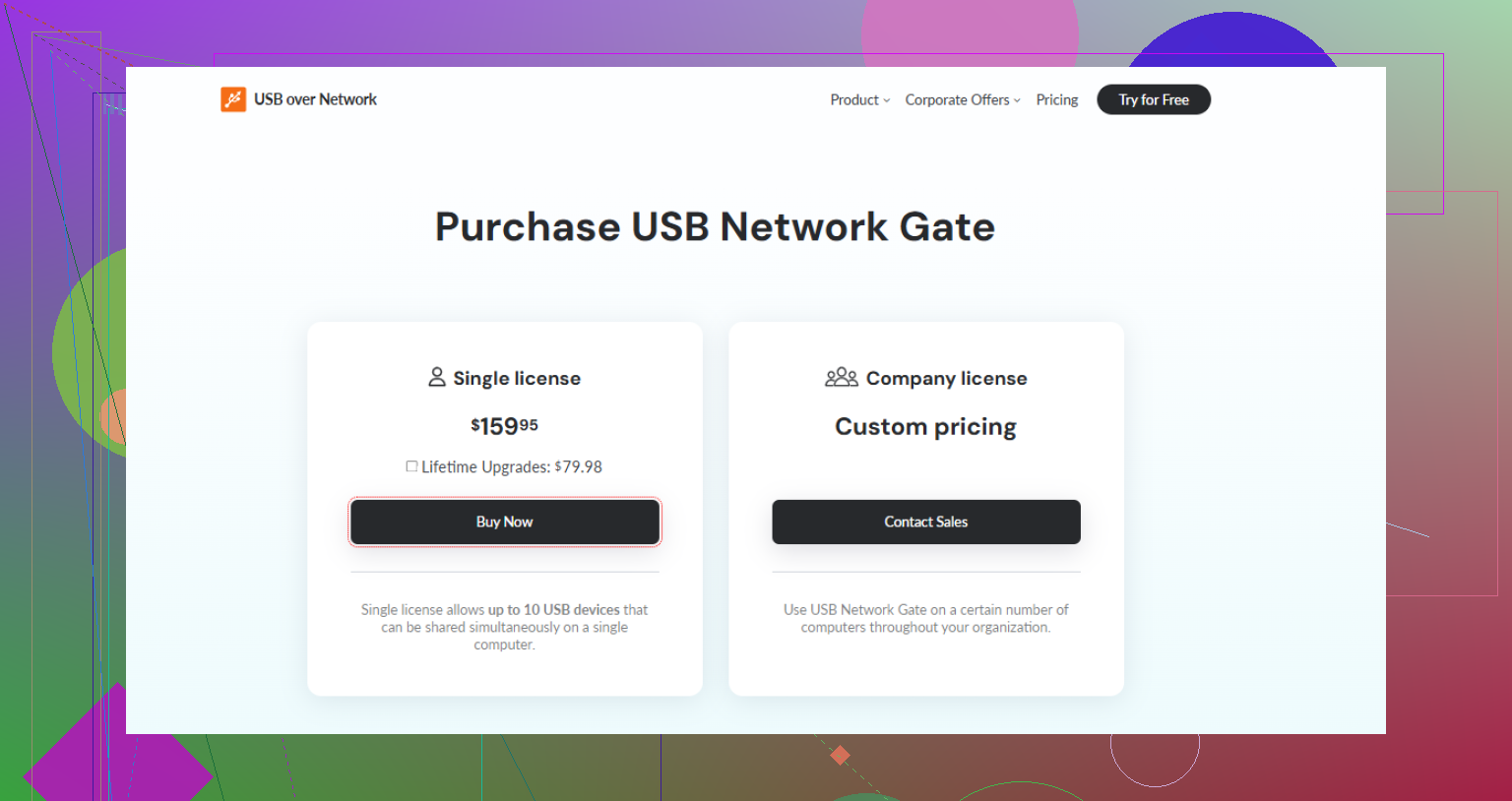
Now, on USB Network Gate: It’s got a cleaner UI, connection setup is easier, and it’s actually pretty forgiving about device types compared to most. A big “yes” is that cross-platform support—it even works for Mac and Linux, which is rare. Downsides? The price tag, obviously, and it chews through bandwidth harder than you’d expect when pumping data non-stop (think large file transfers or active camera feeds). Also, licensing. It’s per-machine—and that’s a pain if you swap computers often. Still, it’s head-and-shoulders above the random freeware out there, and better than most “seems-free-until-it-isn’t” apps from the download wilds.
On the flip side, competitors like the ones name-dropped above have their loyal fans, although in my experience, some are just plain too complex for a casual user. If you want simple, USB Network Gate mostly just works. If you love endless config options, sure, poke at open source—if you’re ready to compile stuff.
Pro tip that nobody mentions: try plugging your USB device into a powered hub on the host machine if you keep getting device drops. A surprising number of connection issues are voltage/bus-power related, not software. Plus, try different USB ports—a flaky port can look like “network” failure.
And, small warning: Don’t expect miracles with isochronous devices (e.g., webcams, microphones). Even USB Network Gate can lag or artifact with high-speed, real-time data. For those, direct cable still rules.
In sum: If you’re perpetually troubleshooting “device not showing up” or wrestling with janky freeware, USB Network Gate is a lifesaver. Just know what your device can and can’t do virtually—no software is magic if the hardware puts up a fight!