My iPhone storage is almost full, and I’m finally trying to clean it up without deleting anything important. I’m not sure whether to start with photos, apps, iCloud, or system data, so I need advice on the safest way to free up space and improve storage management.
You can’t really “add storage” to an iPhone in the normal sense. The storage is soldered to the board, and while some repair shops may offer chip swaps, that route is expensive, risky, and can leave you with a phone Apple probably won’t want to touch later. For most people, the better fix is getting back the space that’s already being wasted.
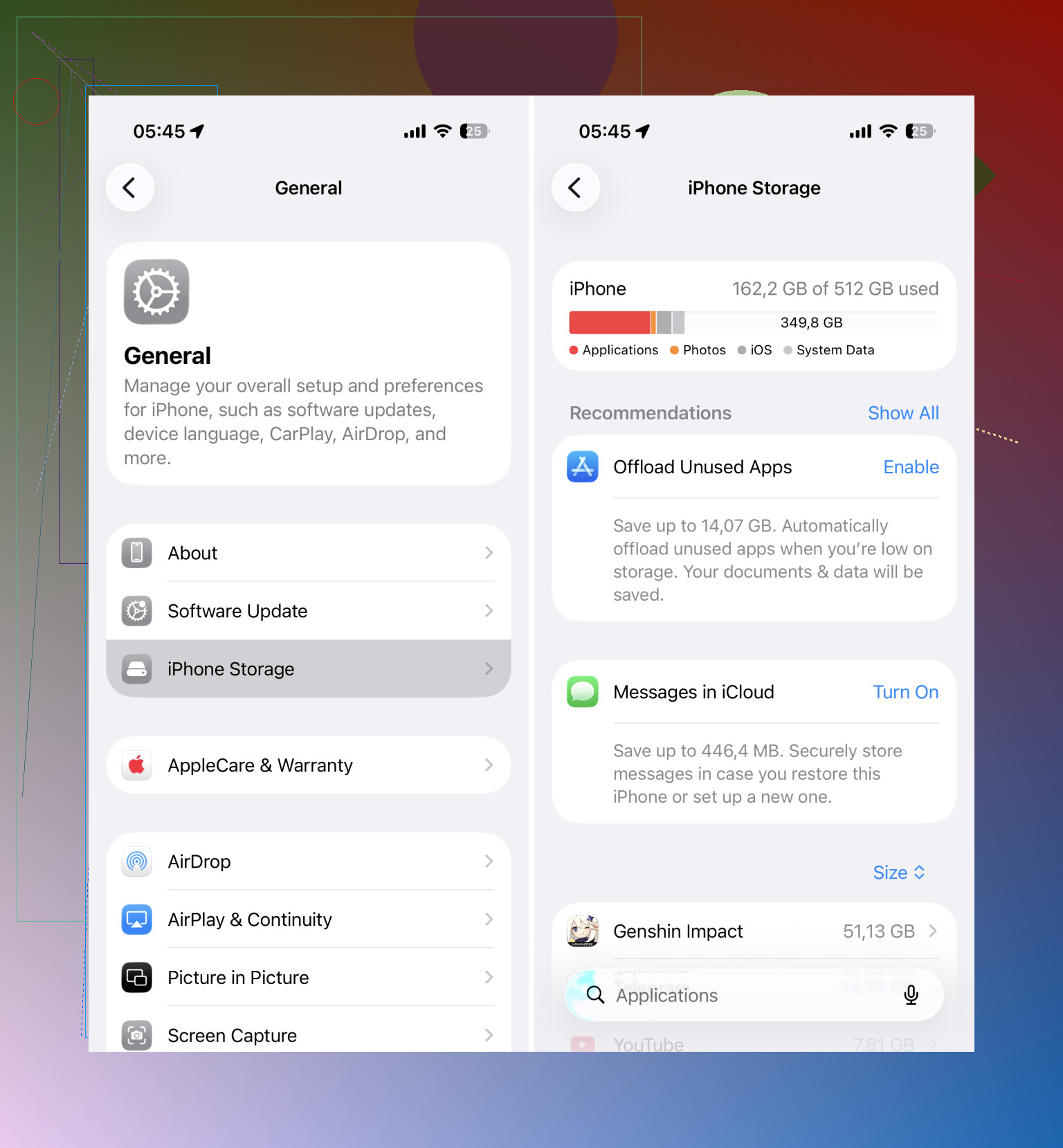
Start with Settings > General > iPhone Storage. That screen will show you what’s actually eating up space. A lot of the time, Photos is near the top, especially if you shoot videos or take a bunch of repeated pictures.
iOS is decent at showing where storage went, but it’s not great at cleaning it up fast. Apps, downloads, Messages attachments, and random documents usually need to be handled one by one. Photos and videos are where you can usually make the biggest dent without spending all afternoon.
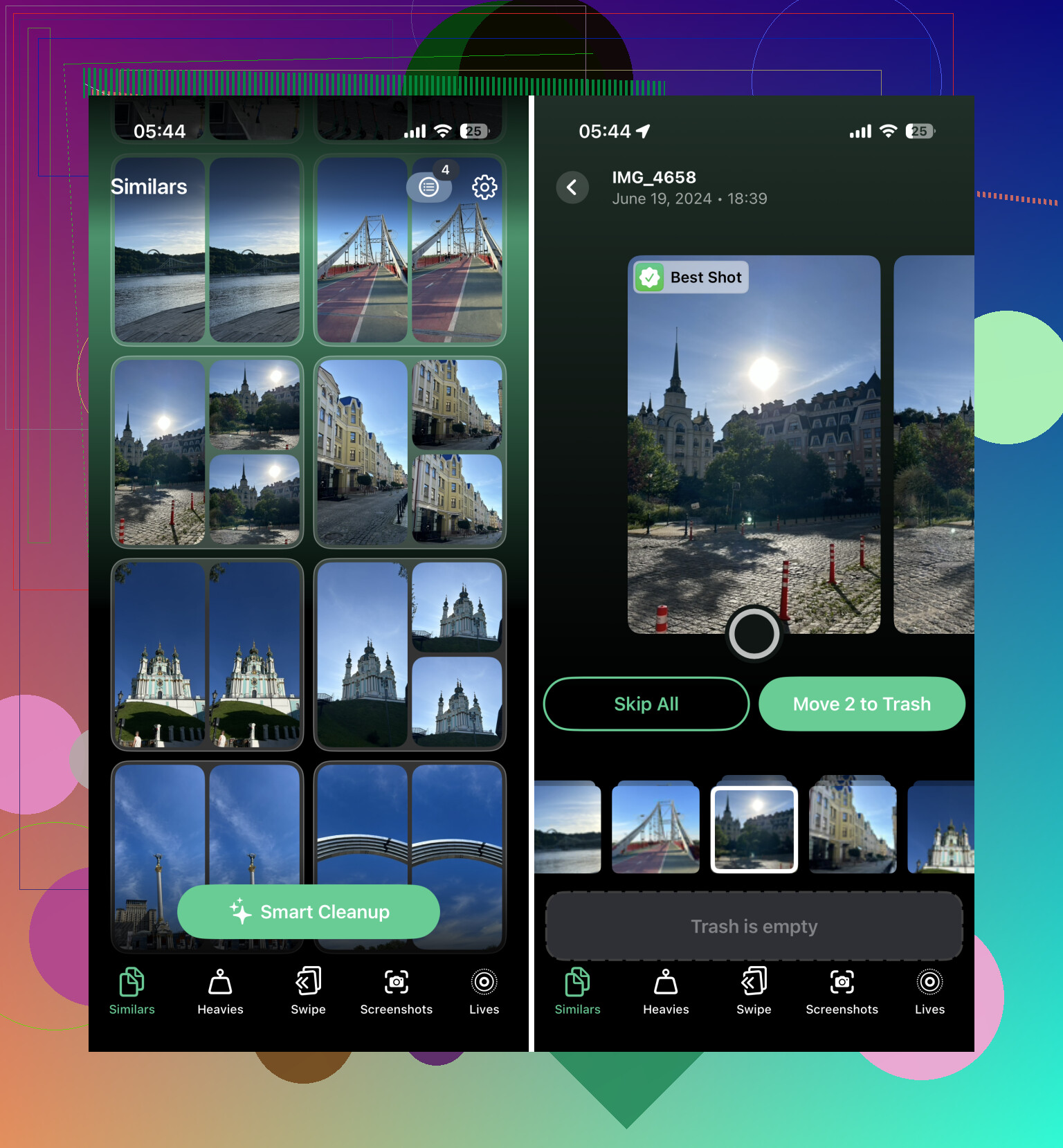
For that, a cleanup app can help. I’d start with Clever Cleaner. A lot of “free” cleaner apps are only free until you try to do anything useful, then they shove you into a subscription. Clever Cleaner is actually free right now, has no ads, and lets you clean up your photo library without paying.
The part that makes the most difference is Similars. It doesn’t just look for exact duplicate files. It groups photos that are almost the same, picks what it thinks is the best one, and lets you delete the extras pretty quickly. That usually clears more space than Apple’s Duplicates album, since most people don’t have exact copies. They have five versions of the same shot.
Also check the Heavies section. That sorts out your largest videos, which is useful because a couple of old 4K clips can take up several GB by themselves. Deleting just a few of those can make the storage warning disappear fast.
Use Optimize iPhone Storage
After you clean out the obvious junk, turn on Settings > Photos > Optimize iPhone Storage. With that enabled, your iPhone keeps smaller local versions of your photos and stores the originals in iCloud. When you open something, the full-quality version downloads as needed.
It’s an easy way to lower local storage use, but the free iCloud plan only gives you 5 GB, so it may not be enough for a big library. If you don’t want to delete older photos and videos, moving some of them to something like Google Drive can also help.
External storage can help with big videos
If your main issue is long video recordings, especially 4K or ProRes, an external drive might be worth it. Depending on your iPhone, you can use Lightning or USB-C flash storage to move finished files off the phone. Some camera apps can also record straight to compatible external drives, which keeps huge video files from filling internal storage in the first place.
Sometimes the real answer is a bigger iPhone
If you’ve already cleaned photos, deleted unused apps, turned on storage optimization, and still keep running out of room, then your iPhone may just not have enough storage for how you use it.
A 64 GB or 128 GB model can be fine for lighter use, but it gets tight fast if you shoot a lot of video, keep a large photo library, or install a bunch of apps. You also want some free space available so iOS can update and handle background tasks properly.
That said, I wouldn’t jump straight to buying a new phone. Do a real cleanup first. Using Clever Cleaner for similar photos and large videos, plus some manual cleanup in apps and downloads, can often recover tens of gigabytes. That may be enough to put off upgrading for a good while.
You probably won’t fix this in one tap, so start with the stuff that can disappear safely: Recently Deleted in Photos, old Messages attachments, offline Netflix/Spotify downloads, and unused app data.
I agree with checking iPhone Storage first, but be careful with iCloud Photos: deleting a photo from the phone usually deletes it from iCloud too, so don’t treat iCloud like a separate backup unless you’ve copied the files somewhere else.
Make a backup first.
That sounds boring, but it changes the whole cleanup from “I hope I didn’t delete something important” to “I can recover if I mess up.” Before touching Photos or Messages, make sure you have either an iCloud backup, a computer backup through Finder/iTunes, or copies of important photos and videos somewhere outside the phone. iCloud Photos by itself is not the same thing as a backup, which @viaggiatoresolare already pointed out correctly. If you delete a synced photo, you may be deleting it everywhere.
The safest order is to start with things that are easy to replace:
-
Offload apps you do not use
Go to Settings > General > iPhone Storage and tap apps you rarely open. Use Offload App instead of Delete App if you might want the data later. This removes the app but keeps its documents and settings. It is a good first move because you are not making permanent choices about your files. -
Delete downloaded media inside apps
This is the stuff people forget because it does not always look obvious in the storage chart. Podcasts, Spotify playlists, YouTube downloads, Netflix shows, Kindle/Audible files, map downloads, TikTok drafts, Discord/Telegram media, etc. You usually have to open each app and clear downloads from inside the app. Deleting the app may work too, but then you may lose local drafts or settings. -
Check Messages, but do not blindly wipe conversations
Messages can hold a stupid amount of space if people send videos. In iPhone Storage, tap Messages and look at large attachments. Delete old videos, GIFs, and random files first. I would not start by setting messages to auto-delete after 30 days unless you are sure you never need old conversations. -
Then deal with Photos
Photos usually gives the biggest result, but it is also where mistakes hurt the most. Start with videos, screen recordings, burst shots, screenshots, and obvious duplicates. A photo cleaner app can be useful here, including Clever Cleaner if you want help finding similar shots, but I would still review what it selects before deleting. Similar-photo tools are helpful, not psychic. They can pick the technically “best” image when you actually prefer the other one.
After deleting photos or videos, empty Recently Deleted only when you are sure. Until you empty that album, you have not really freed the space. That delay is annoying, but it is also your safety net.
I would leave “System Data” alone until the end. People see that category and assume it is the problem, but it is often caches, logs, update files, Safari data, streaming app junk, and temporary stuff iOS may clear on its own when space gets tight. You can reduce some of it by restarting the phone, clearing Safari website data, deleting/reinstalling bloated apps, and making sure there is not a stuck iOS update downloaded. But there is no clean button for System Data, and random tricks online can waste more time than they save.
The quickest low-risk path is probably:
Back up
Offload unused apps
Clear app downloads
Delete big Messages attachments
Clean large videos and duplicate-ish photos
Empty Recently Deleted after checking
Turn on Optimize iPhone Storage if you use iCloud Photos and have enough iCloud space
If you are down to a few hundred MB free, do the app offloading first. Photo cleanup can take time and sometimes needs working space to process deletions. Offloading a couple of large games or social apps can give the phone enough breathing room so the rest of the cleanup does not feel broken.
The sneaky downside of cleaning photos first is that it can take a lot of time and may not free space immediately if Recently Deleted is still holding everything. So if your phone is already acting weird, I’d make a little breathing room before doing the careful stuff.
My first move would be boring but fast: delete or offload one or two huge apps you can easily reinstall, then restart the phone. Games, social apps, video apps, and music apps are usually better targets than Photos at the beginning because there is less emotional risk. After that, open Settings > General > iPhone Storage and look at the top few items only. Don’t try to clean every category in one sitting or you’ll end up tapping around for an hour and barely know what changed.
I agree with the warnings about iCloud Photos. It is storage syncing, not a separate archive. If a picture matters, make sure it exists somewhere outside the Apple photo sync chain before deleting it. For Photos cleanup, I’d sort by videos first, then screenshots, then duplicates or similar shots. Cleaner apps can speed that up, including Clever Cleaner, but I would never let any app bulk-delete without reviewing the picks. The safest storage cleanup is usually the least clever one: make space with replaceable apps, remove obvious downloads, then slowly deal with personal files.