The Photos app is taking up too much storage on my iPhone, even after I deleted unwanted photos and videos. I need help clearing leftover photo data and freeing up iPhone storage without losing important pictures.
Start with your Photos library. That’s usually where you’ll recover the most space after getting the “iPhone Storage Almost Full” warning. Random storage tricks rarely make as much difference as removing media you don’t need.
I’d check these categories first:
- Duplicate and similar photos, including burst shots and edited copies.
- Large or duplicate videos, especially long and 4K recordings.
- Live Photos you don’t need to keep as Live Photos.
- Old screenshots that have piled up over time.
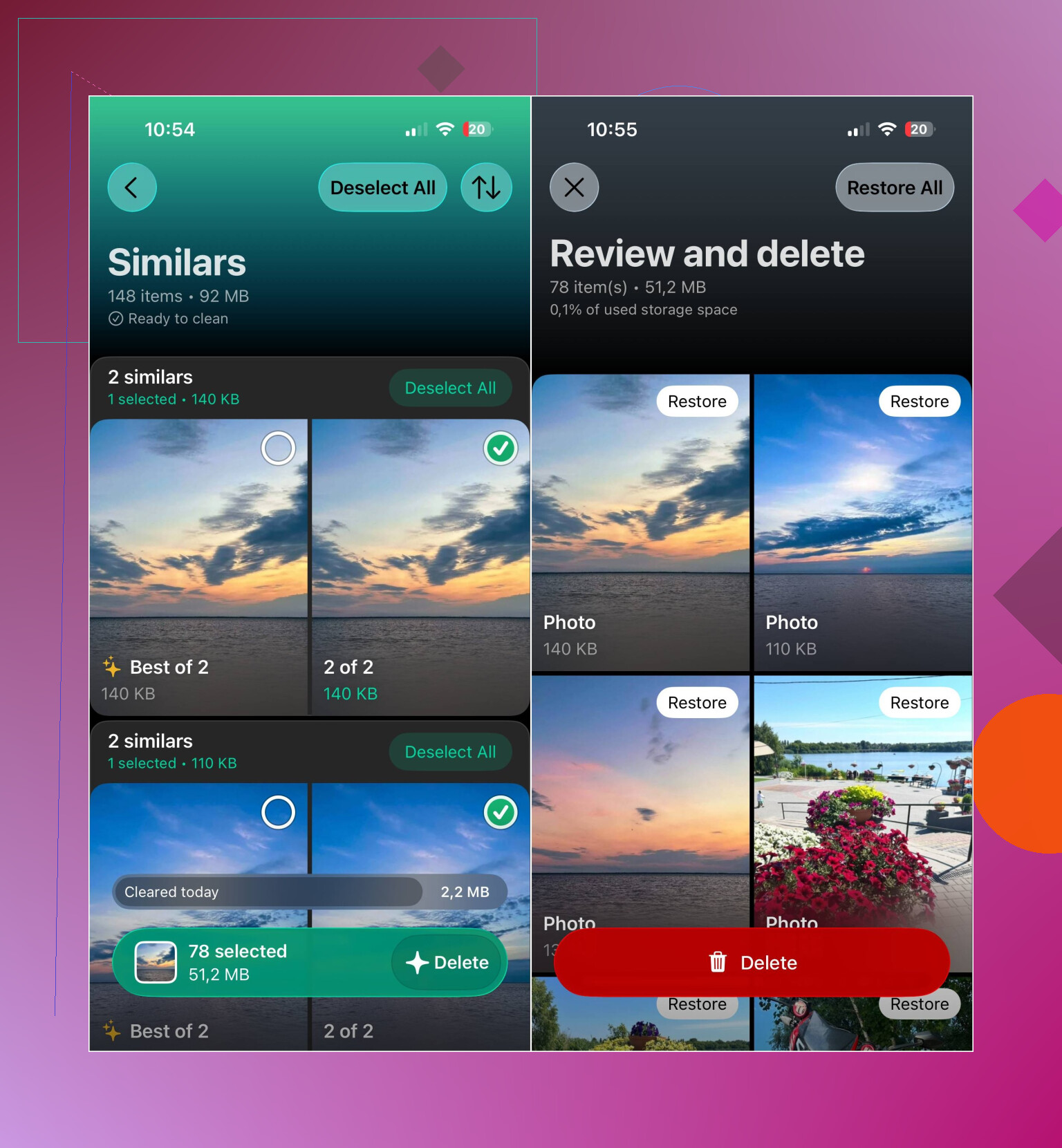
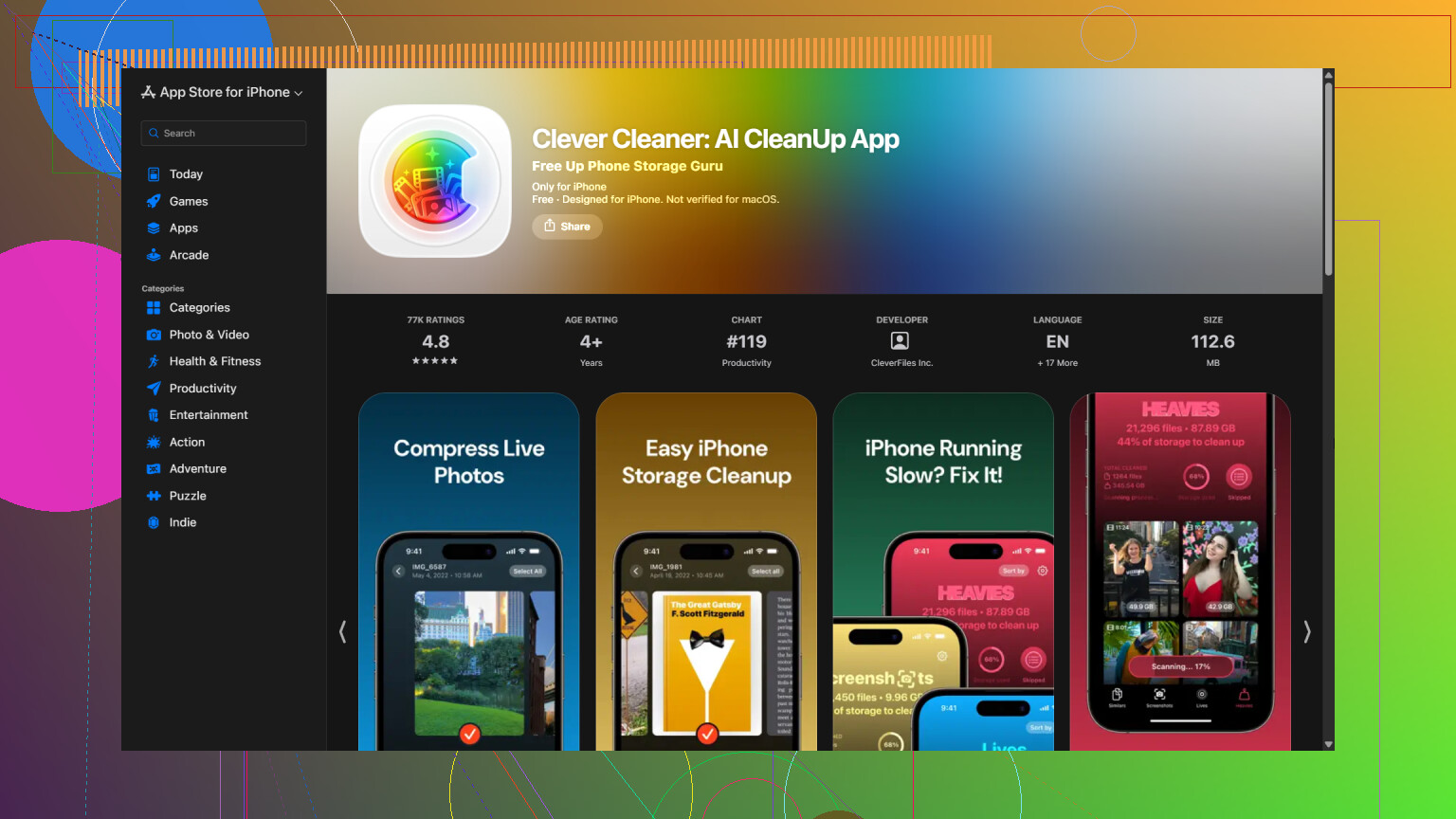
Sorting all of that manually can take hours. I used Clever Cleaner to scan the library and separate everything into categories. It finds duplicate and similar photos, duplicate videos, Live Photos, screenshots, and large media files, so you can review them before deleting anything.
There’s also a Compress tool for photos and screenshots you want to keep but don’t need at full size. Smart Cleanup handles several categories together, while Swipe mode lets you make the decision one photo at a time. Swipe mode is still unlimited. The app is free to use, has no ads, and doesn’t require a subscription to get started, though some cleanup features now have a fairly generous daily limit for new users.
Once you finish deleting files, remember to empty the Recently Deleted album in Photos. Otherwise, the files stay there temporarily and you won’t get the storage back right away.
If you use iCloud Photos, turn on Optimize iPhone Storage under Settings > Photos. Your phone will keep smaller device-sized copies while the originals remain in iCloud. That can save a decent amount of local space without deleting your pictures.
Duplicates, large videos, Live Photos, and screenshots are usually the main offenders. Cleaning those up made the biggest difference for me, and keeping the library under control afterward was much easier.
Don’t start deleting from iCloud Photos unless you want those pictures removed from every synced device. After emptying Recently Deleted, restart the iPhone and leave it charging on Wi-Fi for a while because the storage total can take time to recalculate. If Photos still looks unusually large, check Settings > General > iPhone Storage for recommendations, but avoid “cleanup” tricks like deleting the Photos app since they won’t clear the library data.
There isn’t a separate “photo data” cache you can safely clear. The Photos number mostly represents the library itself, plus thumbnails and editing data, so cleaner apps cannot erase some hidden copy while keeping every original.
Make sure Optimize iPhone Storage is selected under Settings > your name > iCloud > Photos. Don’t choose Download and Keep Originals, since that can make local storage use climb. Optimization is gradual, so leave the phone charging on Wi-Fi rather than expecting the number to drop immediately.
A less common case is photos originally synced from a Mac or PC. If the trash button is unavailable for those, reconnect the iPhone to that computer and remove them by changing the photo sync selection. If Recently Deleted is empty and the storage figure remains stuck after a day or two, back up the phone before considering a restore. I wouldn’t use that as the first fix just to chase a possibly stale storage reading.

The hidden downside of photo compression and cleanup is that the phone may need temporary working space before it can save anything. If your iPhone is completely packed, a tool such as Clever Cleaner can scan the library, but compression or bulk deletion may stall or appear to make no difference because the originals are still sitting in Recently Deleted.
Create some breathing room outside Photos first. In Settings > General > iPhone Storage, remove downloaded movies, podcasts, music, offline maps, or a large game you can reinstall later. Offloading an app can help, although its documents and data remain on the phone. Even a modest amount of free space gives Photos and iCloud a better chance to finish processing changes.
Before deleting more pictures, confirm that important originals exist somewhere independent of the phone. iCloud Photos is synchronization, not a separate archive. If you delete an image on the iPhone, that deletion normally syncs to your other Apple devices. A computer backup, external drive, or separate cloud service is safer, but open a few transferred photos and videos first to verify they actually copied.
After that, delete the biggest videos rather than hundreds of tiny images, empty Recently Deleted, and leave the phone locked, charging, and connected to Wi-Fi. The Photos figure can remain wrong for a while as the library reindexes. If the files are definitely gone but the number has not changed after a day or two, restart the phone and check again. A backup-and-restore should be the last move, not the standard way to clear a stubborn storage estimate.
Don’t expect the storage number to match reality right after cleaning. HEIC and edited copies mean a ‘deleted’ photo can leave data behind until Recently Deleted clears and the library reindexes, which is why @max_tech is right that it looks stuck for a day or two. Clever Cleaner is fine for sorting the mess, but the slow number is Photos catching up, not the app failing.