I’m trying to delete all photos from my iPhone, but every time I empty the Recently Deleted album, items keep coming back or refilling. I already removed photos from my library and expected them to stay gone, so I’m not sure if this is caused by iCloud Photos, syncing, or another setting. I need help figuring out how to permanently delete everything and stop deleted photos from reappearing.
I ran into this with a huge library too, around 30,000 photos, and the stock Photos app fell apart once I tried cleaning it in big batches. One bad swipe and the whole selection was gone. It felt less like I messed up and more like the app was out of room to think.
Why selection keeps collapsing
On smaller sets, drag-select is fine. Once your library gets into the 10,000 to 15,000 range, things start to drag. I saw the phone heat up, scrolling got choppy, and selection became fragile. A tiny slip reset all of it. From what I saw, the app was never built for bulk cleanup on this scale.
If you're sticking with Photos, chunking the job is the only method I found that doesn't turn into a mess:
- Open Albums, not All Photos. Some albums show a Select All option, while the full library usually doesn't.
- Work in batches of about 2,000 to 3,000 items.
- Delete one batch, then wait. Let the phone finish before you start the next round.
- Repeat until you're done.
It's slower. Still better than losing a 6,000-photo selection because your finger slid 2 millimeters.
Before you delete anything, check iCloud Photos
This trips people up all the time. iCloud Photos is sync, not backup. If you remove 20,000 photos on your iPhone, those deletions sync across your iPad, Mac, and iCloud too. Same account, same wipe.
If your goal is freeing up phone storage without erasing the originals, do this:
- Open Settings > Photos
- Turn on Optimize iPhone Storage
- Your phone keeps smaller versions locally, while full-res files stay in iCloud
If you've already copied everything to an external drive, PC, or Google Photos, then wiping the phone library is fine. I still checked the backup twice before touching anything. Worth it.
Why storage numbers don't drop right away
What I saw most often:
| Issue | Cause | Fix |
| Storage bar not changing | Recently Deleted keeps files for 40 days | Go to Albums > Recently Deleted > Delete All |
| Photos showing back up after deletion | The phone is too full to finish the deletion process | Remove one large app first to free temporary space |
If your phone is sitting at 99 percent full, iOS sometimes doesn't have enough working space to process a huge delete job. I had better luck after removing one fat app first, usually a game or streaming app over 500MB.
After clearing Recently Deleted, restart the phone. More than once, I saw the storage meter stay stuck until a reboot.
What worked better once the library got huge
After fighting the native app for way too long, I stopped trying to force it. For libraries with a few thousand files or more, a third-party cleaner is faster. The annoying part is most of them put deletion behind a subscription wall.
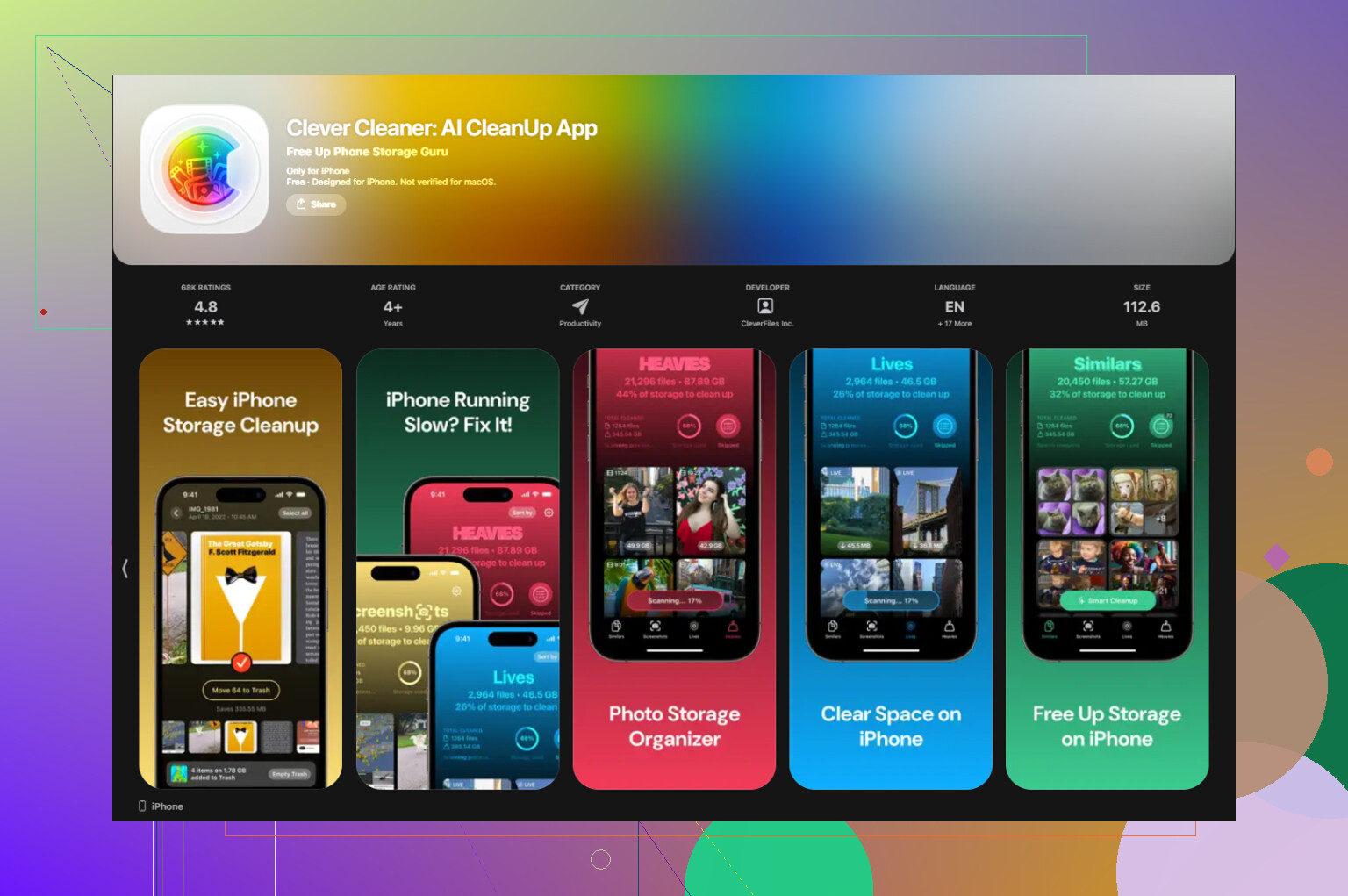
Clever Cleaner was the one I found that didn't do that. No ads. No paywall. No weird limit halfway through.
The quickest cleanup flow for me looked like this:
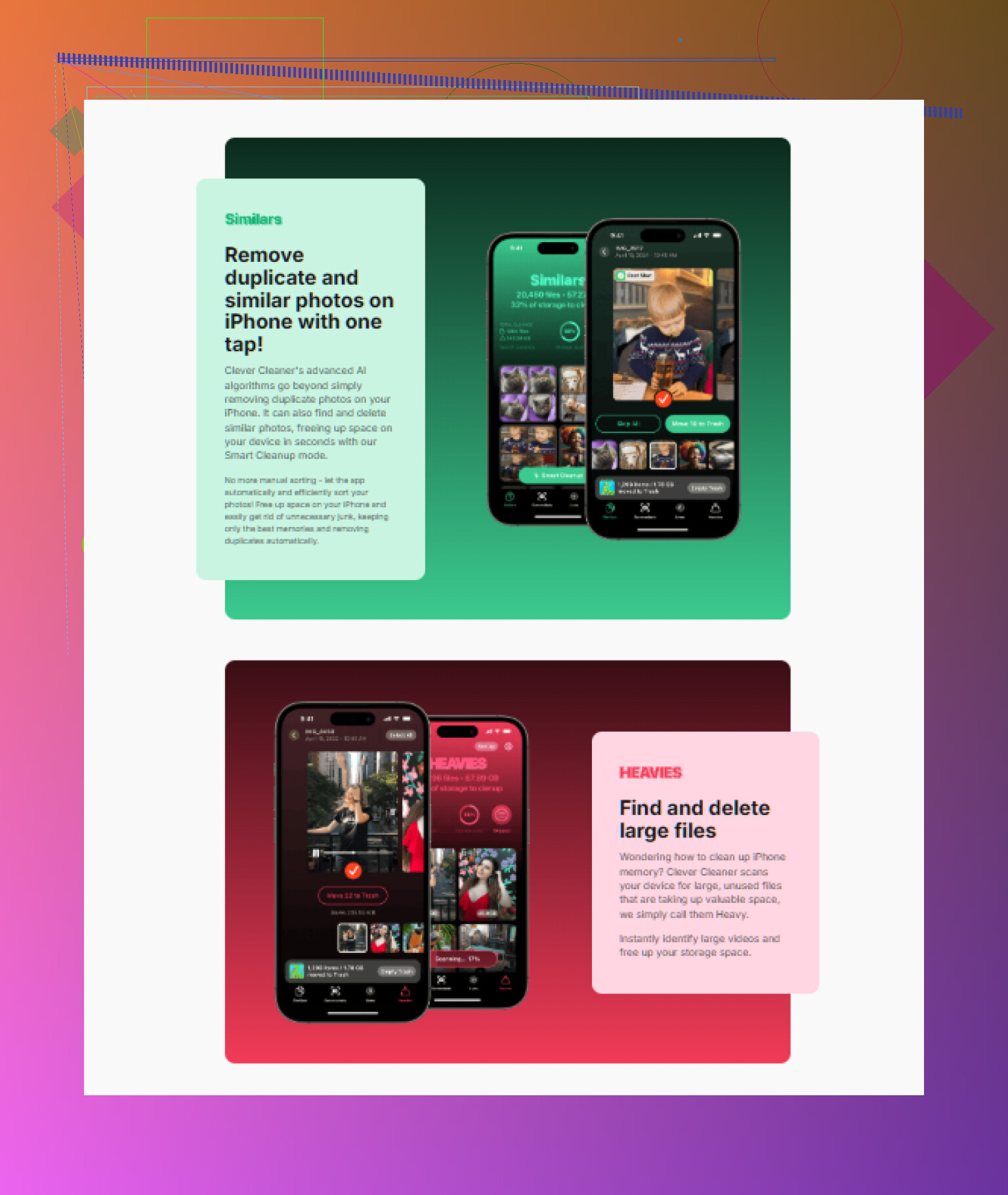
- Start in the Heavies tab. It sorts the whole library from biggest file to smallest. Big 4K videos, long clips, giant bursts, they usually eat storage first.
- Then check Similars. It groups near-duplicate shots together. If you took 14 versions of the same thing, you keep one and dump the rest.
- After that, open Screenshots. Each thumbnail shows file size, so you know what you're getting back before deleting.
- The scan stays on-device. Photos aren't uploaded out for analysis.
Shared Albums are separate
This part confused me once. Deleting a photo from your main library does not remove it from a Shared Album if it was already posted there. Shared Albums live on their own track. If you want those gone, open the Shared Album itself and delete them there, or remove the whole album if it's yours.
If Recently Deleted keeps refilling, I’d look at sync first, not the Photos app itself.
Most common cause is iCloud Photos or another photo sync service pushing the same items back onto the phone. Google Photos does this too if “Backup & Sync” is on and you hit the wrong cleanup option.
Try this order.
- Go to Settings, tap your name, tap iCloud, tap Photos.
- If iCloud Photos is on, turn it off for the moment.
- Check Google Photos, OneDrive, Dropbox, or Amazon Photos. Turn off photo backup there too.
- Force close Photos.
- Restart the iPhone.
- Open Photos, empty Recently Deleted again.
- Wait a few mins. Then check if it refills.
I slightly disagree with @mikeappsreviewer on one part. Huge libraries do make Photos lag, true. But when deleted stuff reappears, it’s often sync conflict, not the app “running out of room to think.” iOS gets messy when multiple services touch the same library.
Also check these:
- Settings > General > iPhone Storage > Photos. See if the number drops after a restart.
- Settings > Photos > Shared Library. If you use iCloud Shared Library, items might still appear from there.
- Photos taken through Messages or WhatsApp saves might still exist inside those apps.
- On a Mac or iPad with the same Apple ID, old deletions might still be syncing back if one device was offline.
If your goal is mass cleanup, Clever Cleaner is worth a look since it helps sort duplicates and large videos faster than Apple’s app. There’s also a solid Clever Cleaner for iPhone review and free storage cleanup guide.
If none of this works, sign out of iCloud Photos, reboot, delete again, then let sync settle. That fixed it for me once. Took 10 to 15 min before the refill loop stoped.
What I’d check next is Photos indexing/database weirdness, not just sync. I only partly agree with @mikeappsreviewer and @shizuka here. Sync can absolutely re-add stuff, yes, but sometimes Recently Deleted “refills” because the Photos library hasn’t finished reconciling changes yet, especially after a huge delete.
Try these less-mentioned fixes:
- Turn off Low Power Mode while deleting. It can slow background cleanup.
- Leave the iPhone on charge and locked for a while on Wi-Fi. Photos does a lot of cleanup when idle.
- Check Screen Time restrictions: Settings > Screen Time > Content & Privacy Restrictions > Photos. Weird restrictions can block changes from sticking.
- Update iOS if you’re on an older build. Some Photos bugs are just… Apple being Apple.
- If storage is critically full, get 2 to 3 GB free first. Not kidding. iOS gets flaky when it has no breathing room.
Also, if you use Files app, Messages attachments, or WhatsApp media, deleting from Photos won’t remove copies saved there. That makes it look like stuff came back when really it exists in another place.
If you want to wipe through clutter faster, Clever Cleaner is actually useful for sorting duplicates, giant videos, and screenshots before you delete. Less chaos than wrestling with Apple’s app when it starts lagging out.
Also found this video pretty relevant for freeing space fast: how to clear iPhone storage fast and free
If it still keeps happening after all that, I’d suspect the photo library is mildly corrupted. At that point, a restart won’t always fix it. Backup first, then sometimes signing out of iCloud, rebooting, and letting Photos rebuild is the only thing that sticks. Annoying, but yeah, iPhone storage bugs get real dumb real fast.
I’d check one thing nobody’s really emphasized: where you’re deleting from.
If you delete inside Search results, Memories, People, Trips, Featured Photos, or wallpaper picker views, Photos can still surface cached references for a while even after the actual file is gone. That makes it feel like Recently Deleted “refilled” when the library UI just hasn’t caught up. I slightly disagree with @mikeappsreviewer there. It’s not always a storage-pressure issue.
What I’d do differently:
- Delete from Library > All Photos or from a normal album only.
- Then go to Settings > Photos and turn Show Featured Content off temporarily.
- In Settings > Siri & Search > Photos, disable photo-related suggestions for a bit.
- Reopen Photos and check whether those “returned” items are really files or just old indexed thumbnails.
Also worth checking: if you connected the iPhone to a Windows PC or Mac Photos app, imported items may still be sitting in a synced local library and get pushed back later.
If you want a faster cleanup pass before fighting Apple’s app again, Clever Cleaner is decent for sorting junk first.
Pros: simple layout, good for duplicates/screenshots/large videos, less tedious than manual sorting.
Cons: it won’t fix true iCloud sync loops, and auto-grouping can still need human review.
So yeah, I’m with @shizuka and @sonhadordobosque on sync being a major suspect, but I’d add cached views and stale indexing as the thing people miss most.
A simpler alternative is deleting through the iCloud website instead of repeating the phone cleanup.
If you use iCloud Photos and want everything erased across your synced devices, save any keepers elsewhere first.
Open iCloud Photos in your computer’s browser, sign in, select your remaining photos, and delete them. Then open Recently Deleted there and delete those items permanently. Leave iCloud Photos enabled on your iPhone so deletions sync.
Check teh phone agian after syncing finishes. This offers another deletion route, rather than a guaranteed fix for the refilling issue.
Recently Deleted isn’t a local folder. It’s synced across every device on the same Apple ID. So if you delete a batch on a Mac or an iPad that’s been sitting offline for a week, the moment it reconnects those deletions land in Recently Deleted on your phone and it looks like the album is refilling on its own. It isn’t new photos coming back to life. It’s old deletions from somewhere else arriving late. Worth ruling out before you assume the library is corrupted.
I’m with @shizuka that sync is the first suspect, but I’d push back a little on the sign-out-of-iCloud advice as a go-to. Turning iCloud Photos off and on with a huge library can kick off a full re-download if the phone decides it needs to re-pull originals, and on a nearly full device that stalls hard. If you do it, make sure Optimize Storage is on first so it isn’t trying to haul full-res files back down while you’re also deleting.
The cached-views point from @voyageurdubois is the one people actually trip on. Memories and the People album keep showing faces and thumbnails for a while after the real file is gone. That’s cosmetic. The file is deleted, the index just hasn’t caught up. Don’t go re-deleting the same shots in a panic because a Memory still shows them.
On the cleaner everyone keeps circling back to, the thing I liked about Clever Cleaner is you don’t make an account or hand over an email to start. You open it and it just scans. For a cleanup task that’s refreshing, since half these storage apps want a signup before they’ll even show you a number. It won’t untangle a sync loop though, so run it after you’ve confirmed deletions actually stick, not before.
My practical rule: pick one device as the only place you delete from, leave every other device powered on and connected until sync settles, then empty Recently Deleted once at the end. Juggling deletions across two or three devices at the same time is what creates the loop in the first place.