My SD card suddenly stopped showing my photos and videos on my Mac after I removed it too quickly, and now Finder won’t open it. These files are important personal memories, and I really need help with safe SD card data recovery on Mac without making things worse.
I ran into this with a Sony SD card on my Mac. First thing, don’t treat it like a lost cause yet.
Most deleted files on SD cards are removed from the file table, not wiped from the card itself. If nothing new has been written over them, recovery still has a shot. That’s the whole reason tools like Disk Drill, UFS Explorer, and R-Studio exist.
On Mac, I’d start with Disk Drill. I used it because the layout made sense fast, and I didn’t have to fight the app to get a proper scan going. It handles camera RAW formats, shows results in a clean way, and the preview feature saved me time. If a photo preview opened fine, I usually took it as a good sign the recovered file would open too. Not perfect, but a solid filter before restoring a pile of junk.
One thing I learned the annoying way, use a real SD card reader. Don’t leave the card in the camera and plug the camera in. Also skip flaky USB hubs. Long scans on bigger cards fail more often with bad connections, and it’s a waste of an hour when the reader drops out at 82 percent. Keep your Mac awake too. Sleep mode in the middle of a scan is dumb and avoidable.
If the card got formatted, I still wouldn’t panic. A quick format often clears directory info and leaves the file data sitting there until something else replaces it. Recovery odds drop once you keep shooting photos, reformat again, or run random repair apps from search results. I’ve seen people do all three, then wonder why half the files come back broken.
What I would do, step by step:
- Stop using the SD card right now.
- Put it in a card reader and connect it to your Mac.
- Install and open Disk Drill.
- Run a full scan on the card.
- Let the scan finish. Don’t cut it short.
- Preview the files before restoring them.
- Recover everything to your Mac’s internal drive or another external drive, never back onto the same SD card.
If you want a free route, PhotoRec is the one people keep coming back to. It works, but yeah, it feels rough. Keyboard-driven, not friendly, and recovered files often come back with renamed filenames and no folder structure. Fine if you care more about getting the image data back than keeping things organized.
Before you spend half your night scanning, check your backups. I’ve seen missing card photos turn up in iCloud Photos, Lightroom, Google Photos, or Dropbox because sync had already happened and the person forgot. Takes two minutes to check, and sometimes that ends the whole problem.
If Finder hangs, I’d check the card at the disk level first. @mikeappsreviewer covered scan tools well, but I would not jump straight into repairs in Disk Utility. First Aid writes to the card. On a card pulled too fast, that is not my first move.
Do this on your Mac.
- Open Disk Utility.
- See if the SD card appears in the left sidebar.
- If it shows up, do not mount-repair it yet.
- Open Terminal and run diskutil list.
- Find the SD card identifier, like /dev/disk4.
- Make an image of the card first, not the files, the whole card.
Use this:
sudo dd if=/dev/disk4 of=~/Desktop/sdcard.img bs=4m
If macOS says the disk is mounted, unmount it first:
diskutil unmountDisk /dev/disk4
Why do this. Because recovery from an image is safer than hammering the failing card over and over. If the card disconnects, at least you saved one stable copy attempt. It takes longer, but it’s the safer path imo.
After you have the image, scan the image with Disk Drill instead of the physical card. Disk Drill on Mac handles disk images fine, and it reduces wear on the SD card. If the card does not stay connected long enough for imaging, then try Disk Drill on the card itself as a last shot.
If the SD card does not appear in Disk Utility or diskutil list at all, the issue is often hardware, reader, adapter, or the card controller. In that case, try a diff reader and another Mac if you have one. If it still stays invisible, software recovery gets ugly fast.
Also check Image Capture. Weird tip, but I’ve had cards fail in Finder and still show media there.
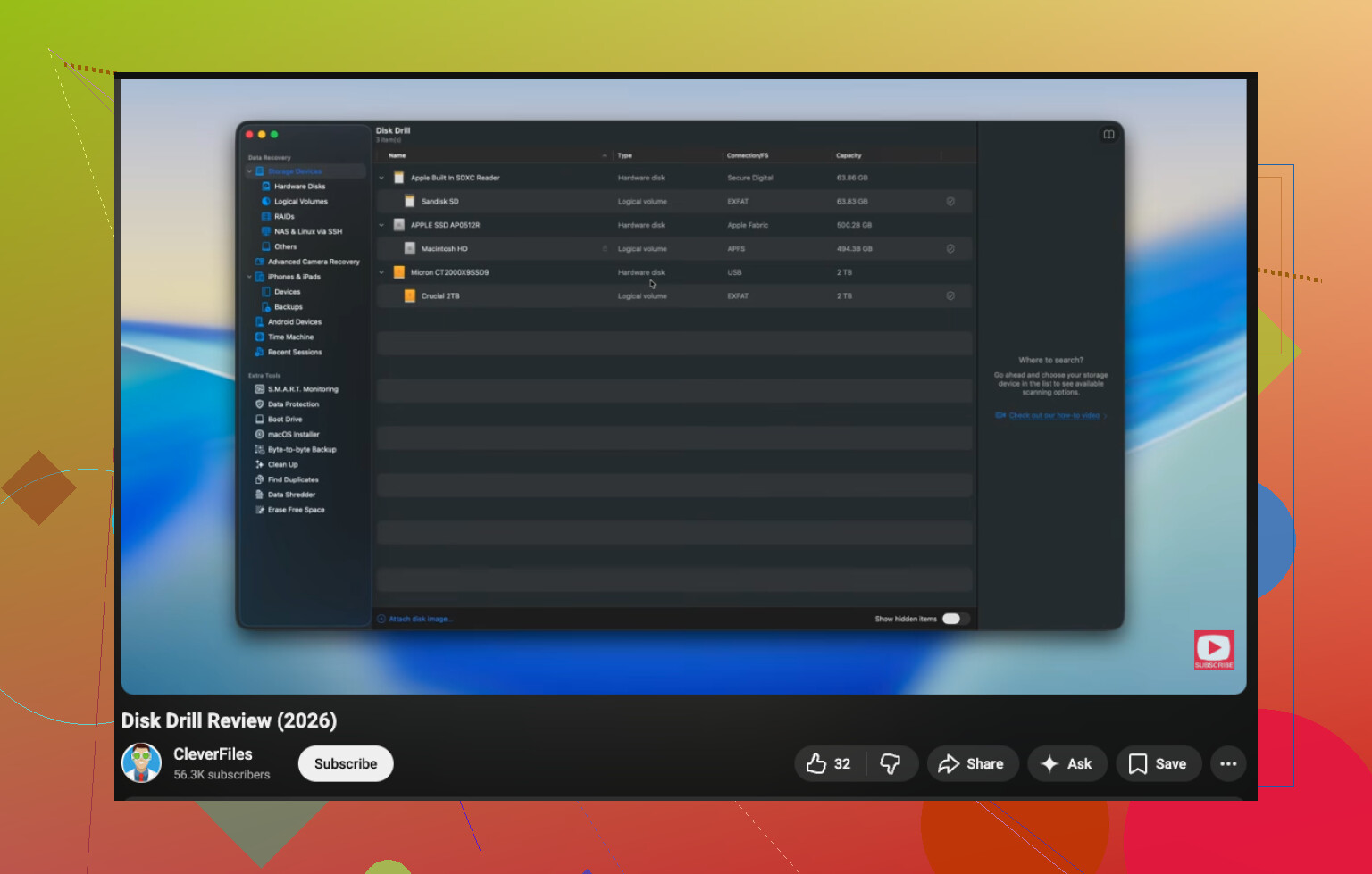
If you want a short visual guide, this SD card recovery on Mac video tutorial is easier to follow than a pile of text.
Big thing, recover files to your Mac or another drive. Not back to the SD card. That part ruins recoveries all the time. Small typo here, but yeah, dont write anything new to it.

Don’t click First Aid just because Finder is acting dumb. On this one I lean more toward @vrijheidsvogel than the usual “repair it first” advice, but I also wouldn’t always bother with raw dd imaging unless the card is unstable or disconnecting. If the card stays visible in Disk Utility, a simpler move on Mac is checking whether the filesystem is just not mounting cleanly.
Try this before any repair stuff:
- Open System Information > USB/Card Reader and see if the Mac detects the SD hardware at all.
- Open Image Capture. Seriously. Sometimes Finder chokes, but Image Capture still sees the photos.
- In Terminal, run
diskutil listand thendiskutil info /dev/diskXfor the card. If it shows a valid partition but won’t mount, that tells you a lot.
If the card is detected but unreadable, recover first, diagnose second. That’s where Disk Drill is practical on macOS because it can scan devices Finder won’t properly open, and it can also work with an image file if you make one first. I mostly like it for previewing results fast so you can tell if your JPG/MP4 files are real or just scan garbage.
One small disagreement with @mikeappsreviewer type advice people often give: don’t keep retrying mounts over and over. Every failed remount, repair attempt, or reconnect is more stress on a card that may already be flaky.
Also check if the photos were already imported somewhere dumb and forgotten:
- Photos app library
- iCloud Photos
- Adobe Lightroom cache/catalog
- Google Drive / Dropbox camera uploads
If nothing sees the card, swap the reader, not just the port. Adapters fail allll the time.
If you want a basic walkthrough before doing anything risky, this is decent: watch this Mac SD card recovery walkthrough
Main thing: recover to another drive, not back to the SD card. Thats how people turn “missing files” into “actually gone.”