I accidentally emptied the Trash on my Mac and lost important files I still need for work and personal documents. I’m looking for what actually works to recover deleted Mac files after Trash was emptied, including safe methods or recovery tools that won’t make things worse.
I’ve done this once, and the first few minutes mattered more than anything else. If you emptied Trash on your MacBook, stop using it now. Don’t open apps. Don’t save files. Don’t browse. Leave it alone.
What happened behind the scenes is less dramatic than it looks. macOS usually doesn’t erase the file data right away. It removes the reference to those files and marks the space as available. So the data often still sits on the drive until new activity writes over it. If you keep using the Mac, you raise the odds of stomping on the stuff you want back.
There’s one ugly detail on newer MacBooks. SSDs use TRIM, and TRIM starts clearing deleted blocks in the background so the drive stays fast. It doesn’t ask. On Apple laptops, this means your window for recovery might be short.
If you want the best shot, check the easy places first.
- Cloud services
If the files ever lived in iCloud Drive, Dropbox, or Google Drive, check from your phone or another computer. Keep your Mac offline while you do it. Those services usually have their own deleted-items area, often kept for around 30 days, separate from Mac Trash. - Photos and Notes
If you deleted pictures or notes, open those apps and look in their Recently Deleted sections. Apple keeps items there for about 30 to 40 days. - Time Machine
If you’ve used Time Machine before, go back to the folder where the files were. Even without the backup drive connected, macOS sometimes keeps local snapshots from the last day on the internal drive. I’ve seen people get lucky here.
If none of those turn up anything, move to recovery software.
Use a recovery app fast, but don’t install it on the MacBook you’re trying to save.
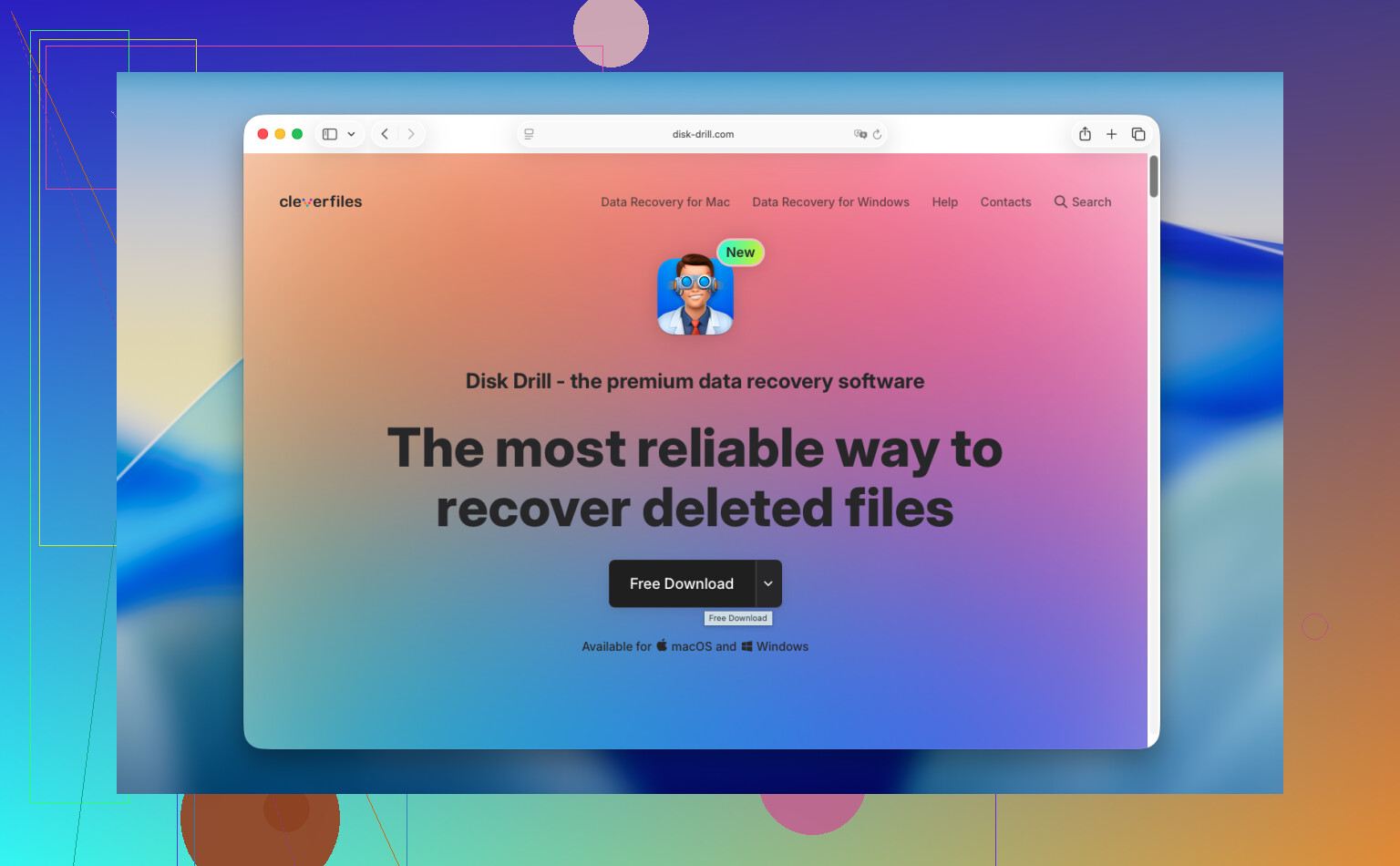
I’d use Disk Drill in this case. On newer Macs, especially Apple Silicon models and machines with the T2 chip, the internal drive setup is more locked down than people expect. A lot of random recovery tools stumble there.
The safe way to handle it:
- Do not install the software on the internal drive
This is where people mess up. Installing software writes new data. New data means a higher chance your deleted files get overwritten. Download the app on another computer, put it on a USB drive, and run it from there if possible. - Make a drive image first
This step gets skipped all the time, and I think that’s a mistake. Create a full image of the drive and save it to an external disk. Then scan the image instead of hammering the original drive over and over. If the first pass misses something, you still have the same frozen copy to work from. - Run the scan
Scan the internal drive, or better, the image you made. Let the tool search raw storage space for recoverable files. - Preview the results before paying
One thing I like here is being able to preview files first. If your photos, docs, or videos open in preview, you know the recovery has a shot before spending money. - Restore to external storage
Save recovered files to an external drive or USB. Don’t write them back to the MacBook’s internal SSD.
If you want a free route, PhotoRec is the usual fallback. I’ve used it, and it does pull files back. Still, it’s rough. No polished interface. Original names and folders are often gone. You end up sorting through a pile of weirdly named files by hand. It works, but it feels like work.
If software fails, a recovery shop is the next step. These places handle lost data every day. Most offer an evaluation first, then tell you what they think is recoverable and what it will cost. Typical jobs often land somewhere around $300 to $1,500. Bad physical damage pushes it higher. Turnaround is usually a few days, sometimes a week.
If the files matter, stop writing to the Mac and start with cloud services, app-level deleted folders, and Time Machine. If those come up empty, use recovery software carefully and write everything to external storage. That order gave me the best results.
If Trash is emptied, your best odds depend on one thing, where the files lived before deletion.
A few things I’d add to what @mikeappsreviewer said.
First, check app-specific version history. For work docs, this saves people more often than raw recovery. Pages, Numbers, Keynote, Word, Excel, Google Docs, and Adobe apps often keep autosaved versions or cloud history. If you lost a file you edited recently, open the app first and look for version restore. I’ve seen this work when file recovery found nothing.
Second, look for copies in mail and messengers. A lot of “lost” PDFs, docs, and photos still sit in Slack, Teams, Mail attachments, WhatsApp exports, or AirDrop folders. Search by filename and file type. It sounds dumb, but it works.
Third, if your Mac has FileVault on and the SSD has had time to process deletion, recovery rates drop hard. On modern Macs, once deleted blocks get trimmed, many tools return file names with corrupt data or nothing useful. So if the deletion happened days ago and you kept using the Mac, set your expectations lower. That part sucks, but it’s true.
One small place I disagree with @mikeappsreviewer, local snapshots are worth checking, but I would not count on them much after heavy disk activity. Nice bonus if present, not a plan.
If you do try software, Disk Drill is one of the few Mac options people keep coming back to because previews are decent and the interface is not a mess. Test previews first. If your DOCX, PDF, JPG, or MOV previews open, your odds are better. If previews fail, stop wasting time.
Also, don’t ignore this if you want a short, useful Mac deleted file recovery guide:
watch this Mac file recovery walkthrough
Fast triage order I’d use:
- App version history.
- Cloud trash on another device.
- Mail, Slack, Teams, downloads, attachments.
- Time Machine.
- Disk Drill scan to external drive.
- Recovery lab if the files are worth real money.
If it was emptied in the last hour, you still have a shot. If you kept installing stuff and browsing for half a day, odds drop fast. Annoying, but taht’s how it goes.

One thing I’d push back on a bit from @mikeappsreviewer and @cacadordeestrelas: people jump to file carving too fast. Sometimes the “recovered” file is an older cached copy, partial temp file, or duplicate from another app, not the exact original. So before you spend hours scanning, check places macOS hides stuff.
Look in these folders from Finder > Go > Go to Folder:
~/Library/Containers~/Library/Group Containers~/Library/Application Support~/Library/Mobile Documents/private/var/folders
A shocking amount of app temp data, autosaves, exported PDFs, and draft docs ends up there. I’ve recovered Numbers and Word work this way when Trash recovery found basically nothing.
Also check Terminal if you’re comfortable:
tmutil listlocalsnapshots /mdfind 'filename'find ~/ -name '*part_of_filename*'
Spotlight sometimes still knows about stuff after you think it’s gone. Not always, but enough that it’s worth 2 mins.
If you do need software, yeah, Disk Drill is probly the most practical Mac option for normal people. I mostly like it for previewing before recovery, not because it performs miracles. And if you recover, save to an external drive only. That part matters.
If the files were tiny docs and not giant videos, there’s a decent chance an app cache or synced copy still exists somewhere. People forget that and go full panic mode way too fast.
Also, this thread is pretty relevant if you want more Mac-specific recovery discussion: real-world tips for recovering deleted Mac files after emptying Trash