My iPhone SE has started lagging during basic tasks, especially typing messages and using apps. I’ve tried closing apps, but the keyboard still freezes or responds slowly. What iPhone SE performance tips or settings can help fix this without replacing the phone?
You can usually make an older iPhone feel a lot less sluggish without doing a full reset. The two things that matter most are battery condition and storage. A few settings help too, but if the battery is worn out or the phone is almost full, settings tweaks won’t do much.
Start with battery health
Go to Settings - Battery - Battery Health and Charging. If the maximum capacity is under 80 percent, the phone may be slowing itself down to avoid random shutdowns. At that point, a battery replacement will probably make a bigger difference than any cleanup trick.
If the battery still looks decent, then the slowdown is more likely coming from iOS settings, background activity, and storage pressure.
Change the settings that actually help
These are worth doing because they don’t delete anything and they’re easy to undo:
Turn off Background App Refresh under Settings - General - Background App Refresh. Older iPhones don’t have much extra headroom, so apps constantly refreshing in the background can make the phone feel worse when you’re trying to use it.
Enable Reduce Motion at Settings - Accessibility - Motion - Reduce Motion. Then turn on Reduce Transparency under Settings - Accessibility - Display and Text Size. This cuts down on the animations, blur effects, and visual stuff that older hardware has to keep rendering.
Also check Low Power Mode. If you leave it on all the time, the phone is intentionally trading speed for battery life. Turn it off if performance matters more to you than squeezing out extra battery.
For Safari, clear the browser data at Settings - Safari - Clear History and Website Data. That mainly helps Safari and in-app browser windows, but it can still make a noticeable difference.
Don’t ignore storage
This is the part a lot of people miss. iOS needs free space for temporary files, indexing, and normal background work. Once an older iPhone gets around 85 to 90 percent full, weird lag starts showing up. The camera opens slowly, apps crash or hang, and switching between apps gets choppy.
It feels like the phone is dying from age, but a lot of the time it’s just running out of working room.
The fastest place to clean up is usually Photos
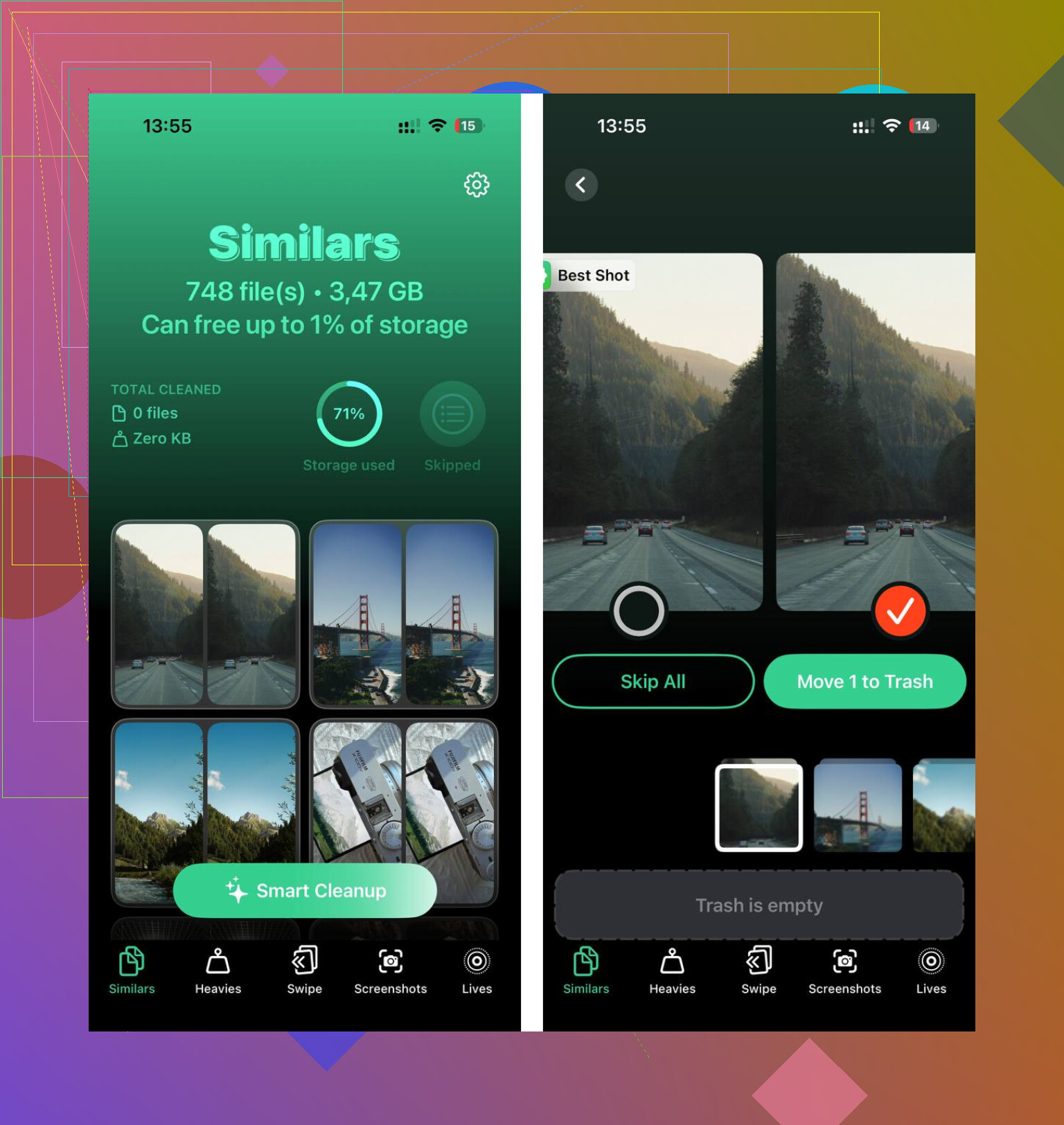
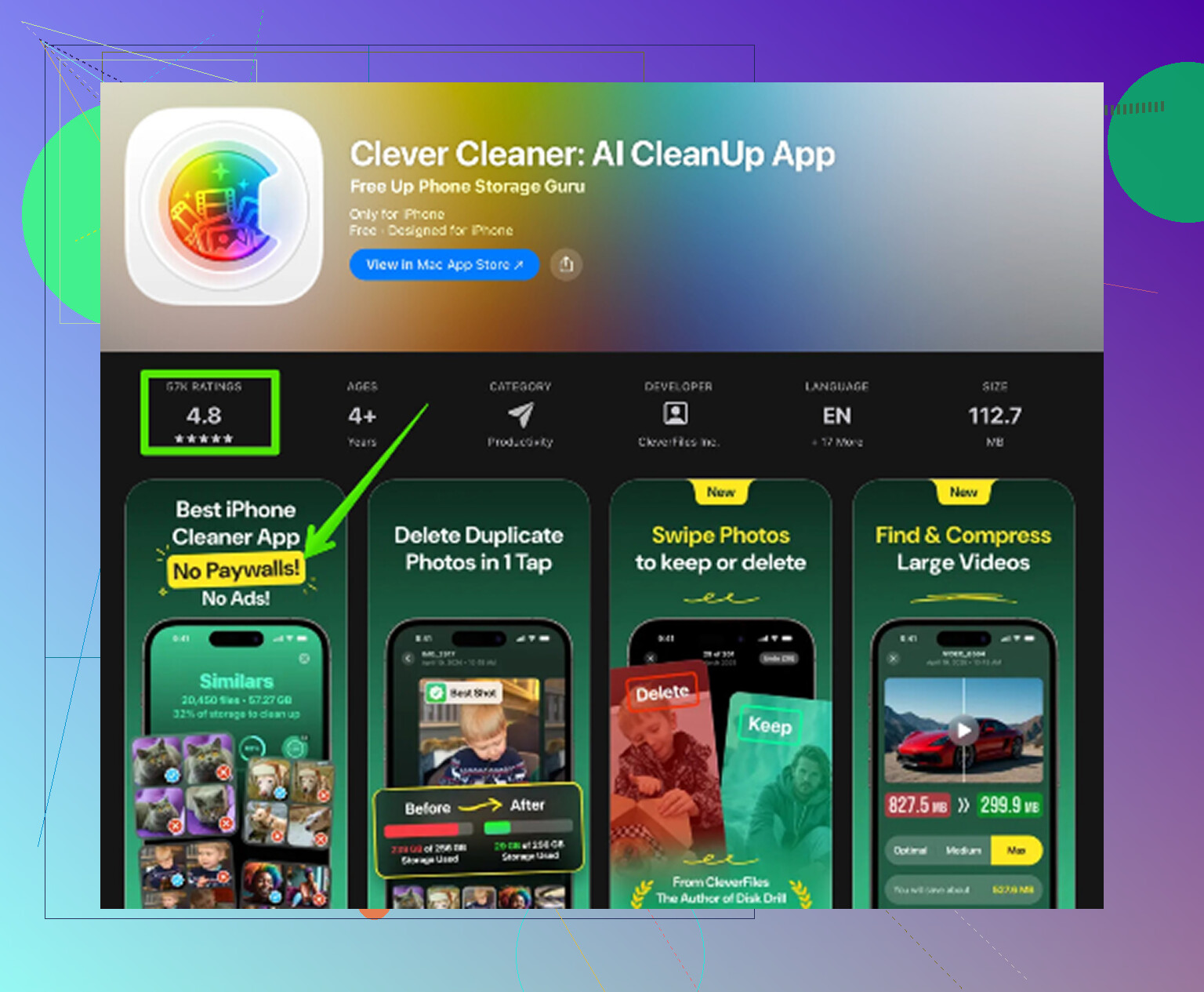
Deleting stuff by hand in the Photos app is painful if you have a big library. Clever Cleaner makes that part easier, and it’s free with no ads or subscription.
The most useful order is:
- Start with the Heavies tab. It sorts files from biggest to smallest and shows the exact size of each one. A few old screen recordings or 4K videos can take up more space than a huge pile of normal photos.
- Then check Similars. It groups near-duplicates and picks the sharpest photo in each set, so you can clear out burst shots, repeated angles, and ten versions of the same picture without going one by one.
- Go through Screenshots too. They pile up fast, and most of them are useless after a few days. Seeing the file size before deleting helps.
- The cleanup runs on the phone itself, so the photos don’t get uploaded to an outside server.
After deleting photos or videos, open Photos and empty Recently Deleted. Otherwise the storage won’t actually be freed yet.
The best order is battery check first, settings second, storage cleanup third. The settings changes can make the phone feel snappier right away, but freeing up storage is usually the bigger win. Combined, those steps can bring an old iPhone much closer to normal without wiping the device.
Don’t keep force-closing every app over and over, since that can make the phone reload more stuff and feel worse.
For typing lag specifically, try Settings > General > Keyboard and turn off Predictive Text for a bit, especially if the freezing is mostly in Messages. If you use a third-party keyboard, switch back to the stock Apple keyboard before chasing bigger fixes.
Don’t wipe the phone yet if the lag is mainly typing. I’d try the smaller keyboard-specific fixes first: restart the phone, remove any extra keyboards you don’t use, turn off dictation if you never use it, and then try Settings > General > Transfer or Reset iPhone > Reset > Reset Keyboard Dictionary. That last one can help when autocorrect/prediction gets weird or slow, but it will forget learned words, so don’t do it if that would annoy you. I agree with @nachtdromer that force-closing apps constantly usually isn’t the cure. If the whole phone is slow outside typing too, then battery and storage become the bigger suspects.
If the lag only happens in Messages, I wouldn’t treat it like a whole-phone performance problem yet. Try typing a long note in the Notes app, then type the same kind of thing in Messages. If Notes is fine but Messages stutters, the issue may be that app’s conversation history, attachments, iCloud syncing, or a huge group thread rather than the keyboard itself.
For Messages specifically, check Settings > General > iPhone Storage > Messages and see what is taking space. Large attachments, videos, GIFs, and old conversations can make Messages feel heavier than it should, especially on an SE with less storage. You don’t have to delete everything. Removing a few giant attachments or old media-heavy threads can be enough to make typing less sticky.
I agree with the others that force-closing apps is mostly a distraction. The faster test is to restart, make sure you have a few GB free, then try typing with Predictive Text off and keyboard haptics off if you use them. Keyboard clicks and haptics should not destroy performance, but on an older phone that is already struggling, every little background effect can make the delay more noticeable.
The annoying part is that an iPhone SE can feel “slow” for several different reasons that look the same from the outside. If typing is bad everywhere, look at battery health and storage. If typing is bad only in Messages, clean up Messages first. If typing is bad only in one third-party app, update or reinstall that app before resetting the phone. A factory reset would be near the bottom of my list unless the lag is happening across the whole phone even after the basic cleanup.
Which SE are you on though? The 2016 model, the 2020, or the 2022 one? That changes the whole answer. The original SE is stuck on old hardware and old iOS, and no keyboard tweak is going to fix real typing lag on that one. The 2020 and 2022 still have plenty of headroom, so if either of those is stuttering while typing, something specific is wrong, not just age.
The Notes vs Messages test @ombrasilente mentioned is the smartest thing in this thread, so do that before touching settings. If typing is smooth in Notes, stop blaming the keyboard. I’d also throw in one more free check people skip: what iOS version are you running? A half-finished or buggy point release can make typing feel laggy across the board, and sometimes the fix is just installing the update that’s been sitting there ignored for weeks.
Storage cleanup is fine and Clever Cleaner is reasonable for clearing photo bloat, but I wouldn’t expect it to touch keyboard lag unless you’re genuinely scraping the bottom on free space. That’s more of a general tidy-up than a typing fix.