My iPad got noticeably slower right after the latest iPadOS update. Apps take longer to open, scrolling feels laggy, and the battery seems to drain faster than before. I’ve already tried restarting it, but that didn’t help. Does anyone know the best way to speed up an iPad after an iPadOS update and figure out what’s causing the slowdown?
An iPad that stutters in every app, hangs when you jump between screens, or feels slow for no clear reason usually has a plain fix. I ran into this on an older iPad and a couple things made a big difference fast.
If it got bad right after an update
Wait a bit before tearing through settings. After a big iPadOS update, the system spends time rebuilding indexes in the background. Mine stayed warm and sluggish for about a day while it did this. Give it 24 to 48 hours. If the lag is still there after two days, I’d stop waiting and start checking the stuff below.
Settings worth changing first
- Turn off Background App Refresh
Go to Settings > General > Background App Refresh.
I shut this off fully on one slow iPad and the change was instant. A lot of apps keep poking servers in the background even when you are done with them. If you do not want to disable all of it, keep it on only for apps you care about.
- Check Low Power Mode
If the battery icon is yellow, Low Power Mode is on. When I forgot this was enabled, the whole iPad felt half asleep. Turn it off if you want full speed.
- Turn on Reduce Motion
Go to Settings > Accessibility > Motion, then enable Reduce Motion.
This swaps the heavier zoom effects for simpler transitions. On older hardware, the interface felt smoother right away. It does not change raw performance in every app, but the iPad stops feeling so draggy.
- Stop force-closing apps all day
I used to swipe everything away thinking I was helping. I wasn’t. Suspended apps sit in a low-power state. If you keep force-closing them, the iPad has to reload each one from zero the next time. More work, more waiting.
Why free storage matters more than people think
This one gets missed a lot. Once storage gets close to around 80 percent full, iPadOS starts running into a wall. It needs open space for cache files and swap during multitasking. When the free space dries up, apps lose room for temp data and the whole device starts acting tired.
So yes, clearing storage is not only about fitting more photos or apps. It helps fix the lag itself.
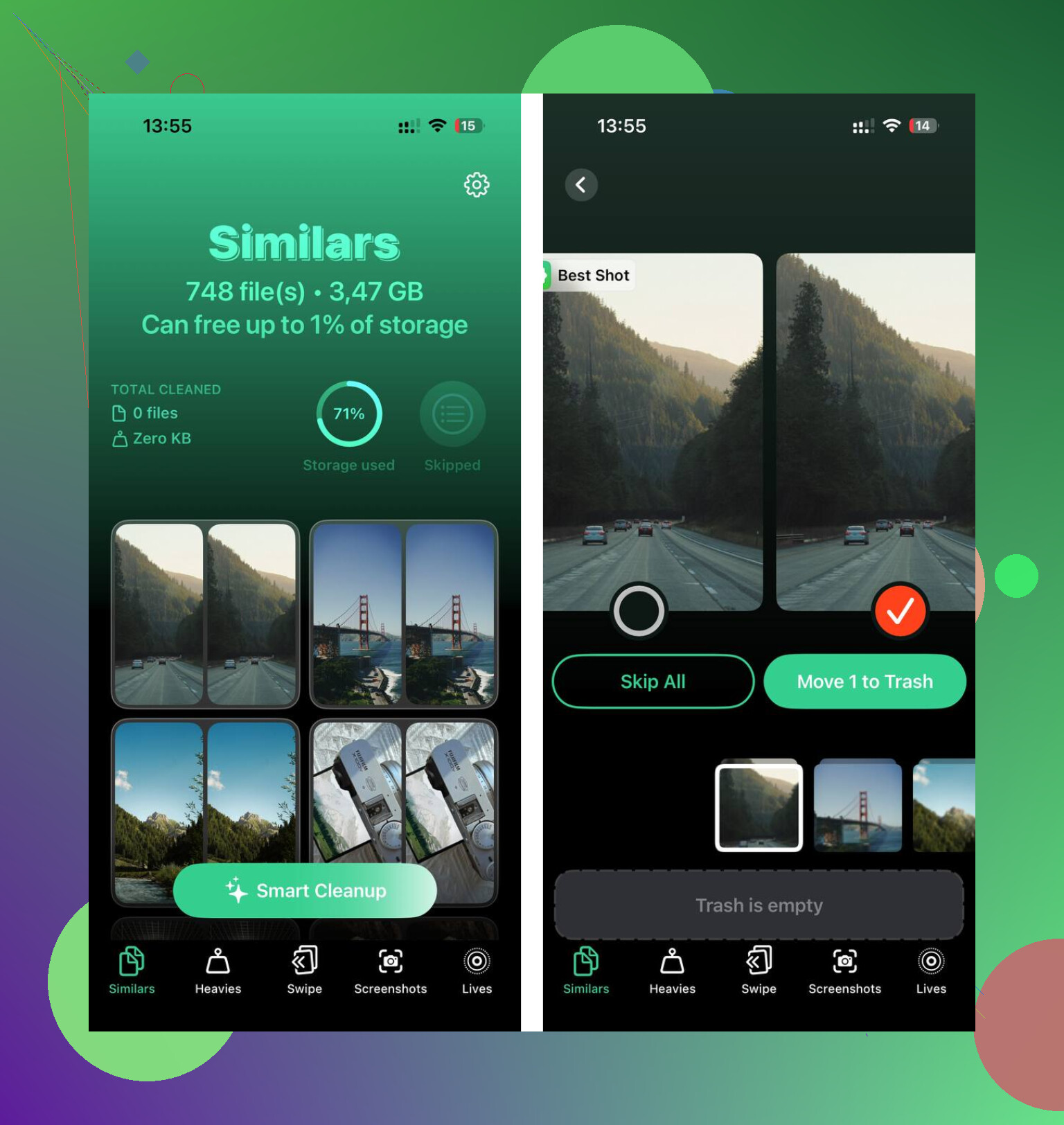
I liked this route for media cleanup because manual deletion gets dumb fast once you have thousands of files.
- Open the Heavies tab
Big files show up first, sorted largest to smallest, with exact sizes. Old videos and random screen recordings jump out fast instead of hiding in a mess.
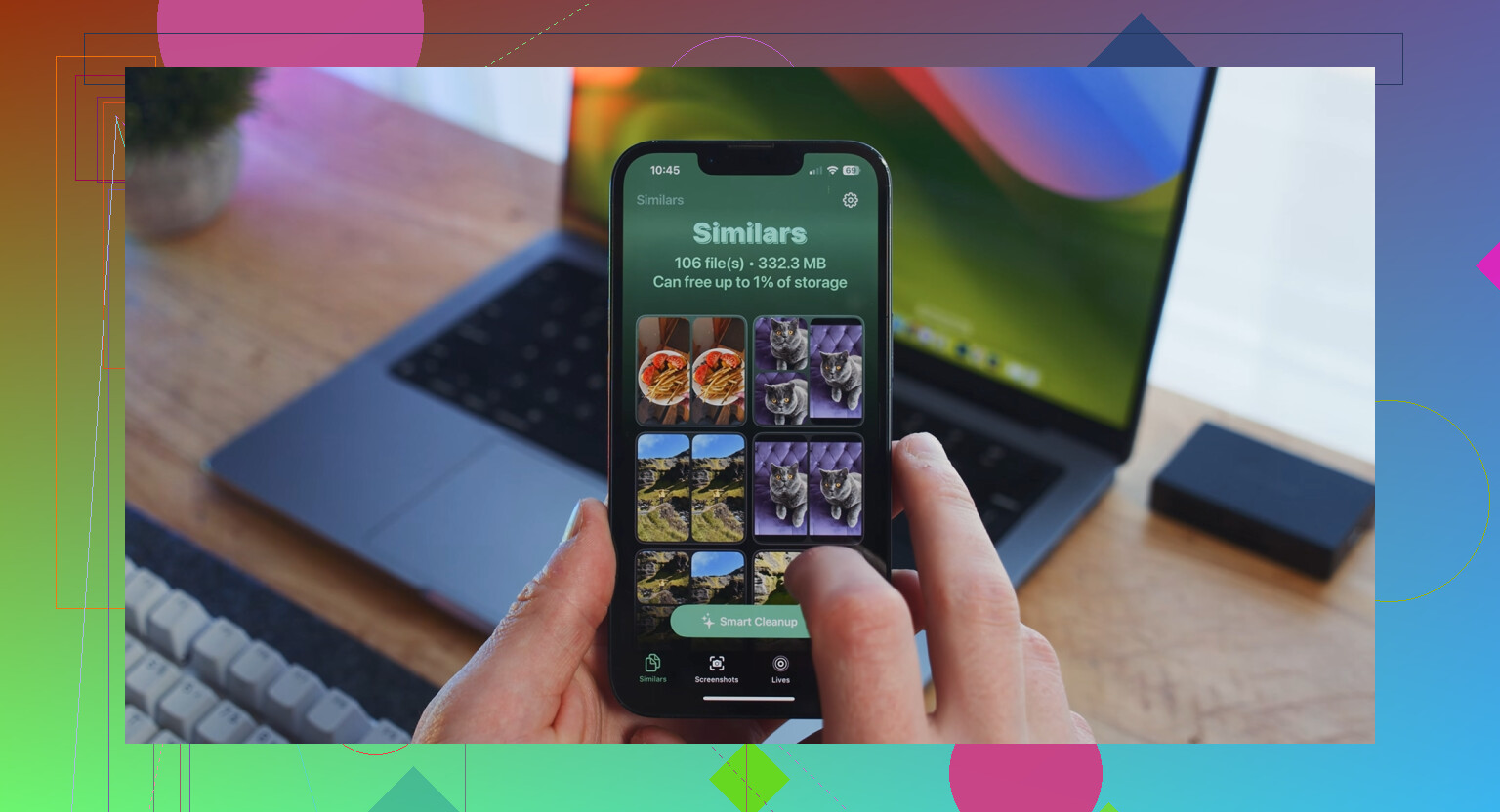
- Check the Similars tab
It groups near-duplicate photos and marks a Best Shot in each set. Burst photos, five tries at the same picture, tiny angle changes, gone way faster than reviewing every image one by one.
- Look at the Screenshots tab
Each screenshot shows its file size before deletion. Small thing, but it makes bulk cleanup less blind.
- It stays on the device
Nothing gets uploaded off your iPad.
After I cleared about 15 GB, app launches sped up and switching around stopped freezing so much. It was one of those fixes where you feel it right away.
If you do not want to delete apps
Go to Settings > General > iPad Storage, tap an app, then pick Offload App.
This removes the app itself but keeps your documents and saved data. The icon stays on the Home Screen. Tap it later, it redownloads, and your stuff is still there. I use this for apps I need once in a while but do not want eating storage every day.
If Safari is the part that feels slow
Go to Settings > Safari > Clear History and Website Data.
When browsing is the main problem, this helps more than people expect. Safari piles up cached site data over time, and it starts feeling sticky. Clearing it gave me a clean reset when pages were taking too long or acting weird.
If the slowdown started right after the update, I’d check battery health stuff first, not only storage. A lot of post-update lag comes from a bad process loop. Go to Settings > Battery and look at Battery Usage by App. If one app shows heavy background time or insane drain, delete it and install it again. I’ve fixed two iPads this way.
I also disagree a bit with @mikeappsreviewer on waiting too long. 24 hours, sure. Past that, I’d move fast.
Do these next.
Reset all settings. Settings > General > Transfer or Reset iPad > Reset > Reset All Settings. This does not erase your files. It wipes broken system prefs, Wi-Fi settings, keyboard stuff, notifcation settings. After buggy updates, this helps more often than people think.
Check Analytics data. Settings > Privacy & Security > Analytics & Improvements > Analytics Data. If you see the same app or process crashing over and over, there’s your clue.
Update all apps. Old app builds often run like trash on new iPadOS.
If your storage is packed with photos and videos, Clever Cleaner is worth a look for fast cleanup. This Clever Cleaner review for faster iPhone and iPad cleanup gives a solid overview.
Last step, backup your iPad, then do a full restore through Finder or iTunes. Annoying, yes. Effective too. If it still lags after a clean restore, your iPad model might be at its limit with the new OS. Sad but true.
If the restart did nothing, I’d look at one thing people skip: heat. After some iPadOS updates, a stuck sync job or widget goes nuts, the iPad runs warm, then performance tanks and battery drops. Not always storage, not always animations.
A few things I’d try that are different from what @mikeappsreviewer and @boswandelaar mentioned:
- Remove Home Screen widgets for a day, especially weather, stocks, or third-party ones. I’ve seen buggy widgets chew battery like crazy.
- Turn off keyboard dictation temporarily. Settings > General > Keyboard. Weirdly, this has helped on one of mine after an update.
- Disable automatic downloads for apps/books if you have other Apple devices pushing stuff over.
- Check Mail accounts. A bad Exchange/Gmail sync can make the whole iPad feel broken. Remove and re-add the problem account.
- Delete and re-add the worst laggy app, not just reinstall random ones.
I kinda disagree with the “just wait it out” camp if it’s already been a couple days and the iPad is still acting drunk.
Also, if you’re tight on storage from photos/videos, Clever Cleaner is a decent shortcut for cleaning duplicates and oversized files fast. This write-up on why Clever Cleaner is a genuinely free iPhone cleaner worth trying explains it pretty clearly.
If none of that helps, check whether VPN profiles or ad blockers are installed. Those can absolutely slow browsing and make the whole system feel off after an update. Tiny thing, big diff sometimes.
One angle I’d test that @boswandelaar, @suenodelbosque, and @mikeappsreviewer only touched indirectly is whether the update changed a feature that your specific iPad struggles with.
Try these:
-
Turn off Live Text and Visual Look Up
Settings > General > Language & Region or Siri/Search related image features depending on model/iPadOS. These background image analysis features can hit older iPads harder than people expect. -
Disable Spotlight results you do not use
Settings > Siri & Search. Turn off suggestions for apps you never search for. Search indexing is not always the only issue. Too many enabled result types can make the system feel heavier. -
Check Files app providers
If you use Google Drive, Dropbox, OneDrive, or SMB shares in Files, disconnect the ones you do not need for a day. A bad file provider extension can cause weird system-wide lag. -
Look at location usage
Settings > Privacy & Security > Location Services. If a weather, map, or automation app is constantly requesting location, that can explain both heat and battery drain.
I mildly disagree with the “storage first” mindset if you still have decent free space. Sometimes the problem is an extension or background service, not clutter.
If storage is tight, Clever Cleaner is a reasonable shortcut.
Pros: fast duplicate cleanup, easy big-file spotting, simple UI.
Cons: cleanup apps can over-group similar photos, you still need to review before deleting, and some people just prefer manual control in Photos/Files.
If nothing changes, test in Low Power Mode off, widgets removed, and one cloud service signed out. If performance suddenly returns, you’ve found the category causing the slowdown.