My iPhone storage keeps getting full even after I delete apps, photos, and messages. System data and other storage seem to grow back fast, and now I can’t update iOS or save new pictures. I need help figuring out what’s taking up space and the best way to free up iPhone storage for good.
Why iPhone Storage Seems to Fill Up Out of Nowhere
I kept seeing people say their iPhone ‘made’ a bunch of data overnight. From what I saw, it usually wasn’t some weird midnight bug. The phone had been filling up bit by bit for a long time, then iOS threw the warning once free space got low enough.
First thing I did on mine was check Settings > General > iPhone Storage. Do this before you delete random stuff. The storage bar usually tells the story fast. Most of the time, one or two categories are doing most of the damage.
Photos usually eat the most space
On a lot of phones, Photos is the main problem.
And it isn’t only the pics you meant to keep. Space gets burned by stuff like:
- Near-identical shots
- Screenshots
- Screen recordings
- Live Photos
- Big video clips
- Burst shots
This sneaks up on people. A few long videos from a trip, months of screenshots, some Live Photos you forgot about, and there goes a pile of storage.
Apps grow after you install them
This part catches people off guard.
An app’s App Store size means almost nothing after a while. Social apps, chat apps, store apps, streaming apps, they all start hoarding cached images, video chunks, temp files, downloads, and other junk. Offline playlists, saved podcasts, downloaded shows, all of it stacks up.
I saw apps listed at a few hundred MB turn into multi-GB hogs on the phone itself. If one app looks bloated in iPhone Storage, deleting it and installing it again sometimes clears out a lot of built-up junk.
Messages and Downloads matter more than people think
I forgot Messages the first time I checked my own phone. Bad call.
Message threads store photos, videos, GIFs, voice notes, and attachments on the device. Same deal with the Downloads folder in Files. These categories don’t always top the chart, but I’ve seen them sit there quietly with several GB tied up.
System Data is annoying
If you cleaned photos and apps and the numbers still look off, check System Data.
This bucket includes caches, logs, update leftovers, and background files iOS hangs onto. Some amount is normal. Still, sometimes it gets bigger than it should. Apple doesn’t give you a clean button for it, which is kind of maddening.
If Photos is huge, start there
If the Photos category is the biggest one, I wouldn’t begin with apps. I’d deal with media first because the biggest wins usually show up there.
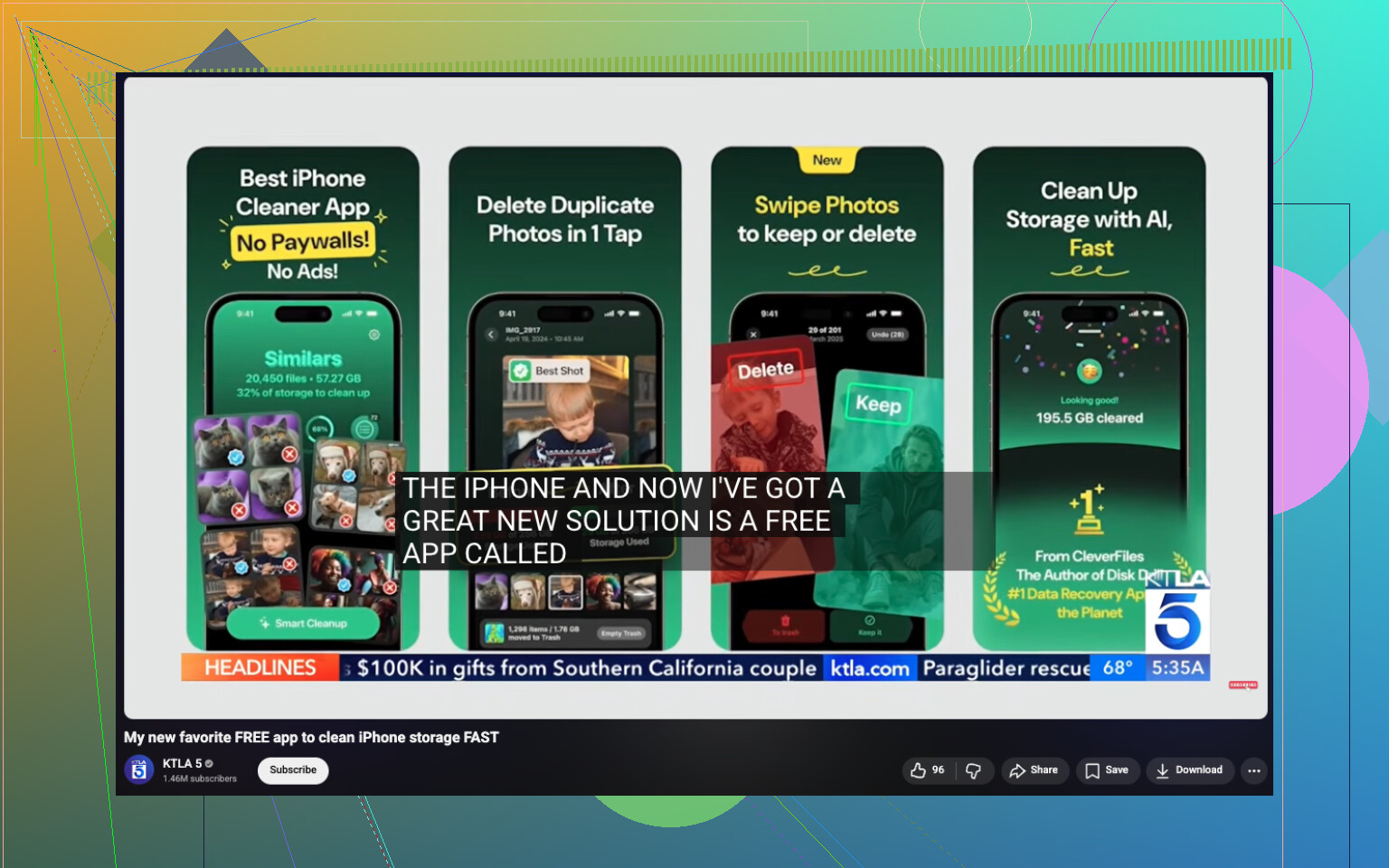
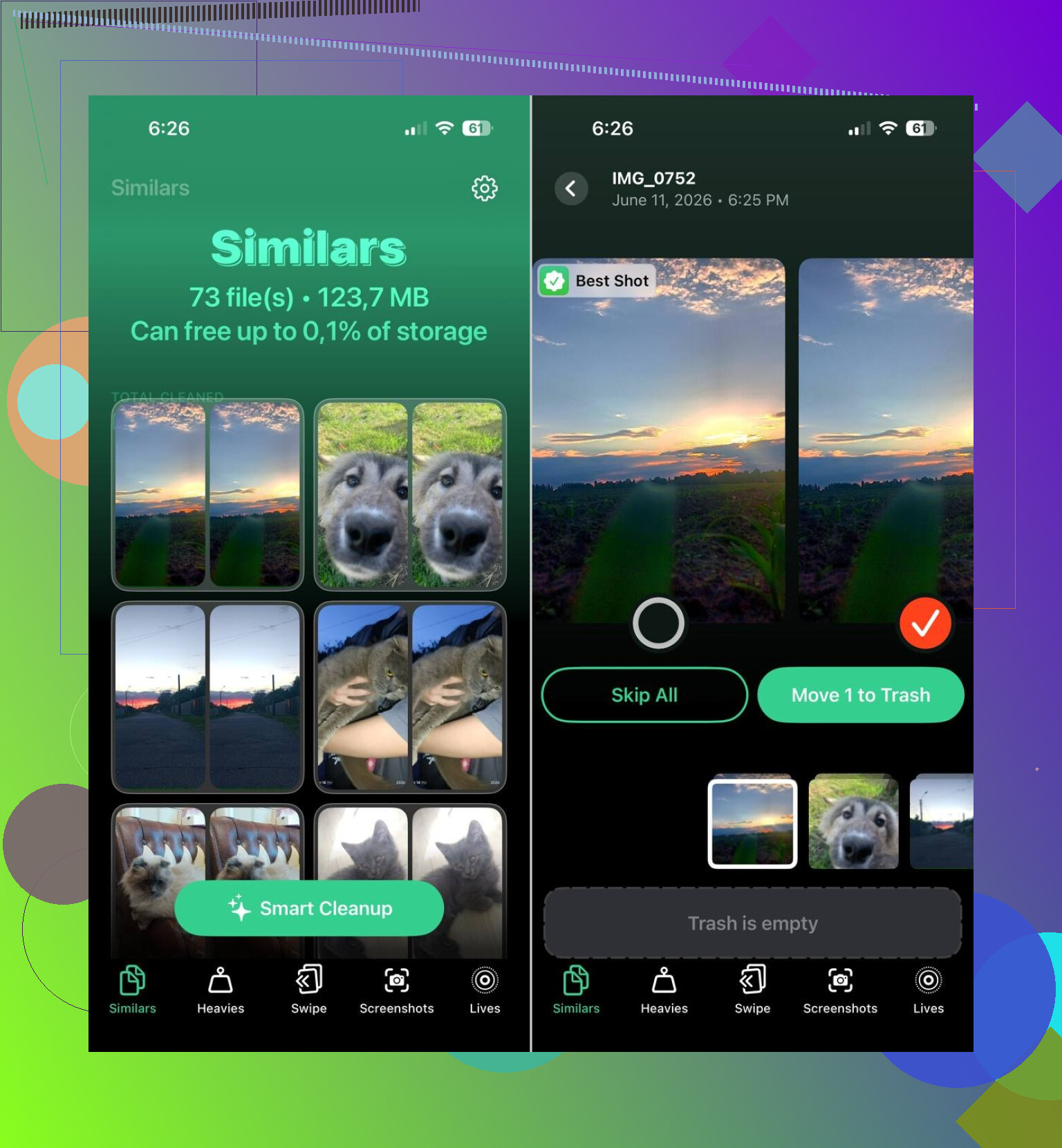
One app people keep mentioning is Clever Cleaner. Apple’s built-in Duplicates album only catches exact copies. This one also flags similar-looking shots, which from what I saw is where a lot of wasted space sits.
Stuff people seem to find useful in it:
- Finding similar photos
- Spotting the biggest photos and videos
- Grouping screenshots so you can wipe them in batches
- Turning Live Photos into normal stills
I’ve seen reports from users who cleared 10 GB, 20 GB, even 30 GB after going through similar shots, screenshots, and Live Photos. Sounds high until you check a phone with years of clutter. Then it makes sense fast.
The order I’d follow
If your storage keeps climbing, this is the order I’d use:
- Open iPhone Storage and find the biggest category.
- Clean similar photos, screenshots, and Live Photos.
- Check large videos.
- Remove downloads from apps.
- Look through message attachments and Files downloads.
- Inspect apps with weirdly large storage use.
From what I keep seeing, this usually comes down to media buildup, not the iPhone doing something broken in the background. Once you spot where the space went, you can free up a lot without wiping important stuff.
If System Data keeps growing back fast, I’d look at sync and cache loops first, not only photos. I agree with @mikeappsreviewer on checking the storage chart, but I don’t think Photos is always the main culprit. On a lot of iPhones, Safari, Mail, Messages indexing, Podcasts, and failed iOS update files keep refilling storage.
Try this order.
- Restart the iPhone. Simple, but it clears temp junk more often than people expect.
- Delete any downloaded iOS update. Settings, General, iPhone Storage. If you see an iOS file, remove it.
- Safari. Settings, Safari, Clear History and Website Data.
- Mail. If Mail is huge, remove the account, restart, add it back. Old attachments pile up.
- Files app. Check On My iPhone and Downloads. People forget this stuff for yrs.
- Podcasts, Netflix, Spotify, YouTube. Remove offline downloads inside each app.
- Messages. Settings, General, iPhone Storage, Messages, Review Large Attachments.
- Turn off Keep Originals in Photos if you use iCloud Photos. Optimize iPhone Storage saves a lot.
If storage still won’t stop creeping up, do an encrypted backup to a Mac or PC, erase the iPhone, restore from backup. That often cuts System Data from like 20GB down to 5GB or less.
If your photo library is messy, Clever Cleaner is worth a look for a free iPhone cleaning app. It helps sort similar pics and bulky media faster than doing it by hand. Also, this video on free iPhone cleaning apps that clear storage fast covers the cleanup flow pretty well.
Last thing, keep 5GB to 10GB free. iOS acts weird when you run it at 99% full.
If storage fills back up fast, I’d look at background re-downloading before I’d blame “System Data.” That part grows, sure, but a lot of times the real issue is apps syncing everything right back after you delete stuff.
@caminantenocturno is right about failed update files and Mail being sneaky. @mikeappsreviewer is right about checking the storage chart first. Where I sorta disagree is people jump into mass deletion too fast. If iCloud Photos, iCloud Drive, WhatsApp, or Messages in iCloud are syncing, you delete 2 GB here and the phone makes 1.5 GB of temp/index/cache junk rebuilding everything. Annoying as hell.
What I’d check that hasn’t been stressed enough:
- WhatsApp or Telegram media storage inside the app itself
- Voice Memos, GarageBand, iMovie, CapCut project files
- Recently Deleted in Photos AND Files
- iCloud Drive offline files that got pinned locally
- Streaming apps that silently keep “smart downloads” on
- Mail app stuck re-indexing a giant inbox
Also, open Settings > Apple Account > iCloud and see what is actually syncing. Sometimes turning one thing off, rebooting, then turning it back on calms the storage creep.
If Photos are the main issue, Clever Cleaner is probly the fastest way to sort similar pics, screenshots, Live Photos, and heavy videos without doing it one by one. This guide to a truly free iPhone cleaner app for removing duplicate and similar photos explains what it does pretty clearly.
One more thing people miss: if you’re under about 5 GB free, iPhone starts acting dumb. Cleanup works better after a restart and after clearing enough room in one shot, not tiny bits here and there. If nothing changes, backup, erase, restore. It’s boring, but it works way more often than Apple likes to admit.
I’d add one angle the others only touched lightly: corrupted local databases. @caminantenocturno, @suenodelbosque, and @mikeappsreviewer are all right to focus on caches, sync, and media, but sometimes the real storage hog is one app’s broken data store, not “System Data” itself.
What I’d do differently:
- Check app size vs Documents & Data. If an app is 300 MB but storing 8 GB, that’s your clue.
- Offload is not enough for these. Delete and reinstall the specific app.
- Look hard at WhatsApp, Instagram, TikTok, Chrome, Gmail, and any video editor. These are frequent offenders.
- Open Voice Memos too. Long recordings hide there.
One thing I disagree with a bit: clearing Safari is useful, but on most phones it won’t rescue huge space unless you browse heavily.
Also check:
- Settings > Accessibility > Spoken Content if you downloaded voices
- Settings > General > Dictionary for offline dictionaries
- Settings > Music for downloaded lossless tracks
- Books app for PDFs and audiobooks
- Home screen widgets from news or stocks apps that keep refreshing caches
If Photos are still the main problem, Clever Cleaner is decent for quickly spotting similar shots and oversized videos.
Pros:
- Fast photo triage
- Good for similar images, not just exact duplicates
- Easier than digging manually
Cons:
- Best use is media cleanup only, not true system cache control
- You still need to review before deleting
- Won’t fix buggy app databases or iOS indexing loops
My cutoff rule: if storage refills within 24 to 48 hours after cleanup, stop deleting random stuff and identify which category is growing back. That pattern usually exposes the culprit fast.