I deleted a bunch of photos and emptied Recently Deleted, but my iPhone storage still says it’s almost full. I’m trying to figure out what else could be taking up space, like apps, system data, messages, cache, or iCloud settings, and how to safely free up storage without losing anything important.
Yeah, this is maddening. You delete a bunch of photos, remove apps you don’t use, then check iPhone Storage and somehow the bar looks exactly the same. It feels like iOS is just ignoring what you did.
The first thing I’d check is the boring one, but it really does cause a lot of this: Recently Deleted. When you delete photos, they’re not actually gone right away. Apple keeps them around for 30 days, and they still count against your storage until you remove them for good.
Go to Photos, then Albums, scroll down to Utilities, open Recently Deleted, and hit Delete All if you’re sure you don’t need anything in there. If you deleted stuff from the Files app too, check its Recently Deleted section as well.
After that, restart the phone. Not just lock and unlock it, actually power it off and turn it back on. iOS can be slow about recalculating storage, and sometimes the storage screen is basically showing stale info. I’ve had free space jump by several GB after a reboot because the phone finally rescanned everything.
Also, if you use iCloud Photos with “Optimize iPhone Storage,” deleting photos may not free as much local space as you expect. Your phone may only be storing smaller versions locally while the full-size originals live in iCloud. So deleting a ton of photos can feel like a huge cleanup, but on the device itself it might only remove thumbnails or smaller cached files.
If the phone is still full after that, look at System Data. That used to be called Other, and it’s basically where iOS dumps caches, temporary files, failed update data, Safari junk, and app leftovers from things like streaming apps or social apps. If System Data is sitting at something ridiculous like 20GB or more, there’s probably some stuck cache or leftover file mess going on.
I tried clearing stuff manually before, like offloading apps and wiping browser cache, but it was annoying and didn’t really solve the whole problem. What actually helped me was using Clever Cleaner. I’m usually pretty suspicious of cleaner apps because a lot of them are packed with ads or fake free trials, but this one was free when I used it, with no ads or weird paywall stuff.
The useful part is that it finds things the normal Photos app doesn’t make easy to spot. The Similars tab groups near-duplicate photos, like all those slightly different shots of the same thing, and lets you keep the best one while deleting the extras. The Heavies tab shows the biggest files first, which is great for finding huge 4K videos. The Screenshots section was the eye-opener for me because it showed the file size of each screenshot, and I had way more junk in there than I realized. It also works on-device, so your photos aren’t being sent off somewhere just to scan them.
There’s also one odd trick that sometimes works if deleted photos are stuck somewhere in the database. Go to Settings > General > Date & Time, turn off Set Automatically, then move the year back by about two years. After that, check Recently Deleted again. Sometimes old “ghost” photos show up there and you can delete them permanently. Just don’t forget to turn Set Automatically back on afterward, because having the wrong date can break apps and sign-ins.
If none of that fixes it, the nuclear option is a factory reset. Back up your iPhone to a computer first, though. If System Data is actually corrupted or totally out of control, a clean iOS install may be the only thing that fully clears it.
I’d start with Recently Deleted, then reboot, then check for big videos, duplicate photos, and bloated System Data. Usually it’s one of those, not some permanent storage bug.
Freeing photo space is not always instant, and sometimes deleting photos only exposes the next storage hog instead of making the phone feel empty again.
The place I’d check before doing anything drastic is Settings > General > iPhone Storage, then scroll through the app list instead of staring at the colored bar. That list is usually more useful because it shows whether the space is in the app itself or in “Documents & Data.” Messages can be huge if you send videos, voice notes, GIFs, or keep years of attachments. Same with WhatsApp, Instagram, TikTok, Spotify, Podcasts, Netflix, YouTube, Kindle, Files, and downloaded maps. Deleting the app may clear its cache, but offloading it usually does not remove all the data you’re trying to get rid of.
I mostly agree with @mikeappsreviewer about checking Recently Deleted and restarting, but I’d be careful expecting a photo cleaner app to fix everything. Something like Clever Cleaner can help you find large videos or similar photos, but iOS does not let third-party apps magically wipe every app cache or System Data. If the storage is being eaten by Messages attachments or offline downloads, you’ll need to clean those inside the actual app.
For Messages, check Settings > General > iPhone Storage > Messages and look at “Review Large Attachments” if it appears. For Safari, clear website data if you do not mind logging back into sites. For streaming apps, open each app and remove downloads manually. If System Data is the monster category and nothing else adds up, leave the phone plugged in on Wi-Fi overnight after deleting stuff. iOS sometimes does cleanup in the background when it has power, time, and enough free space to breathe.
Open Files and check On My iPhone before deleting anything else. A lot of people clear Photos and forget that the Files app can be sitting on downloaded PDFs, ZIP files, videos, GarageBand projects, exports from editing apps, and random stuff saved from Safari. Go to Files > Browse > On My iPhone, then sort by size if you can. Check iCloud Drive too, because some files may have been downloaded locally even though they look like “cloud” files.
The other sneaky one is app data that does not look like an app problem at first. In iPhone Storage, tap the big apps instead of only reading the list. If an app is 300 MB but Documents & Data is 12 GB, offloading it probably is not enough. Offload keeps the documents. Deleting the app removes its local data, assuming you are okay losing whatever is stored inside it. That matters for things like video editors, podcast apps, music apps, file managers, chat apps, and anything that stores drafts.
I agree with the earlier comments about Messages being worth checking, but I would not only look for the “Review Large Attachments” button. That button does not always show everything in a way that feels complete. Open a few old group chats manually and look at the info/details area for photos, videos, links, and documents. Group chats with years of memes and short clips can be worse than the camera roll.
A few places people skip:
Settings > General > iPhone Storage > iOS update, if there is a downloaded update waiting
Files > Recently Deleted, separate from Photos
Voice Memos, especially if you record long meetings or classes
Podcasts, Music, TV, Netflix, YouTube, Spotify, Maps, Google Maps, Kindle
Mail, if you have huge attachments cached locally
Safari downloads, usually inside Files
Notes, if you have scanned documents or videos attached
The iCloud part is easy to misunderstand too. iCloud is not extra storage inside the phone. If iCloud Photos is on, your phone may still keep local thumbnails, edits, cached originals, and recently viewed items. If “Download and Keep Originals” is enabled, Photos can be taking far more local space than expected. If “Optimize iPhone Storage” is enabled, deleting photos might free less space than expected because the full originals may not have been on the device in the first place.
I would be a little cautious with the date-changing trick mentioned above. It has worked for some people with old photo database weirdness, but I would treat it as a last little cleanup trick, not a normal maintenance step. Changing the system date can make messages, two-factor prompts, certificates, subscriptions, and app logins act weird until the time is fixed again. If you try it, turn automatic date/time back on right away.
For System Data, my unpopular answer is: do not spend two hours trying to surgically clean it unless it is clearly huge. Some of it is normal cache, and iOS will rebuild parts of it anyway. The fastest workaround when the phone is too full to function is often deleting one large, replaceable app entirely, restarting, then giving the phone time on Wi-Fi and power. Once it has a few free GB, iOS has room to finish cleanup, process deletions, and install pending updates. A phone with 300 MB free can get stuck in a loop where it cannot even clean itself properly.
Clever Cleaner or similar photo tools can help if the real problem is still large videos, screenshots, and near-duplicates in Photos. They will not clear Spotify downloads, Messages attachments, Files clutter, or a bloated app database. So I would use that kind of app only for the photo side, not as the main fix for “Other/System Data” or app storage.
If you want the least risky order, I’d do it like this: check Files, remove offline downloads inside streaming/map apps, delete big message attachments, fully delete any app with massive Documents & Data that you can safely reinstall, restart, then wait a bit before judging the storage bar again. The colored bar is often the last thing to make sense. The app-by-app numbers are usually where the real answer is.

Expect the number to lag a bit, but if it still says nearly full after a restart, stop treating Photos as the only suspect.
The thing I’d check that people often miss is whether the phone is counting space as “available when needed” versus actually empty. iOS can sit on caches, thumbnails, update leftovers, app temp files, and streamed media, then only purge some of it when an app needs room. So the storage bar can look ugly even after you deleted real stuff. I wouldn’t judge it only by the colored bar. Wait for Settings > General > iPhone Storage to finish calculating, then look at the actual free GB and the biggest apps.
I’d be more suspicious of apps that create their own copies of your photos and videos. If you edited videos in CapCut, iMovie, Lightroom, Instagram drafts, TikTok drafts, WhatsApp, Telegram, Discord, or a scanning app, deleting the original from Photos may not delete the copy inside that app. Same with “Save to Files” exports. You can end up with the same video in Photos, Files, and an editor project folder, and Photos cleanup only fixes one of those.
A smaller but annoying catch: some apps have their own trash or download manager. Mail attachments, podcast episodes, offline playlists, offline maps, YouTube/Netflix downloads, Kindle books, and chat media do not always disappear just because you cleared the obvious screen. Open the app itself and look for Downloads, Storage, Data and Storage, Manage Storage, or Cache. iPhone Storage sometimes tells you the app is huge, but the cleanup button is buried inside the app.
I agree with the others that System Data can be a dead end if you chase it too hard. If it is massive, the practical move is usually to free several GB from something obvious first, restart, plug in on Wi-Fi, and let the phone sit. If you only free 500 MB at a time, iOS may not have enough room to clean up, install a pending update, or rebuild the storage index. If you get 5 to 10 GB free and it still fills back up immediately, then I’d start looking at one specific app constantly caching data rather than blaming Photos.
Try Apple’s built-in storage recommendations. Open Settings > General > iPhone Storage, wait for the scan, then tap Show All beside Recommendations. Enable Auto Delete Old Conversations and remove large personal videos listed there. This targets files iOS already identified, so you avoid checking every app seperately.
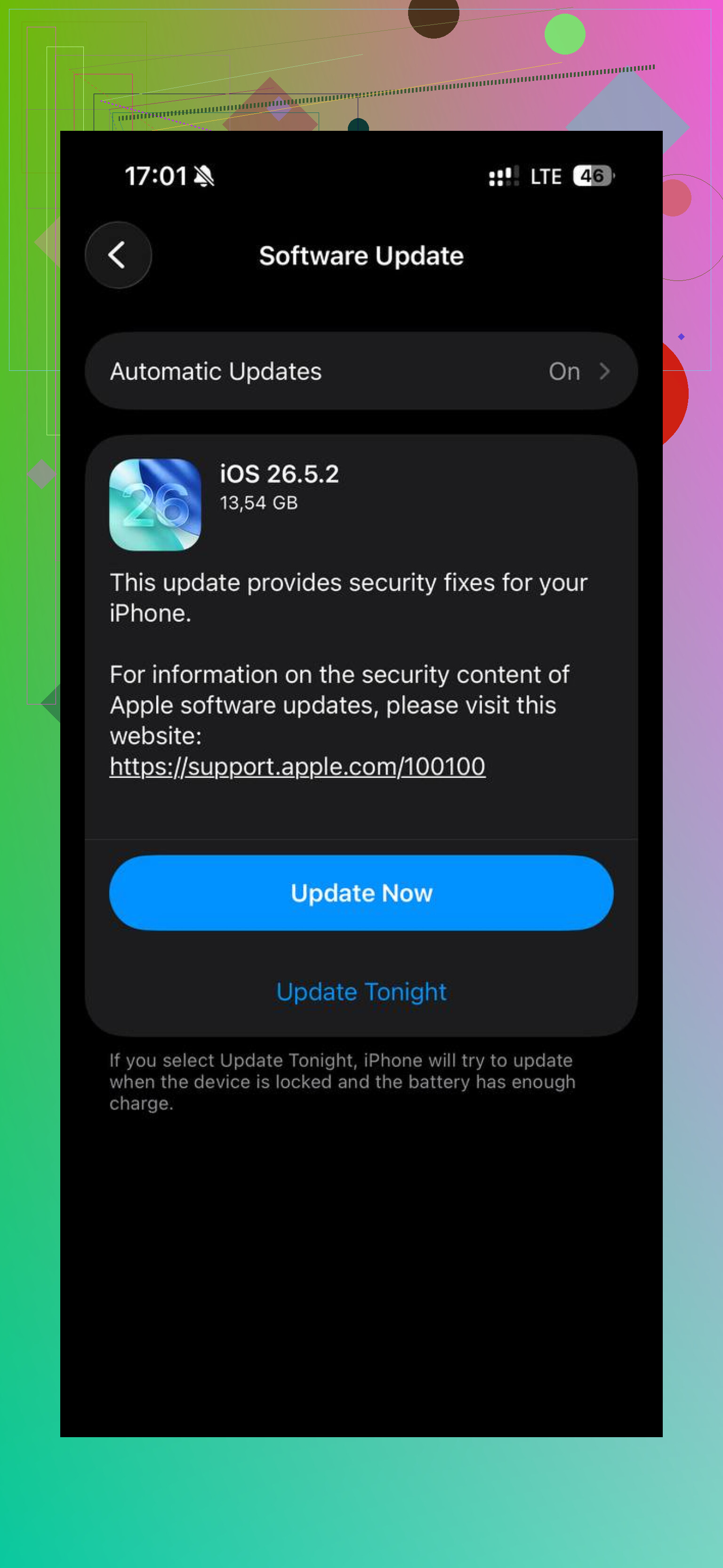
Aim to free at least 5 GB. Then leave the storage page open for a minute and restart your iPhone. Check Available space, not the colored bar. If no recommendations appear, connect the phone to a Mac or PC and install any pending iOS update through Finder or Apple Devices.
Auto Delete Old Conversations that @hawk.data mentioned isn’t a cache trick, it permanently wipes messages older than a year, attachments and all. Fine if you never look back, painful if you do. I’d pull the big attachments manually first and leave that toggle alone.