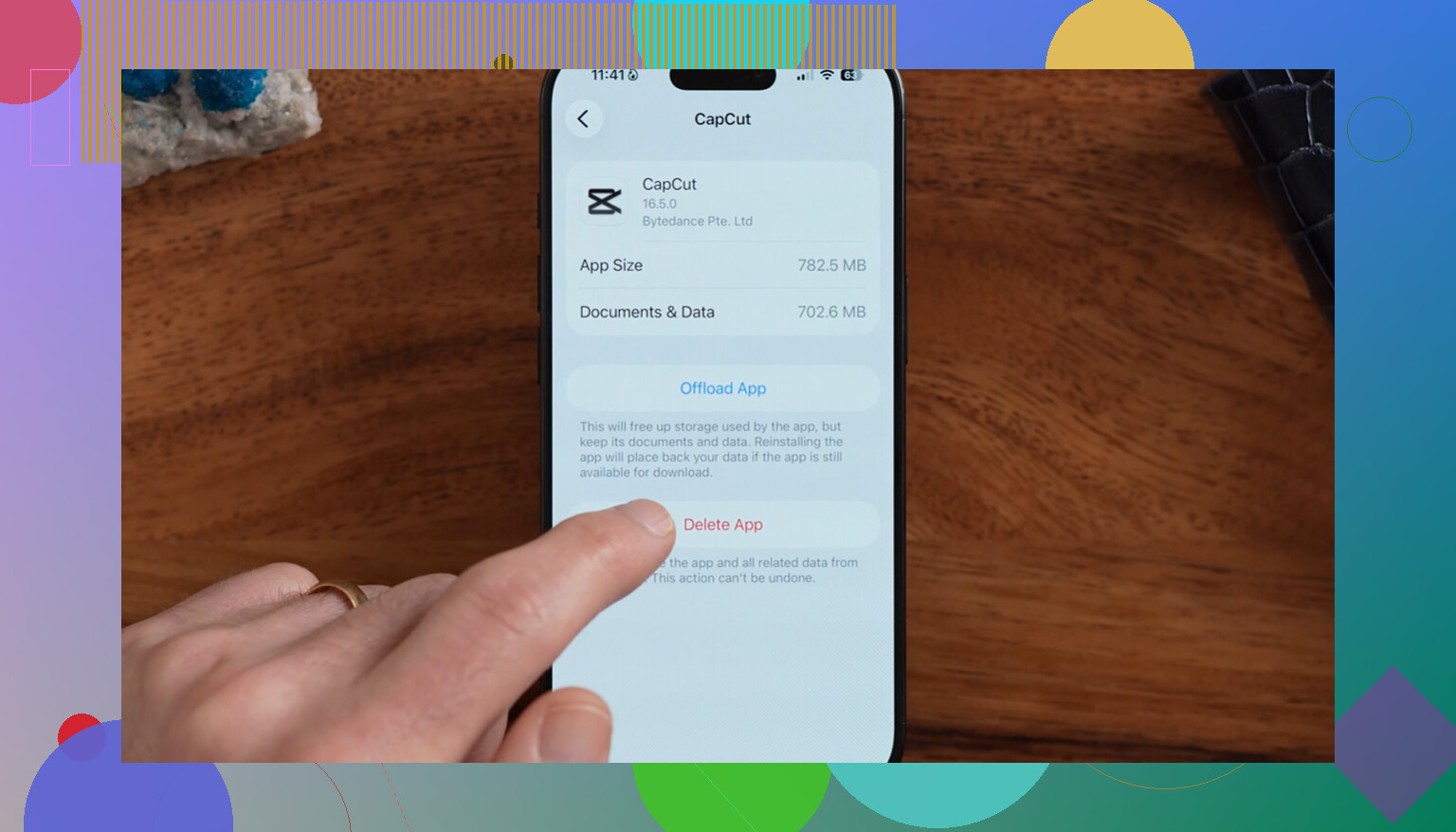
I’m trying to free up iPhone storage and want to see how much space the Trash or Recently Deleted folders are taking up. I deleted photos and files, but my storage still looks full, so I need help finding where that space is being used and how to clear it safely.
The annoying part about “trash” on an iPhone is that there isn’t one main trash can. Deleted stuff is scattered across apps, and each app has its own version of Recently Deleted or Trash.
If you’re trying to recover space, start with Photos. That’s usually where the biggest hidden pile is.
Where deleted items are stored on iPhone
Photos: Open Photos, tap Albums, then scroll all the way down to Utilities and open Recently Deleted. You’ll need Face ID or your passcode. Photos and videos stay there for 30 days before they’re gone for good. You can recover individual items, or use Select and Delete All if you want to permanently clear it.
Files: Open the Files app, go to Browse, and look under Locations for Recently Deleted. This works more like a normal trash folder. You can restore files back to where they came from or delete them permanently.
Notes: Go back to the main folder list in Notes and look for Recently Deleted. Deleted notes sit there for 30 days.
Messages: In Messages, tap Edit or Filters in the top corner, then choose Show Recently Deleted. Deleted conversations from the last 30 days show up there, and you can recover them or remove them permanently.
Mail: Mail is a little different because every email account has its own Trash folder. You’ll see those in the Mailboxes list. Also, Mail trash usually syncs with your email provider, so emptying it can delete the server copy too. If you’re clearing it out, tap Edit, then Select All, but skim through before confirming so you don’t wipe something important.
Does deleting from iPhone trash also delete it from iCloud?
For Photos and Notes, yes. If iCloud sync is turned on, permanently deleting something from Recently Deleted removes it from iCloud and from every device using that same Apple ID.
Files is more flexible. If the file is in iCloud Drive, you can long-press it and choose Remove Download. That removes the local copy from your iPhone, but the file stays in iCloud and can be downloaded again later. That’s usually the safer option if your goal is just freeing up space.
How to check what’s actually using storage
Go to Settings > General > iPhone Storage. The bar at the top gives you the category breakdown, and the app list shows how much space each app is using. At the bottom, System Data can also get pretty large because it includes caches, logs, and temporary files that iOS doesn’t always clean up right away.
Why low storage makes an iPhone feel slow
Once your iPhone is down to the last few gigabytes, iOS has less room for background tasks and temporary files. That’s when you start seeing camera lag, slower app launches, and choppy app switching. Emptying Recently Deleted helps, but it usually doesn’t solve the whole problem because the photo library is often the real storage hog.
Clever Cleaner is useful for the part that manual trash cleanup doesn’t really touch. It focuses on media cleanup and is free, with no ads and no subscription.
After you clear the built-in trash folders, use it like this:
- Open the Heavies tab first. It sorts files from largest to smallest and shows exact file sizes. Deleting just one or two huge videos can free up more space than clearing every Recently Deleted folder.
- Go to the Similars tab next. It groups near-duplicate photos and picks a Best Shot, so you can clear a bunch of repeated shots without checking every single one by hand.
- Check Screenshots too. Each screenshot shows its file size, and those pile up faster than people expect.
- Everything runs on the iPhone itself, so your files aren’t uploaded to an outside server.
The cleanup order that makes the most sense is: Photos Recently Deleted first, then Files, Notes, and Messages. After that, run Clever Cleaner on the photo library for large videos, duplicate-looking shots, and screenshots. If you can keep at least 10 to 20 percent of your storage free, the phone tends to stay much more responsive.
Don’t install another cleaner or start wiping apps until you check whether iOS has actually recalculated storage. The iPhone often lags behind after big deletes, especially photos/videos. After emptying Recently Deleted, give it a few minutes, then restart the phone and check Settings > General > iPhone Storage again.
mikeappsreviewer is right that there is no one master Trash folder, but the key catch is this: iOS does not usually show “Recently Deleted is using 8.4 GB” as its own separate number. You mostly have to infer it from the app. If Photos is huge in iPhone Storage, then Photos Library plus Recently Deleted plus local photo cache are all part of that general Photos usage. Same idea with Files, Mail, Messages, and third-party apps.
A common gotcha is Google Photos, Dropbox, OneDrive, WhatsApp, Telegram, etc. Deleting from Apple Photos will not clear those apps’ own caches or trash areas. Check the big apps listed under iPhone Storage and open them directly if their “Documents & Data” number looks too large. Clever Cleaner may help with finding large videos or duplicate-looking photos, but it will not magically expose one hidden iPhone trash size because iOS does not present storage that way.
If you want the fastest rough answer: go to iPhone Storage, note the size of Photos or Files, empty that app’s Recently Deleted, restart, then check the same app size again. It is a bit clumsy, but that before-and-after number is usually the closest you’ll get.
If iCloud Photos is set to Optimize iPhone Storage, the number you see on the phone can be misleading. A video sitting in Recently Deleted might be huge in iCloud, but only a smaller local copy may have been on the iPhone, so permanently deleting it may not free as much phone storage as you expect.
The annoying answer is that you usually cannot open a “Trash” screen and see “this is using 12 GB.” iOS just doesn’t expose it that way. Recently Deleted is more of a holding area inside each app, and the storage is rolled into that app’s storage number.
The closest practical way to measure it is this:
- Go to Settings > General > iPhone Storage.
- Write down the size of the app you care about, usually Photos, Files, Messages, or Mail.
- Open that app and empty its Recently Deleted or Trash.
- Restart the iPhone.
- Go back to iPhone Storage and compare the same app size.
That still is not perfect, because iOS may clean caches at the same time, re-download thumbnails, or take a while to update the storage screen. But it is the closest you get without guessing.
For Photos specifically, do not rely only on the Recently Deleted item count. Ten deleted screenshots and ten deleted 4K videos are not remotely the same thing, and the album does not give you a useful total size. If you want to know whether Photos is the problem, check the Photos app size under iPhone Storage before and after emptying Recently Deleted.
Files has a small trap too. If the file was in iCloud Drive, deleting the local download is different from deleting the actual file. “Remove Download” frees local iPhone space while keeping the file in iCloud. Emptying Recently Deleted deletes the file for real. So if you are just trying to make room on the phone, removing downloads is often safer than emptying everything.
Mail is even messier. The Trash folder may be tied to Gmail, Outlook, Yahoo, etc., and emptying it may affect the account everywhere. But Mail usually is not the giant storage hog unless it has a lot of attachments cached. If Mail is large in iPhone Storage, removing and re-adding the account can sometimes clear local junk better than manually digging through trash folders.
Messages is the one people skip. Deleted conversations are only part of it. Big attachments can sit in active conversations, so even after clearing Recently Deleted, Messages may still be huge. In iPhone Storage, tap Messages and look for large attachments, videos, GIFs, and documents. That screen is often more useful than the deleted messages folder.
So the short version is: you can’t see one combined Trash size. You have to check the app’s storage number, empty that app’s deleted area, restart, and compare. If the number barely moves, the space probably was not in trash anymore. It may be in active photos/videos, message attachments, app caches, offline downloads, or System Data waiting for iOS to clean itself up.