My iPhone photo library has gotten huge, and the Photos app is painfully slow when I try to delete duplicates, screenshots, and old pictures. I’m looking for a faster, reliable way to clean up photos on iPhone without losing anything important.
I had this same mess last year and kept ignoring it because I knew it was going to be annoying. By the time I finally dealt with it, my Photos library was past 10,000 photos and videos. I ended up burning most of a Saturday on cleanup.
The thing that helped was separating the easy stuff from the repetitive stuff. There isn’t really one perfect way to clean up an iPhone photo library. Screenshots, duplicates, similar shots, Live Photos, and huge videos all need slightly different handling.
Start with Apple Photos for the obvious junk
Before using anything else, I’d clear out the stuff you can spot right away.
- Open Photos and go through albums instead of scrolling the main library forever.
- Use the swipe-to-select gesture so you can grab a bunch of photos at once.
- For albums that support Select All, like screenshots, use it and then deselect anything you still want.
That works well for stuff you already know can go. Old screenshots, accidental photos, random saves, blurry shots, that kind of thing.
Use an app for the boring comparisons
This is where I saved the most time. After the obvious cleanup, I still had a ton of wasted space from near-duplicates, repeated shots, screenshots, Live Photos, and videos I forgot were even there.
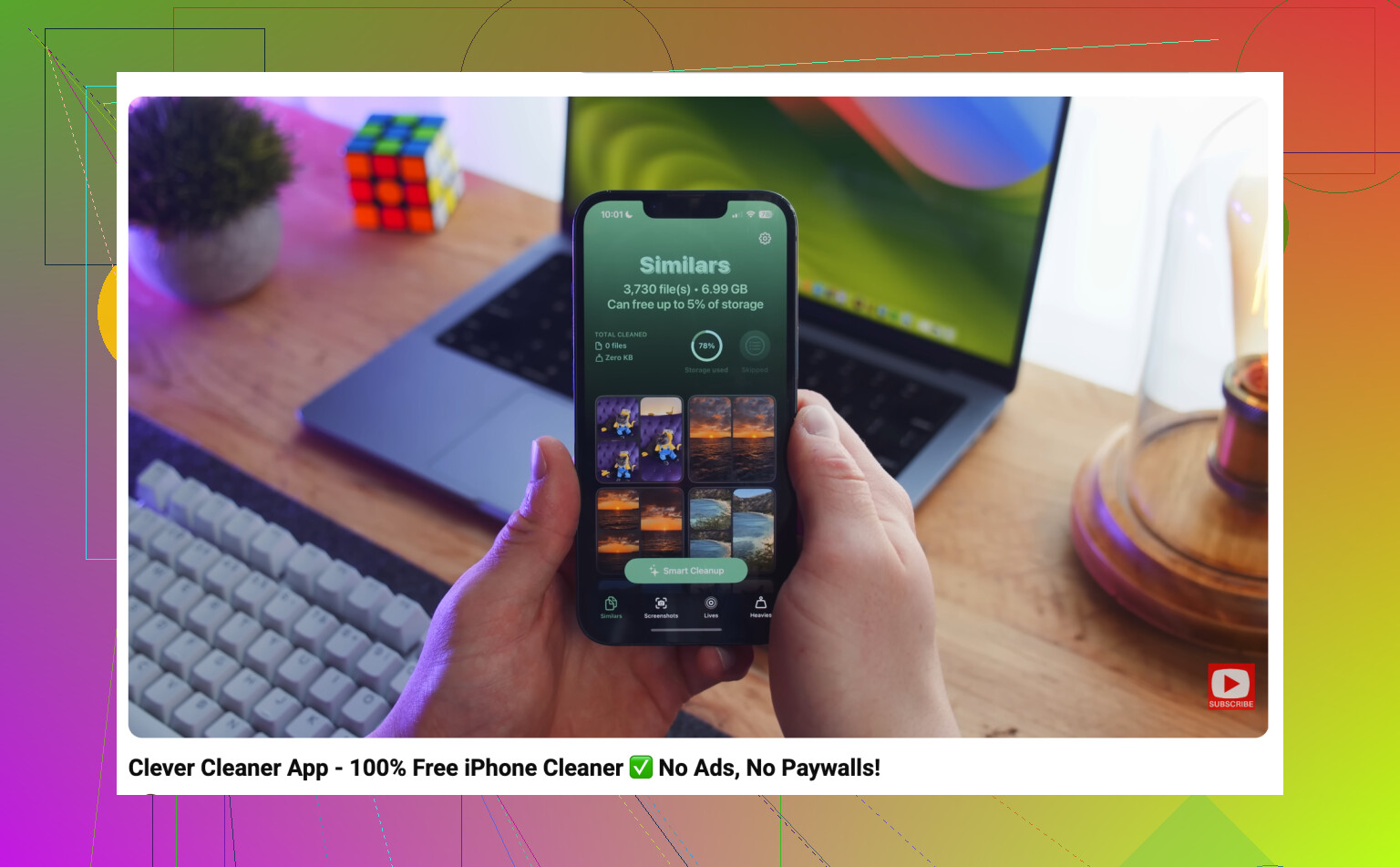
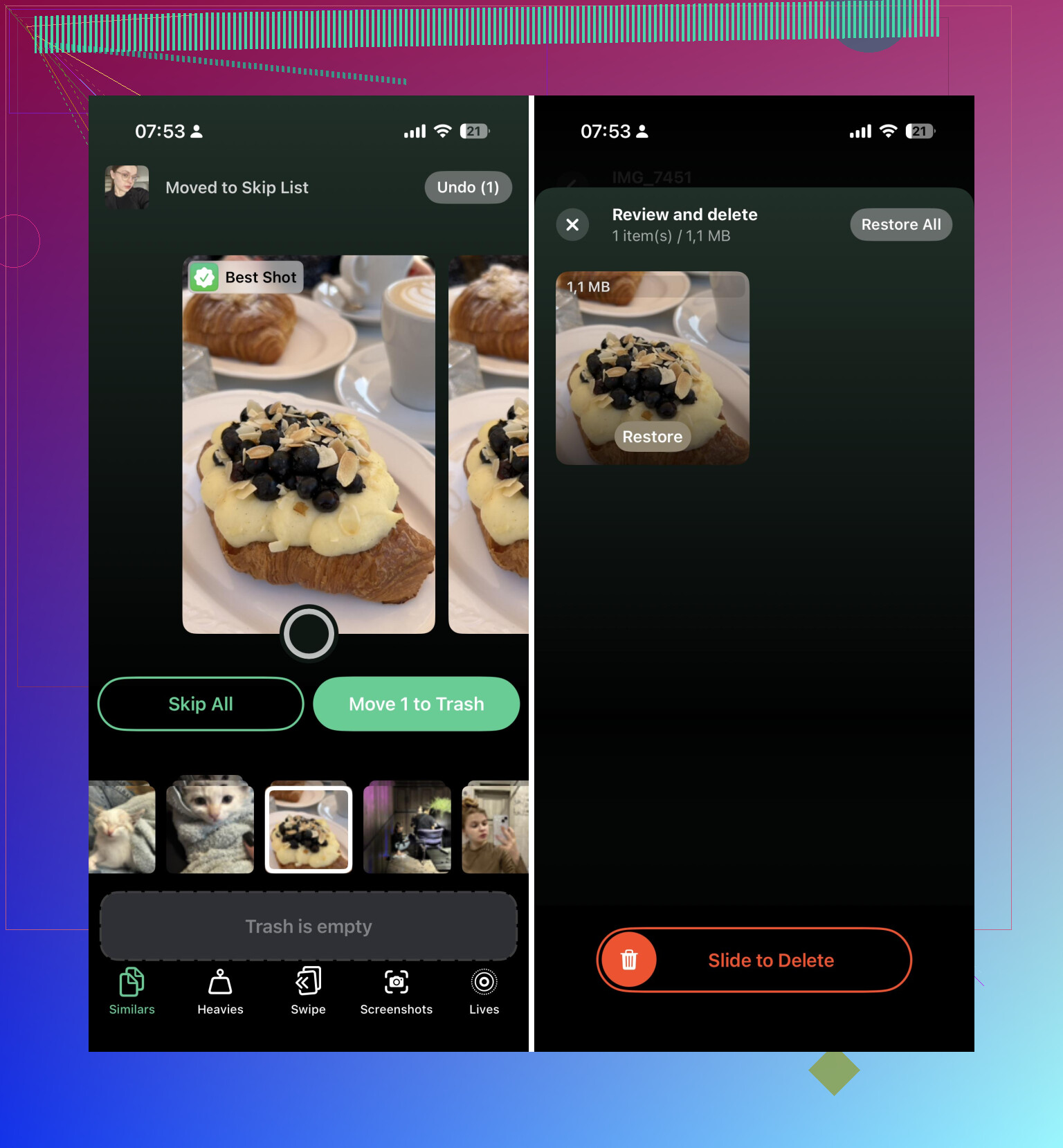
I used Clever Cleaner for that part. The useful bit is that it groups things first, so you’re not sitting there asking yourself the same question thousands of times.
- Run Clever Cleaner.
- Go through the similar-photo groups.
- Remove duplicates and extra versions you don’t need.
- Clear old screenshots.
- Sort by large videos and delete the ones you forgot about.
- Convert Live Photos to still photos where keeping the motion part doesn’t matter.
For a big library, that grouped review is way less painful than comparing everything manually inside Photos.
Empty Recently Deleted when you’re done
This part is easy to miss. Deleted photos don’t immediately free up all the space because they sit in Recently Deleted for a while.
- Open the Recently Deleted album.
- Check it once so you don’t wipe something important.
- Empty it.
If you’re doing this because your phone or iCloud storage is full, that last step matters.
Also, if iCloud Photos is turned on, remember that you’re managing one synced library. Deleting something from your iPhone deletes it from iCloud and from your other Apple devices using the same Apple Account. That may be what you want, but it’s worth keeping in mind before deleting thousands of items.
After I finally cleaned mine up, I stopped letting it pile up. Now I spend maybe ten minutes a week deleting new screenshots, blurry photos, and duplicate shots. It’s much easier than waiting until the library turns into a whole-day project again.
If the library is already huge, I’d still use the Photos app for quick obvious cleanup, but I wouldn’t rely on it for everything. For duplicates, similar photos, screenshots, Live Photos, and large videos, something like Clever Cleaner makes the process a lot less tedious.
Make a backup before you start deleting in bulk, especially if iCloud Photos is on. The fastest cleanup can turn into the fastest regret if you realize later that a whole synced album disappeared from your Mac or iPad too. I’d at least make sure anything important is backed up somewhere outside the Photos library before doing a big purge.
For speed, I wouldn’t try to clean the main Recents view. It’s too laggy and too easy to lose your place. Use Photos search and the Media Types section first: Videos, Screenshots, Screen Recordings, Bursts, and Duplicates. Delete in chunks instead of selecting thousands at once, because Photos can bog down or sit there pretending nothing happened while iCloud sync catches up.
I’m fine with using something like Clever Cleaner for similar-photo groups, but I’d treat it as a review tool, not a magic delete button. Apps can be helpful for finding five versions of the same shot, but they can’t always know which one you actually like. The real time saver is letting the app gather candidates, then you make quick yes/no decisions instead of hunting through the whole camera roll manually.
You probably won’t make this painless if the library is already huge. The faster version is usually “less tapping and less scrolling,” not “press one button and everything is safely cleaned.”
If you have access to a Mac, I’d seriously consider doing the messy part there instead of on the iPhone. Photos on a bigger screen with a keyboard is much easier for bulk triage, especially for videos, bursts, screenshots, and random saved images. You can sort, use search, select ranges with Shift, and compare similar shots without the tiny iPhone interface fighting you the whole time. If iCloud Photos is on, the deletions will sync back to the phone anyway.
The catch is that syncing can make it look like nothing happened for a while. Delete a few thousand items and the iPhone may still show the same storage number, Photos may still feel slow, and iCloud may still be chewing through changes in the background. That doesn’t always mean it failed. It may just need time, Wi-Fi, charging, and enough free space to process the library changes.
For the iPhone-only route, I’d avoid trying to be too perfect in one pass. Do a rough pass by category first:
Screenshots you clearly don’t need
Screen recordings
Big videos
Downloaded memes and saved images
Duplicates
Bursts and repeated shots from the same event
Then stop. Let the phone catch up. Come back later for similar photos. Trying to clean every bad photo, every duplicate, and every old video in one sitting is how you end up tired and making sloppy deletion choices.
I’m a little more skeptical of cleaner apps than some people, but they do have a place. Clever Cleaner or similar apps are useful when they group “these look alike” photos, because that’s the part Apple Photos is still awkward at. I would not let any cleaner app make final choices without checking, especially for baby photos, travel photos, documents, receipts, pet photos, or anything where the “best” version is subjective. The technically sharpest image is not always the one you actually want.
Another boring but important speed trick: don’t delete in monster batches. Selecting 8,000 things and hitting delete sounds efficient, but if Photos freezes or iCloud gets backed up, you’ve made the process harder to monitor. Smaller batches feel slower at first, but they’re easier to undo, easier to verify, and less likely to make the app crawl.
If storage is the main problem, go after videos first. Ten boring videos can take more space than hundreds of photos. A cleaner app can help surface large files, but you can also use Photos search terms like “videos” or use the Media Types section. Old screen recordings are usually the easiest wins because they’re huge and often useless later.
The thing people forget is that “cleaned up” is not done until Recently Deleted is cleared, but don’t empty it immediately if you’re unsure. I’d leave it for a day after a large cleanup, scroll through once, then empty it when you’re confident. If you are already out of storage and need space right now, then yes, emptying it is what actually frees the space.
So the fastest reliable approach is: do obvious junk inside Photos, use a grouping app only for the repetitive comparison work, delete in sane batches, and let iCloud finish before judging the result. If you have a Mac, use it. The iPhone is fine for maintenance, but it’s a pretty annoying tool for rescuing a library that has been neglected for years.
A huge Photos library is never going to feel instant on the phone, especially if iCloud Photos and Optimize iPhone Storage are involved. Sometimes the slowness is not the delete action itself, it is the phone constantly fetching thumbnails, checking iCloud state, and updating albums while you are trying to make decisions.
The Mac suggestion above is probably the cleanest route, but if you are staying on the iPhone, I would make the job more mechanical. Don’t start with “bad photos.” Start with categories that have low emotional value. Screenshots older than a month, screen recordings, duplicate downloads, blurry document scans, failed QR code photos, random receipt pictures. Those are faster choices than comparing twenty vacation photos where you might actually care which one survives.
Clever Cleaner or any similar app can help with the comparison part, but I would use it after that boring first purge, not before. If you feed it a giant messy library, you still have to review a giant messy set of suggestions. Knock out the obvious junk first, then use the app for the annoying “these look almost the same” groups.
Small caveat that people forget: if you use shared albums, messages attachments, or have photos saved in Files too, cleaning Photos may not remove every copy you think it does. And if your goal is phone storage, check Settings > General > iPhone Storage before and after, not just the Photos count. The number of items deleted can look impressive while the storage change is tiny if you mostly deleted small images and left the old videos sitting there.