My iPhone storage is almost full, and I found that old screenshots are taking up a lot of space. I’m trying to find a free tool or app that can sort and delete iPhone screenshots by file size so I can clean them up faster. Has anyone found an easy way to do this without paying for a subscription?
I hit this wall a while back. Opened Photos, thought I had a normal camera roll, and nope. It was stuffed with junk screenshots. Boarding passes from a trip I barely remembered, login codes, random product pages, a recipe I never made. Screenshots pile up because they’re frictionless. Press two buttons, move on. Months later, your phone pays for it in storage.
If you deleted a bunch and your free space still looks almost the same, check Recently Deleted. This is the part people miss all the time. When you remove images from the main library, iPhone doesn’t erase them right away. It shoves them into Recently Deleted in Photos under Utilities and leaves them there for 30 days. They still take up space the whole time. If you want storage back now, open Recently Deleted, tap Select, then Delete All. That’s the step where the space comes back.
When the screenshot mess is huge
I tried the one-by-one method once. Bad idea. If you’ve got thousands, use the built-in Screenshots album instead. Go to Albums, scroll down to Media Types, open Screenshots, tap Select, then tap one image and drag your finger across the row and downward. iOS will keep selecting as you sweep. It’s a lot faster than pecking at each thumbnail like a maniac.
Small warning from doing this on an older iPhone. Photos gets flaky when the delete batch is too large. Around 1,000 items in one shot is where I started seeing hangs and app crashes. Doing chunks of 400 to 500 worked better for me. Slower on paper, faster in real use.
The app I found less annoying than the rest
I went through the usual App Store junk first. Most cleaner apps do the same thing. They scan, wave a few obvious files in your face, then block the cleanup behind a subscription or a trial timer. One exception I ran into was this one.
It’s from the CleverFiles team. What stood out to me was the lack of nonsense. No ads shoved in your face, no paywall halfway through, no countdown clock trying to rush you. It separates screenshots from the rest of your library and shows file sizes, so you see what you’re about to remove before you commit.
The part I liked most was Heavies. It sorts your media from biggest files down to the small stuff. So instead of deleting 2,000 tiny screenshots and wondering why you only got a little space back, you can start with the worst offenders. Full-page screenshot PDFs, giant HDR images, weird oversized saves, those are usually where the real storage went. That saved me time.
If you want it to clean itself up later
I messed with Shortcuts for this, and it worked once I set it up right. In Shortcuts, build one with Find Photos, filter it by “Is a Screenshot,” then add a date rule like older than 30 days. After that, add Delete Photos. Save it, and you can run it whenever you feel like clearing old junk. Siri works too if you prefer barking a command at your phone.
One setting trips people up. Go to Settings, Apps, Shortcuts, Advanced, then turn on Allow Deleting Large Amounts of Data. If you skip it, the shortcut errors out. I did that the first time and thought I broke something. Nope. Apple hid the switch.
Before you wipe everything
I’d slow down for a minute before mass deleting. Screenshots are messy, but they also end up holding useful stuff by accident. Tickets. Tracking numbers. One-time codes. A password screenshot you took in a rush and forgot about. Once you empty Recently Deleted, getting those files back gets harder fast. If you mess up, recovery software is the route I’d look at first. Hoping iCloud saved a copy somewhere was not a plan I’d trust.
One trick helped me stop making the same mess again. After taking a screenshot, tap the preview, hit Share, then use Copy and Delete. The image goes to your clipboard so you can paste it into Messages, Mail, Notes, wherever. It never lands in your library. No saved file, no cleanup later. I wish I started doing that sooner tbh.
Yes, but with one catch. iPhone does not give you a native way to sort screenshots by file size inside Photos. You sort by date, not size. So if file size is your main filter, you need a third-party app.
I don’t fully agree with @mikeappsreviewer on focusing too much on bulk deletion first. If your screenshots are mostly tiny PNGs, deleting 2,000 of them might free less space than removing 50 huge files. Size matters more than item count.
A free option worth trying is Clever Cleaner. It’s a free iPhone cleaner app for clearing storage fast, and it does a better job surfacing large media than Photos does. If you want to check it, here’s the App Store page for free iPhone storage cleanup with Clever Cleaner.
Why it fits your use case:
- It identifies screenshots separately.
- It shows file sizes, so you delete the biggest ones first.
- It’s free, which is rare becuase most cleaner apps stop you with a paywall after the scan.
One thing I’d do before deleting anything. Look for long screenshots, screen recordings, and saved full-page captures. Those are often way bigger than normal screenshots. A standard screenshot might be a few MB or less. A long full-page one or screen recording eats way more space.
If you want the fastest route:
- Scan in Clever Cleaner.
- Sort the screenshot-related stuff by size.
- Delete the largest batch first.
- Empty Recently Deleted after, or the space won’t come back right away.
If you don’t want any app at all, the free manual route is using the Screenshots album, but you won’t get file-size sorting there. That’s the part Apple still makes annoyngly hard.
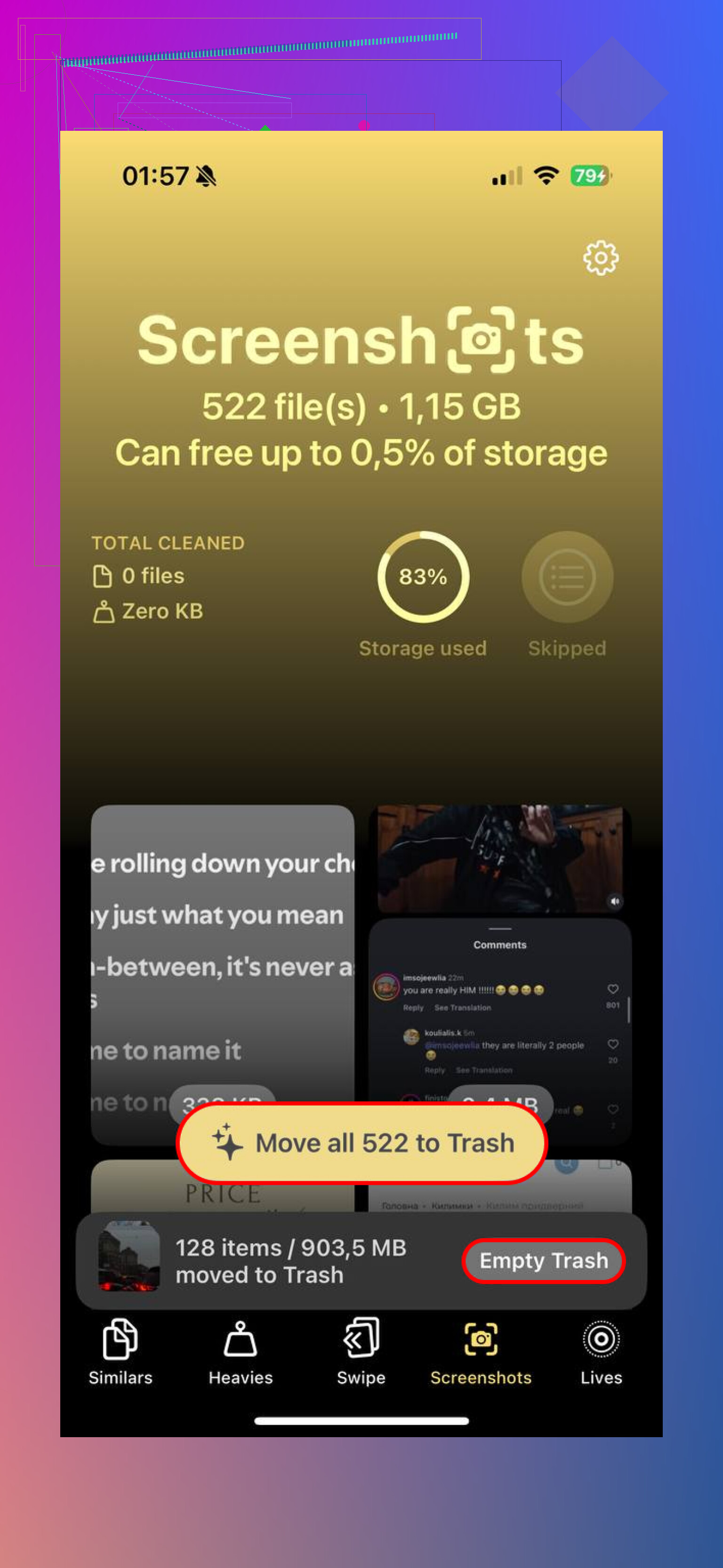
If you specifically want free and sort screenshots by file size, the annoying truth is Apple’s Photos app still doesn’t really do that natively. So on that narrow question, yeah, a third-party app is the easier route.
I’ll mildly disagree with @mikeappsreviewer on one point: batch deleting from the Screenshots album is fine, but it’s not always the smartest cleanup. A thousand tiny screenshots can take less space than a handful of giant stitched captures or screen recordings you forgot about. @suenodelbosque is closer on that part. Size-first is usually the better move.
What actually worked for me was Clever Cleaner. It’s one of the few apps that doesn’t instantly turn into “scan complete, now pay us $7.99 a week” nonsense. It can surface large files and makes screenshot cleanup way faster than manually digging through Photos.
Also worth checking: full-page Safari screenshots saved as PDFs, long chat captures, and accidental duplicate screenshots. Those are usualy the sneaky storage hogs, not just normal screen grabs.
If you want more opinions before installing anything, this thread is pretty useful: see how people are freeing up iPhone storage with Clever Cleaner.
One extra tip nobody mentions enough: go to Settings > General > iPhone Storage > Photos and see whether the bloating is really screenshots or if Photos is just the biggest bucket overall. Sometimes the screenshots feel like the culprit, but videos are quietly eating 10x more space. Kinda brutal, but worth checking before you start deleting stuff you actualy needed.
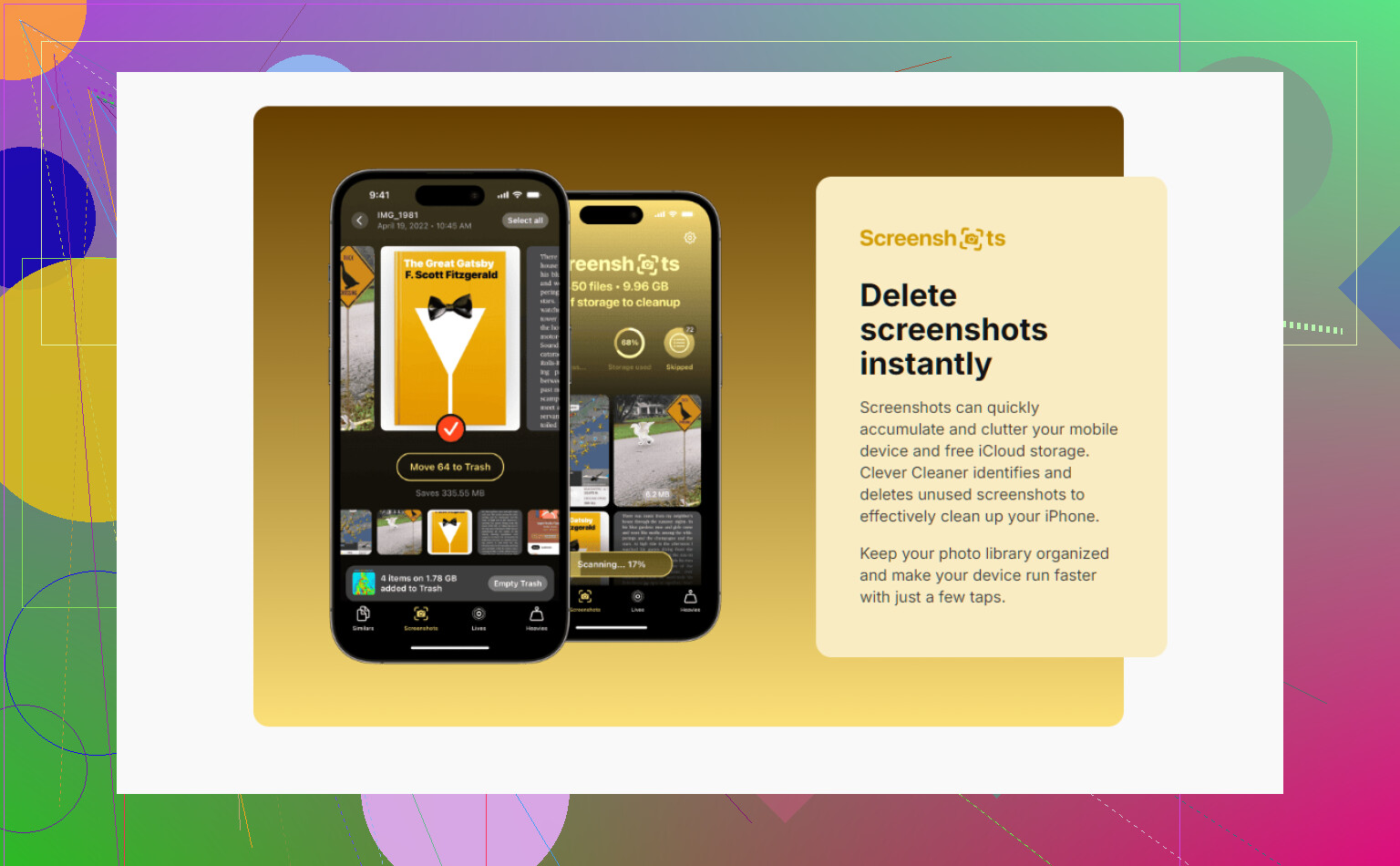
I’m with @suenodelbosque on the core point: if your goal is space back fast, file size matters more than raw screenshot count. But I don’t completely buy the idea that you need to obsess over “screenshot-only” cleanup. On most iPhones, the real pigs are usually videos, screen recordings, and full-page captures, not regular screenshots.
So, short answer: yes, but not really with Apple’s own Photos app. If you specifically want to sort/delete by size, a free cleaner app is the practical route, and Clever Cleaner is one of the few that people keep mentioning without the usual subscription trap vibe.
Pros of Clever Cleaner
- shows larger media clearly
- separates screenshots well enough to make cleanup easier
- actually useful on the free tier
- faster than digging through Photos manually
Cons
- still another app that needs photo access
- size-based cleanup can tempt you to delete things too aggressively
- depending on your library, screenshots may not be the biggest win
Where I differ a bit from @chasseurdetoiles and @mikeappsreviewer: I’d use a cleaner app mostly as a triage tool, not as the whole solution. Scan, find the chunky stuff, remove the obvious junk, then go back into iPhone Storage and verify what actually shrank. That keeps you from wasting time deleting 800 tiny screenshots for almost no payoff.
Also check for:
- Safari full-page screenshot PDFs
- screen recordings
- edited screenshots exported in higher size formats
- images inside Files, not just Photos
If you only want a free answer: Clever Cleaner is probably the closest fit. If you want the absolute safest answer: review the biggest files first, not the most files.