Some files suddenly disappeared from my external hard drive, and I do not have a backup anywhere. The drive is detected, but important photos and work documents are missing, and I am afraid to use it more in case the data gets overwritten. I need help figuring out the safest way to recover missing files from an external hard drive without a backup.
I ran into almost the same mess a while back. My external drive still showed up in Windows, looked normal at first glance, but whole folders were gone. I thought I had wiped years of stuff by accident. What I found later was file system damage, not total data loss. Most of the files were still sitting there, hidden behind a broken directory structure, and I got nearly all of them back.
If your drive is still detected, I’d take that as a decent sign. It does not mean your files are safe, but it does mean you still have a shot. The part where people get burned is the next ten minutes. A lot of the usual “fixes” change the drive, and once you overwrite file system info, recovery gets uglier fast.
So first thing, stop touching the drive. Don’t copy new files to it. Don’t format it. Don’t run CHKDSK yet. Don’t throw random repair tools at it becuase a blog post said so. If the missing data is still recoverable, those steps can make the job harder.
I’d check the easy stuff first:
- In File Explorer, enable Hidden items. I’ve seen files look “gone” when they were only hidden.
- Look at used space on the drive. If the folders look empty but the drive still shows most of its storage as occupied, that usually means the data is still on disk.
- Swap the USB cable or move it to another port. Sounds dumb, but I’ve had flaky cables cause weird read behavior.
If those quick checks go nowhere, and you do not have a backup, I would skip repair attempts and go straight to recovery software.
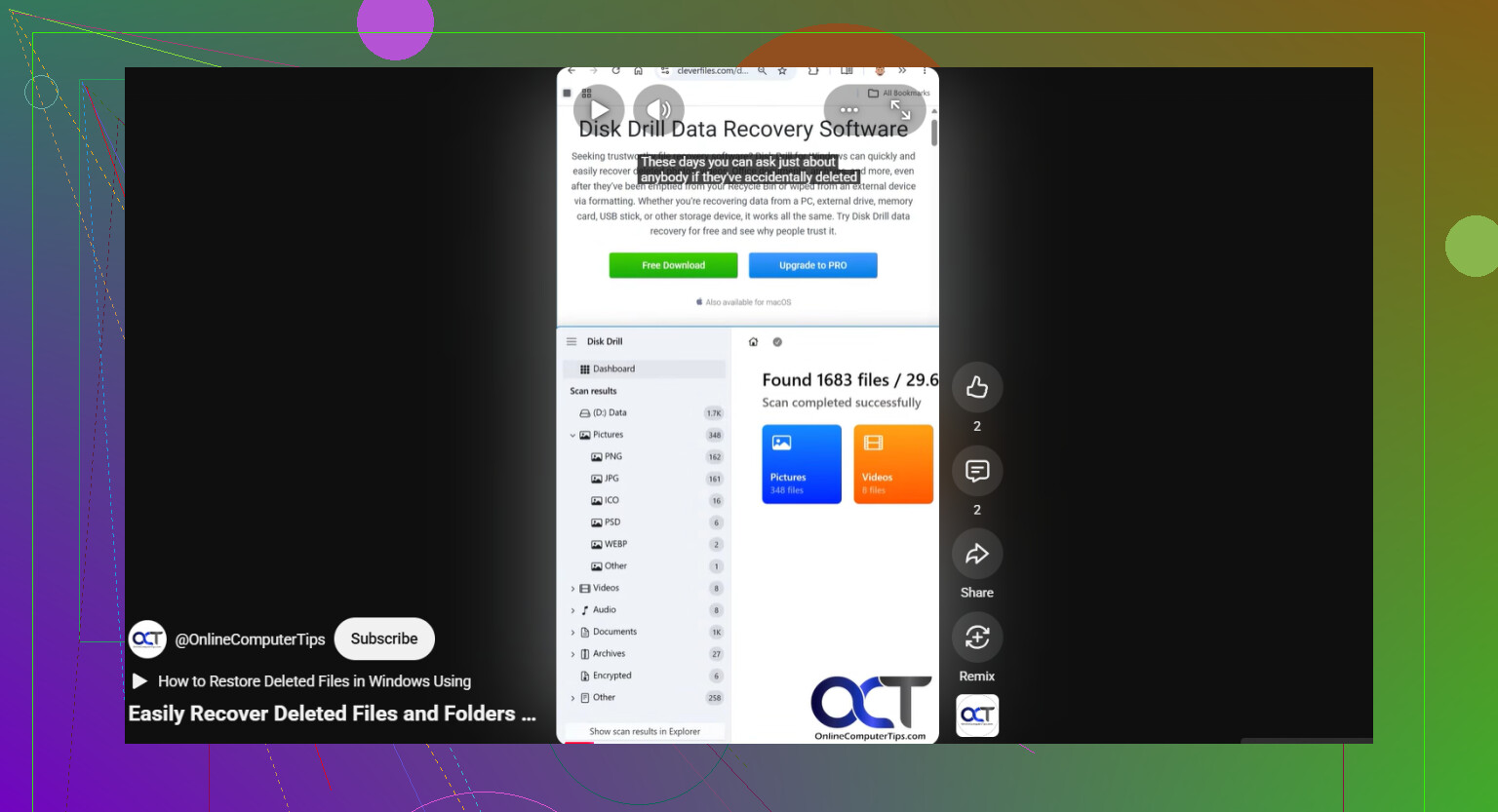
The tool I’d start with is Disk Drill. I used it because the layout is simple and it handles the common external-drive file systems without much fuss. The part I cared about most was the disk imaging option. That matters more than people think.
A disk image is a full copy of the drive at the sector level. It includes the file system records, deleted entries, damaged bits, all of it. If the drive is unstable, disconnects mid-read, or feels like it is getting worse while you work, scanning the same physical drive over and over is a bad habit. I’d image it once, then recover from the copy. That saved me a lot of stress.
This is the process I’d follow:
- Install Disk Drill on your internal system drive or another known-good disk. Do not install it on the external drive with the missing files.
- Plug in the external drive and open Disk Drill.
- If the drive keeps dropping, freezing, or acting weird, make a disk image first with the built-in tool. Scan the image, not the failing drive.
- If the drive stays stable, select it and hit Search for lost data.
- When it asks for scan mode, I’d pick Universal Scan. It rolls multiple methods into one pass, so you do not need to guess. It checks for deleted files, lost partitions, damaged file system records, and file signatures too.
- Let the scan finish. On big drives it drags a bit, yeah. Still worth waiting. I’ve seen useful files appear late in the results.
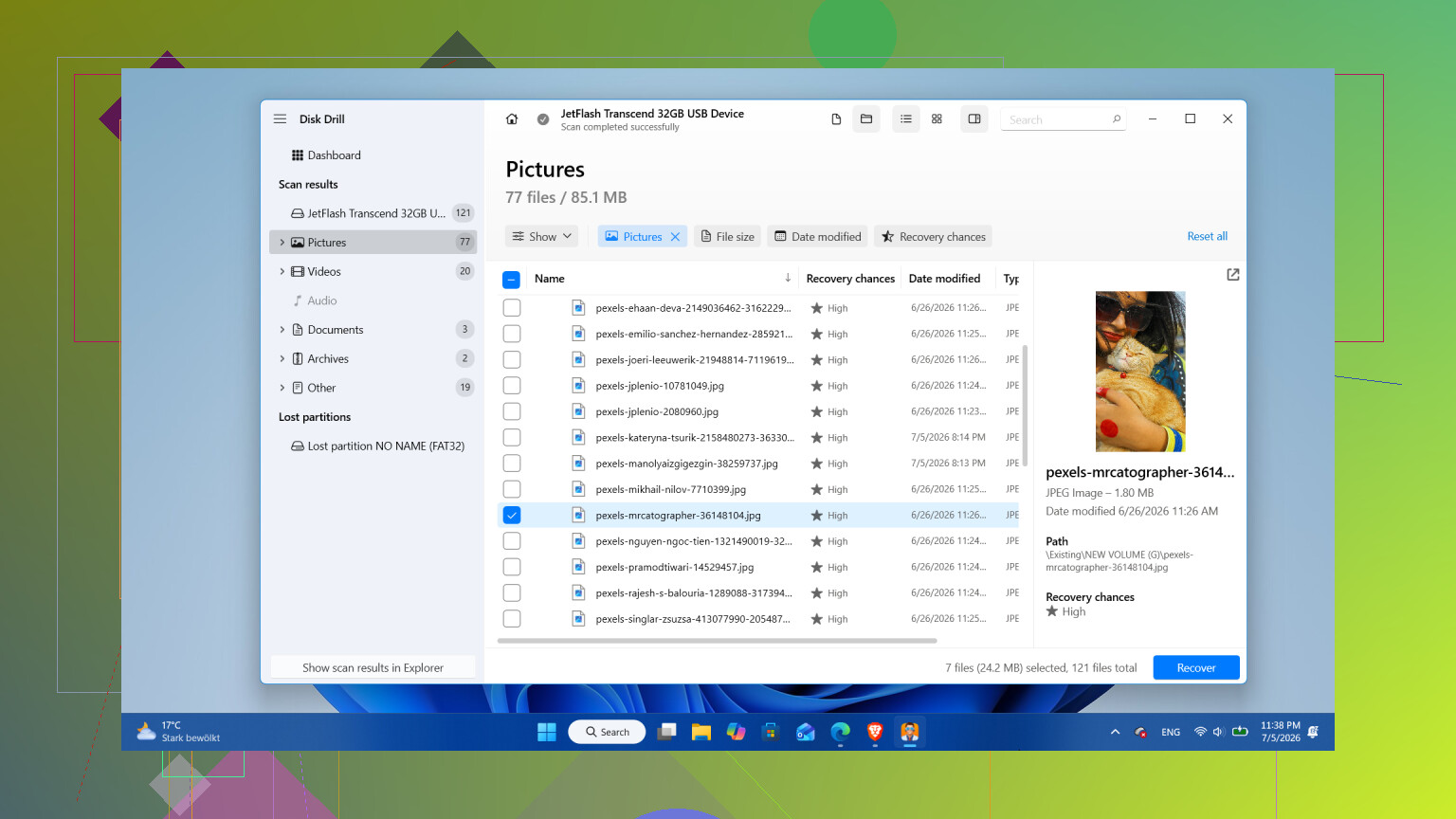
- Go through the results, use the filters, preview the files you care about, then mark what you want back.
- Hit Recover and save everything to a different drive. Never send recovered files back onto the same external drive.
On Windows, one small plus is the free recovery limit. Disk Drill lets you restore up to 100 MB for free. That won’t help much if you lost a huge photo archive, but it is enough to test whether your files come back intact before spending money.
I would leave repairs, scans with Windows tools, and reformatting until after the important files are off the drive.
One case where I would not keep pushing software recovery is physical failure. Clicking, grinding, repeated disconnects, painfully slow reads, or a drive vanishing from Windows every few minutes, those are bad signs. At that point I’d stop powering it up and hand it off to a recovery lab. I kept one dying drive running too long once, and yeah, it got worse.
After you get the files back, I’d think hard about retiring the drive. Drives do not start dropping folders for no reason. If it was a one-off file system issue from a bad eject, a reformat might be enough. If it starts acting up again, loses files twice, shows bad sectors, or cuts in and out, I wouldn’t trust it with anything I care about. Replace the drive, keep another backup, move on.
Yes. If the drive still mounts, you still have a path.
I agree with @mikeappsreviewer on one big point. Stop using the drive. Every write lowers your odds. Where I differ is CHKDSK. People treat it like a safe first step. It is not. On a drive with missing folders, CHKDSK often turns a recovery job into a cleanup job.
A few things to check before scanning:
- Open Disk Management. See if the partition size looks correct and the file system shows normally.
- Open an admin Command Prompt and run dir /a on the drive letter. Hidden and system files sometimes still show there when Explorer lies.
- Check Event Viewer, Windows Logs, System. Look for disk or NTFS errors around the time files vanished.
- If this is a Mac-formatted drive on Windows, don’t trust what Windows tools show.
If the used space still looks full, your data is often still there. At ths point, use recovery software, not repair tools. Disk Drill is a solid option for external hard drive missing files recovery because it handles damaged file tables well and previews photos and docs before recovery. Install it on another drive. Recover to another drive too.
One more tip. If the files were photos or office docs, sort scan results by file type first. It saves time.
Also worth reading this thread on top data recovery software tips from Reddit users.
If the drive is clicking, disconnecting, or reading at 0 KB/s, stop. Software is the wrong move then. A lab is the safer bet.
Yes, there’s a way, but I’d be a little more cautious than @mikeappsreviewer and @mike34 on one point: don’t keep plugging the drive in over and over just to “check” if the folders magically come back. That habit alone can make a shaky drive worse.
If the external HDD is detected and not making horrible noises, your missing files may be the result of a corrupted index, bad sectors in one area, or files getting dumped into a lost directory. Sometimes the data is still there even when Explorer pretends it isn’t. I’ve seen drives show empty folders while the raw files were recoverable just fine. Annoying, but not hopeless.
What I would do differently is verify the drive’s health before a big scan. Use something that reads SMART values if the USB bridge allows it. If you see reallocated sectors, pending sectors, or tons of read errors, treat the drive like it’s on borrowed time. In that case, clone first if possible, then work from the clone. If SMART looks clean and the drive reads normally, then run recovery software.
Disk Drill is a reasonable choice here because it’s easy to sort through photos, docs, and other common file types, and it works well as external hard drive file recovery software for HDDs when files vanish but the disk still mounts. I’d use it to scan the external drive, preview what’s actually recoverable, and export recovered files to a totally different disk. Not back to the same one. Seriously, don’t do that.
Also, check whether the “missing” stuff got renamed or shoved into a FOUND.000 style mess after some previous error. Search by file extension, not just file name. Photos especially tend to survive with generic names.
One more thing people skip: if the files matter a lot, make a list of the most critical folders first and recover those before chasing every random file. Triage beats panic.
This little clip on recovering files from an external hard drive safely is worth a quick look too.
If the drive starts clicking, hangs your PC, or disconnects mid-scan, stop messing with it. That’s lab territory, not DIY stuff.