My iPad Photos app suddenly shows hundreds of duplicate pictures, and I’m not sure what caused it. I need help figuring out why this happened, whether iCloud Photos or syncing is involved, and the safest way to remove duplicates without losing originals.
I’d start by figuring out whether you’re dealing with true duplicates or just a bunch of near-identical photos. That makes a big difference.
Apple’s Duplicates album is pretty strict. It’s good when the same file got saved more than once, but it can miss the stuff that usually clutters up a camera roll: five shots of the same sunset, a string of selfies from a few seconds apart, screenshots you saved twice, or edited copies from Messages and other apps.
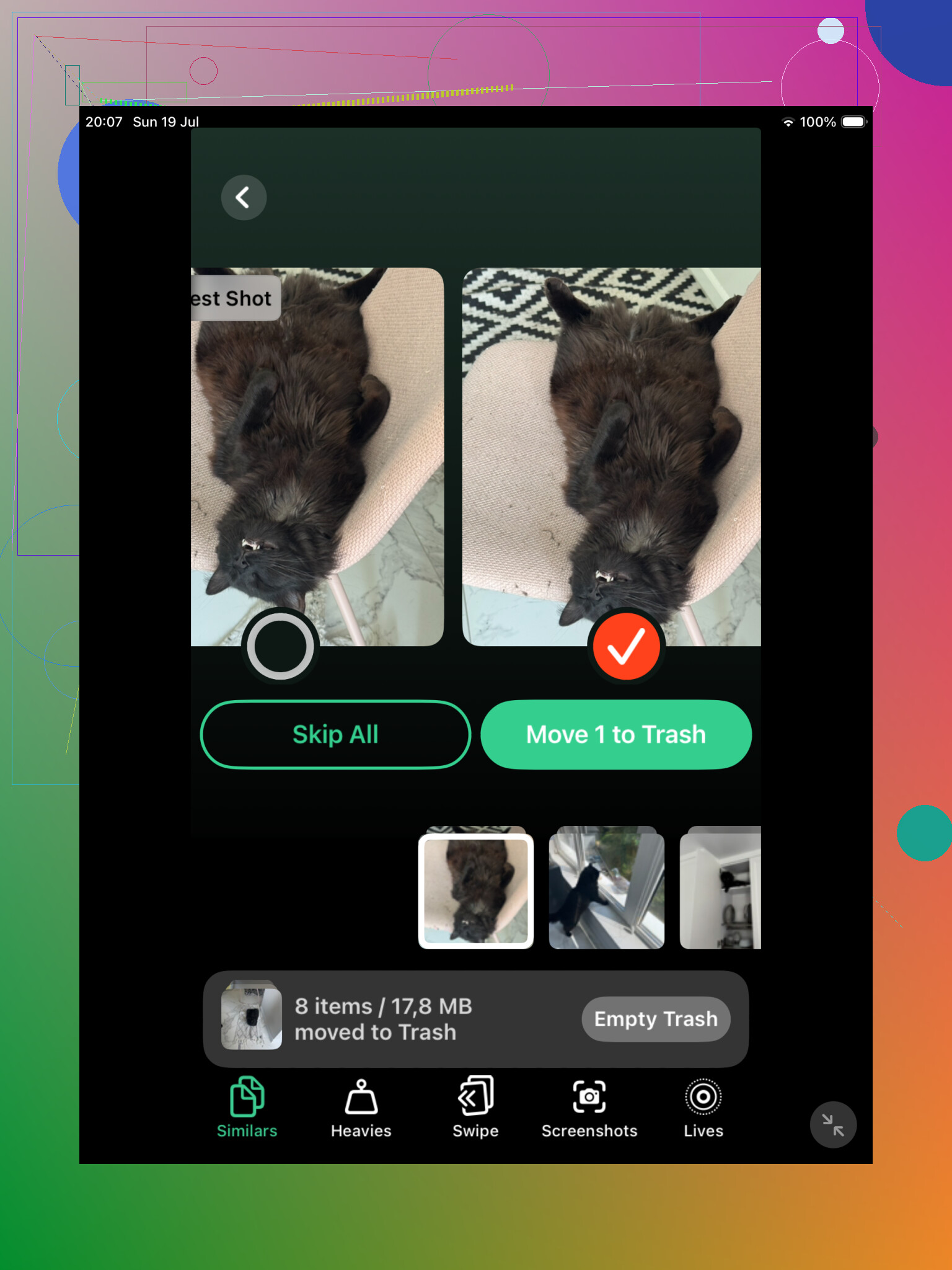
For a big photo library, Clever Cleaner is probably the better first pass. Its Similars section groups photos that look almost the same even if they aren’t technically identical files. That’s useful because most “duplicates” people notice are really just repeated versions of the same shot.
It also picks a Best Shot for each group, but I wouldn’t blindly trust it. Open the group and compare the photos yourself. You can keep the one you actually like and remove the rest. That’s still a lot faster than going through everything one by one in the Photos app, especially if your library has been building up for years.
Clever Cleaner also checks for exact duplicates, so it covers both sides: files that are actually duplicated and photos that are just very similar.
After that, I’d still check Apple’s built-in option. On iPadOS 16 or newer, open Photos, scroll to Utilities, then tap Duplicates. Apple will group matching items and show a Merge button. When you merge them, it keeps the best-quality version with the useful metadata and sends the extra copies to Recently Deleted.
If you don’t see the Duplicates album, it doesn’t always mean there are no duplicates. The iPad may still be scanning your library, especially after a big iCloud sync, a large import, or a software update. Leave it locked and plugged in for a while. With a large library, it can take a day or two. Also, the feature isn’t available on iPadOS 15 or older.
If your library is small and you mostly copied the exact same photos a few times, Apple’s tool may be enough. If you have thousands of photos and lots of repeated shots from trips, selfies, pets, screenshots, and stuff like that, Clever Cleaner will usually catch more.
You can also do it manually if you don’t want to install another app. Search in Photos for things like “screenshots,” “dog,” “beach,” or a city name. Browsing by Months or Years can help too, since trips and events are usually where repeated shots pile up. It’s slower, but it works.
One last thing: merged or deleted photos sit in Recently Deleted for up to 30 days, and they still use storage until they’re removed from there. If you need the space right away, check that album carefully and empty it.
And if iCloud Photos is turned on, deletions sync across your iPhone, Mac, and other Apple devices too. So don’t permanently delete anything unless you’re okay with it disappearing everywhere.
If they appeared after turning on iCloud Photos, I’d treat it as a sync/import problem; if they appeared after using a cable or computer, I’d suspect the same library got copied over twice. Before deleting anything, check iCloud.com/Photos or another Apple device to see whether the duplicates are actually in iCloud, because deleting from the iPad may delete them everywhere.
Check whether the duplicate photos have a trash icon when you open one of them. That tells you more than people think.
If the trash icon is missing or grayed out, those photos may have been synced from a computer through Finder/iTunes rather than created by iCloud Photos. In that case, deleting on the iPad is usually the wrong place to fix it. You have to connect the iPad back to the Mac or PC that synced them, change the photo sync settings, and sync again. A lot of people waste time trying to clean up on the iPad when the iPad is just showing what the computer told it to show.
If the trash icon is there, then yes, it is more likely they are normal items in your Photos library, and deleting them can sync through iCloud if iCloud Photos is enabled. That is where @sterrenkijker’s warning matters. Don’t assume “delete from iPad” means “delete from only this iPad.” With iCloud Photos on, it usually means delete from the iCloud library, which then affects the iPhone/Mac/iCloud.com copy too.
A quick way to narrow it down:
- Open Settings.
- Tap your name.
- Tap iCloud.
- Tap Photos.
- See if Sync this iPad is on.
- Then open Photos and check whether the duplicates are in Library, Recents, Imports, or an album that came from a computer.
The album location matters. If they’re mostly sitting in Imports, you may have imported the same batch twice. If they’re in an old synced album from a computer, the fix is probably on the computer. If they’re mixed into Recents and visible on iCloud.com too, then they are probably real library duplicates.
I would be slower with cleaner apps until you know which bucket you’re in. Something like Clever Cleaner can be useful for similar-looking shots, but it won’t solve a sync setting that keeps putting the same computer-synced album back on the iPad. You could clean the library, sync again, and watch the same mess return.
Before any bulk delete, do one boring safety step: pick three or four duplicate groups and trace them. Are the dates identical? Same file size? Same filename if you share/export one? Do they appear on another Apple device? If you delete just one test copy, does it disappear from iCloud.com or from your iPhone? That small test is better than guessing with hundreds of photos.
And don’t empty Recently Deleted right away. Leave it alone for a few days if storage is not urgent. The first cleanup pass is where mistakes happen, especially with edited photos, Live Photos, screenshots, and pictures saved from Messages that only look like duplicates.