My external hard drive suddenly stopped showing up on my computer, and it has important family photos, work files, and personal documents I haven’t backed up yet. I’m trying to figure out if there are safe at-home data recovery steps I can try before paying for a professional service. Looking for advice on hard drive data recovery at home, what to avoid, and whether recovery software might help.
I’ve dealt with this kind of drive mess before, and the first few minutes matter most. When files vanish or your HDD starts acting off, stop using it right away. Don’t copy stuff to it. Don’t install apps on it. Don’t keep poking around. Every extra write raises the chance your old data gets overwritten.
Before you run recovery tools, look at how the drive behaves. I’d pay attention to stuff like:
- clicking or grinding sounds
- the drive dropping off and reconnecting
- folders taking forever to open
- the disk showing up, then vanishing from the system
If I saw any of that, I’d also check S.M.A.R.T. data with a disk utility. Bad sectors, read errors, and health warnings usually tell you this isn’t a simple delete mistake.
If the HDD still opens and you’re able to read from it, start with the easy stuff first.
Check the Recycle Bin or Trash. Sounds obvious, yeah, but I’ve seen missing files sitting there the whole time.
After that, look through whatever backup system you already had running:
- File History on Windows
- Previous Versions on Windows
- Time Machine on Mac
- OneDrive, Google Drive, Dropbox, or iCloud
Cloud storage is worth checking twice. A lot of those services keep deleted files in their own trash area for 30 days, sometimes longer.
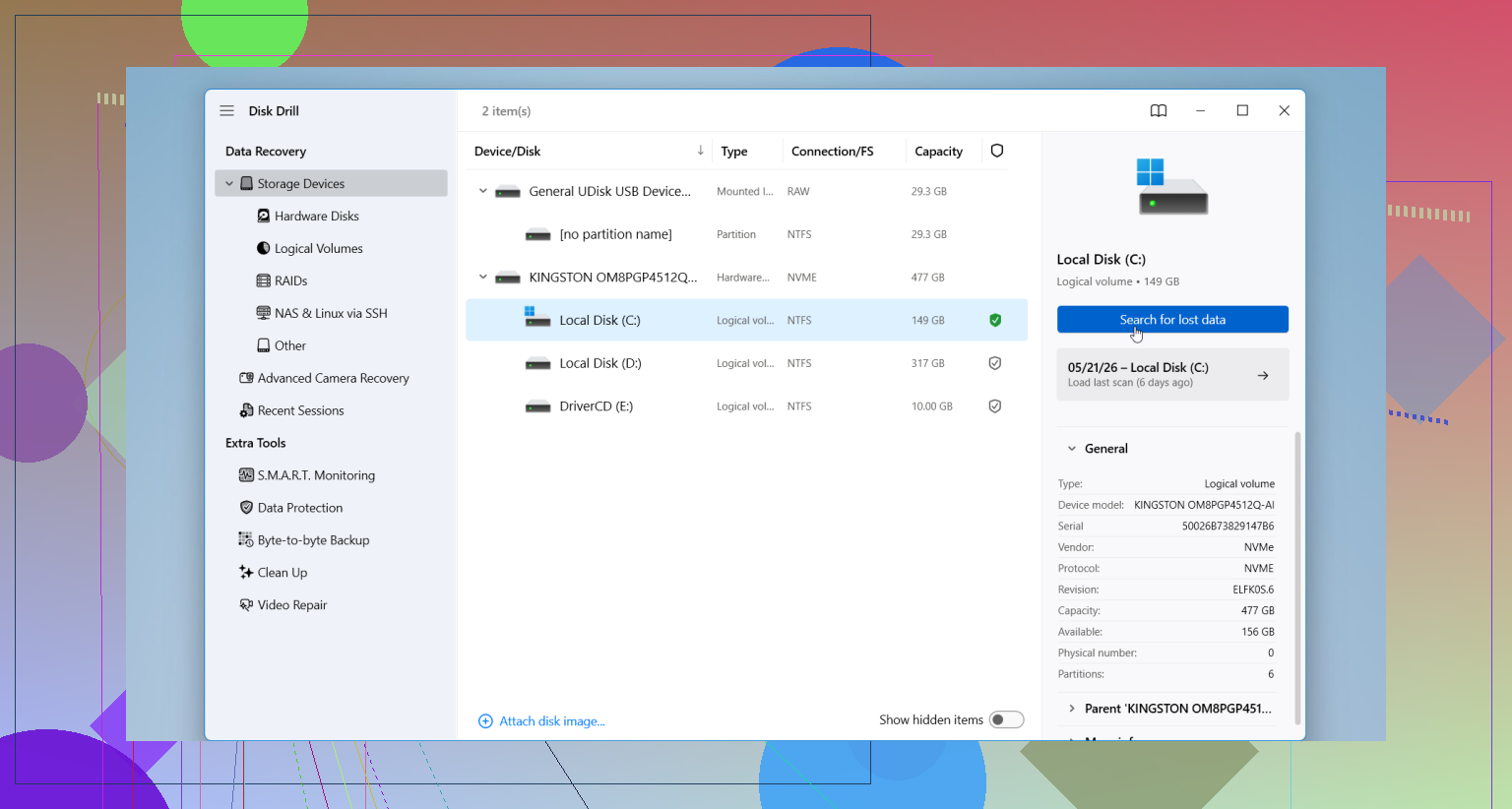
If none of those turns anything up, move to recovery software. I’d start with Disk Drill. I found it easier than some of the other tools, and it handles deleted files, formatted drives, damaged partitions, and RAW volumes without much setup. The preview feature helps too, since you can see whether the file still opens before saving it.
The usual flow looks like this:
- Plug the HDD into your computer.
- Install Disk Drill on a different drive, not the damaged one.
- Launch it and pick the problem HDD.
- Run the scan.
- Preview what it finds.
- Save recovered files to another disk.
Don’t restore anything back onto the same HDD. I made that mistake years ago once, and yeah, bad idea.
One more thing. If the drive starts clicking harder during the scan, keeps disconnecting, or locks up your whole system, stop there. Unplug it. At that point the problem looks physical, and forcing more DIY recovery tends to make the outcome worse, not better.
First thing, swap the simple stuff before you do anything fancy. A lot of external drives fail because of the cable, USB port, or enclosure board, not the disk itself. Try:
- A different USB cable.
- A different port.
- A different computer.
- If it has a power brick, check that too.
Then open Disk Management on Windows or Disk Utility on Mac. If the drive shows there with the right size, your odds are better. If it shows as unallocated, RAW, or no file system, do not format it no matter what the popup says.
I agree with @mikeappsreviewer on stopping writes. I disagree a bit on jumping into a long scan right away if the drive is unstable. If it keeps dropping, clone it first, then work from the clone. Safer. Less stress on the failing disk. Tools like ddrescue are great for this, but they take some nerd patience, ngl.
If the drive mounts for even a minute, copy your top priority folders first. Family photos, tax docs, work files. Don’t chase every file at once.
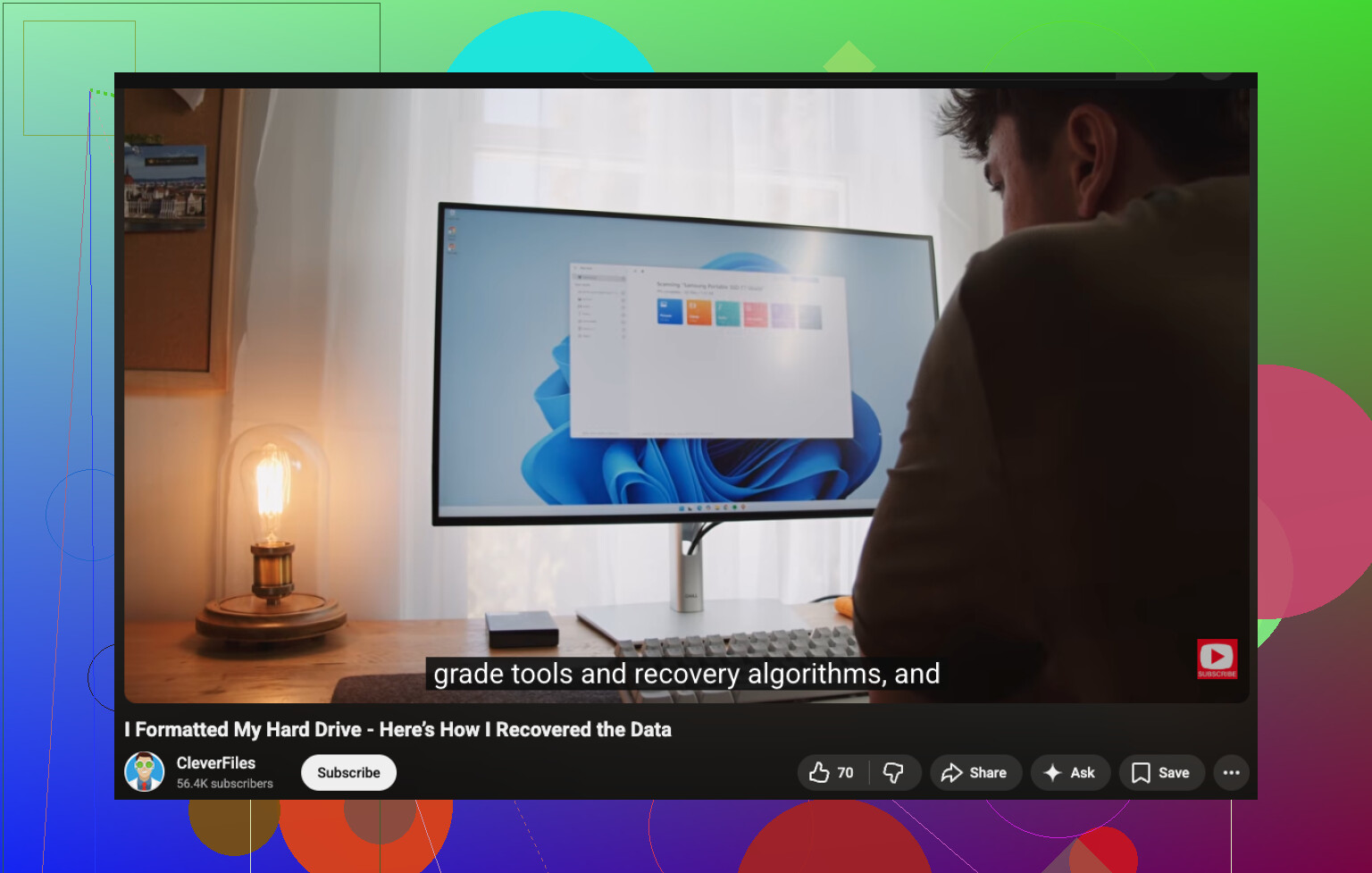
If it stays visible and reads, Disk Drill is a solid home option for external hard drive data recovery. Use it on another drive, recover to another drive. Not back to the same one. If you want a visual walkthrough, this external hard drive file recovery video guide is easy to follow.
If you hear clicking, grinding, or the drive vanishes every few seconds, stop. DIY gets risky fast. At that point a lab is the safer move, even if it sucks price-wise.
Before you run anything, check Device Manager on Windows or System Information on Mac, not just File Explorer/Finder. If the drive is detected at the hardware level but not mounting, that points more to file system or partition damage than total death. Slightly different problem, slightly different odds.
I mostly agree with @mikeappsreviewer and @andarilhonoturno, but I would not rush to keep reconnecting it 20 times ‘just to see.’ People do that and make things worse. If it appears once, grab the most irreplaceable stuff first, not the biggest folders.
One thing they didn’t really mention is the enclosure itself. A lot of external HDDs are just a normal SATA drive inside a cheap USB enclosure. Sometimes the USB bridge board dies while the actual disk is fine. If you’re comfortable opening it without breaking clips or voiding anything, you can remove the drive and connect it directly with a SATA-to-USB adapter or dock. That has saved my butt before. If it’s a WD model with hardware encryption built into the enclosure, though, don’t do that blindly because the data may not read correctly outside the original board.
Also, if the drive spins up but asks to initialize, format, or ‘fix’ errors, ignore that. Those wizards are not your freind right now.
For software, Disk Drill is reasonable if the drive stays readable long enough. I’d also sort found files by previewability and file type first so you can triage faster. And if you want more opinions on best hard drive data recovery software recommendations, that thread is worth a look.
If the drive is silent and totally dead, or clicking, home recovery is kinda over. That’s lab territory.