My USB stick formatted as exFAT suddenly became corrupted after being unplugged, and Windows now asks me to format it before use. I need help finding the safest way to recover the files without making the damage worse. What exFAT recovery tools or steps should I try first?
exFAT recovery is still possible in a lot of cases, so I wouldn’t write the card off just because it suddenly looks corrupted or Windows is asking to format it.
The main thing is to stop touching the card. Don’t format it. Don’t run CHKDSK. Don’t try to “repair” it first. If this is file system damage or deleted files, those fixes can make recovery harder. A quick format usually wipes the file system records rather than the actual contents, so the files may still be there until something new overwrites them.
When I deleted some camera videos from an exFAT SD card, I removed the card right away and used a card reader on my PC. I’m pretty sure that helped more than anything else, since the camera never got a chance to write new data to it.
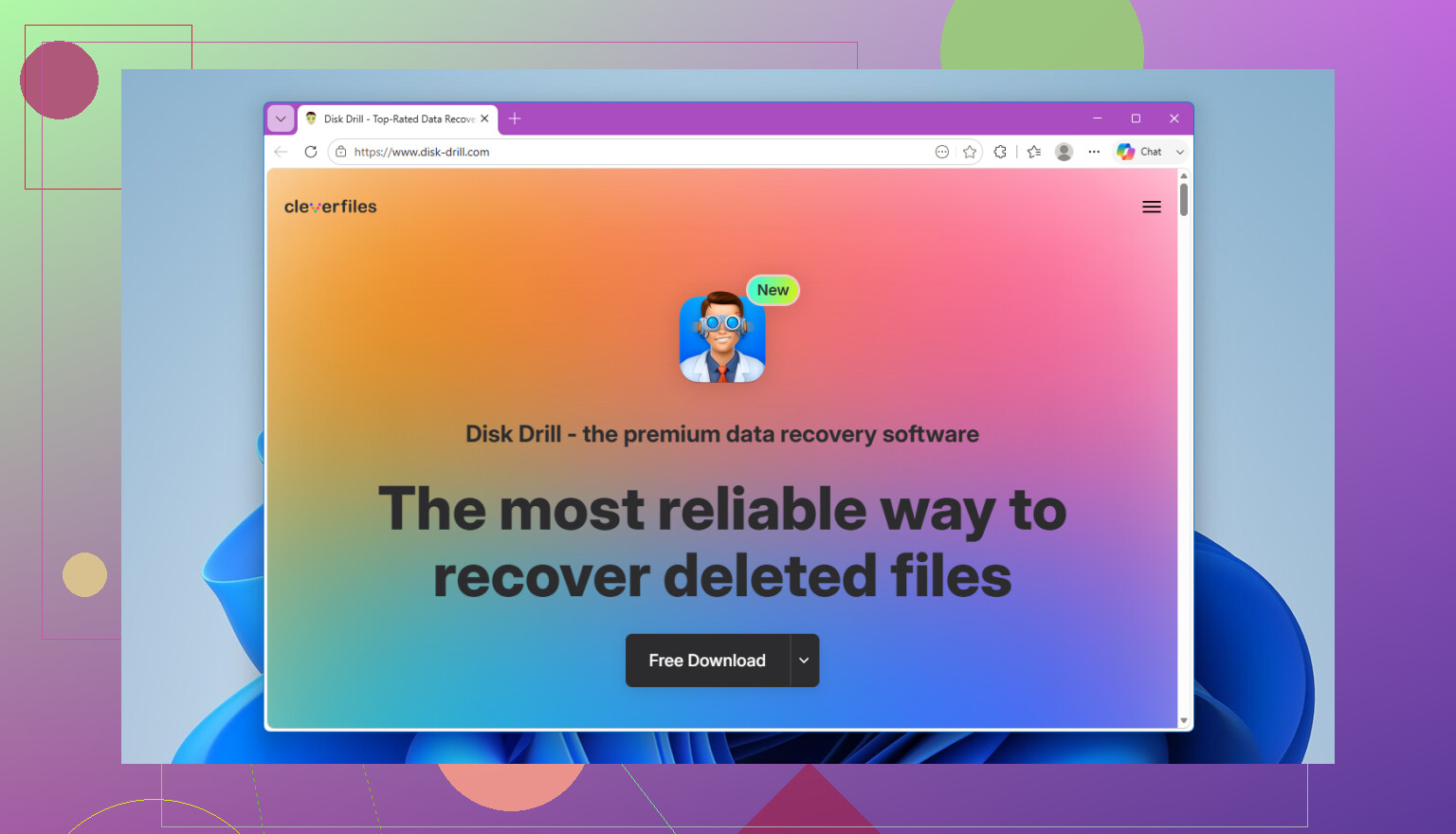
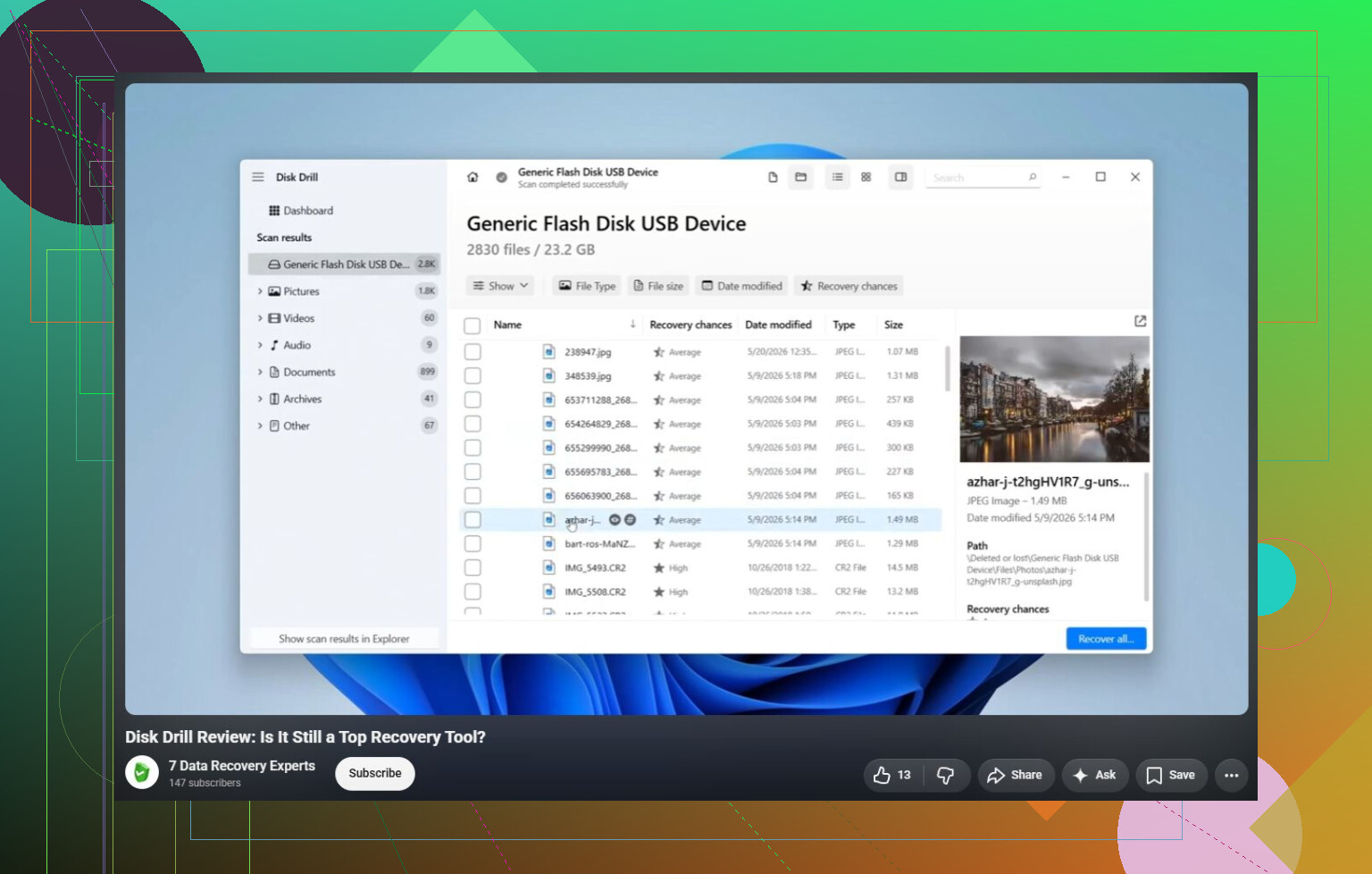
I used Disk Drill for it. The basic flow is pretty straightforward:
- Install Disk Drill on your computer, not on the SD card or USB drive.
- Plug in the exFAT card or USB device.
- Select the device and click Search for lost data.
- Use Universal Scan in most cases.
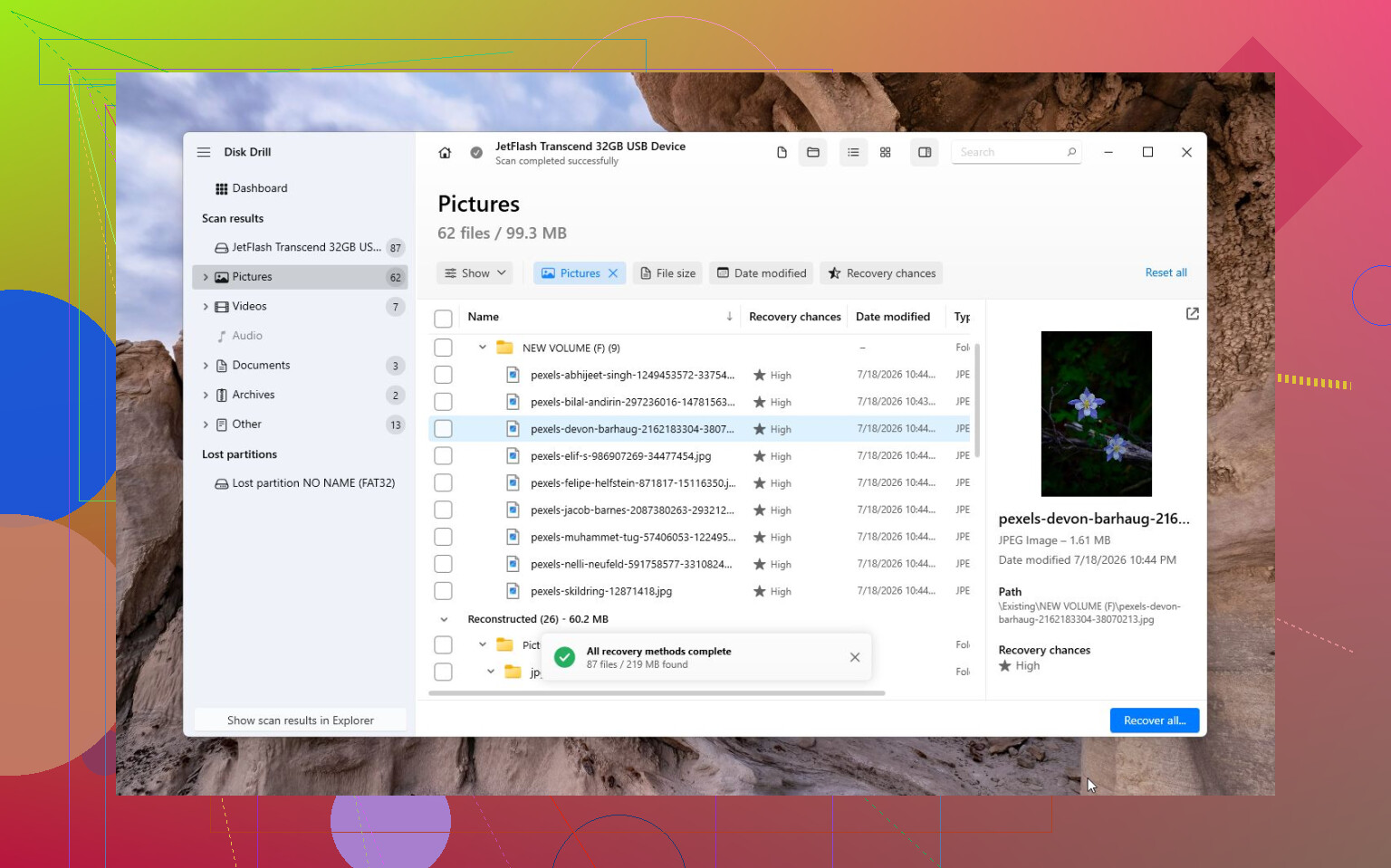
- Wait for the scan to finish and check the previews.
- Save recovered files to your computer or another drive. Don’t recover them back onto the same card or USB stick.
On Windows, it lets you recover up to 100 MB for free, which is at least enough to confirm whether the files are showing up before you pay for anything. Another useful option is disk imaging. If the SD card keeps dropping out, takes forever to read, or seems flaky, make an image first and scan that instead. It puts less stress on the original device.
For camera footage, especially from something like a DJI drone, GoPro, Canon, Sony, or similar camera, I’d also try Advanced Camera Recovery (ACR). Video files can be split into fragments on the card, and regular scans don’t always rebuild them properly. ACR is meant for that kind of fragmented camera video, so it’s worth checking before assuming the clips are gone.
If Disk Drill doesn’t turn up what you need, TestDisk is another option. It’s free and more technical, but it can be very good when the problem is a broken partition table or corrupted file system rather than a normal deletion.
The one time I wouldn’t keep messing with DIY tools is when the device looks physically bad. If it won’t show up on multiple computers, disconnects constantly, has visible damage, or gets strangely hot, stop using it and talk to a recovery lab. Many of them do free evaluations. Depending on the damage, recovery can be a few hundred dollars or well over $1,000, but if the hardware failed, software usually won’t solve it.
So yes, recovering files from an exFAT SD card or USB drive without a backup can work. Just stop using the device immediately, recover the files first, and only think about formatting or repairing it after your data is safe.
Don’t let Windows “initialize,” format, or run a repair on it just to see what happens. I agree with the no-CHKDSK advice, but I’d be even more cautious about repeated scans on the actual USB stick if it was corrupted after being yanked out. First check whether it shows its correct size in Disk Management. If it shows 0 bytes, nonsense capacity, or keeps reconnecting, stop and don’t waste writes/reads on recovery apps. If it shows the right capacity, make a sector image to another drive and run recovery against that image instead. Disk Drill or TestDisk can be useful, but the safer workflow is image first, recover second, format never until the files are already copied somewhere else.
Plug it into a stable USB port directly on the computer and check only whether the device reports the right size. Don’t use a front-panel port, hub, TV, printer, or anything flaky while doing recovery. A bad connection can look like file system corruption, and repeated disconnects during scans can make the situation worse.
I agree with @boswandelaar on imaging first, but I’d be careful about what “image first” means here. Don’t clone it to another USB stick of the same size and then start experimenting on the original. Make a raw image file on a healthy internal drive or external hard drive with plenty of free space. If you’re comfortable with Linux, ddrescue is usually the better tool for a questionable stick because it can skip bad areas and resume using a log file. Do a light first pass before letting anything grind away with retries for hours.
After that, scan the image with recovery software. Disk Drill is fine for a more user-friendly scan, and TestDisk is worth trying if the exFAT boot sector or partition table is the main issue. The important bit is that any “repair” attempt should be done on a copy, not the only original. If the files are business-critical or irreplaceable family stuff, I’d actually stop before the imaging step if the stick is disconnecting, heating up, or showing changing capacity. USB flash drives can fail in ugly ways, and software can’t fix a dying controller or NAND.
Expect the recovery to be messy even if most of the data is still there. With exFAT, a bad unplug can leave the allocation info or directory records in a weird state, so you may get files back but lose folder names, original filenames, or some partly written files. That doesn’t mean the recovery failed. It just means the file system metadata took the hit.
I’d follow the image-first advice already given, but I’d set expectations before spending hours on tools. If the USB stick was just used for copied documents, photos, installers, etc., recovery software has a decent shot. If something was actively writing to it when it was pulled, like a video export, backup job, VM, database, or archive download, those specific files may be corrupt even if everything else comes back fine.
A small practical thing people forget: make sure the destination drive has more free space than the USB stick, not just more space than the files you remember. Imaging a 256 GB stick needs roughly 256 GB free for the image, then more space again for recovered files. Don’t point Disk Drill, PhotoRec, R-Studio, or anything else at a nearly full C: drive and then wonder why the recovery is incomplete or the PC gets unstable.
I’d avoid judging tools only by whether they show the original folder tree. If the file system structure is damaged, a “deep scan” may find files by signatures instead, which can produce generic names like file000123.jpg. Annoying, but sometimes that is the best you’re going to get from a pulled exFAT drive. Preview a sample of important file types before paying for anything, especially Office files and videos, because seeing filenames in a scan is not the same as having usable recovered files.
After recovery, don’t trust that stick again for anything important. You can reformat it later for testing, but a USB drive that corrupted once after an unplug is now a cheap scratch drive at best. The safest long-term fix is boring: copy the recovered files to two places, then replace the stick.