A file transfer from my SD card to my computer failed partway through, and now some photos and videos are missing or won’t open. The card is still detected, but I’m worried using it more could overwrite the lost files. I need help with safe SD card data recovery steps, what software to try, and how to recover files after a failed transfer without making things worse.
I did this once with a 128GB card after a trip, hit delete on the wrong folder, then sat there staring at the camera like an idiot. So first thing, take the SD card out now and leave it alone. No more photos, no formatting, no 'quick test' shots.
The reason is simple. Deleting a photo usually removes the file entry, not the photo data itself. The card marks the space as free. Your images often still sit there until new data lands on top of them. If you keep using the card, you raise the odds of overwriting the stuff you want back. After overwrite, you're done.
The safest path I know looks like this:
1. Use a real card reader. Put the SD card in your computer's SD slot or a USB card reader. Don't hook up the camera or phone with a cable and hope for the best. A lot of devices connect in MTP mode, and your computer won't see the raw storage in the way recovery tools need for a deeper scan.
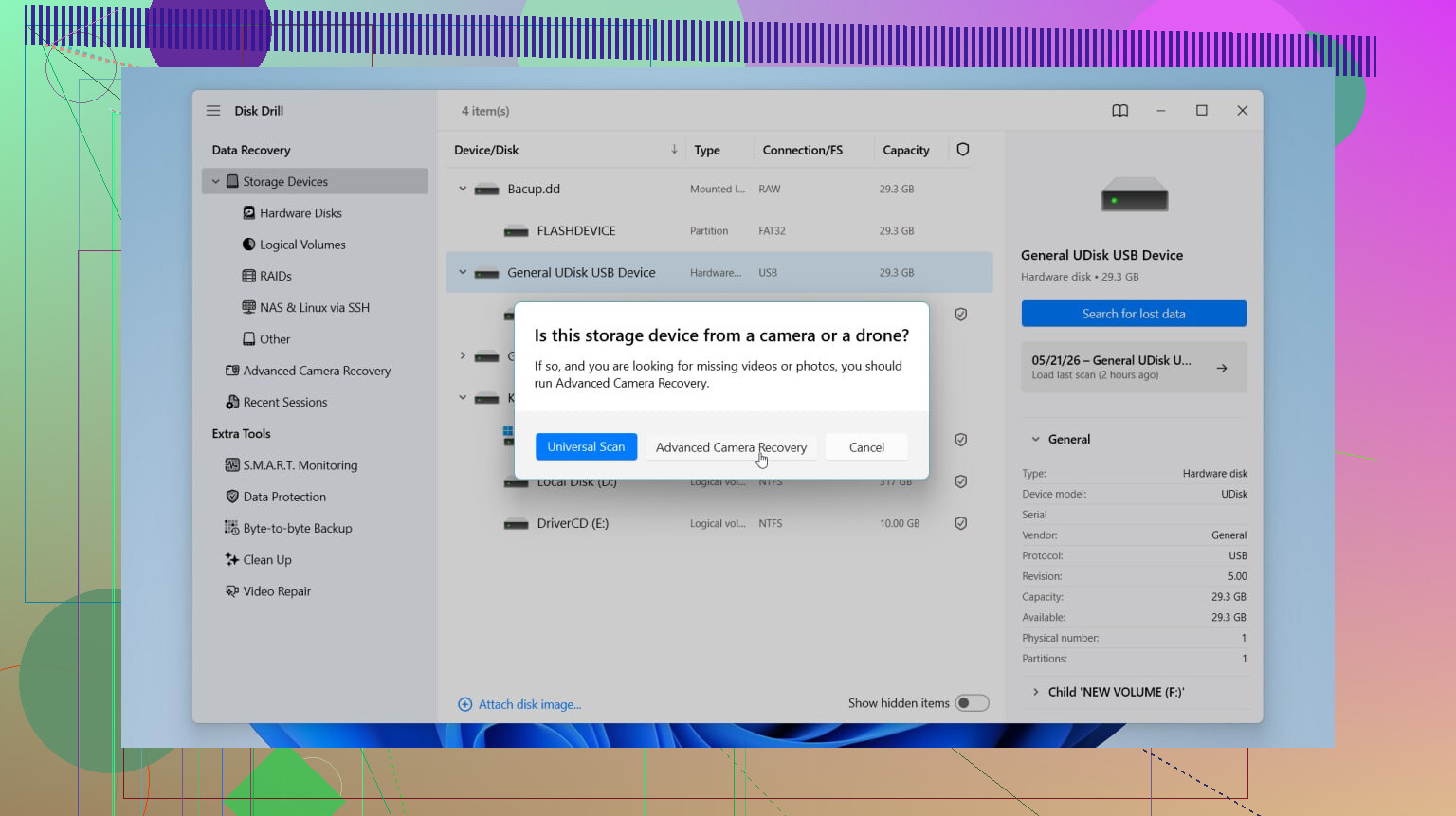
2. Scan it with recovery software. I’ve tried a few, and Disk Drill gave me the least grief on SD cards. What I liked was the preview. I could check photos before restoring them, and for video files it did a better job than some other apps I tested. There’s also an advanced camera recovery mode for fragmented video, which matters if the footage came from a drone or a mirrorless body. On Windows, the free tier lets you recover up to 100MB, so you get a quick read on whether your files are there.
3. Restore the recovered files somewhere else. This part trips people up all the time. When the app asks where to save recovered files, do not point it back to the SD card. Save to your computer's internal drive or another external drive. Writing recovered files onto the same card risks overwriting more deleted data while you're still trying to pull it off.
If you don't want to use Disk Drill, these are the usual alternatives people bring up:
- R-Studio works well if your card is full of RAW files like NEF or CR2. One thing I liked is disk imaging, where you make a byte-for-byte copy of the card first and work from the copy instead of stressing the card again. Downsides, it feels dense, and the trial has file size limits.
- TestDisk is free and open source. Old-school tool, lots of respect around it for a reason. But it's command-line driven, no friendly interface, and I wouldn't hand it to someone who wants to sort through deleted vacation photos fast.
- DiskDigger is lighter and easy to run on Windows since it doesn't need a full install. It recognizes a lot of image and video file types. The free version gets annoying if you have a huge batch, since you end up confirming files one by one with a delay. There’s an Android build too, though it works best on rooted phones.
One more thing, skip repair tools like CHKDSK on Windows or First Aid on macOS if your goal is deleted photo recovery. Those tools try to repair file system problems, not bring back deleted media. I've seen them tidy up a card in a way that made recovery worse, not better.
So the short version is, stop using the card, use a card reader, scan with a recovery tool, and save the results to another drive. That's the cleanest shot you have.
Pull the card out and work from a copy, not the card itself. I agree with @mikeappsreviewer on stopping use right now. Where I differ is this, if the files are super important, I would image the SD card first before running any repair or recovery pass. Fewer reads on the original card. Less risk if the card is starting to fail.
Fast path:
- Put the SD card in a reader.
- Make an image of the whole card to your computer or another drive.
- Run recovery on the image.
- Save recovered files to a different drive.
Why image first? Failed transfers sometimes point to file system damage, but they also point to a bad reader, flaky cable, or dying flash cells. If the card gets worse during scanning, you still have the image. R-Studio and other tools do this well. If you want a simpler UI, Disk Drill is fine and tends to do well with photo and video previews on SD cards.
One thing I would try before full recovery, copy the DCIM folder with a tool that verifies reads and skips bad sectors. On Windows, TeraCopy helps. On Mac or Linux, rsync is solid. If some files copy but won’t open, they might be partial files from the interrupted transfer, not deleted files. Different problem.
Do not run CHKDSK first. Bad move for photo recovery.
If you want a quick look at how Disk Drill handles SD card recovery, this Disk Drill review covers the scan, preview, and recovery flow in plain English: watch this Disk Drill SD card recovery walkthrough
Also, test a second card reader if you have one. I’ve seen cheap readers cause this exact mess. Annoying, but true.

I mostly agree with @mikeappsreviewer and @viaggiatoresolare, but I’d hold off on doing a bunch of deep rescans right away if the card might be physically flaky. If the transfer failed because the card is starting to die, every extra read is a bit of a gamble.
What I’d do first is check the card’s behavior, not “repair” it. If it mounts slowly, disconnects randomly, or throws I/O errors, stop and image it with something designed for unstable media if you can. If it reads normally, then try copying only the still-visible files first, because some of your “missing” stuff may just have bad file entries while other files are perfectly fine.
Also, if videos won’t open but copied at the expected file size, they may be corrupted rather than deleted. That matters. Recovery software like Disk Drill is great for finding lost files on an SD card, but damaged MP4 or MOV files sometimes need a separate video repair step after recovery. People skip that and assume the recovery failed when the file is actually there, just broken.
And yeah, don’t save anything back to the card. Obvious, but people still do it and then come back wondering why things got worse.
If you want extra reading, this Reddit thread on recovering deleted files from an SD card is worth skimming too. It covers a few recovery software options and what people ran into in the real world.
Short version: preserve first, copy visible files second, recover deleted files third, repair broken videos last. That order matters a lot more than ppl think.