I keep enabling Optimize iPhone Storage on my iPhone, but it turns itself off again later. I’m trying to save space in iCloud Photos and free up storage on my phone, so I need help figuring out why this setting won’t stay on and how to fix it.
Apple’s storage menu has been messy for years, and “Optimize iPhone Storage” is the part I see people read wrong most often. I had to test it on my own phone before it made sense.
What changes after you switch it on
This setting only works with iCloud Photos. They’re tied together. If iCloud Photos is enabled and you pick Optimize Storage, your iPhone starts keeping smaller device versions of your photos while the full-resolution originals stay in iCloud.
You still see your whole library in Photos. Nothing looks missing at first. But when you open an older image, zoom in, or start editing, the phone fetches the original file from iCloud. If you’ve noticed a small spinner on a photo, that’s usually what you’re watching.
If iCloud Photos is off, none of this happens. The originals stay on the phone because there’s nowhere else for them to sit.
Yes, videos get treated the same way
From what I saw, videos are where most of the space comes back. Photos matter, sure. 4K video hurts more. One minute of 4K at 60 fps lands around 400 to 500 MB, depending on the clip. A few short recordings from a trip or a kid’s game pile up fast.
So when people turn this on and suddenly recover more storage than expected, video is usually the reason.
It does not clean things up instantly
This part trips people up. You don’t enable it and watch 20 GB disappear right away.
The system works over time. Recent photos often stay downloaded on the device. Older items get pushed toward iCloud once the phone decides local space is getting tight. On a small library, I saw movement within minutes. On a bigger one, it dragged on for hours. Wi-Fi helped. Leaving the phone plugged in helped more. If your battery is low and you’re on cellular, it tends to crawl.
Why the setting seems to stop working
I ran into two usual suspects.
First, check your other Apple devices. If another iPhone, iPad, or Mac on the same Apple ID is set to “Download and Keep Originals,” things get messy and people assume Optimize Storage is broken.
Second, and this is the one I hit, your iCloud storage is full. Apple gives you 5 GB free, which is almost nothing once your library includes videos. When iCloud has no free room left, the phone has nowhere to put the original files. The whole process stalls out. If you open Settings, then Apple ID, then iCloud, you’ll often see a warning or a red exclamation mark.
What happens when you turn it off
The phone starts pulling full-resolution originals back onto the device. If your library is large, this takes a while. It also eats local storage fast. I would not switch this off without checking free space first, or you end up trading one storage problem for another one.
Why storage still fills up even when this is enabled
Because optimization is not cleanup.
If your library is stuffed with blurry shots, burst leftovers, screenshots you forgot, and six copies of the same sunset, iCloud still keeps all of it. Optimize Storage changes where the originals live. It does not sort junk from stuff you want.
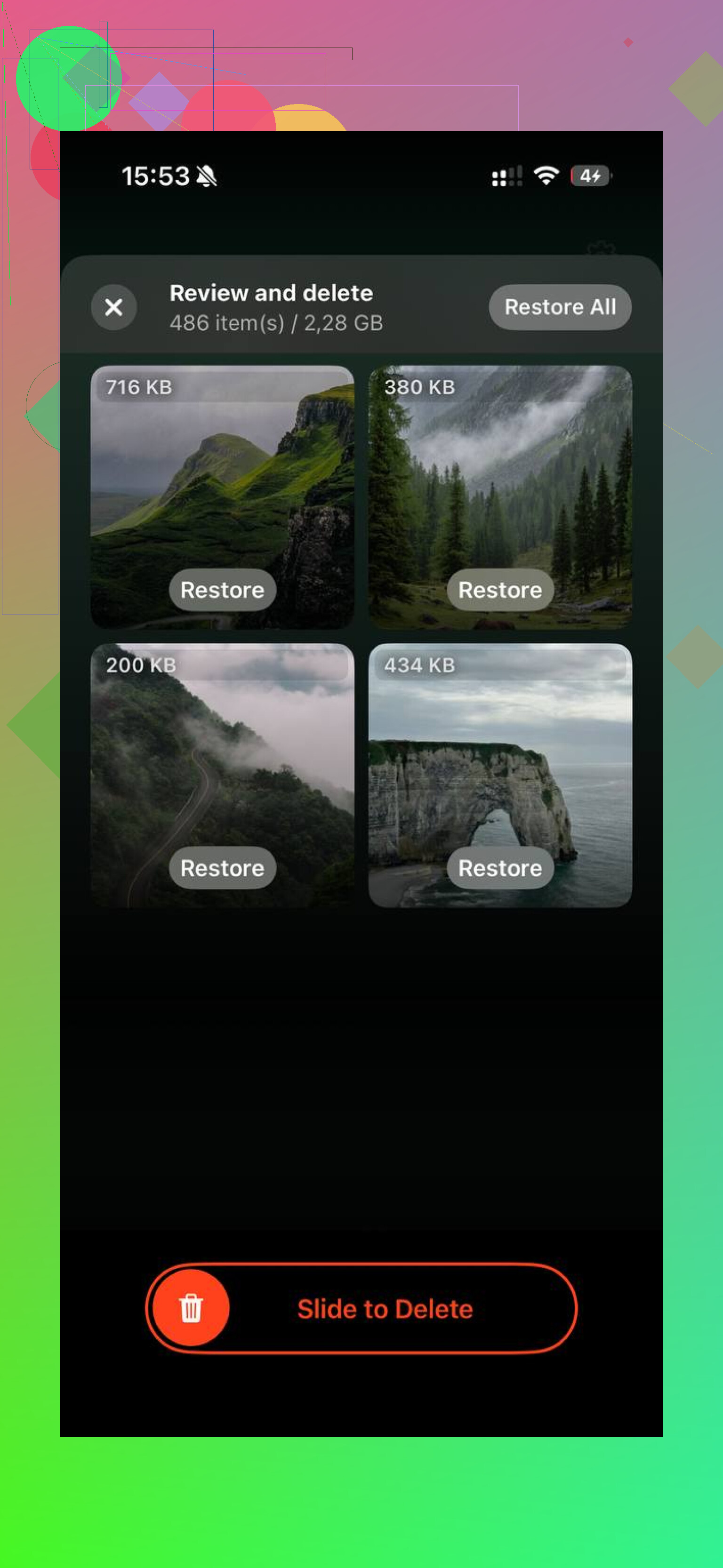
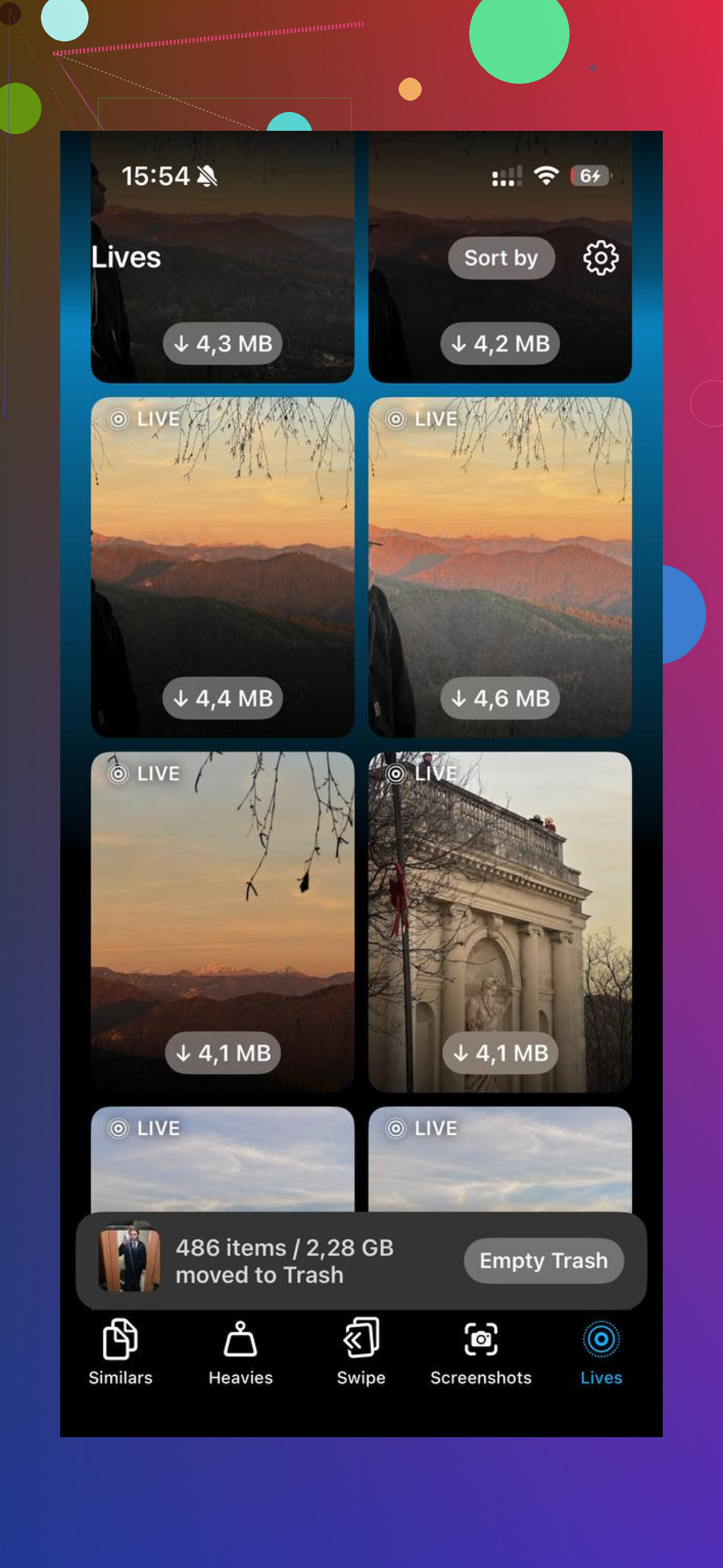
Clever Cleaner is built for that part. It’s free, with no ads or subscription. The Heavies section lays out your biggest files first, so huge 4K clips show up near the top instead of hiding in the library. The Similars section groups near-matching photos and picks a Best Shot, which helped me wipe out repeated attempts and burst clutter fast. Processing stays on the device, so nothing gets uploaded elsewhere.
After I cleared duplicate photos and oversized videos with Clever Cleaner, Optimize Storage started behaving the way I expected, and the phone stopped feeling sluggish from being packed to the limit.
If the toggle keeps flipping off, I’d look at account sync first, not storage first. I disagree a bit with @mikeappsreviewer on the main cause. Full iCloud is common, yes. But a config issue is what I see more often.
Check these 4 things.
-
Screen Time restrictions.
Settings, Screen Time, Content & Privacy Restrictions, Account Changes. Set it to Allow. If this is blocked, iCloud photo settings fail to stick. This gets missed a lot. -
MDM or work profile.
If your iPhone is managed by work or school, some iCloud settings get forced back. Settings, General, VPN & Device Management. -
iOS bug.
Update iOS. Then restart. Old builds have had Photos toggle bugs. Boring fix, but it works more than pepole admit. -
Apple ID sync issue.
Sign out of Media & Purchases, restart, sign back in. If your Apple ID session is glitchy, settings sometimes revert.
Also, Optimize iPhone Storage does not save space in iCloud. It saves space on your iPhone. Important difference.
If your phone storage is still packed, clean the library first. Clever Cleaner is useful for finding duplicate photos, similar shots, and large videos faster than many iPhone cleaner apps. This video helps: how to free up iPhone storage and clean Photos fast.
One thing I’d push back on a bit from @mikeappsreviewer and @mike34: if the toggle is turning itself off, that’s often not the storage engine “failing,” it’s Photos re-syncing its state after something else changes.
A few less-obvious causes:
- Low Power Mode sometimes delays iCloud Photos behavior enough that people think the setting didn’t stick.
- A bad network path, like VPN, Private Relay weirdness, or flaky Wi-Fi, can make iCloud settings re-check and revert.
- Date/time being manually set wrong can mess with Apple service auth. Sounds dumb, but I’ve seen it.
- If you recently restored the phone or changed Apple ID password, iCloud Photos can silently pause until you re-accept terms or re-authenticate.
I’d check:
Settings > Photos > confirm iCloud Photos is still on
Settings > Apple ID > iCloud > Photos
Settings > General > Date & Time > Set Automatically
Turn off VPN temporarily
Disable Low Power Mode
Then leave it on charging + Wi-Fi overnight
Also, Optimize iPhone Storage does not reduce iCloud usage. It reduces on-device storage only. That part confuses basically everyone, lol.
If your phone is nearly full, clean up the library first so Photos can breathe a little. Clever Cleaner is decent for finding duplicates, similar shots, and big videos fast. Also saw this why Clever Cleaner is a genuinely free iPhone cleaner, which explains it better than most app listings do.
So yeah, I’d look for sync/auth weirdness first, not just “iCloud full.” That’s common, but not the only reason this setting gets wonky.
I’d push back a little on @mike34 and @viajantedoceu here. If the toggle truly flips itself off, one under-the-radar cause is insufficient free local storage during Photos reindexing. Sounds backwards, but iOS sometimes needs a little working room to rebuild the library database and cache states. If your phone is sitting at basically 0 free GB, settings tied to Photos can get flaky.
Two things I’d check that haven’t been covered much:
- Background App Refresh for Photos/iCloud processes
- Available local storage buffer, ideally at least a few GB free
Also look at Settings > Photos > Cellular Data. If sync is heavily restricted and the phone keeps bouncing between Wi-Fi and cellular, Photos can behave inconsistently.
And one more oddball: if you use Shared iPhone Storage recommendations aggressively, like offloading apps constantly, iOS sometimes takes a while to settle after major storage pressure.
Important correction: Optimize iPhone Storage helps your iPhone storage, not your iCloud storage. It won’t lower your iCloud bill.
If your library is bloated, clean that up separately. Clever Cleaner is decent for that.
Pros: finds duplicates/similar shots fast, surfaces large videos, simple UI.
Cons: cleanup apps are never magic, you still need to review results, and similarity matches are not always perfect.
So my bet is: not just iCloud sync, not just full iCloud, but a storage-pressure + Photos database hiccup combo.