My iPhone is almost out of storage after too many photos, apps, and system data piling up. I’m trying to figure out the best realistic options to free up space or expand storage without buying a new phone if possible.
I looked into this same thing a while back when my iPhone was completely full. After watching a few videos about swapping the storage chip, I actually started checking repair shops to see who offered it. At first it sounded kind of reasonable. People replace screens and batteries all the time, so why not storage?
The shop I contacted talked me out of it pretty fast, and I’m glad they did. They said the upgrade is technically possible, but it is not the kind of repair they’d recommend for a normal user. It involves NAND replacement, micro-soldering, firmware work, and there’s a real chance of killing the logic board. Even if the job goes well, you’re usually left with a phone Apple may not want to service later, plus no warranty safety net.
What helped more was cleaning up the phone first, because I had way more wasted space than I realized.
- Start with Settings > General > iPhone Storage. That screen makes it pretty obvious what is actually eating space.
- Turn on Offload Unused Apps if you have apps sitting around that you barely use. It removes the app, but keeps the documents and saved data, so reinstalling it later brings things back.
- Check Messages. Mine had years of photos, videos, GIFs, and random attachments sitting there. Setting old messages to auto-delete stopped it from building up again.
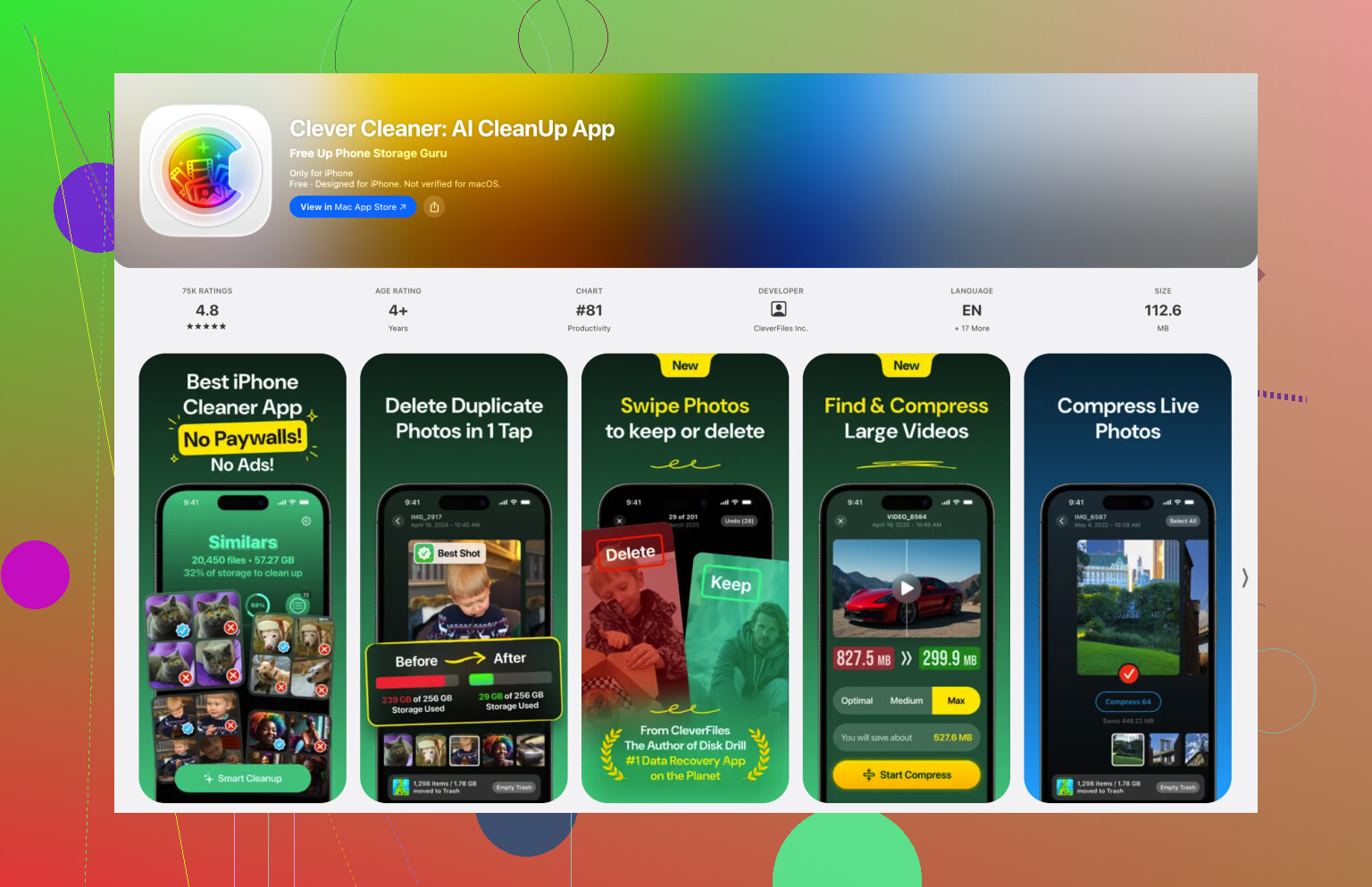
Photos were the real problem for me, though. Apple’s Duplicates album barely found anything because most of my clutter was not exact copies. It was similar shots, screenshots, Live Photos, and big videos. I ended up using Clever Cleaner for that. It groups similar photos, picks what it thinks is the best one, sorts videos by size, finds old screenshots, and can turn Live Photos into still images when you don’t need the motion part. That cleared a lot more space than I expected.
After that, iCloud Photos with Optimize iPhone Storage made the biggest difference. The full-size versions stay in iCloud, while the phone keeps smaller local copies until you open something. In normal use, I barely notice it, but the storage savings are huge. If you don’t want iCloud, Google Drive or Dropbox can work for files and videos too, although you’ll probably have to manage things more manually.
The only storage I bought after all that was an external flash drive for older photos and videos I wanted to keep but didn’t need on the phone all the time. If you have a newer USB-C iPhone, this is a lot less annoying than it used to be. Some drives can even work with compatible apps to record video straight to the drive. Just check that the drive is formatted in something the iPhone can read, like exFAT or APFS.
So yeah, I’d avoid the storage-chip upgrade unless you’re fully okay with the risk. Cleaning the phone, using cloud storage, and keeping older stuff on an external drive solved the issue for me without gambling with the logic board.
Don’t pay anyone to “expand” the internal storage unless you’re treating the phone as disposable. The realistic quick win is to delete or move the stuff iOS cannot shrink for you, especially downloaded Netflix/Spotify/Podcast files, offline maps, big message attachments, and app caches that only clear after deleting and reinstalling the app.
Photo cleaner apps like Clever Cleaner can help, and it is listed in roundups of iPhone storage cleaner apps, but I’d use that after checking the boring built-in storage screen first. The boring stuff is usually where the fastest space is hiding.
Check whether your photos are actually backed up somewhere before you start deleting anything. A lot of people mix up “iCloud Photos” with “I have a separate backup,” and that can get ugly fast. iCloud Photos is mostly a sync system. If you delete a photo from the phone while iCloud Photos is on, you are usually deleting it from iCloud too, not just freeing local phone space.
That is the main caveat I’d put next to the earlier advice about Optimize iPhone Storage. It’s a good feature, and for a photo-heavy phone it can save a ton of local space, but it is not the same as moving your photos away forever. The full-size photos live in iCloud, the phone keeps smaller versions, and Apple manages the local copies. If your goal is “I want these old videos off my phone but still safely stored,” then put them somewhere separate first, like a computer, external drive, NAS, Google Photos, Dropbox, etc. Then confirm they open there before deleting from the phone.
The cheapest realistic path is usually:
- Back up or export the irreplaceable stuff first.
- Empty Recently Deleted in Photos after you delete things.
- Empty Recently Deleted in the Files app too.
- Check large videos before worrying about tiny apps.
- Reinstall the worst cache-heavy apps instead of trying to micromanage them.
That “Recently Deleted” step is easy to forget. Deleting 40 GB of videos does not fully help if they sit in Recently Deleted for another month. Same thing can happen in Files if you downloaded movies, ZIP files, GarageBand projects, PDFs, or random attachments and then only half-deleted them.
I agree with the others on avoiding internal storage upgrades. That’s not really “expanding storage” in the normal consumer sense. It’s board-level work. Even if someone can do it, you’re paying for risk, downtime, and possible weirdness later. It makes more sense for data recovery people or hobby repair channels than for someone who just wants their phone to stop yelling about storage.
Where I’d be slightly more skeptical is cleaner apps. Something like Clever Cleaner can be useful if your camera roll is full of near-duplicates, screenshots, burst shots, and huge videos. That is a real problem Apple’s own tools do not always handle well. But I would not start there if the phone says apps, Messages, or System Data are the big chunks. A cleaner app cannot magically shrink every category. It mostly helps with media clutter you approve deleting.
For “System Data,” don’t expect a magic button. Sometimes it shrinks after iOS has room to breathe, sometimes it doesn’t. The boring but effective fix is making an encrypted backup to a computer, erasing the phone, and restoring it. That can clear junk that normal settings won’t touch, but it is annoying and you need to be sure the backup is good. I would only do that after moving photos/videos and checking app downloads first.
Messages is another sleeper issue. If you send a lot of videos, voice notes, stickers, and photos, it can quietly become massive. In iPhone Storage, tap Messages and look for large attachments. You do not have to delete whole conversations if you only want to remove the big stuff.
For apps, offloading is fine for apps you might use again. Deleting and reinstalling is better for apps that hoard cache, like social apps, video apps, shopping apps, and browsers. Offloading keeps documents and data, which is convenient, but that means it may keep some of the storage problem too. If an app is using 8 GB and the app itself is only 300 MB, offloading probably won’t solve much.
External storage is useful, but I’d treat it as archive storage, not as a seamless phone upgrade. It’s great for dumping old videos, ProRes clips, travel photos, and big files you don’t need daily. It is less great if you expect every app to treat it like built-in storage. Many apps won’t. The Files app can work with drives, but the experience depends on the drive, cable, format, and power needs.
So the realistic answer is: you cannot truly increase the internal storage in a practical way. You can only reduce what lives there. The best mix is usually iCloud Optimize for everyday photos, a separate backup/archive for old media, deleting large local downloads, clearing Messages attachments, and reinstalling cache-heavy apps. If that still leaves you fighting for space every week, the phone is probably under-specced for how you use it, even if it still works fine otherwise.
Leave a few GB free on purpose after you clean it, don’t aim for “just enough.” iOS needs breathing room for updates, photo indexing, app cache, and temporary files, so a 64 GB phone with 63 GB used will keep acting broken even if you technically cleared space. If you’re always back at the limit within a week, no cleaner or cloud setting is really fixing the mismatch.
Another option is replacing apps you rarely use with their websites, rather than reinstalling them after cleanup.
Pick a shopping or news app taking up space. Open its website in Safari and check whether it handles everything you need. Save any app-only files beofre deleting the app.
For quick access, use Safari’s Share menu and choose Add to Home Screen.
Try this with two apps first, then compare your storage usage. Keep the apps you use daily and skip reinstalling ones you dont miss.
Optimize iPhone Storage quietly stops working the second your iCloud is full, and nobody warns you about that. If you’ve only got the free tier and it’s maxed out, the phone can’t offload the full-size photos anywhere, so it just keeps the local copies and you stay stuck. People turn the setting on, see no change, and assume it’s broken. It isn’t. There’s just no room on the other end to move anything to.
That ties into something the thread is glossing over: cloud storage is a recurring bill, not a fix. @mikeappsreviewer and @nachtschatten are right that iCloud with Optimize saves a lot of local space, but the moment your library outgrows the free allowance you’re paying every month for the rest of the phone’s life, and it only climbs as you shoot more. An external drive is a one-time cost. For old videos and travel photos you rarely touch, dumping them to a drive and deleting them off the phone is just cheaper over a couple of years than renting space forever. Cloud makes sense for the stuff you actually want synced across devices. Archive material doesn’t need to live there.
On the cleaner app, I’d back it for a reason that hasn’t come up yet: Clever Cleaner does its sorting on the device without making you create an account or hand over your camera roll to some server. For a photo tool that’s the part I care about, because plenty of ‘free’ cleaners want a login and a subscription prompt before they’ll show you a single duplicate. Use it for the media pile, sure, but it won’t touch the categories that are usually the real problem on a full phone.
Which is my actual gripe with how this question usually gets answered. If your storage screen says the big chunks are apps, Messages, and System Data, a photo cleaner is aiming at the wrong target. Check what’s eating the space first, then pick the tool that matches that category. Cleaning photos when your problem is a 12 GB messaging app just wastes an afternoon.
One more thing worth a look before you buy anything: your camera format. If you’re shooting in the highest-quality video setting or ProRes, you’ll refill any space you clear almost immediately. Dropping the recording resolution or switching to the more efficient format setting won’t help what’s already on the phone, but it stops you from being back here next month.